
Strategy Hub: Strategy Whiteboard Sub-Section
Strategy Hub: Strategy Whiteboard Sub-Section
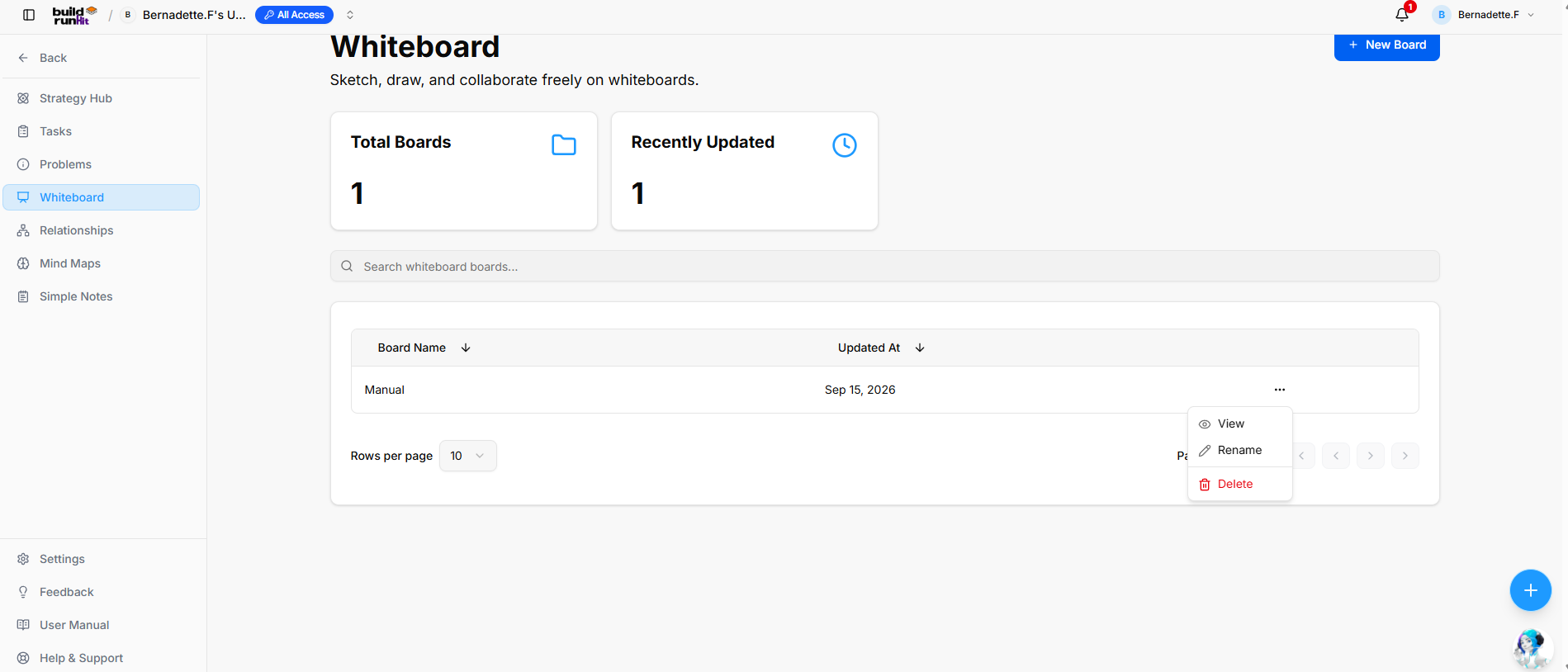
The Strategy Whiteboard sub-section provides a freeform canvas to sketch, draw, and collaborate visually with your team.
Create New Whiteboard Board
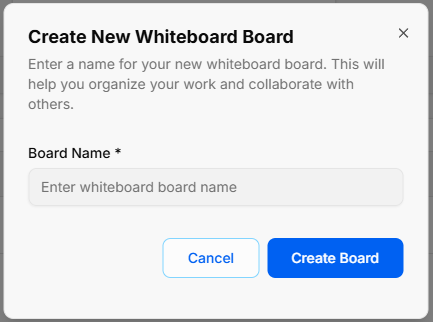
-
Open Modal: Click the blue + New Board button at the top right of the main directory view.
-
Enter Board Name: Type your desired title into the required Board Name * field (Enter whiteboard board name).
-
Confirm Creation: Click Create Board to generate your canvas, or select Cancel to close the pop-up without saving.
Overview Metrics & Search
-
Total Boards: Displays the total count of existing whiteboard boards in your workspace.
-
Recently Updated: Displays the number of board canvases updated recently.
-
Search Bar: Input field (Search whiteboard boards...) to filter boards by title.
Board Directory Table
-
Table Columns: Organizes saved canvases under Board Name and Updated At headers (both support column sorting).
-
Row Quick Menu (
...): Options accessible directly on individual board rows:-
View: Open the selected whiteboard canvas.
-
Rename: Update the whiteboard board title.
-
Delete: Permanently remove the whiteboard board.
-
-
Pagination Controls: Adjust items shown via Rows per page dropdown or step through pages using the navigation arrows.
Strategy Whiteboard
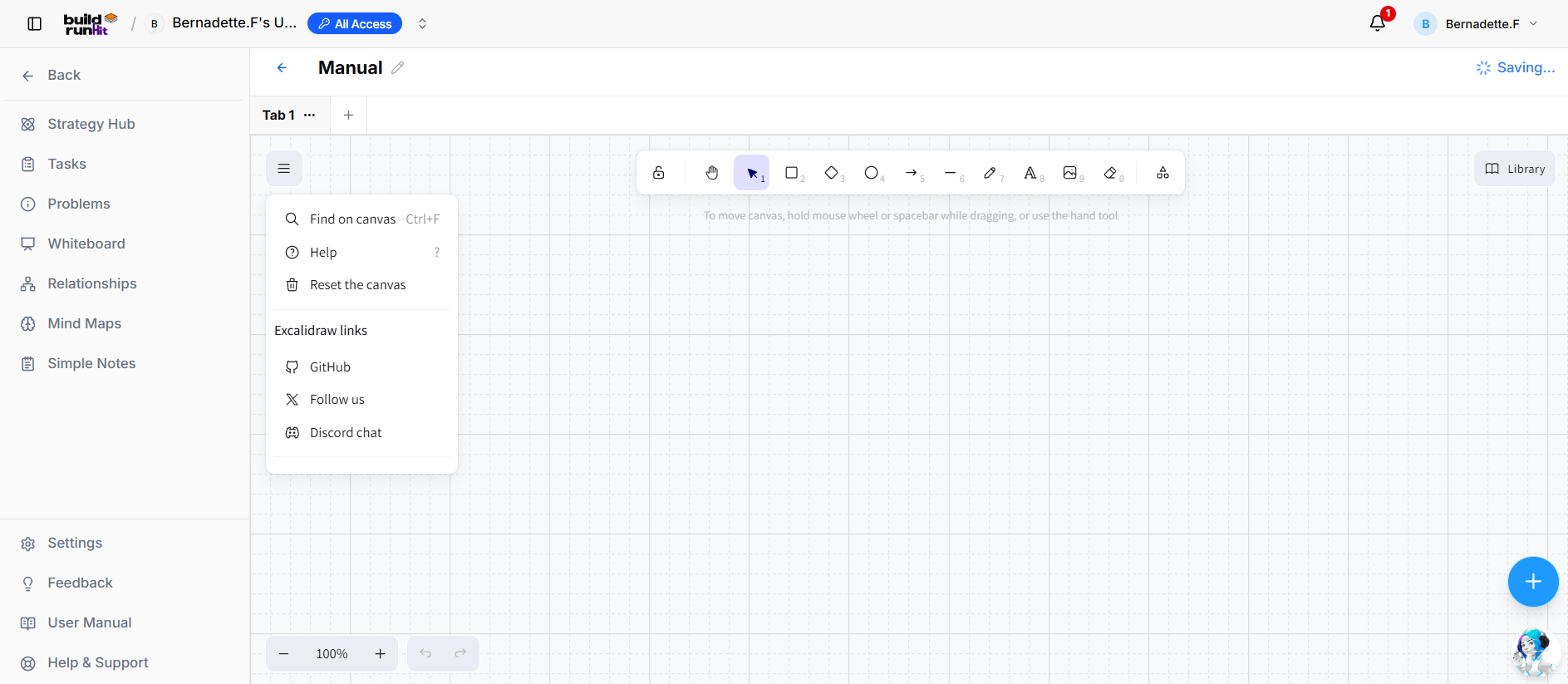
Top Navigation & Canvas Controls
Floating Main Toolbar & Shortcuts
-
Keep Selected Tool Active: Lock icon to maintain tool selection after drawing.
-
Hand (Panning Tool) (
H): Click and drag to move freely around the canvas layout. -
Selection (
Vor1): Select, move, and edit elements. -
Rectangle (
Ror2): Draw square and rectangular shapes. -
Diamond (
Dor3): Draw diamond and decision shapes. -
Ellipse (
Oor4): Draw circles and ovals. -
Arrow (
Aor5): Connect elements with directional arrows. -
Line (
Lor6): Draw straight connecting lines. -
Draw (
Por7): Freehand sketching and drawing pencil. -
Text (
Tor8): Insert text fields directly on the board. -
Insert Image (
9): Upload image files onto the canvas. -
Eraser (
Eor0): Click or drag to delete canvas elements. -
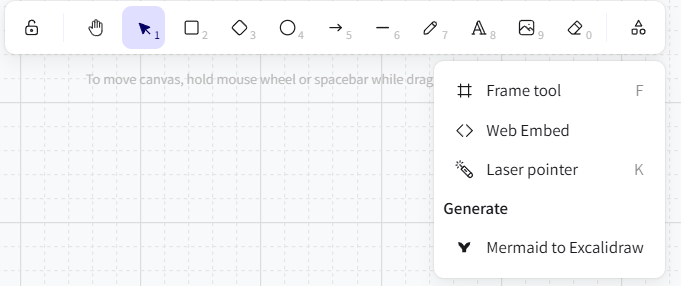
More Tools: Access additional drawing tools:
-
Frame tool (
F): Group elements inside labeled frames. -
Web Embed: Embed external web content or media directly onto the board.
-
Laser pointer (
K): Highlight areas during live presentations. -
Mermaid to Excalidraw: Generate visual diagrams from Mermaid syntax.
-
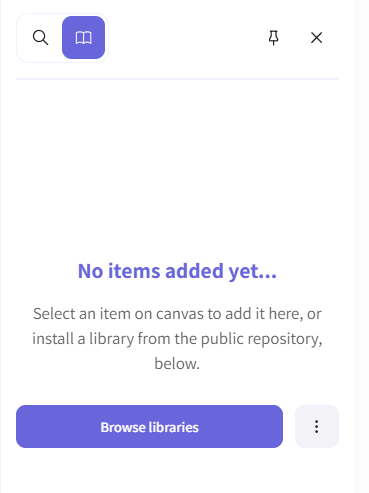
Library Panel
-
Library Toggle: Open the sidebar panel to access reusable components and shapes.
-
Browse Libraries: Search and import asset packages from the public repository.
-
Pin / Unpin: Keep the library panel fixed or floating on the canvas.
No comments to display
No comments to display