
BuildRunKit Projects: Projects Settings
BuildRunKit Projects: Projects Settings - Import / Export Tab
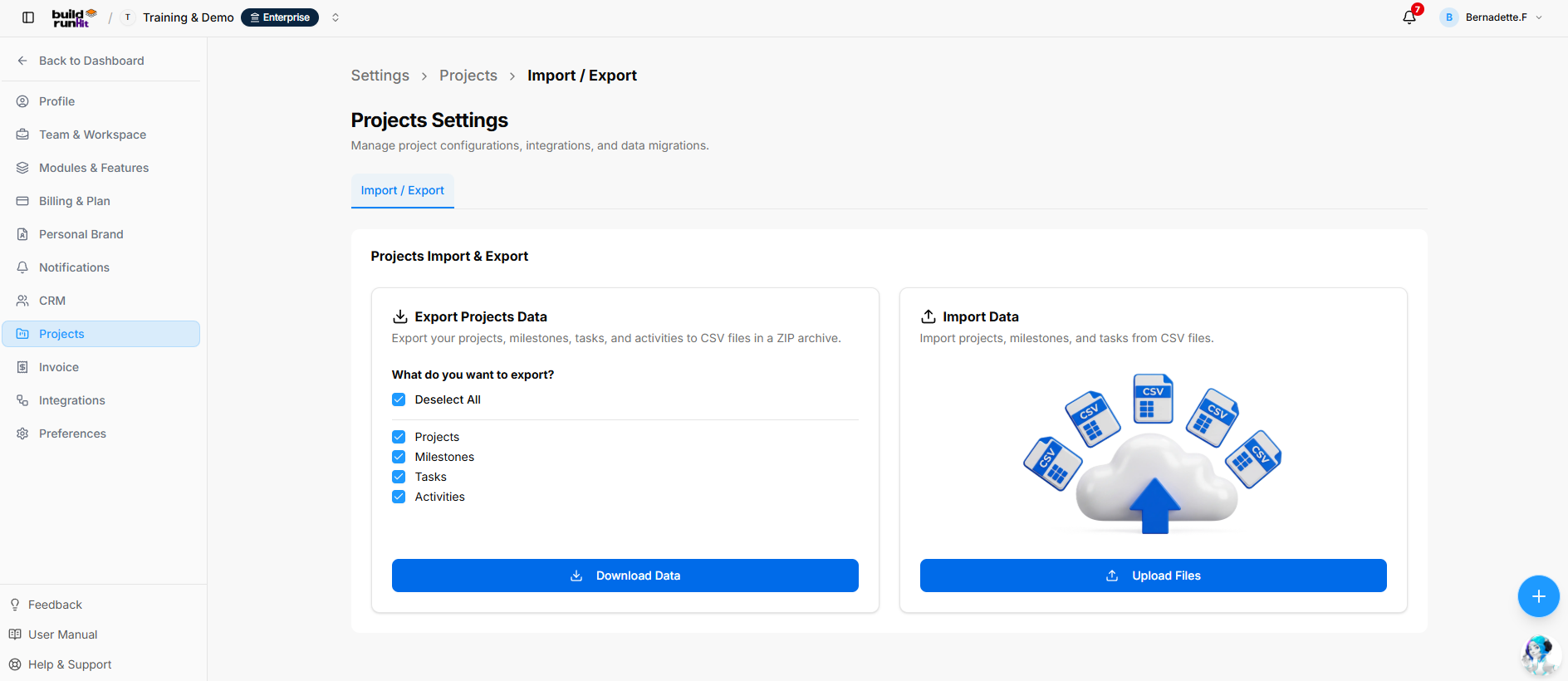
Location & Header
Projects Import & Export Dashboard
The dashboard provides separate panels for exporting project data and importing records from CSV files.
Export Projects Data Panel
The export panel lets users export projects, milestones, tasks, and activities as CSV files in a ZIP archive.
- Deselect All: Clears the selected data categories.
- Projects, Milestones, Tasks, and Activities: Select the data categories to include in the export.
- Download Data: Downloads the selected data as a ZIP archive.
Import Data Panel
The import panel lets users import projects, milestones, and tasks from CSV files. Use Upload Files to open the Import Assistant.
BuildRunKit Projects: Import Assistant Wizard Modal
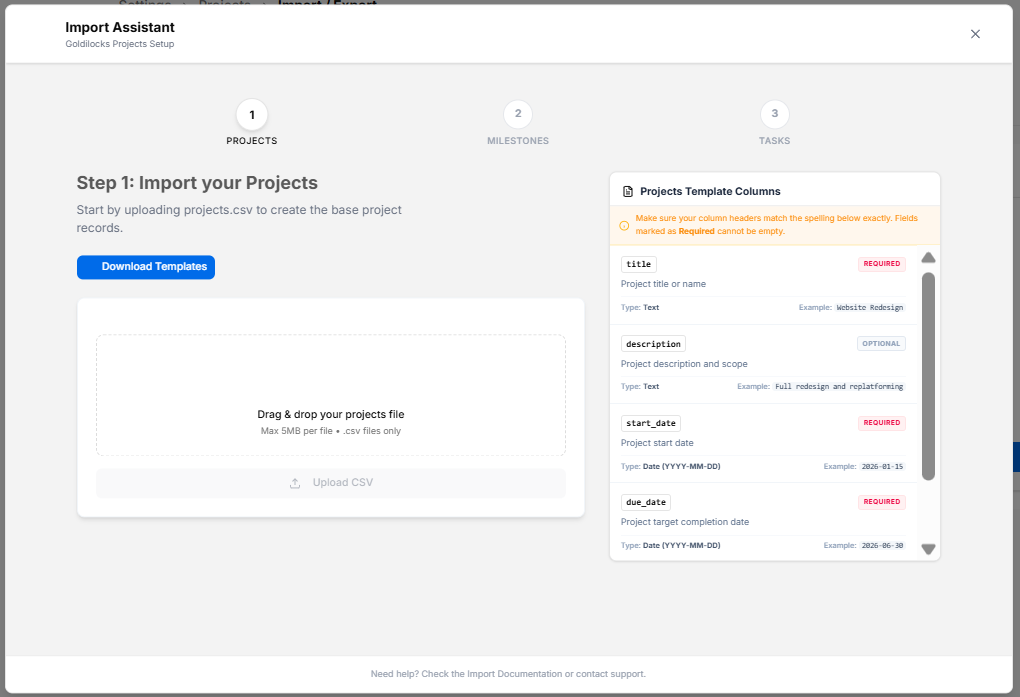
The Import Assistant guides users through importing projects, milestones, and tasks from CSV files.
Modal Header & Progress Tracker
- Import Assistant: Modal title.
- Goldilocks Projects Setup: Subtitle.
- The progress tracker contains three steps: Projects, Milestones, and Tasks. The screenshot shows the Projects step.
Step 1: Import Your Projects
The Projects step prompts users to upload
projects.csv to create the base project records.- Download Templates: Downloads the CSV templates.
- File upload area: Users can drag and drop a projects CSV file. The screen specifies a maximum file size of 5 MB and
.csvfiles only. - Upload CSV: Uploads the selected file.
Projects Template Columns
The template panel explains that column headers must match the displayed spelling and that required fields cannot be empty. The visible fields are:
- title — Required: Project title or name.
- description — Optional: Project description and scope.
- start_date — Required: Project start date in
YYYY-MM-DDformat. - due_date — Required: Project due date in
YYYY-MM-DDformat.
Footer & Close Control
- Close (X): Closes the Import Assistant.
- The footer directs users to the Import Documentation or Support for help.
No comments to display
No comments to display