
Strategy Tasks Sub-Section
Strategy Tasks Sub-Section
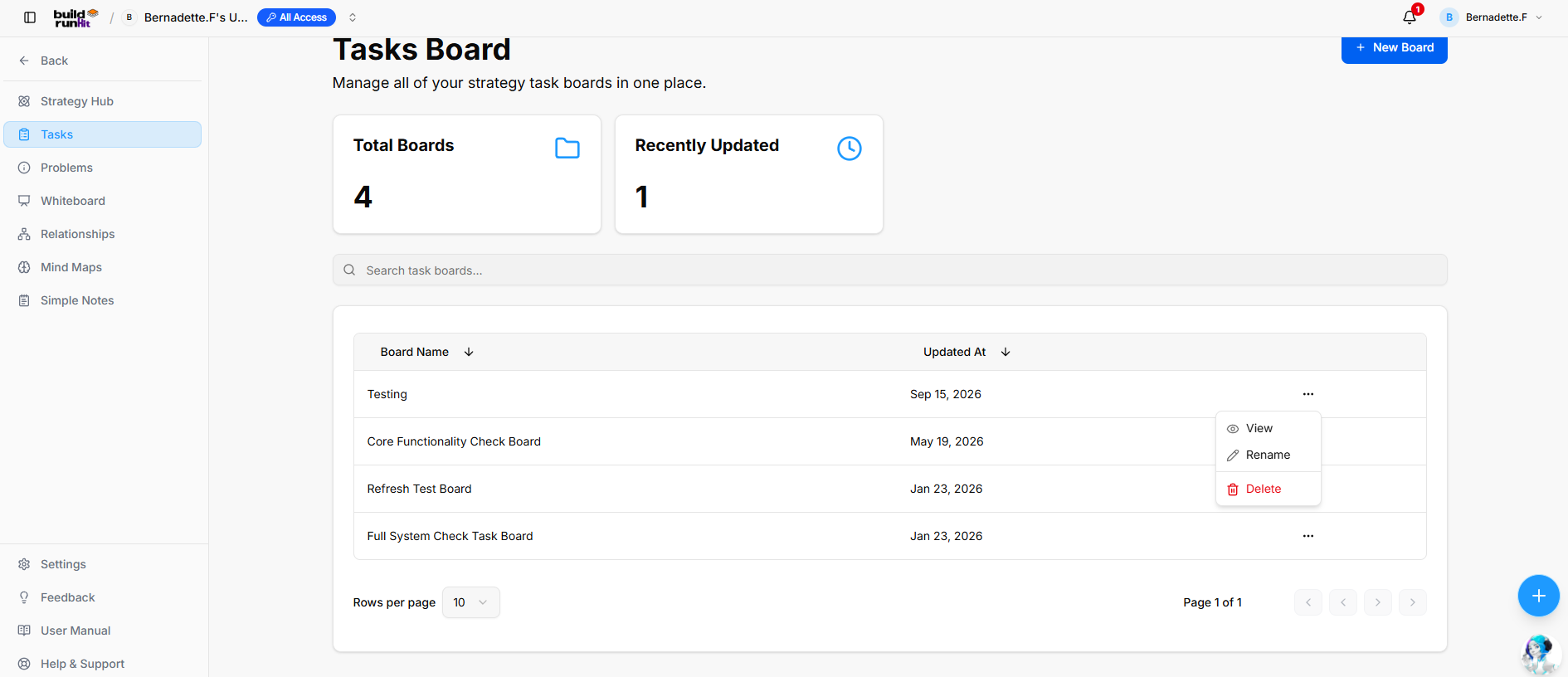
The Strategy Tasks area lets users organize work in boards, manage task lists, create and update tasks, and switch between Kanban and Table views.
Task Boards Directory
The directory displays task boards and when each was last updated.
- + New Board: Opens the form to create a task board.
- Total Boards: Shows the number of task boards.
- Recently Updated: Shows the number of recently updated boards.
- Search task boards…: Searches boards by name.
- Board Name: Shows the name of each board. Select the column heading to sort the list.
- Updated At: Shows when each board was last updated. Select the column heading to sort the list.
- Row actions menu (...):
- View: Opens the selected board.
- Rename: Changes the board name.
- Delete: Removes the board.
Creating a New Task Board
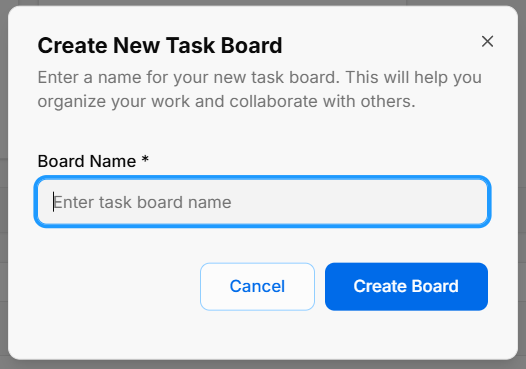
Select + New Board in the directory, or choose Create new board from the board selector.
- Board Name *: Enter a name for the task board.
- Create Board: Creates the board.
- Cancel: Closes the dialog without creating a board.
- X: Closes the dialog.
Opening and Switching Task Boards
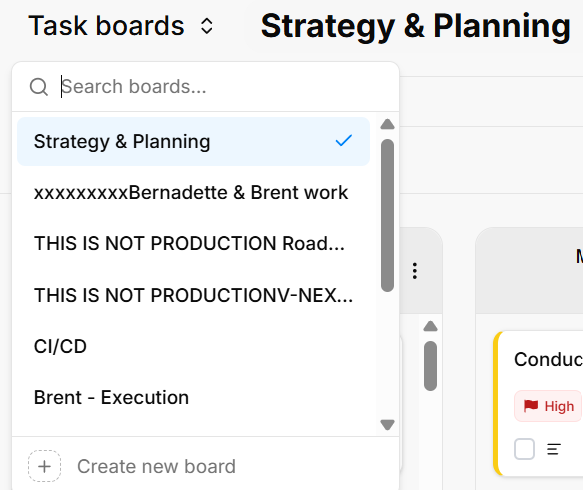
Use the Task boards selector to switch between available boards. The selector includes a search field and a Create new board option.
Working in a Task Board
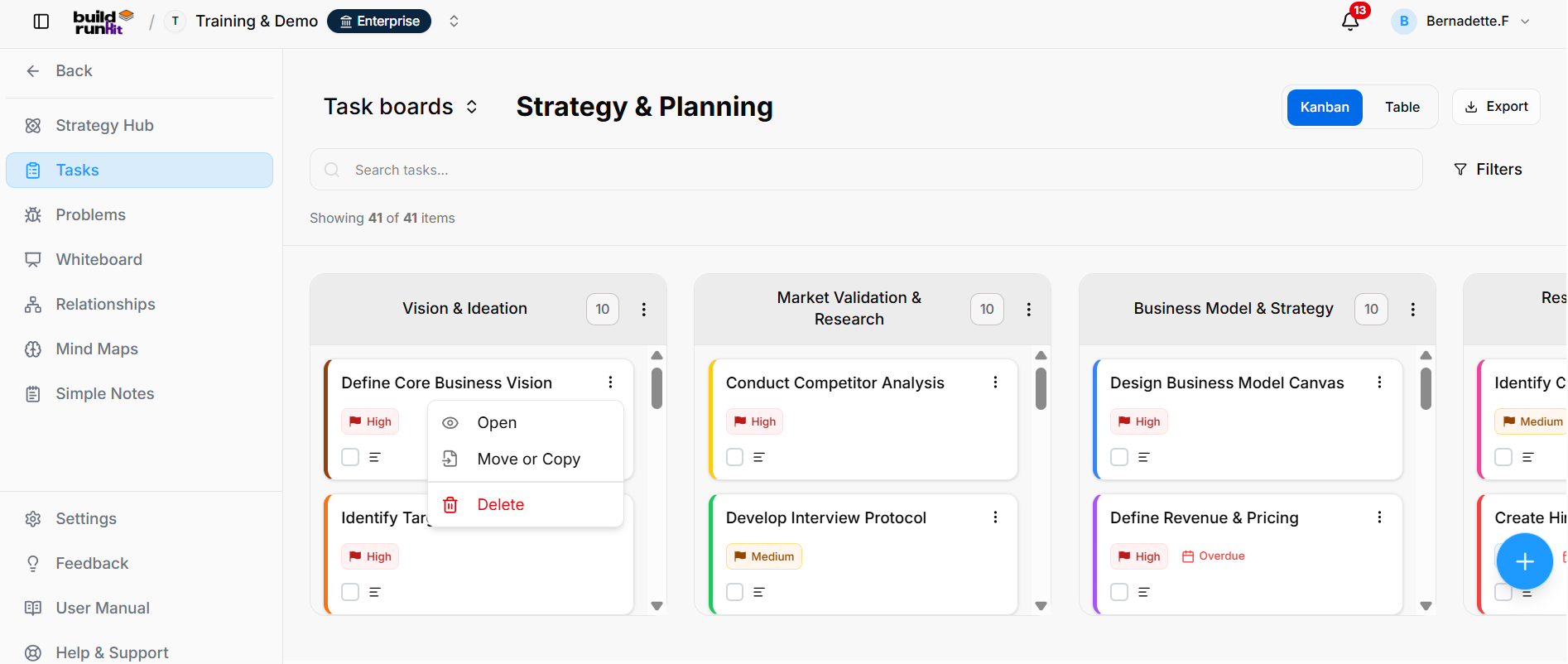
A task board displays tasks in customizable lists. Each list has a numerical badge showing how many tasks it contains. A task card can show the title, priority, completion control, and due date. When a task is past due, it is marked Overdue.
- Kanban / Table: Switches between the Kanban board and Table view.
- Export: Opens the export options.
- Search tasks…: Searches for tasks on the current board.
- Filters: Opens filtering options.
- Showing [number] of [number] items: Indicates how many items are displayed.
- + Add task: Opens the form to create a task in a list.
- Card actions menu (...):
- Open: Opens the task details.
- Move or Copy: Moves or copies the task to another list or board.
- Delete: Removes the task from the board.
Exporting Board Tasks
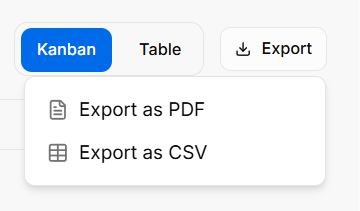
Managing Lists
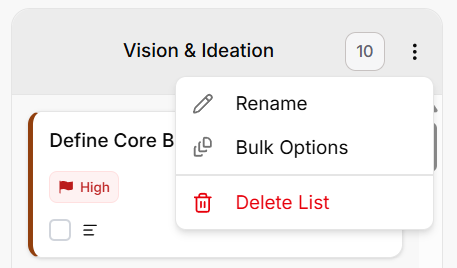
- Rename: Changes the list name.
- Bulk Options: Applies actions to tasks in the list.
- Delete List: Removes the list from the board.
Use + Add List to create another list.
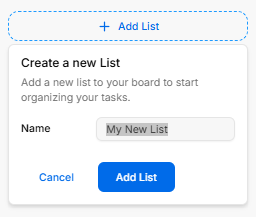
Enter a Name for the list, then select Add List. Select Cancel to close the form without adding a list.
Managing Task Cards
Creating a Task
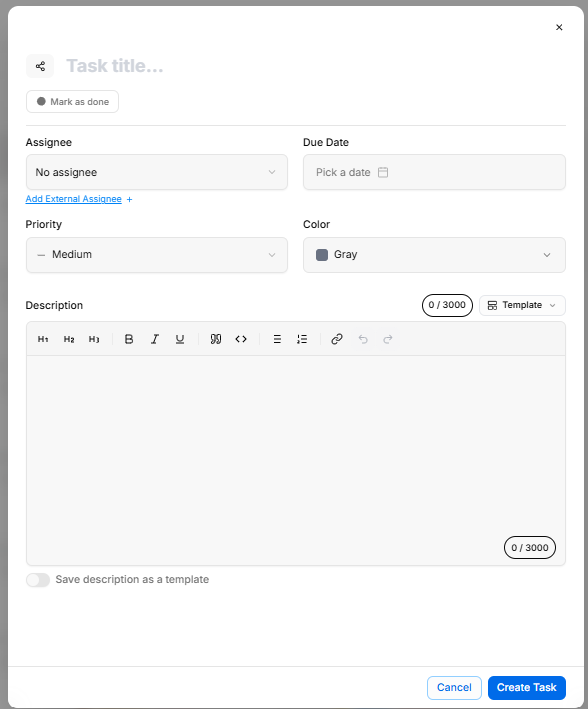
Select + Add task in a list to open the task form.
- Task title…: Enter the task title.
- Mark as done: Mark the task as complete when creating it.
- Assignee: Assign a team member, or leave No assignee.
- Add External Assignee +: Add an external assignee.
- Due Date: Select an optional deadline.
- Priority: Choose a priority; the form shows Medium by default.
- Color: Choose a color for the task card; the form shows Gray by default.
- Description: Enter task details using the rich-text editor. The description can contain up to 3,000 characters.
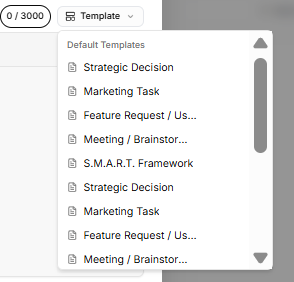
- Template: Apply an available description template.
- Save description as a template: Save the description for reuse.
- Create Task: Creates the task.
- Cancel: Closes the form without saving.
- X: Closes the form.
Description Templates
Viewing and Editing a Task
Open a task by selecting its card or choosing Open from the card’s actions menu. The Details tab shows the task title, creator and creation time, completion control, assignee, due date, priority, color, and description.
- Share icon: Select the icon beside the task title to get a link to share the task with others.
- Mark as done: Marks the task as complete.
- Save Changes: Saves edits to the task.
- Cancel: Closes the dialog without saving.
- Delete: Removes the task.
Adding Comments
Select the Comments tab to add an update or note to the task. A comment can contain up to 2,000 characters. Select Add Comment to post it.
Adding Attachments
Select the Attachments tab to add or review files. You can drag and drop supporting files or select them for upload. Up to 5 files can be added, with a maximum size of 20 MB per file. Supported formats include PDFs, images, Office documents, CSV, JSON, and Markdown.
No comments to display
No comments to display