
BuildRunKit Invoices: Clients Sub-Section
BuildRunKit Invoices: Clients Sub-Section
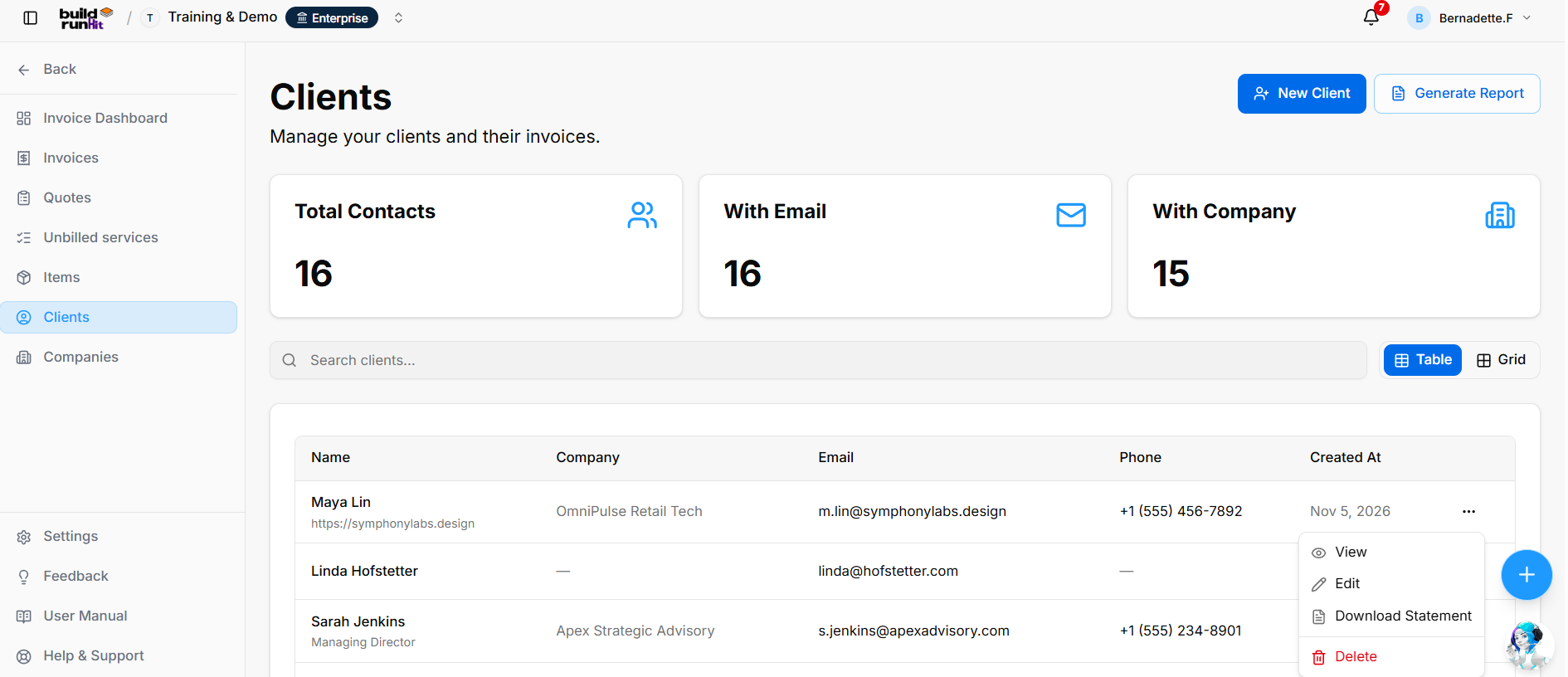
The Clients sub-section provides a central directory for managing client profiles, contact information, associated companies, and invoice-related information.
Client Summary Metrics
The summary cards display:
- Total Contacts: The number of client profiles in the directory.
- With Email: The number of client profiles with an email address.
- With Company: The number of client profiles linked to a company.
These values reflect the workspace’s client data and may change over time.
Directory Controls & Search Bar
- Search clients…: Search the directory for client records.
- View Switcher: Switch between Table and Grid views.
Clients Table Data Columns
The table displays:
- Name: The client’s name, with additional contact details such as position or website where available.
- Company: The associated organization, if any.
- Email: The client’s email address.
- Phone: The client’s phone number.
- Created At: The date the client profile was created.
Row Actions Menu (...)
- View: Opens the client profile.
- Edit: Opens the client contact editor.
- Download Statement: Downloads the client’s statement.
- Delete: Removes the client profile from the directory.
Header & Action Buttons
- New Client: Opens the new contact form.
- Generate Report: Opens the Invoice Clients Report export dialog.
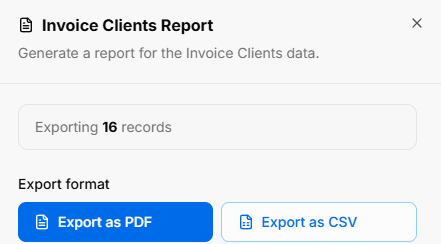
The report dialog displays the number of records being exported and provides Export as PDF and Export as CSV options.
Viewing a Client Profile
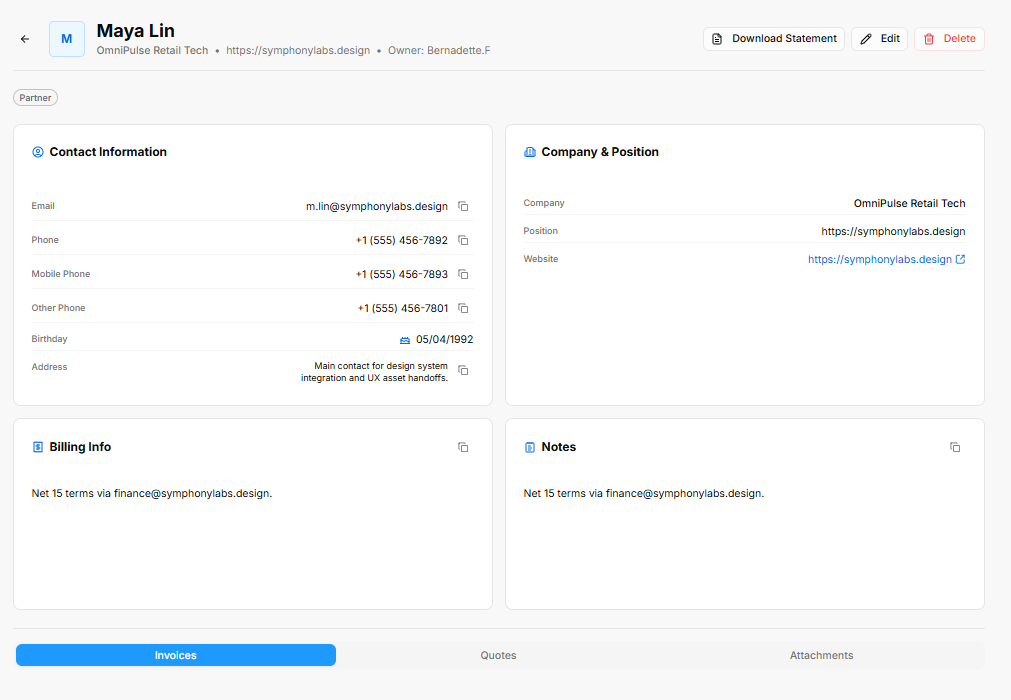
The client profile displays the client’s name and associated company, along with available contact information, company and position details, billing information, and notes. The profile also provides Download Statement, Edit, and Delete actions.
The profile includes tabs for Invoices, Quotes, and Attachments.
BuildRunKit Invoices: Creating a New Client
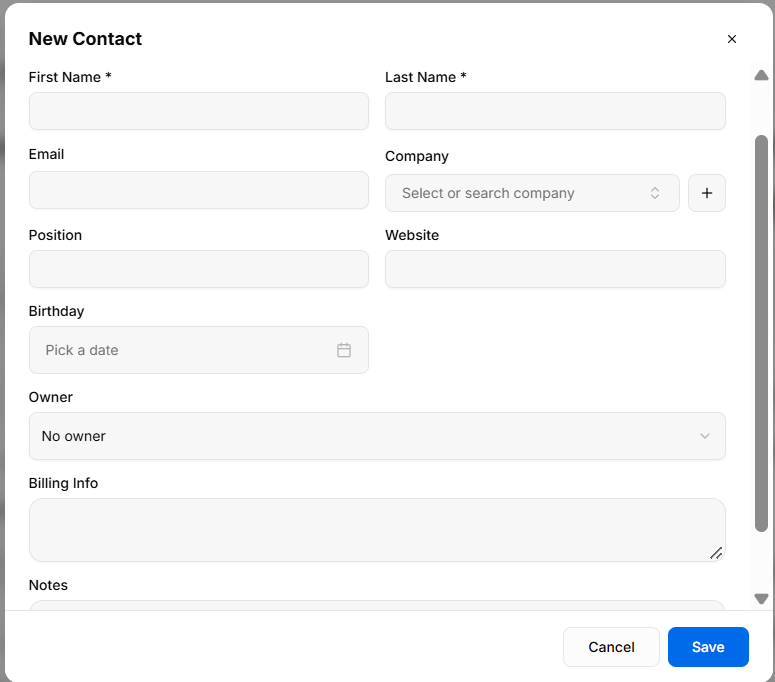
The new contact form provides a tabbed interface for adding a client profile to the Clients directory.
Details Tab
The Details tab includes:
- First Name * and Last Name *: Required fields for the client’s name.
- Email: Field for the client’s email address.
- Company: Select or search for a company; a + button appears beside the field.
- Position: Field for the client’s job title or role.
- Website: Field for a website address.
- Birthday: Date field for the client’s birthday.
- Owner: Dropdown to assign an internal owner.
- Billing Info: Text area for billing information or instructions.
- Notes: Text area for internal notes.
Contact Tab
The Contact tab includes:
- Address: Field for the client’s physical or mailing address.
- Phone, Mobile Phone, and Other Phone: Fields for additional phone numbers.
- + Add Contact Method: Adds another communication method.
- + Add Social / External Link: Adds a social profile or external link.
Custom Fields Tab
The Custom Fields tab displays configured fields for additional client information, such as Manual where configured.
Tags Tab
The Tags tab includes a field to enter a tag name and an Add Tag button. Available preset tags include Hot Lead, Cold Lead, Customer, Prospect, Partner, Vendor, Lead, Investor, and VIP.

Header & Action Buttons
- Close (X): Closes the form.
- Cancel: Discards the entries and closes the form.
- Save: Creates the client record.
BuildRunKit Invoices: Editing a Client
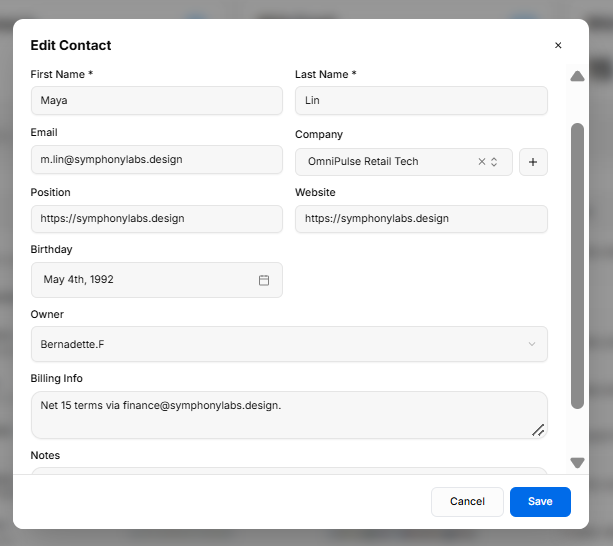
The Edit Contact form allows users to update a client’s profile information.
Edit Contact Fields
The form allows editing the client’s first name, last name, email, company, position, website, birthday, owner, billing information, and notes.
The edit form includes Details, Contact, Custom Fields, and Tags tabs.

Header & Action Buttons
- Close (X): Closes the form.
- Cancel: Closes the form without saving changes.
- Save: Saves the updated client information.
No comments to display
No comments to display