
BuildRunKit Invoices: Quotes Sub-Section
BuildRunKit Invoices: Quotes Sub-Section
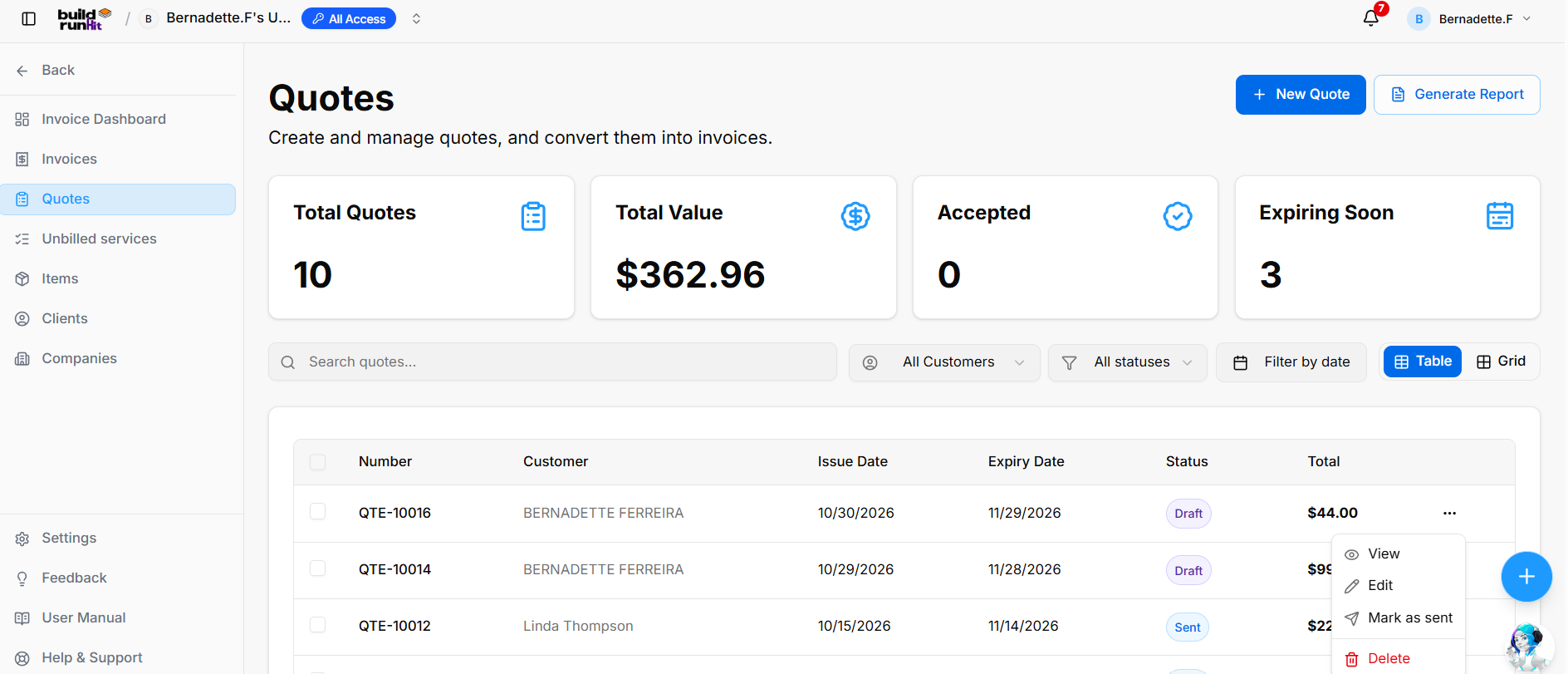
The Quotes sub-section provides a central place to create and manage customer quotes, send them, generate reports, and convert them into invoices.
Quote List
The Quotes page includes:
- Summary cards: Total Quotes, Total Value, Accepted, and Expiring Soon. The figures reflect quote data in the workspace and may change.
- Search: The Search quotes… field helps locate quotes.
- Filters: Filter by All Customers, All statuses, or date.
- View controls: Switch between Table and Grid views.
- Quote table: Displays the quote number, customer, issue date, expiry date, status, and total.
- Row actions: The three-dot menu provides View, Edit, Mark as sent, and Delete.
- Page actions: + New Quote starts a quote, and Generate Report opens the report export options.
Quote Details
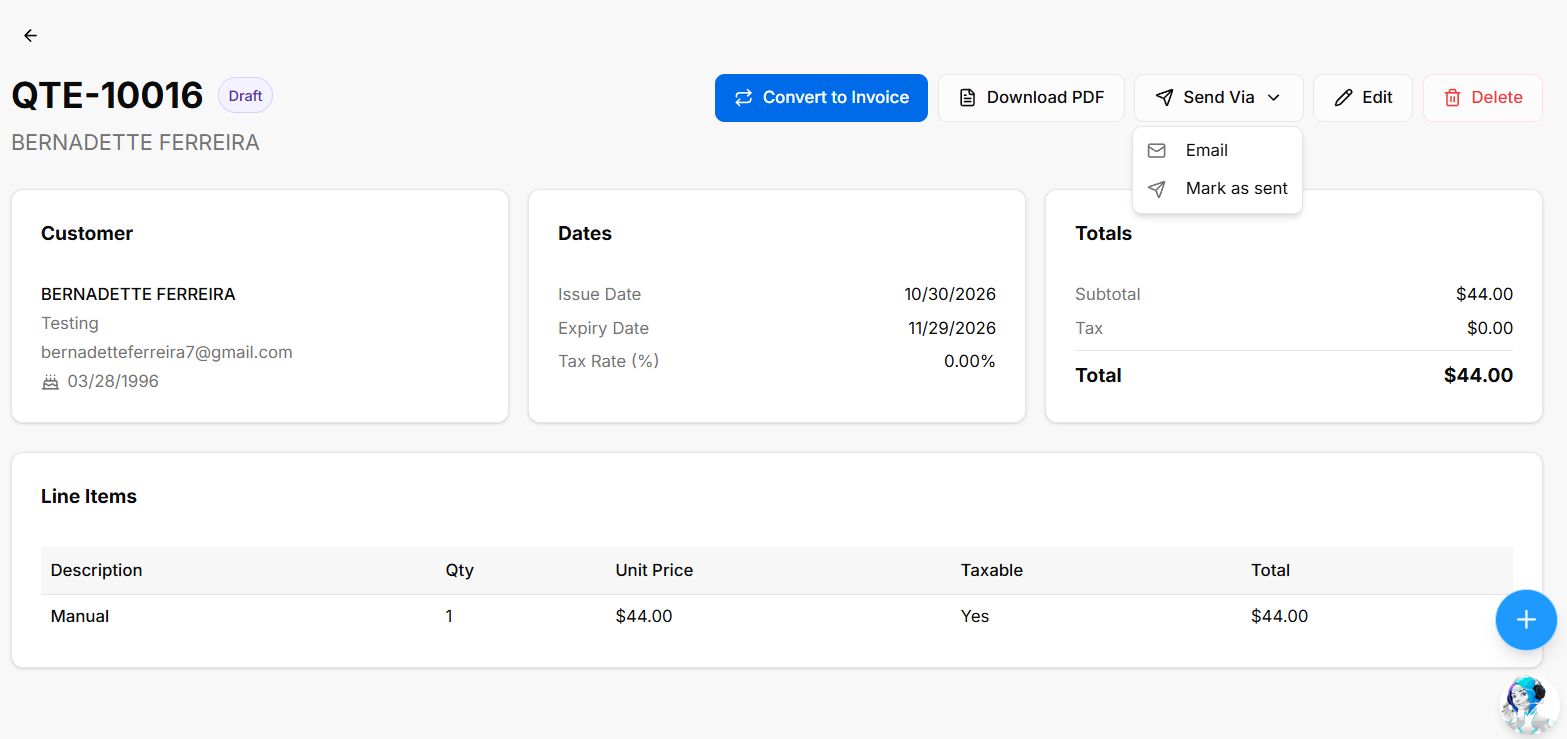
The quote details page displays the quote number and status, customer information, dates, totals, and line items.
- Customer: Displays the customer’s information.
- Dates: Shows the issue date, expiry date, and tax rate.
- Totals: Shows the subtotal, tax, and total.
- Line Items: Displays the description, quantity, unit price, taxable status, and total.
- Actions: Convert to Invoice, Download PDF, Send Via, Edit, and Delete.
- The Send Via menu includes Email and Mark as sent.
Creating a Quote
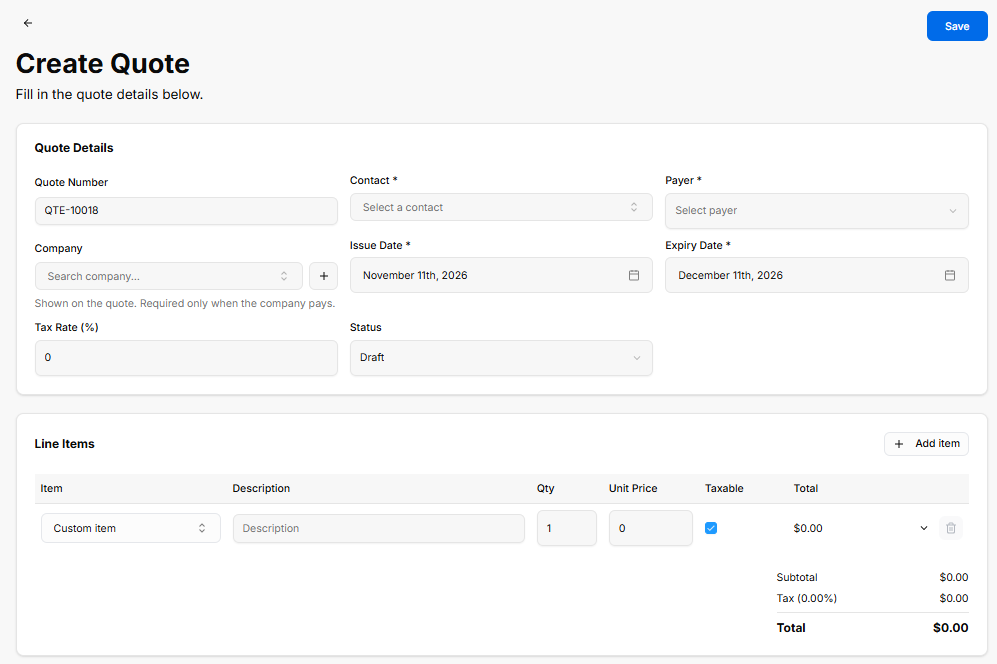
The Create Quote form includes:
- Quote Number
- Contact * and Payer *
- Company, with the note: “Shown on the quote. Required only when the company pays.”
- Issue Date * and Expiry Date *
- Tax Rate (%)
- Status
- Line Items: Fields for Item, Description, Qty, Unit Price, Taxable, and Total.
- + Add item to add a line item.
- Subtotal, Tax, and Total.
- Save to save the quote.
Sending a Quote by Email
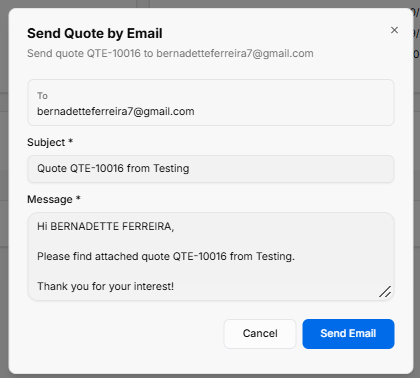
The email dialog includes the recipient (To), a required Subject, and a required Message. Use Send Email to send the quote, or Cancel to close the dialog without sending.
Generating a Quotes Report
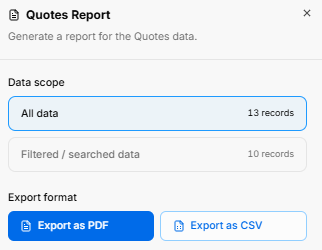
The Quotes Report dialog lets users choose the data scope: All data or Filtered / searched data. It displays the number of records in each scope and offers Export as PDF and Export as CSV.
No comments to display
No comments to display