
BuildRunKit Saved Outcomes Sub-section
Saved Outcomes Sub-section
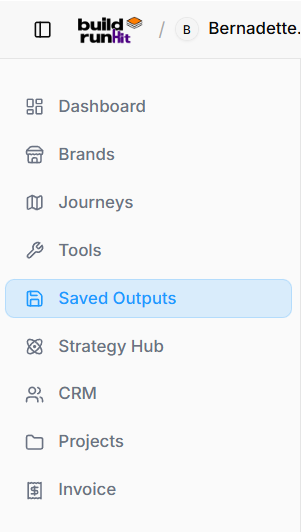
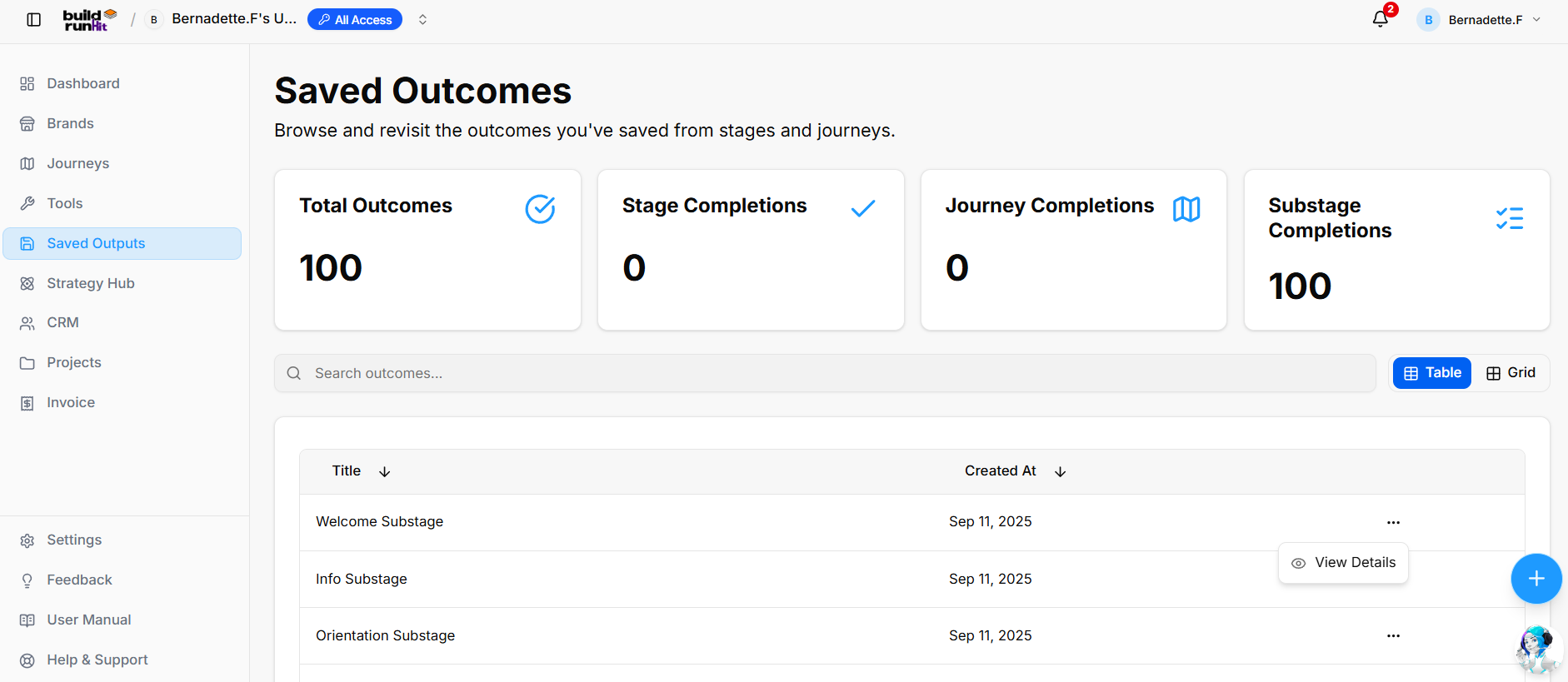
The Saved Outputs module (displayed as Saved Outcomes) tracks two core elements of your progress: Founder Journey Sub-Stage Completions and saved Output Subsections. It serves as a central log showing what steps you completed, when they were finished, and the exact outputs or documents generated during each sub-stage.
Metrics Summary Cards
-
Total Outcomes: Displays the aggregate count of all completed sub-stages and saved outputs (e.g., 100).
-
Stage Completions: Tracks fully completed main journey stages (e.g., 0).
-
Journey Completions: Tracks end-to-end finished founder journeys (e.g., 0).
-
Substage Completions: Tracks completed founder journey sub-stages and their associated outputs (e.g., 100).
Search & View Controls
-
Search Input Field: Real-time search bar to quickly filter completed sub-stages or saved output subsections by keyword (e.g., "Search outcomes...").
-
View Toggles: Switch layout between Table view and Grid view.
Sub-Stage Progress & Saved Outputs Log
-
Title Column: Shows the specific completed founder journey sub-stage or saved output subsection (e.g., Welcome Substage, Info Substage, Orientation Substage).
-
Created At Column: Displays the timestamp recording when the sub-stage was completed and saved (e.g., Sep 11, 2025).
-
Action Menu: Context menu (
...) with options to View Details, allowing you to inspect the full saved output, responses, or generated content for that specific sub-stage.
Viewing Outcome Details
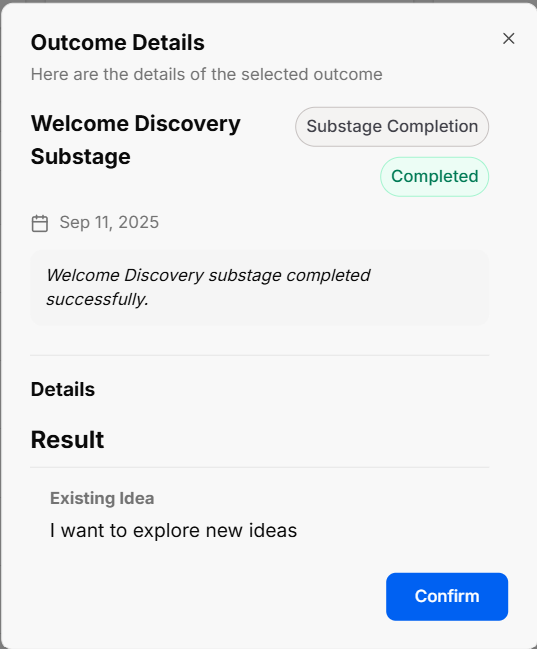
When clicking View Details from the action menu on any log entry, an Outcome Details modal window opens to show full sub-stage information and recorded results:
-
Substage Title & Metadata: Displays the sub-stage title (e.g., Welcome Discovery Substage), entry category (e.g., Substage Completion), status (e.g., Completed), and timestamp (e.g., Sep 11, 2025).
-
Confirmation Message: Callout box confirming successful completion (e.g., "Welcome Discovery substage completed successfully.").
-
Details & Result Section: Displays saved user inputs, selected choices, or prompt responses recorded during the sub-stage (e.g., Existing Idea: "I want to explore new ideas").
-
Confirm Button: Blue action button to acknowledge and close the modal view.
No comments to display
No comments to display