
Admin & Operations Stage
Admin & Operations Stage
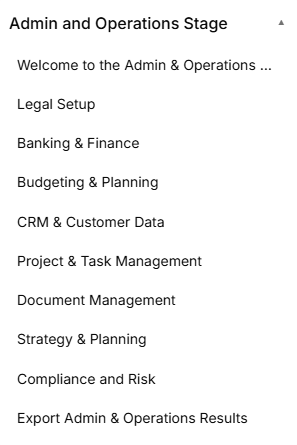
The Admin and Operations Stage is the operational phase of the roadmap, broken down into eight distinct sequential sub-stages accessed via the left-hand sidebar dropdown:
Sub-Stage 1: Welcome to the Admin & Operations Stage This is the initial onboarding landing view that provides corporate setup context, introductory media, and operational overviews before legal structural work begins.
Sub-Stage 2: Legal Setup The second item listed within the administrative sequence, focusing on legal entity formats, registration requirements, and liability rules.
Sub-Stage 3: Banking & Finance The third item listed within the administrative sequence, tracking institutional business banking setups, EIN tax identity keys, accounting methods, and integrated financial management tools.
Sub-Stage 4: CRM & Customer Data The fourth item listed within the administrative sequence, managing client relationship platforms, tracking incoming lead sources, and setting operational follow-up cadences.
Sub-Stage 5: Project & Task Management The fifth item listed within the administrative sequence, evaluating project spaces, configuring workflow methodologies, and defining day-to-day task trackers.
Sub-Stage 6: Document Management The sixth item listed within the administrative sequence, establishing secure cloud storage solutions, folder hierarchy standards, and data access policies.
Sub-Stage 7: Strategy and Planning The seventh item listed within the administrative sequence, mapping short-term execution goals, long-term visions, and foundational organizational roadmap milestones.
Sub-Stage 8: Compliance and Risk The eighth item listed within the administrative sequence, addressing data privacy standards, liability insurance safeguards, operational risk audits, and mitigation strategies.
Sub-Stage 9: Export Admin & Operations Results The final technical milestone within this phase, concluding the operational documentation sequence before next stage parameters unlock.
Stage Controls Next Button: A blue Next → link utility centered at the bottom of the active frame allows the user to save current progress or cycle sequentially to the next sub-stage item.
Stage Controls
Sub-Stage 1: Welcome to the Admin & Operations Stage
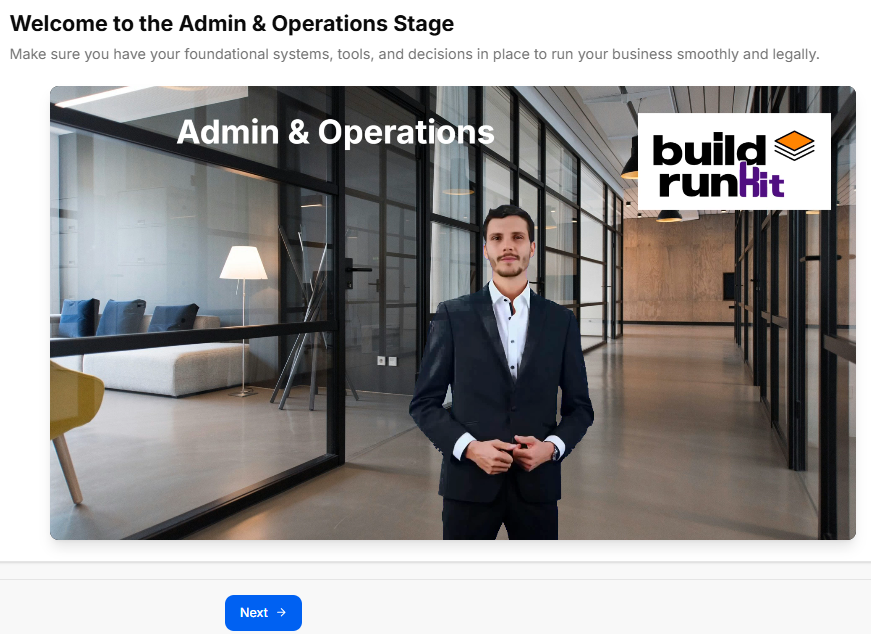
This sub-stage serves as the welcome landing screen for the administrative and operational setup phase. It establishes an overview of the core legal, financial, and procedural steps required to construct a firm corporate infrastructure.
Canvas Layout & Workspace Components
-
Main Workspace Title: Displays "Welcome to the Admin & Operations Stage".
-
Instructional Subtitle: “Get an overview of the Admin & Operations process and learn how this stage will help you set up your business structure, legal requirements, and operational workflows.”
-
Operations Launch Media Panel: Features a full-width workspace graphic or video element set in an open modern office environment. The media layout showcases the clean title card text "Admin & Operations" on the upper-left section and incorporates the official buildrunkit logo badge on the upper-right corner.
Navigation Controls
-
Next Button: A solid blue Next → navigation action button is centered directly below the primary media display card to lock in the stage preview and proceed smoothly to Sub-Stage 2 (Legal Setup).
Sub-Stage 2: Legal Setup
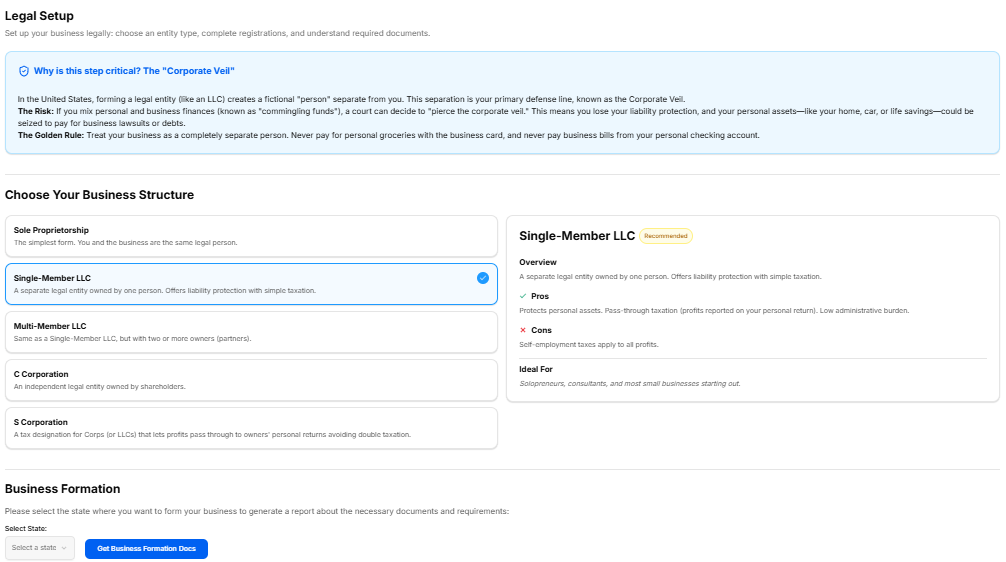
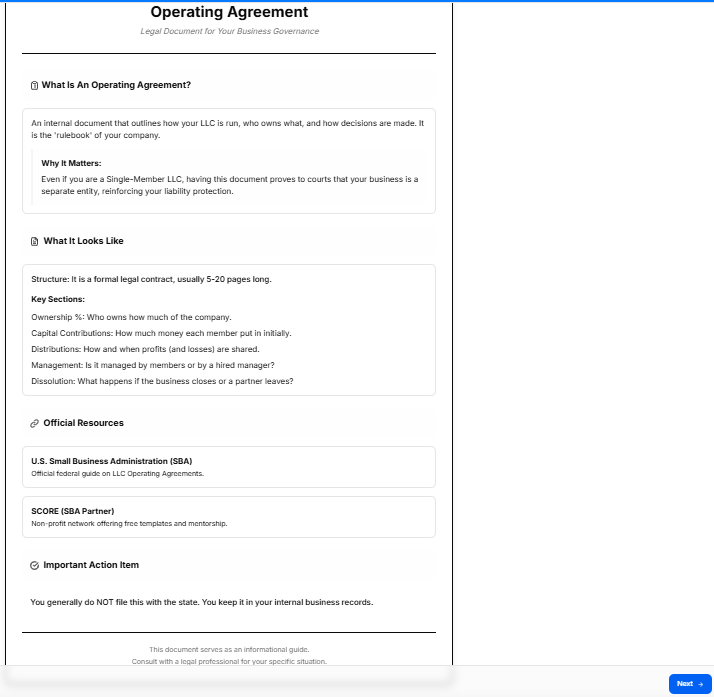
This sub-stage workspace guides founders through selecting their legal business structure, registering their formal business entity name, and completing foundational regulatory checkboxes required to establish operations legally.
Canvas Layout & Workspace Components
-
Main Workspace Title: Displays "Legal Setup".
-
Instructional Subtitle: “Choose your business structure, register your business name, and complete the necessary legal requirements to set up your entity.”
Legal Configuration Panels
The workspace organizes entity structure and registration across three specific modular cards:
-
1. Business Structure (Top Left):
-
Instructional Label: “Select your business structure entity option.”
-
Entity Options Grid: Features four interactive choice cards arranged in a 2x2 grid:
-
Sole Proprietorship
-
Partnership
-
Limited Liability Company (LLC)
-
C-Corporation
-
-
-
2. Business Registration Details (Top Right):
-
Instructional Label: “Define your business structure registration details.”
-
Registration Form Field: Contains a text entry block labeled Registered Business Name * displaying the placeholder text: “Enter your registered business name”.
-
-
3. Legal Requirements (Bottom Left):
-
Instructional Label: “Select your business structure legal requirement details.”
-
Compliance Checklist: Provides five distinct interactive checkboxes to track mandatory legal milestones:
-
Register Business Name
-
Apply for EIN / Tax ID
-
Obtain Business Licenses
-
Open Business Bank Account
-
Register for State Taxes
-
-
Navigation Controls
Sub-Stage 3: Banking & Finance
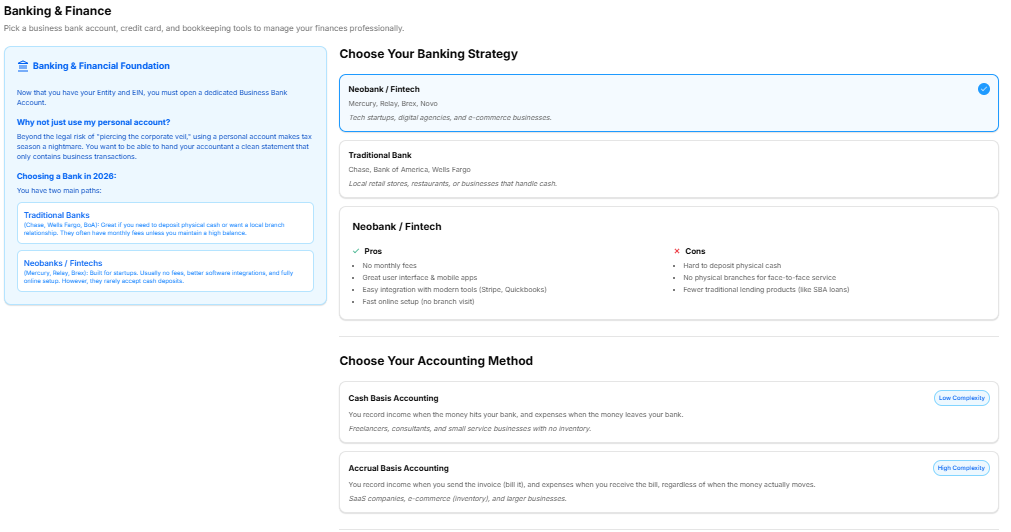
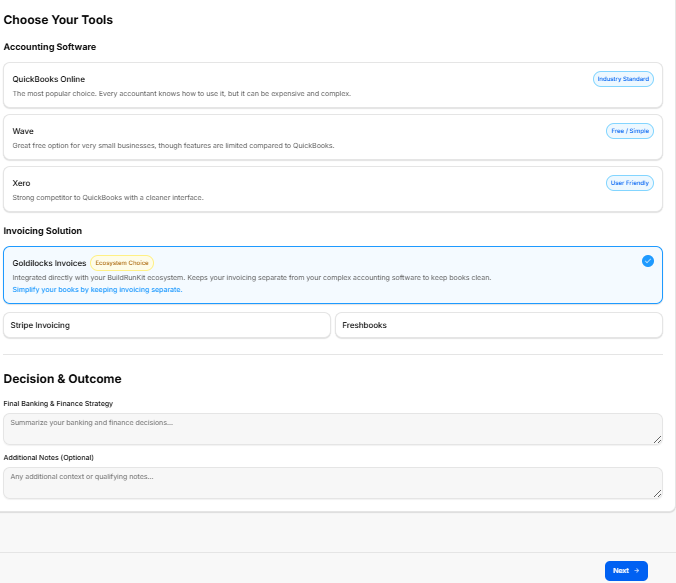
This sub-stage workspace focuses on setting up your business's financial infrastructure, including managing institutional banking relationships, establishing tax identifiers, and selecting integrated software solutions for accounting and invoicing.
Canvas Layout & Workspace Components
-
Main Workspace Title: Displays "Banking & Finance".
-
Instructional Subtitle: “Set up your financial infrastructure including business banking, employer identification numbers, and accounting frameworks.”
Financial Configuration Panels
The workspace organizes primary details across four modular selection and text entry cards:
-
1. Business Banking (Top Left):
-
Instructional Label: “Define your business structure banking option.”
-
Banking Options Grid: Features four interactive choice cards for major commercial banking platforms arranged in a 2x2 grid:
-
Chase
-
Bank of America
-
Wells Fargo
-
Mercury
-
-
-
2. Identification Details (Top Right):
-
Instructional Label: “Define your business structure tax identity numbers.”
-
Tax Identifier Form Field: Contains a text entry block labeled EIN / Tax ID Number * displaying the placeholder text: “Enter your EIN / Tax ID number”.
-
Tools Suite Selection
-
Section Title: "Choose Your Tools"
-
1. Accounting Software: Features three selectable configuration choices:
-
QuickBooks Online (Industry Standard): The most popular choice. Every accountant knows how to use it, but it can be expensive and complex.
-
Wave (Free / Simple): Great free option for very small businesses, though features are limited compared to QuickBooks.
-
Xero (User Friendly): Strong competitor to QuickBooks with a cleaner interface.
-
-
2. Invoicing Solution: Features three integrated billing choices:
-
Goldilocks Invoices (Ecosystem Choice): Integrated directly with your BuildRunKit ecosystem. Keeps your invoicing separate from your complex accounting software to keep books clean. Simplify your books by keeping invoicing separate.
-
Stripe Invoicing
-
Freshbooks
-
Strategy & Summary Documentation
-
3. Decision & Outcome:
-
Form Field: A large text block labeled Final Banking & Finance Strategy * where the user outlines their selected operational path.
-
Optional Field: A secondary text input labeled Additional Notes (Optional) for supplemental documentation.
-
Navigation Controls
Sub-Stage 4: Budget & Planning
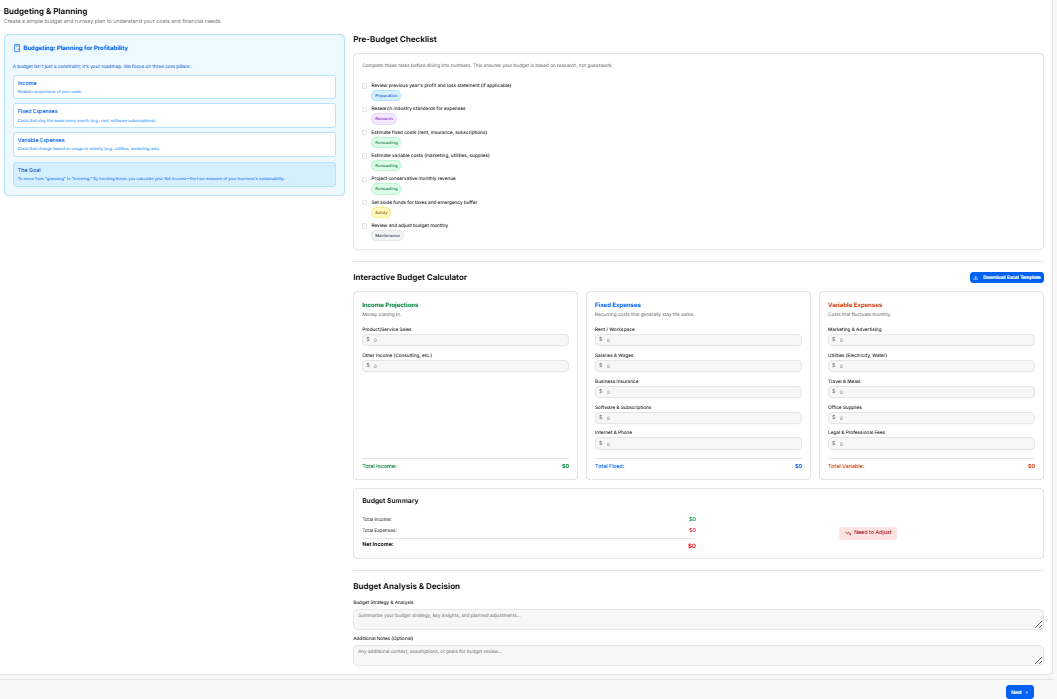
This sub-stage workspace guides founders through projecting their startup's financial path, analyzing crucial operational costs, establishing runway metrics, and defining final strategic spending choices.
Canvas Layout & Workspace Components
-
Main Workspace Title: Displays "Budget & Planning".
-
Instructional Subtitle: “Plan your business finances, project your startup cost, and estimate your runway.”
Financial Planning & Strategy Sections
The workspace relies on explicit text logs to document financial trajectories and notes:
-
1. Financial Planning & Strategy:
-
Instructional Label: “Define your business structure budget option.”
-
Form Field: A required text entry block labeled Final Budget & Planning Strategy * displaying the placeholder text: “Enter your final budget & planning strategy”.
-
Optional Field: A large text container labeled Additional Notes (Optional) displaying the placeholder text: “Enter your additional notes”.
-
Navigation Controls
Sub-Stage 4: CRM & Customer Data
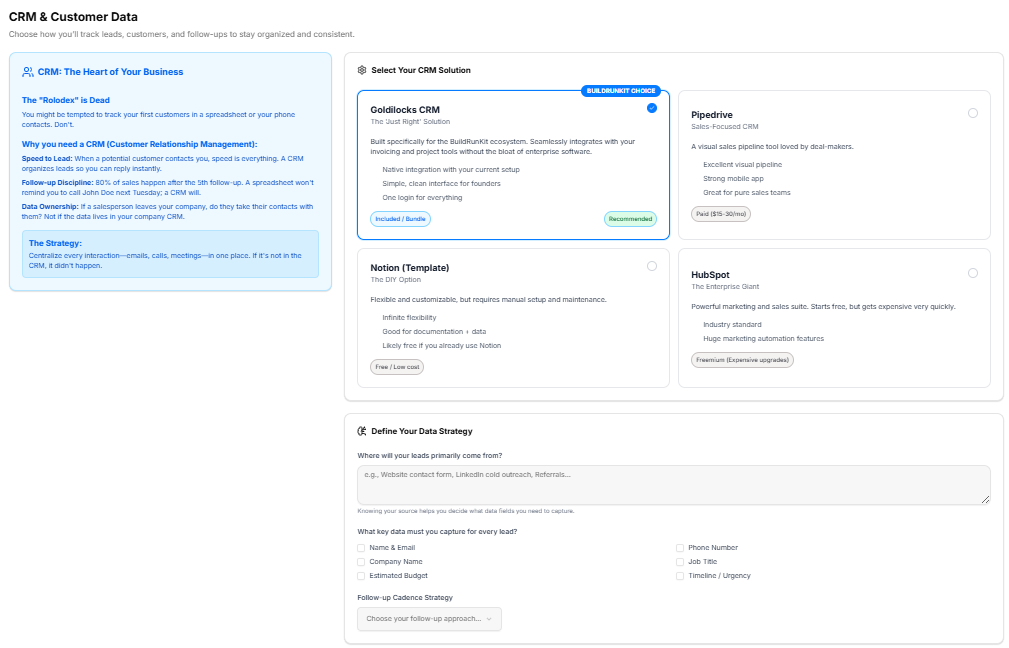
This sub-stage workspace helps founders choose how to track leads, customers, and follow-ups to keep their business organized and consistent.
Canvas Layout & Workspace Components
-
Main Workspace Title: Displays "CRM & Customer Data".
-
Instructional Subtitle: “Choose how you'll track leads, customers, and follow-ups to stay organized and consistent.”
CRM Selection Panels
The primary section allows founders to evaluate and select their CRM software:
-
Section Title: "Select Your CRM Solution"
-
CRM Options Grid: Features four interactive options with specific pricing and feature details:
-
Goldilocks CRM (The 'Just Right' Solution / BuildRunKit Choice / Recommended): Built specifically for the BuildRunKit ecosystem. Seamlessly integrates with your invoicing and project tools without the bloat of enterprise software.
-
Bullet features: Native integration with your current setup; Simple, clean interface for founders; One login for everything.
-
Tag: Included / Bundle.
-
-
Pipedrive (Sales-Focused CRM): A visual sales pipeline tool loved by deal-makers.
-
Bullet features: Excellent visual pipeline; Strong mobile app; Great for pure sales teams.
-
Tag: Paid ($15-30/mo).
-
-
Notion (Template) (The DIY Option): Flexible and customizable, but requires manual setup and maintenance.
-
Bullet features: Infinite flexibility; Good for documentation + data; Likely free if you already use Notion.
-
Tag: Free / Low cost.
-
-
HubSpot (The Enterprise Giant): Powerful marketing and sales suite. Starts free, but gets expensive very quickly.
-
Bullet features: Industry standard; Huge marketing automation features.
-
Tag: Freemium (Expensive upgrades).
-
-
Data Strategy Parameters
-
Section Title: "Define Your Data Strategy"
-
Lead Source Input: An open text field labeled “Where will your leads primarily come from?” with placeholder text “e.g., Website contact form, LinkedIn cold outreach, Referrals...”
-
Key Data Checkboxes: A multi-select area asking “What key data must you capture for every lead?” containing options for:
-
Name & Email
-
Company Name
-
Estimated Budget
-
Phone Number
-
Job Title
-
Timeline / Urgency
-
-
Follow-up Cadence: A dropdown menu component labeled Follow-up Cadence Strategy with the placeholder text “Choose your follow-up approach...”
Strategy Summary & Notes
-
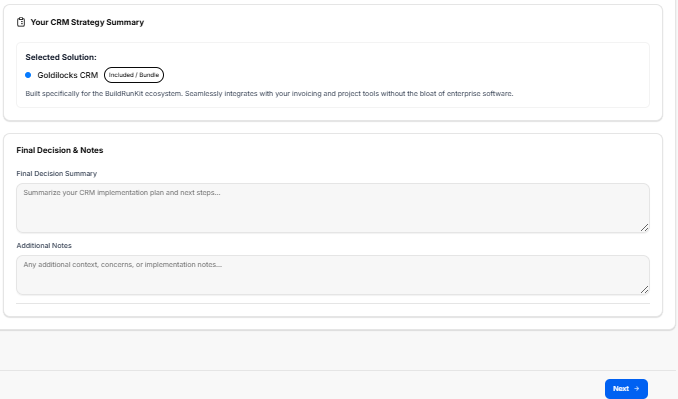
Section Title: "Your CRM Strategy Summary"
-
Selected Solution Display: Dynamically shows the chosen platform based on the user's selection (e.g., Goldilocks CRM—Included / Bundle) along with its brief operational description.
-
Final Decision Summary: A structured input block titled Final Decision Summary with the placeholder “Summarize your CRM implementation plan and next steps...”
-
Additional Notes: A secondary text container labeled Additional Notes with the placeholder “Any additional context, concerns, or implementation notes...”
Navigation Controls
Sub-Stage 5: Project & Task Management
This sub-stage workspace guides founders through evaluating, choosing, and establishing their workflow tracking systems to keep daily operational tasks and milestone delivery structured.
Canvas Layout & Workspace Components
-
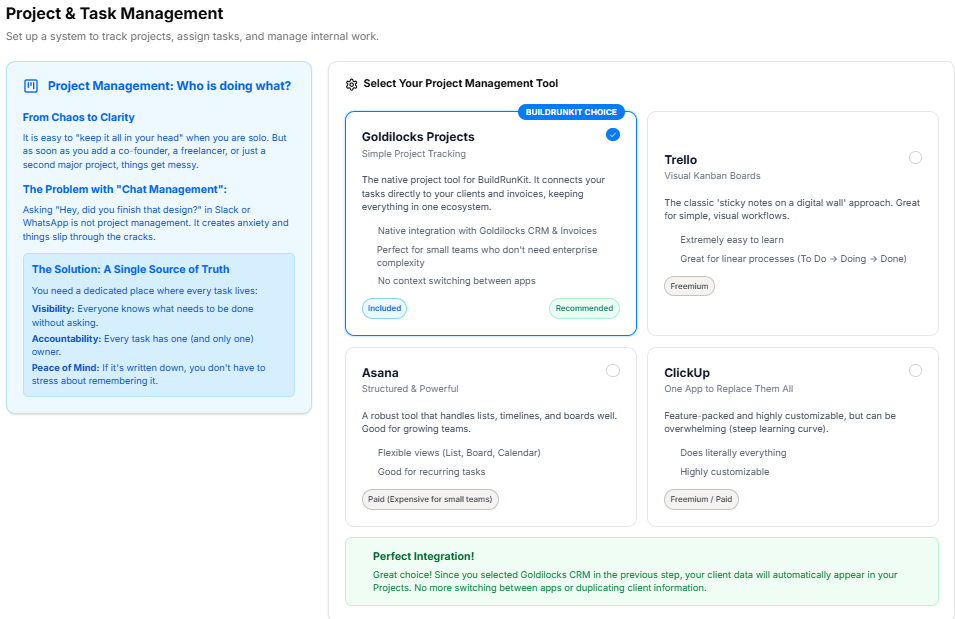
Main Workspace Title: Displays "Project & Task Management".
-
Instructional Subtitle: “Choose how you'll manage your tasks, projects, and team workflows to stay execution-focused.”
Platform Selection Panels
The workspace provides an options matrix for evaluating project management tools:
-
Section Title: "Select Your Project Management Tool"
-
Tool Options Grid: Features four interactive choices with explicit ecosystem relevance and operational characteristics:
-
Goldilocks Projects (The 'Just Right' Workspace / BuildRunKit Choice / Recommended): Built directly into your BuildRunKit ecosystem. Connect tasks directly to your CRM leads and client invoices without jumping between open tabs.
-
Bullet features: Native ecosystem integration; Zero configuration required; Task-to-invoice tracking.
-
Tag: Included / Bundle.
-
-
Trello (Simple Kanban Boards): A visual card-based system great for simple linear workflows.
-
Bullet features: Extremely easy to learn; Great visual card layout; Free tier covers basics.
-
Tag: Freemium.
-
-
Asana (Team & Timeline Focused): Structured project maps with list, board, and timeline views.
-
Bullet features: Powerful subtask management; Built-in team workloads; Great for collaboration.
-
Tag: Paid ($10-25/mo).
-
-
ClickUp (The Everything App): Highly customizable with massive features, though learning curves are steep.
-
Bullet features: Dozens of custom view types; Built-in docs and goals; Highly customizable dashboards.
-
Tag: Freemium (Feature complex).
-
-
Workflow Parameters
-
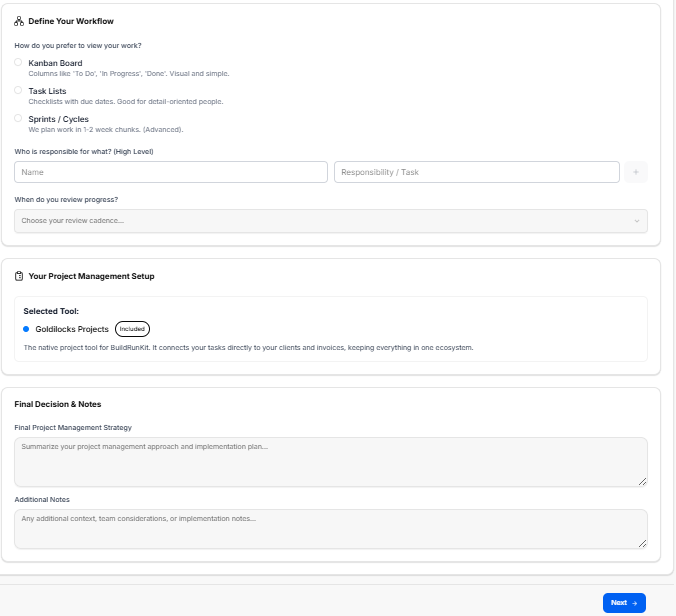
Section Title: "Define Your Internal Workflow"
-
Methodology Dropdown: A selector field labeled Primary Methodology with the placeholder text “Choose your methodology approach...”
-
Task Management Checkboxes: A multi-select area asking “What project elements will you track here?” featuring the options:
-
Internal Tasks
-
Client Deliverables
-
Product Roadmap
-
Content Calendar
-
Bug / Issue Tracking
-
Team Availability
-
-
Meeting Cadence Input: An open text entry field labeled “What is your team meeting / review cadence?” containing the placeholder text “e.g., Daily standup, Weekly sprint planning, Bi-weekly retrospectives...”
Strategy Summary & Notes
-
Section Title: "Your Workspace Strategy Summary"
-
Selected Solution Display: Dynamically displays the user's active choice (e.g., Goldilocks Projects—Included / Bundle) alongside its operational summary text.
-
Final Decision Summary: A required, structured text block labeled Final Decision Summary * with the placeholder “Summarize your task management implementation plan and sprint setup...”
-
Additional Notes: An open text block labeled Additional Notes (Optional) with the placeholder “Any additional workflow context, custom statuses, or onboarding steps...”
Navigation Controls
Sub-Stage 6: Document Management
This sub-stage workspace guides founders through setting up their company's document storage system, choosing file organization frameworks, and implementing basic data security protocols to keep critical business data secure and accessible.
Canvas Layout & Workspace Components
-
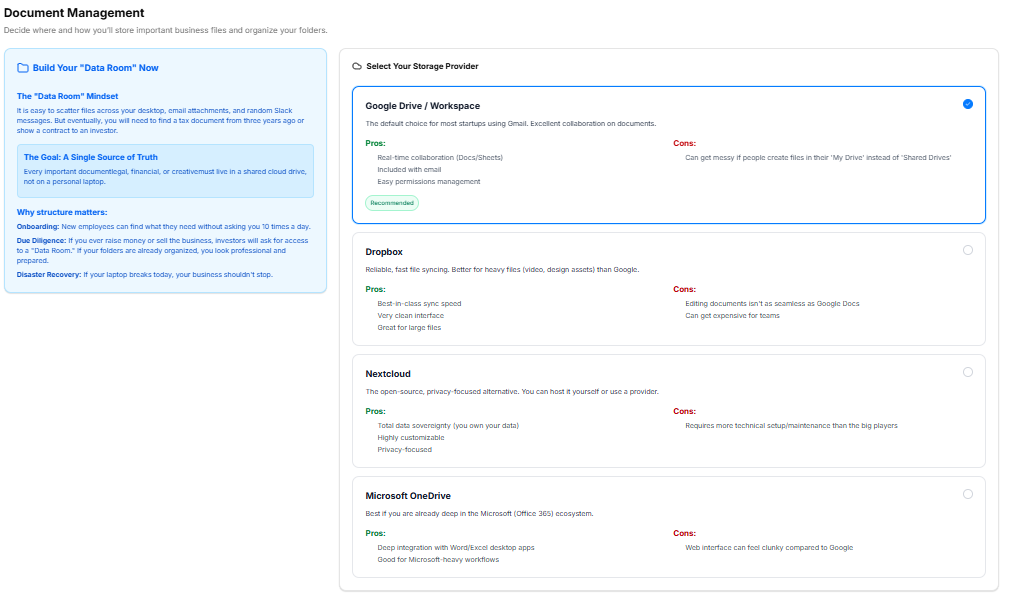
Main Workspace Title: Displays "Document Management".
-
Instructional Subtitle: “Choose where you'll store files, how you'll organize them, and how you'll keep your business data safe.”
Platform Selection Panels
The workspace provides an options matrix for evaluating cloud storage solutions:
-
Section Title: "Select Your Document Storage Solution"
-
Storage Options Grid: Features four interactive choices with explicit ecosystem relevance and operational characteristics:
-
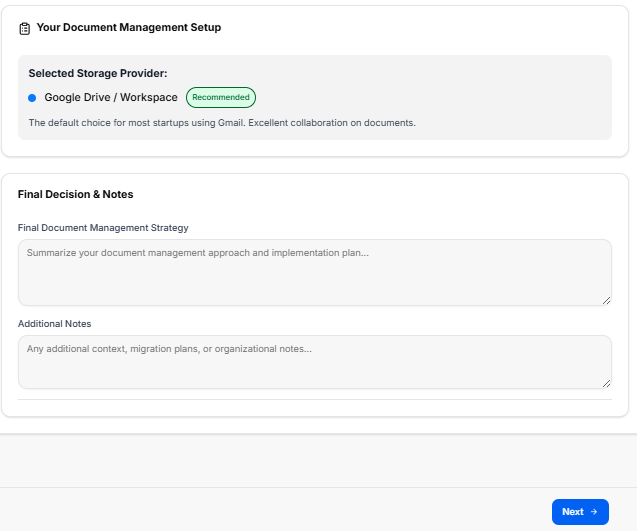
Goldilocks Drive (Ecosystem Integration / BuildRunKit Choice / Recommended): Secure storage built directly into your dashboard. Best for linking contract PDFs and operational assets directly to your client profiles.
-
Bullet features: Native ecosystem file linking; Zero external accounts needed; Automatic client folder creation.
-
Tag: Included / Bundle.
-
-
Google Drive (Collaboration Focused): Excellent real-time editing and collaboration through Google Workspace docs.
-
Bullet features: Best-in-class live document editing; Powerful internal search tools; Ubiquitous platform familiarity.
-
Tag: Free / Part of Workspace.
-
-
Microsoft OneDrive (Enterprise Integration): Deep integration with desktop Office applications and corporate Windows setups.
-
Bullet features: Perfect sync with desktop Word/Excel; Strong enterprise security controls; Part of Microsoft 365.
-
Tag: Free / Part of M365.
-
-
Dropbox (Pure Storage & Sync): Reliable file synchronization engine with advanced shared folder link features.
-
Bullet features: Fast, bulletproof file syncing; Advanced link sharing permissions; Great standalone storage tool.
-
Tag: Freemium ($10-20/mo).
-
-
Security & Folder Strategy Parameters
-
Section Title: "Define Your File Strategy"
-
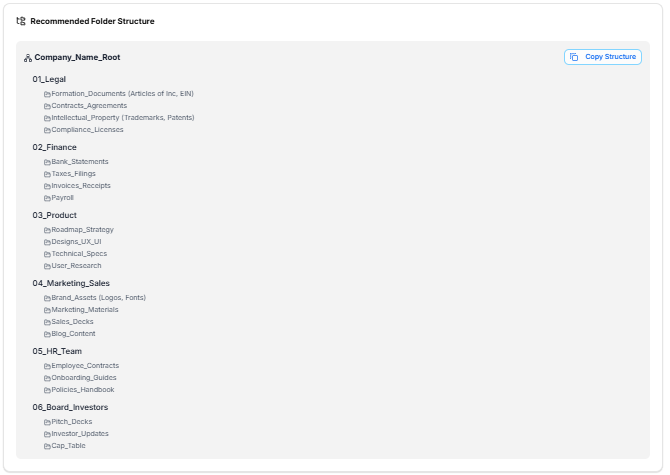
Folder Structure Dropdown: A selector field labeled Folder Structure Framework with the placeholder text “Choose your organization approach...”
-
Security & Access Checkboxes: A multi-select area asking “What security practices will you implement?” featuring the options:
-
Enforce 2FA on Storage Accounts
-
Restricted Client Data Access
-
Regular Backup Cadence
-
Standardized File Naming Rules
-
NDA Requirements for Team Share
-
-
Retention Policy Input: An open text entry field labeled “What is your document retention / archive policy?” containing the placeholder text “e.g., Keep financial records for 7 years, Archive inactive client folders after 12 months...”
Strategy Summary & Notes
-
Section Title: "Your Storage Strategy Summary"
-
Selected Solution Display: Dynamically displays the user's active choice (e.g., Goldilocks Drive—Included / Bundle) alongside its operational summary text.
-
Final Decision Summary: A required, structured text block labeled Final Decision Summary * with the placeholder “Summarize your document management implementation plan, naming conventions, and security rules...”
-
Additional Notes: An open text block labeled Additional Notes (Optional) with the placeholder “Any additional storage context, third-party backup tools, or onboarding notes...”
Navigation Controls
Sub-Stage 7: Strategy and Planning
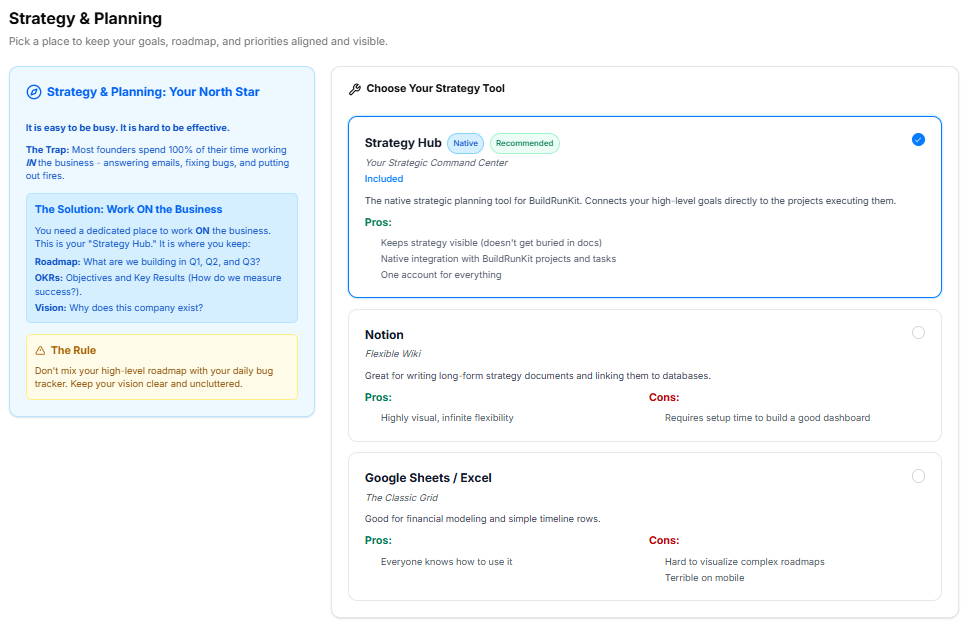
This sub-stage workspace serves as the master planning canvas where founders define their high-level business strategy, align on execution milestones, and establish clear operational frameworks to steer long-term growth.
Canvas Layout & Workspace Components
-
Main Workspace Title: Displays "Strategy and Planning".
-
Instructional Subtitle: “Define your high-level business strategy, execution roadmap, and long-term planning frameworks.”
Operational Roadmap Panels
The layout organizes strategic alignment across three major structured sections:
-
1. Define Strategy Framework (Top Left):
-
Instructional Label: “Define your business structure strategy option.”
-
Strategic Focus Area Dropdown: A structural selection menu labeled Strategic Focus Area with the active placeholder text: “Choose your strategic focus approach...”
-
Execution Framework Checkboxes: A multi-select area asking “What execution elements will you prioritize?” containing five key organizational options:
-
Milestone Tracking
-
Resource Allocation
-
Risk Mitigation
-
Growth Metrics
-
Timeline Alignment
-
-
-
2. Core Business Strategy Logs (Top Right):
-
Instructional Label: “Outline your main strategy goals and operational roadmap milestones.”
-
Strategy Plan Inputs: Provides two large, structured text entry forms:
-
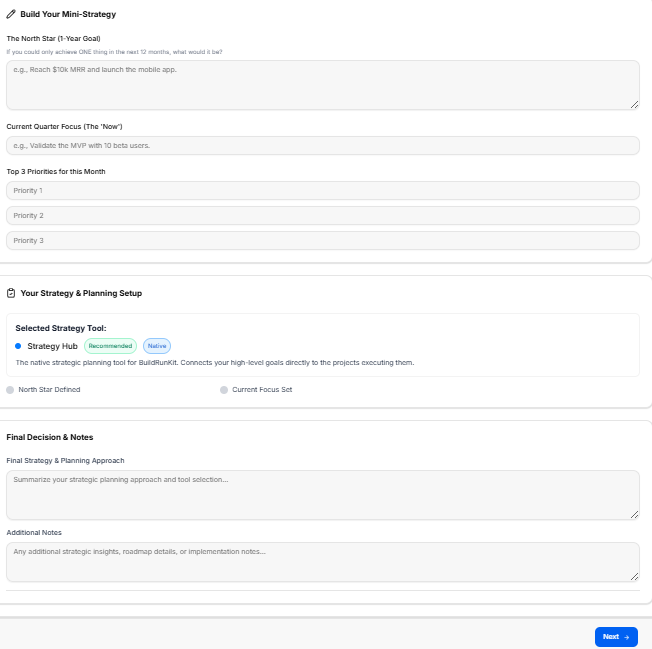
Short-Term Goals (Next 90 Days) *: A mandatory field with the placeholder text: “Enter your short-term operational goals...”
-
Long-Term Vision (1-3 Years) *: A mandatory field with the placeholder text: “Enter your long-term business vision...”
-
-
-
3. Strategy Summary & Documentation (Lower Section):
-
Section Title: "Your Strategy Summary"
-
Strategic Path Detail Block: A wide input block labeled Final Strategy & Planning Strategy * displaying the placeholder text: “Enter your final strategy & planning strategy”.
-
Supplemental Context Block: A large text container labeled Additional Notes (Optional) displaying the placeholder text: “Enter your additional notes”.
-
Navigation Controls
Sub-Stage 8: Compliance & Risk
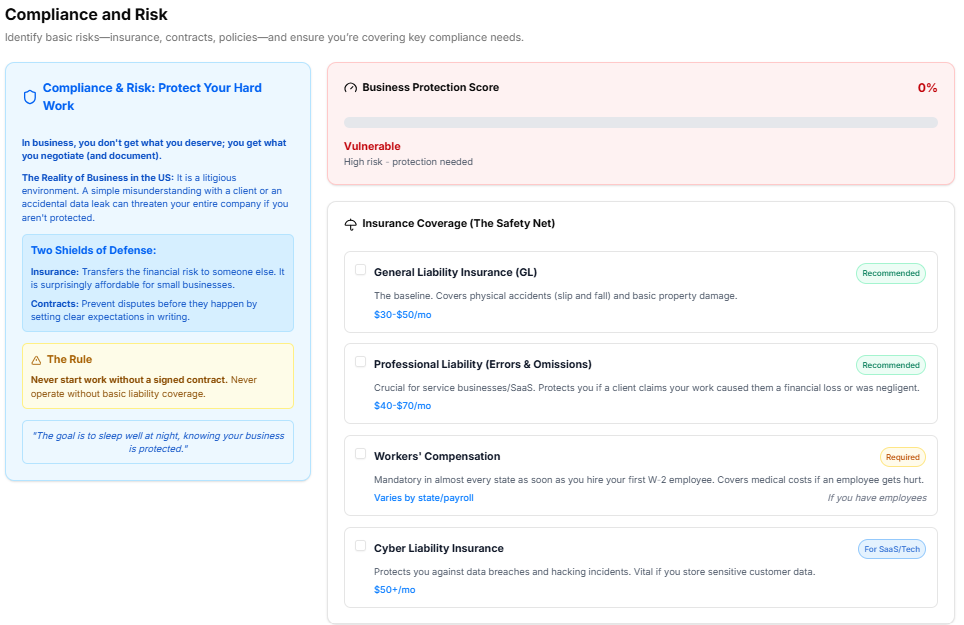
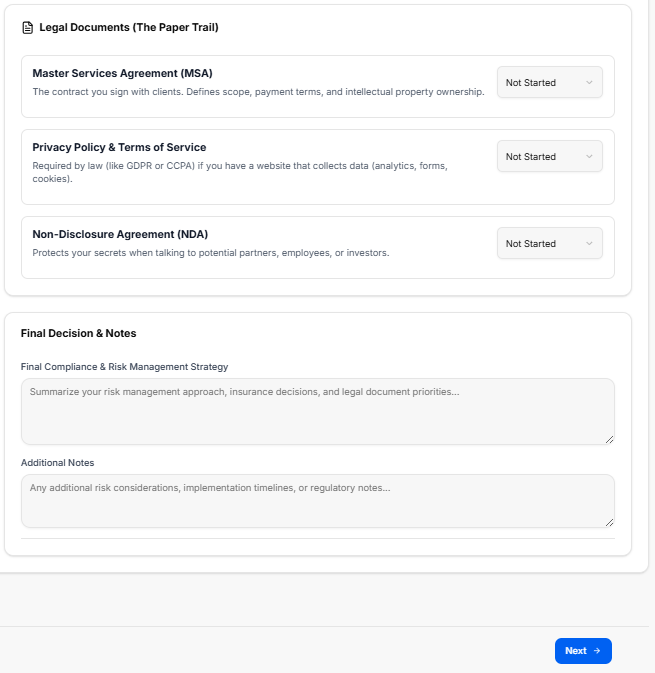
This sub-stage workspace provides founders with a structured environment to evaluate organizational exposure, establish clear compliance policies, check off liability safeguards, and document their overall risk mitigation strategy.
Canvas Layout & Workspace Components
-
Main Workspace Title: Displays "Compliance & Risk".
-
Instructional Subtitle: “Identify potential risks, establish compliance protocols, and ensure your business is protected against legal and operational vulnerabilities.”
Risk Mitigation & Policy Panels
The workspace divides regulatory safety and policy formulation into three targeted modular layout cards:
-
1. Define Compliance Framework (Top Left):
-
Instructional Label: “Define your business structure compliance option.”
-
Risk Level Dropdown: A menu component labeled Risk Level Assessment displaying the active placeholder text: “Choose your risk level approach...”
-
Mitigation Checkboxes: A multi-select area asking “What compliance protocols will you implement?” containing five operational options:
-
Data Privacy Compliance (GDPR/CCPA)
-
Workplace Safety Policies
-
Intellectual Property Protection
-
Regular Audits Cadence
-
Liability Insurance Coverage
-
-
-
2. Core Compliance Strategy Logs (Top Right):
-
Instructional Label: “Outline your main compliance goals and risk mitigation milestones.”
-
Compliance Inputs: Provides two large text entry blocks for descriptive documentation:
-
Key Operational Risks *: A mandatory field with the placeholder text: “Enter your key operational risks...”
-
Mitigation Plan *: A mandatory field with the placeholder text: “Enter your risk mitigation plan...”
-
-
-
3. Compliance Summary & Documentation (Lower Section):
-
Section Title: "Your Compliance Summary"
-
Final Strategy Detail Block: A wide input area labeled Final Compliance & Risk Strategy * displaying the placeholder text: “Enter your final compliance & risk strategy”.
-
Supplemental Context Block: A large text container labeled Additional Notes (Optional) displaying the placeholder text: “Enter your additional notes”.
-
Navigation Controls
Sub-Stage 9: Export Admin & Operations Results
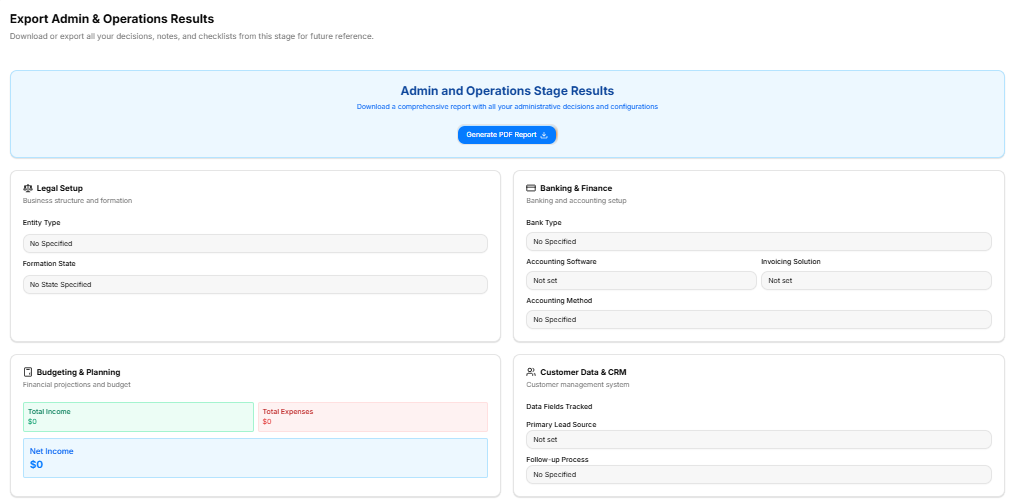
This final technical milestone acts as the master review dashboard for the Admin and Operations Stage. It aggregates all data inputs, structural choices, financial configurations, and strategic entries logged across the previous eight sub-stages into a single overview canvas, allowing founders to review their setup and download a comprehensive permanent record before proceeding.
Canvas Layout & Workspace Components
-
Main Workspace Title: Displays "Export Admin & Operations Results".
-
Instructional Subtitle: “Download or export all your decisions, notes, and checklists from this stage for future reference.”
Master Report Generation Box
-
Admin and Operations Stage Results Banner: A prominent blue header block reading “Download a comprehensive report with all your administrative decisions and configurations.”
-
Action Button: Centered within the banner is a blue Generate PDF Report button featuring a download icon, allowing immediate local file compilation.
Stage Summary Data Grid Panels
The workspace populates eight separate display cards reflecting the core configurations finalized throughout this stage:
-
1. Legal Setup: Reviews core formation choices, explicitly tracking:
-
Entity Type
-
Formation State
-
-
2. Banking & Finance: Reviews institutional money setups, detailing:
-
Bank Type
-
Accounting Software
-
Invoicing Solution
-
Accounting Method
-
-
3. Budgeting & Planning: Displays high-level programmatic financial ledger stats:
-
Total Income indicator block (Green)
-
Total Expenses indicator block (Red)
-
Net Income final balance summary block (Blue)
-
-
4. Customer Data & CRM: Summarizes operational target fields:
-
Data Fields Tracked matrix
-
Primary Lead Source parameters
-
Follow-up Process protocols
-
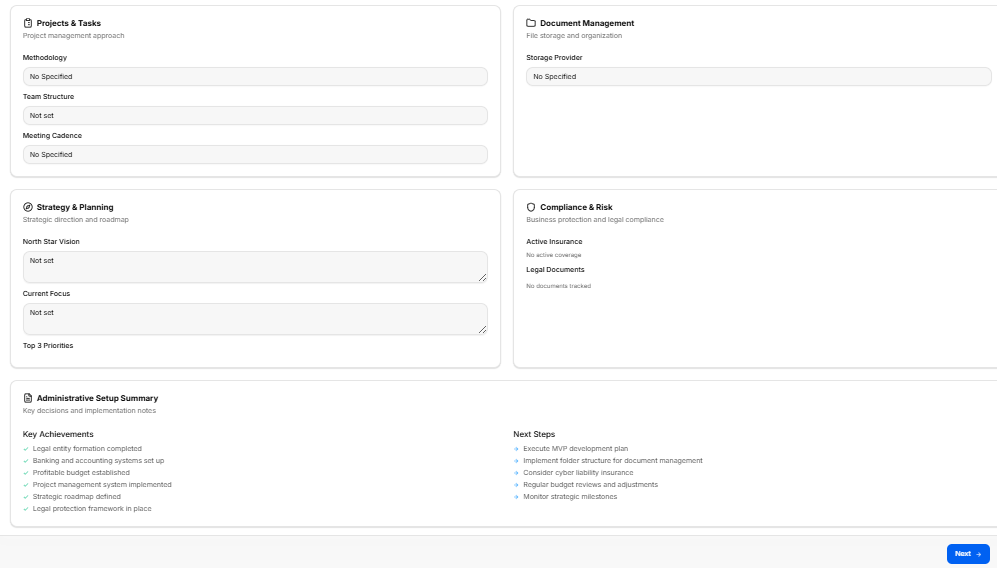
-
5. Projects & Tasks: Recaps coordination preferences:
-
Methodology approach
-
Team Structure settings
-
Meeting Cadence requirements
-
-
6. Document Management: Confirms baseline digital files architecture:
-
Storage Provider choice
-
-
7. Strategy & Planning: Displays vision targets locked on the canvas:
-
North Star Vision text review box
-
Current Focus text review box
-
Top 3 Priorities list
-
-
8. Compliance & Risk: Monitors basic organizational safety status:
-
Active Insurance summary
-
Legal Documents tracker list
-
Administrative Setup Summary & Next Steps Footer
At the lower margin of the page layout, a double-column summary card helps founders review historical progress and anticipate next tasks:
-
Key Achievements (Left Column): A green checkmark list indicating six completed administrative milestones:
-
Legal entity formation completed
-
Banking and accounting systems set up
-
Profitable budget established
-
Project management system implemented
-
Strategic roadmap defined
-
Legal protection framework in place
-
-
Next Steps (Right Column): A blue arrow indicator list outlining upcoming strategic suggestions:
-
Execute MVP development plan
-
Implement folder structure for document management
-
Consider cyber liability insurance
-
Regular budget reviews and adjustments
-
Monitor strategic milestones
-
No comments to display
No comments to display