
BuildRunKit CRM: Tasks Sub-Section
BuildRunKit CRM: Tasks Sub-Section
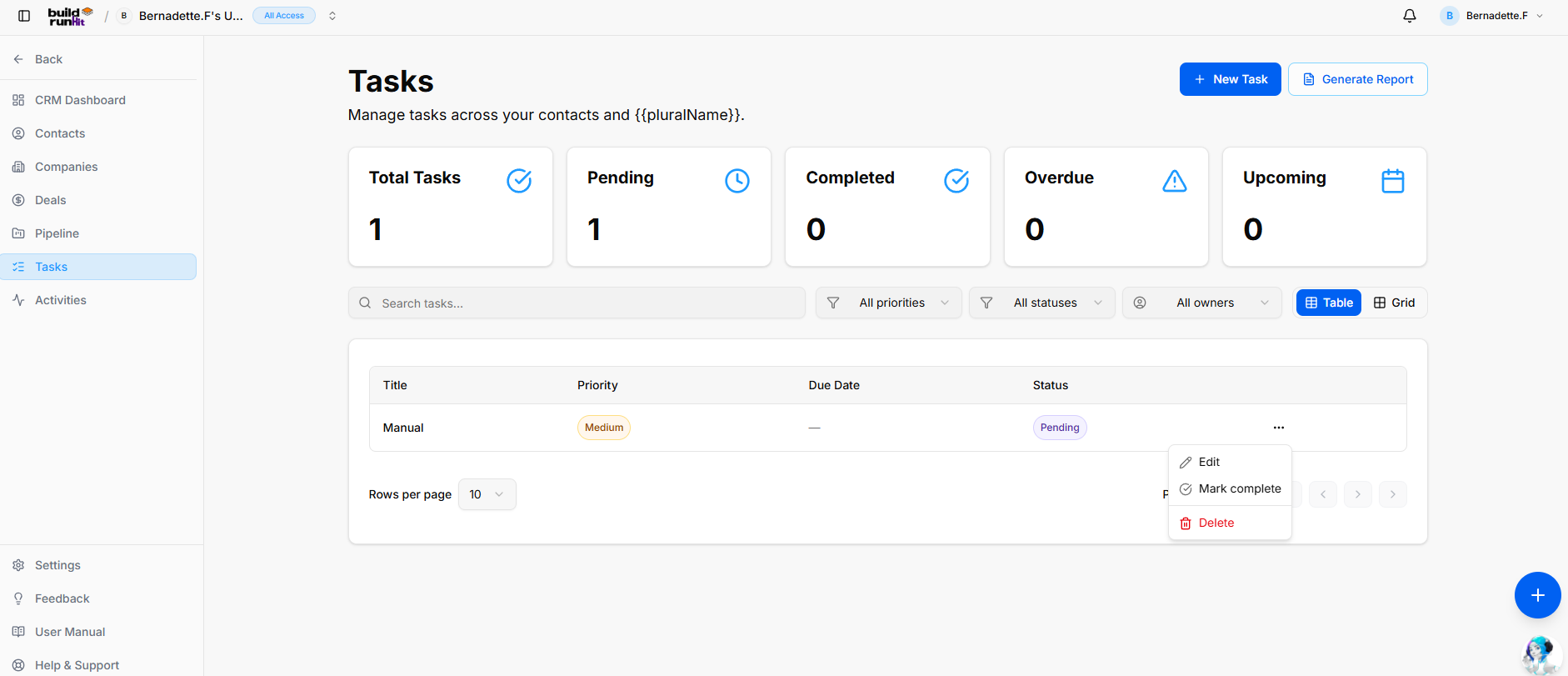
The Tasks sub-section helps you organize action items, set follow-up deadlines, and track execution across all CRM contact records and sales opportunities.
Header & Action Buttons
-
+ New Task: Direct action button to open the task creation modal.
-
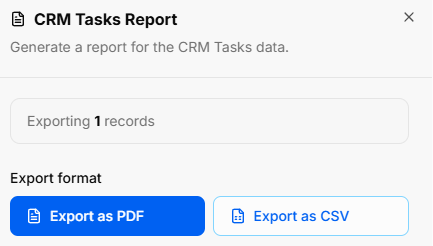
Generate Report: Opens the CRM Tasks Report export window:
-
Export Count: Indicates total targeted task entries (e.g., Exporting 1 records).
-
Export Format Options: Download task lists via Export as PDF or Export as CSV.
-
Task Summary Metrics Top KPI cards highlight workload and deadline urgency:
-
Total Tasks: Displays the cumulative count of all logged task records.
-
Pending: Tracks open action items awaiting action.
-
Completed: Counts resolved tasks marked as done.
-
Overdue: Highlights past-due action items requiring immediate attention.
-
Upcoming: Displays scheduled future tasks with approaching target dates.
Directory Controls & Search Bar
-
Search tasks...: Text input field to locate task items by title or keyword.
-
All priorities Dropdown: Filter tasks by urgency level (e.g., High, Medium, Low).
-
All statuses Dropdown: Filter by execution state (e.g., Pending, In Progress, Completed).
-
All owners Dropdown: Filter tasks by assigned team member.
-
View Switches: Toggle display format between Table (list view) and Grid (card view).
-
Rows per page & Pagination: Adjust visible items per page and step through task lists.
Tasks Table Data Columns
-
Title: Name and summary of the action item.
-
Priority: Visual urgency badge (e.g., Medium).
-
Due Date: Targeted completion deadline.
-
Status: Current progress indicator (e.g., Pending).
-
Row Actions Menu (
...): Quick management options for individual rows:-
Edit: Opens the setup editor to adjust task details, deadlines, or priority.
-
Mark complete: Instantly toggles status to completed.
-
Delete: Removes the task entry from your workspace.
-
BuildRunKit CRM: Creating a New Task
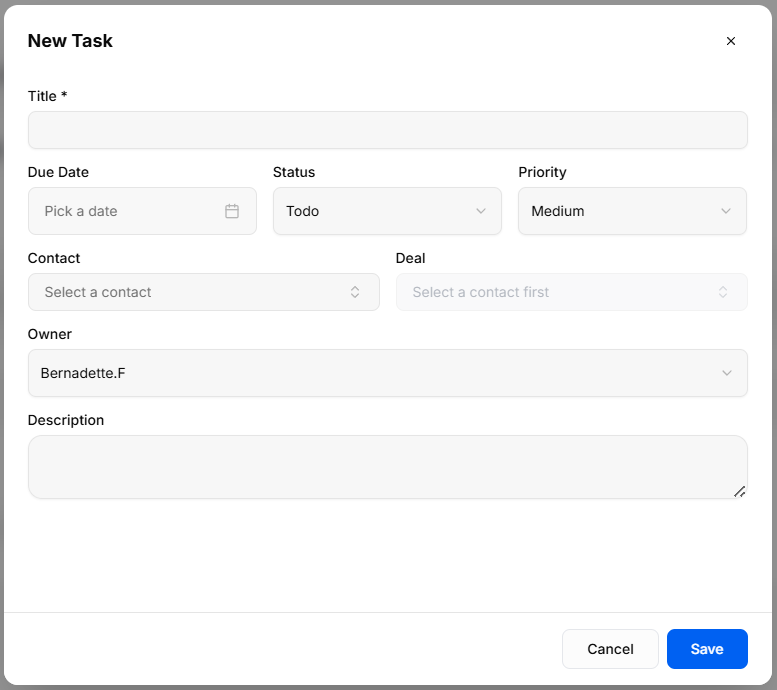
Clicking the + New Task button opens a setup modal to log and assign individual action items:
-
Title *: Required text field to enter the task name or core action.
-
Due Date: Date picker input to assign a completion deadline.
-
Status: Dropdown selector to set current progress state (Todo, In Progress, Complete, or Cancelled).
-
Priority: Dropdown selector to set urgency (Low, Medium, High).
-
Contact: Dropdown menu to link the task to a specific client record.
-
Deal: Dropdown menu to associate the task with a specific sales opportunity (requires selecting a contact first).
-
Owner: Dropdown selector to assign task responsibility to a team member in your workspace.
-
Description: Multi-line text field for additional context, steps, or execution notes.
-
Modal Actions: Click Cancel to discard or Save to create the task record.
No comments to display
No comments to display