
BuildRunKit Settings Overview Sub-section
Settings Overview Sub-section
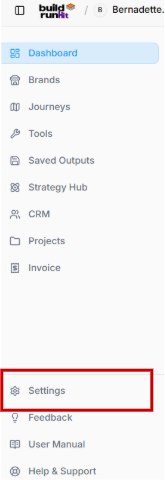
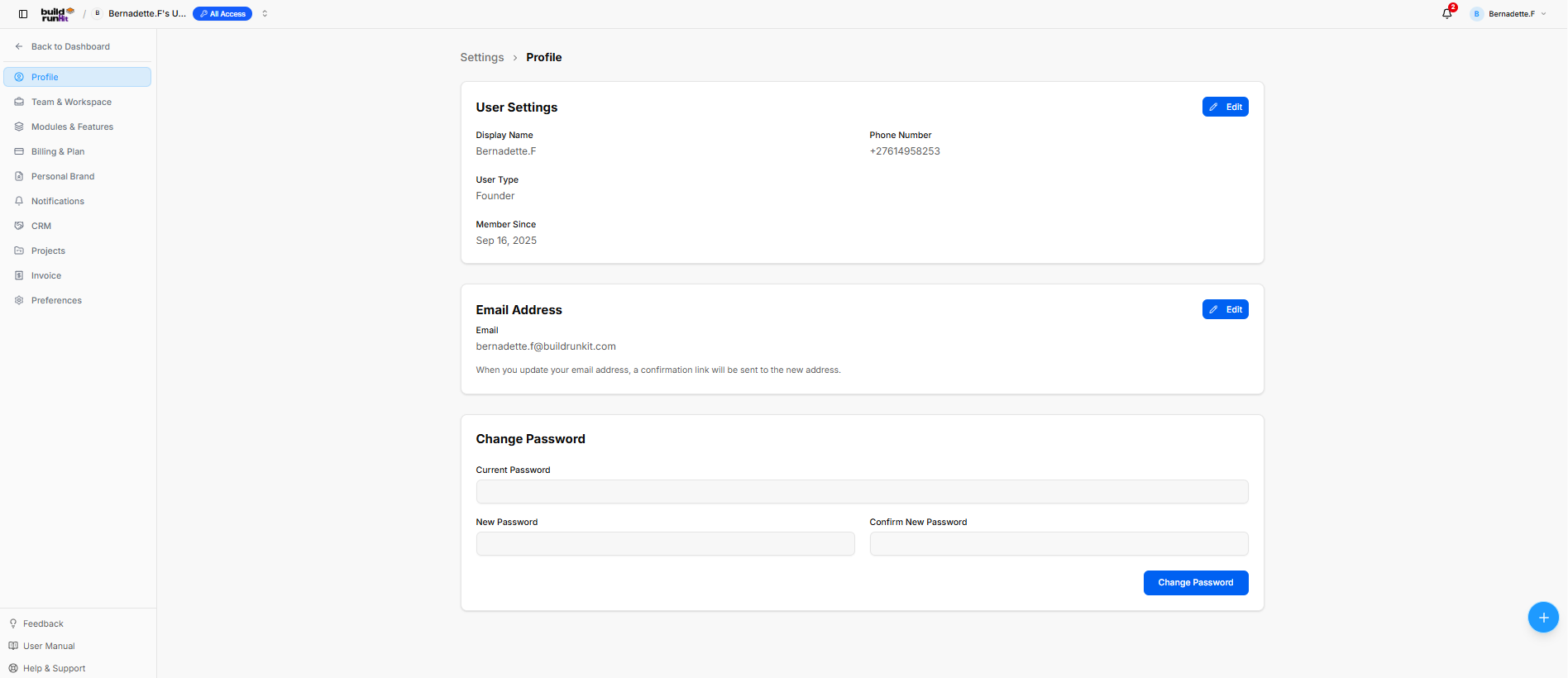
The Settings section manages user profile details, workspace management, security credentials, subscription billing, and module preferences through a dedicated secondary sidebar navigation menu.
Settings Menu Navigation
-
Profile: View and update account credentials, contact information, and security settings.
-
Team & Workspace: Manage workspace settings, team members, and access roles.
-
Modules & Features: Toggle application modules and platform feature settings.
-
Billing & Plan: Manage account subscription plans, view invoices, and update payment methods.
-
Personal Brand: Configure personal branding defaults and assets.
-
Notifications: Set notification preferences and alert triggers.
-
CRM: Manage customer relationship management module settings.
-
Projects: Configure project management defaults and workflows.
-
Invoice: Adjust invoicing templates and billing parameters.
-
Preferences: Set global UI and account localization preferences.
Profile Settings
User Settings Card
-
Displayed Fields: Shows Display Name (Bernadette.F), Phone Number (+27614958253), User Type (Founder), and account creation date under Member Since (Sep 16, 2025).
-
Edit Button: Blue action button at the top right to update user details.
Email Address Card
-
Displayed Email: Shows current account email ([email protected]).
-
Edit Button: Blue action button at the top right to update the email address (triggers a confirmation link).
Change Password Card
-
Password Fields: Contains input fields for Current Password, New Password, and Confirm New Password.
-
Change Password Button: Blue submission button at the bottom right to apply new login security credentials.
Team & Workspace Settings Sub-Section
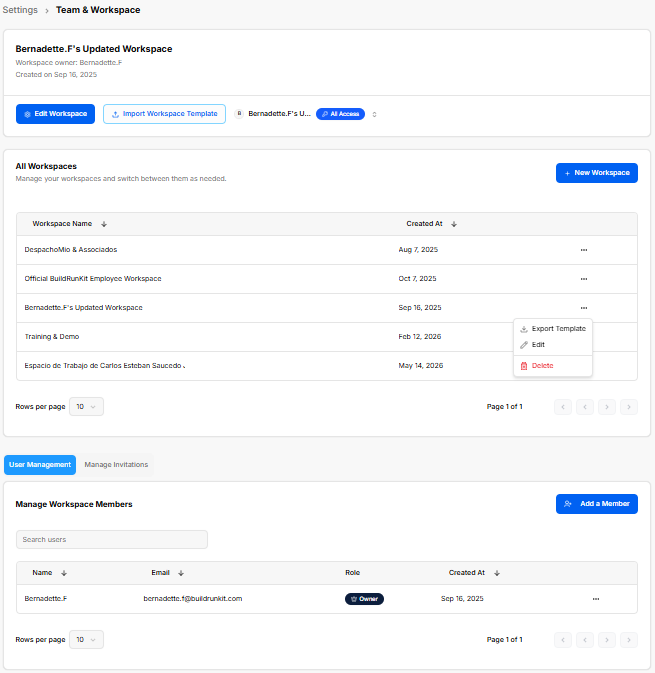
The Team & Workspace settings section manages workspace creation, workspace switching, user memberships, and collaborator invitations across team environments.
Active Workspace Controls
-
Active Workspace Header: Displays current workspace details (Bernadette.F's Updated Workspace), owner name (Bernadette.F), and creation date (Sep 16, 2025).
-
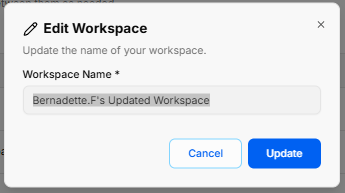
Edit Workspace Button: Opens a modal to update the current workspace title.
-
Import Workspace Template Button: Allows importing workspace configurations from a template file.
-
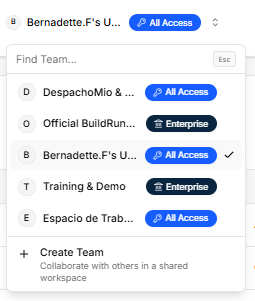
Workspace Switcher Dropdown (Top Navigation Bar): Click the active workspace pill to search existing teams, view subscription tiers (All Access, Enterprise), or click + Create Team to set up a shared environment.
Workspace Directory & Management
-
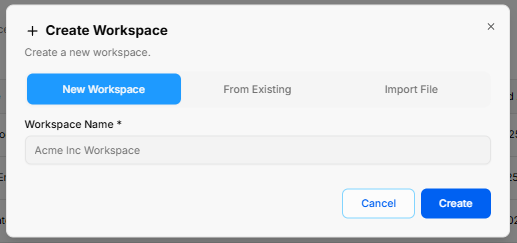
+ New Workspace: Opens the Create Workspace modal with three options:
-
New Workspace Tab: Enter a required Workspace Name * (e.g., Acme Inc Workspace) and click Create.
-
From Existing Tab: Duplicate settings from an active workspace.
-
Import File Tab: Upload workspace configuration files.
-
-
All Workspaces Table: Lists workspaces by Workspace Name and Created At.
-
Row Context Menu (
...):-
Export Template: Downloads the workspace structure.
-
Edit: Opens the Edit Workspace modal to update the name.
-
Delete: Removes the workspace.
-
User Management Tab
-
Manage Workspace Members Table: Displays active members by Name, Email, Role (Owner, Member), and Created At.
-
Search Users: Filters the member directory by name or email.
-
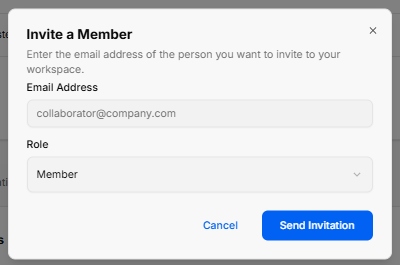
+ Add a Member: Opens the Invite a Member modal to enter an Email Address ([email protected]), assign a Role (Member), and click Send Invitation.
-
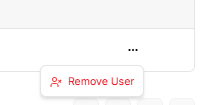
Member Action (
...): Click to select Remove User and revoke workspace access.
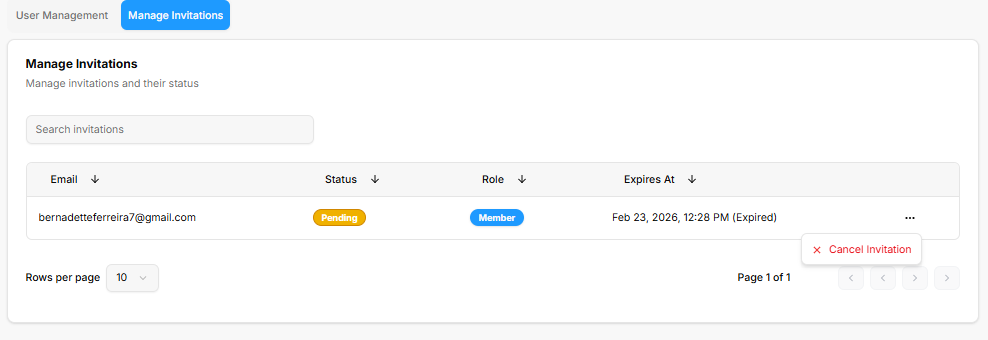
Manage Invitations Tab
-
Search Invitations: Input field to filter sent invitations.
-
Invitations Table: Lists sent invites by Email, Status (Pending), assigned Role, and Expires At timestamp.
-
Invitation Action (
...): Select Cancel Invitation to revoke pending access.
Modules & Features Settings Sub-Section
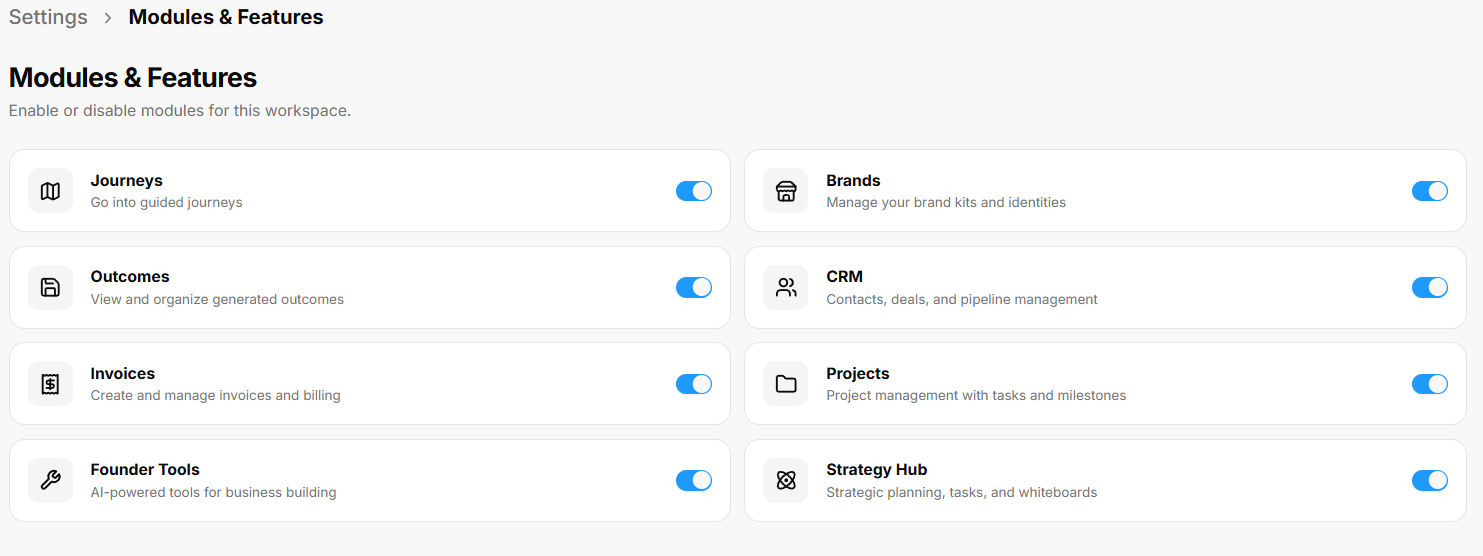
The Modules & Features settings section enables workspace owners to toggle specific tools and navigation options on or off to customize the active workspace sidebar layout.
Available Workspace Modules
-
Journeys (Map Icon): Toggle on/off guided paths (Go into guided journeys).
-
Brands (Storefront Icon): Toggle on/off brand kit tools (Manage your brand kits and identities).
-
Outcomes (Save Icon): Toggle on/off generated output storage (View and organize generated outcomes).
-
CRM (People Icon): Toggle on/off contact and sales tools (Contacts, deals, and pipeline management).
-
Invoices (Dollar Ticket Icon): Toggle on/off billing tools (Create and manage invoices and billing).
-
Projects (Folder Icon): Toggle on/off task tracking (Project management with tasks and milestones).
-
Founder Tools (Wrench Icon): Toggle on/off founder startup journeys.
-
Strategy Hub (Atom Icon): Toggle on/off strategic planning features (Strategic planning, tasks, and whiteboards).
Billing & Plan Settings Sub-Section
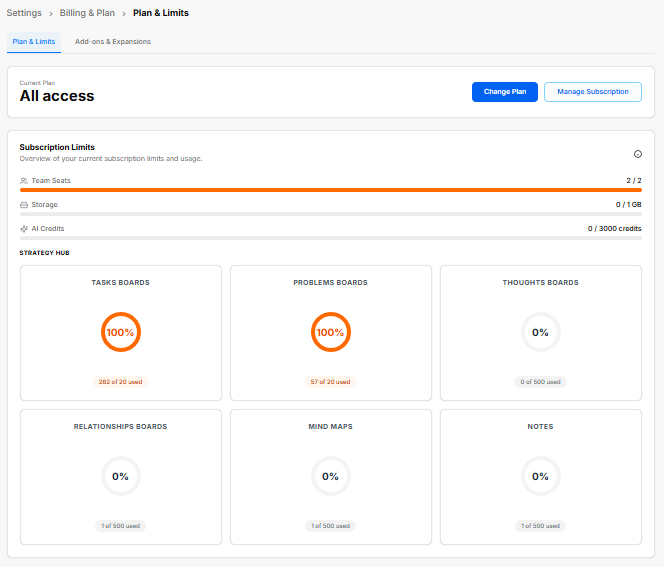
The Billing & Plan settings section provides visibility into active subscription tiers, core resource limits, usage metrics, and expansion add-ons across the workspace.
Plan & Limits Overview
Add-ons & Expansions
-
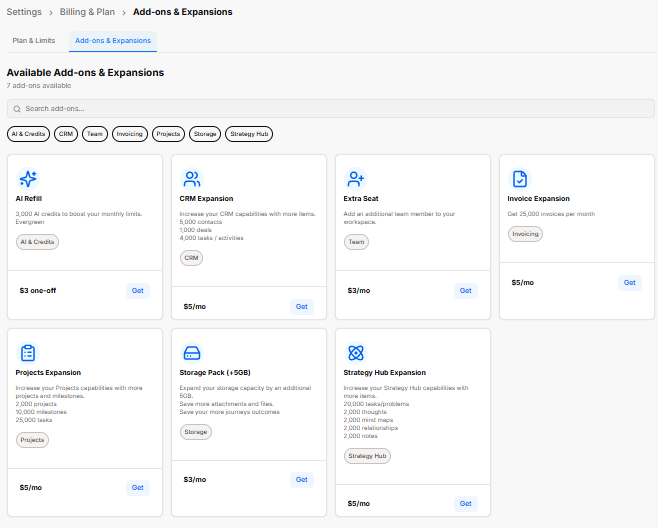
Category Filters: Quick-filter available expansions by tag (AI & Credits, CRM, Team, Invoicing, Projects, Storage, Strategy Hub).
-
Add-on Marketplace:
-
AI Refill: Adds 3,000 evergreen AI credits ($3 one-off).
-
CRM Expansion: Increases CRM capacity to 5,000 contacts, 1,000 deals, and 4,000 tasks ($5/mo).
-
Extra Seat: Adds an additional user seat to the workspace ($3/mo).
-
Invoice Expansion: Increases limit to 25,000 invoices per month ($5/mo).
-
Projects Expansion: Increases capacity to 2,000 projects, 10,000 milestones, and 25,000 tasks ($5/mo).
-
Storage Pack (+5GB): Expands file storage capacity by 5 GB ($3/mo).
-
Strategy Hub Expansion: Increases limits to 20,000 tasks/problems, 2,000 thoughts, 2,000 mind maps, 2,000 relationships, and 2,000 notes ($5/mo).
-
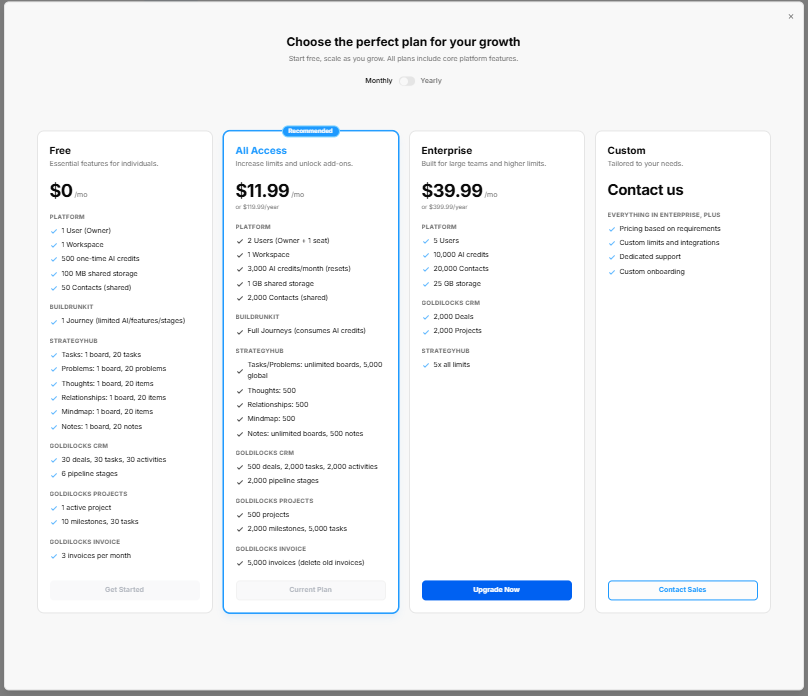
Subscription Tiers Comparison Modal
-
Billing Toggle: Switch between Monthly and Yearly billing cycles.
-
Tier Options:
-
Free: $0/mo for individual essentials (1 User, 1 Workspace, 500 AI credits, 100 MB storage).
-
All Access (Recommended): $11.99/mo ($119.99/year) including 2 Users, 3,000 AI credits/mo, 1 GB storage, full Journeys, and expanded CRM/Project limits.
-
Enterprise: $39.99/mo ($399.99/year) including 5 Users, 10,000 AI credits/mo, 25 GB storage, 20,000 contacts, and 5x Strategy Hub limits.
-
Custom: Contact Sales for enterprise onboarding, dedicated support, and custom limits.
-
Personal Brand Settings Sub-Section
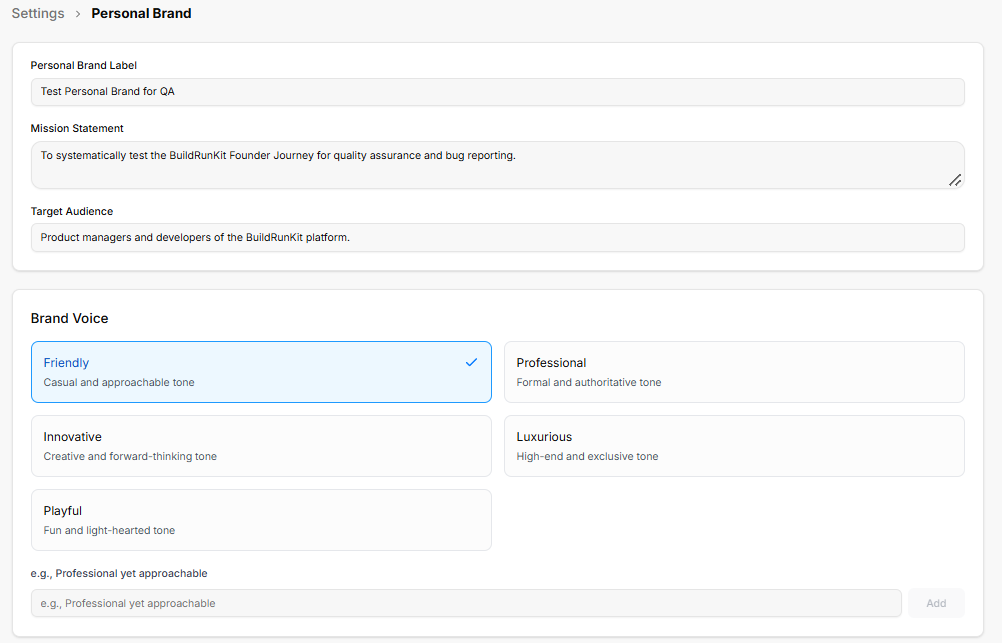
The Personal Brand settings section configures core messaging, target demographics, tone of voice, and professional attributes used across platform-generated content and journeys.
Identity & Positioning
-
Personal Brand Label: Text input defining the brand title (e.g., Test Personal Brand for QA).
-
Mission Statement: Multiline text area defining overall purpose (e.g., To systematically test the BuildRunKit Founder Journey for quality assurance and bug reporting.).
-
Target Audience: Text input specifying primary demographic targets (e.g., Product managers and developers of the BuildRunKit platform.).
Brand Voice Configuration
-
Preset Voice Options: Selectable tone tiles to define content style:
-
Friendly: Casual and approachable tone.
-
Professional: Formal and authoritative tone.
-
Innovative: Creative and forward-thinking tone.
-
Luxurious: High-end and exclusive tone.
-
Playful: Fun and light-hearted tone.
-
-
Custom Voice Input: Field to type custom tone descriptors (e.g., Professional yet approachable) and click Add.
Core Attributes & Expertise
-
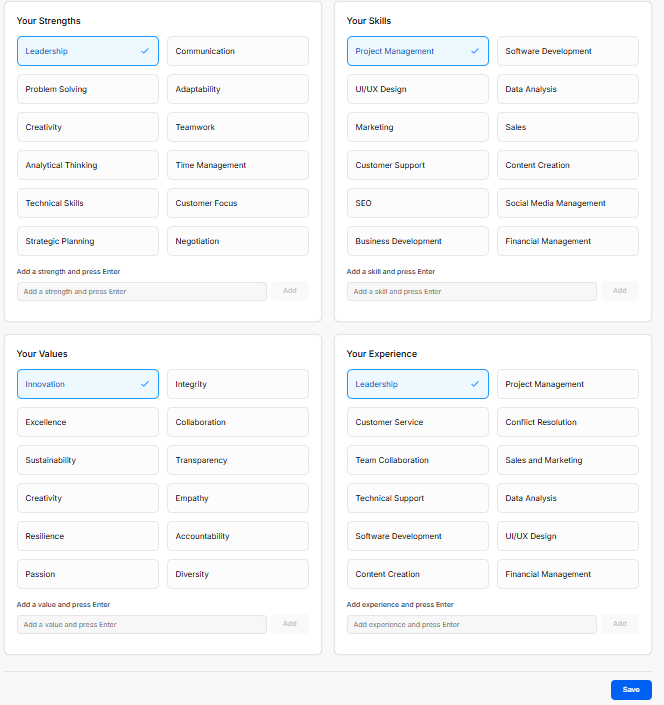
Your Strengths: Selectable badges (Leadership, Communication, Problem Solving, Adaptability, Creativity, Teamwork, Analytical Thinking, Time Management, Technical Skills, Customer Focus, Strategic Planning, Negotiation). Includes custom input to type a strength and click Add.
-
Your Skills: Selectable badges (Project Management, Software Development, UI/UX Design, Data Analysis, Marketing, Sales, Customer Support, Content Creation, SEO, Social Media Management, Business Development, Financial Management). Includes custom input to type a skill and click Add.
-
Your Values: Selectable badges (Innovation, Integrity, Excellence, Collaboration, Sustainability, Transparency, Creativity, Empathy, Resilience, Accountability, Passion, Diversity). Includes custom input to type a value and click Add.
-
Your Experience: Selectable badges (Leadership, Project Management, Customer Service, Conflict Resolution, Team Collaboration, Sales and Marketing, Technical Support, Data Analysis, Software Development, UI/UX Design, Content Creation, Financial Management). Includes custom input to type experience and click Add.
-
Save Button: Saves all profile configurations to the active workspace.
Notifications Settings Sub-Section
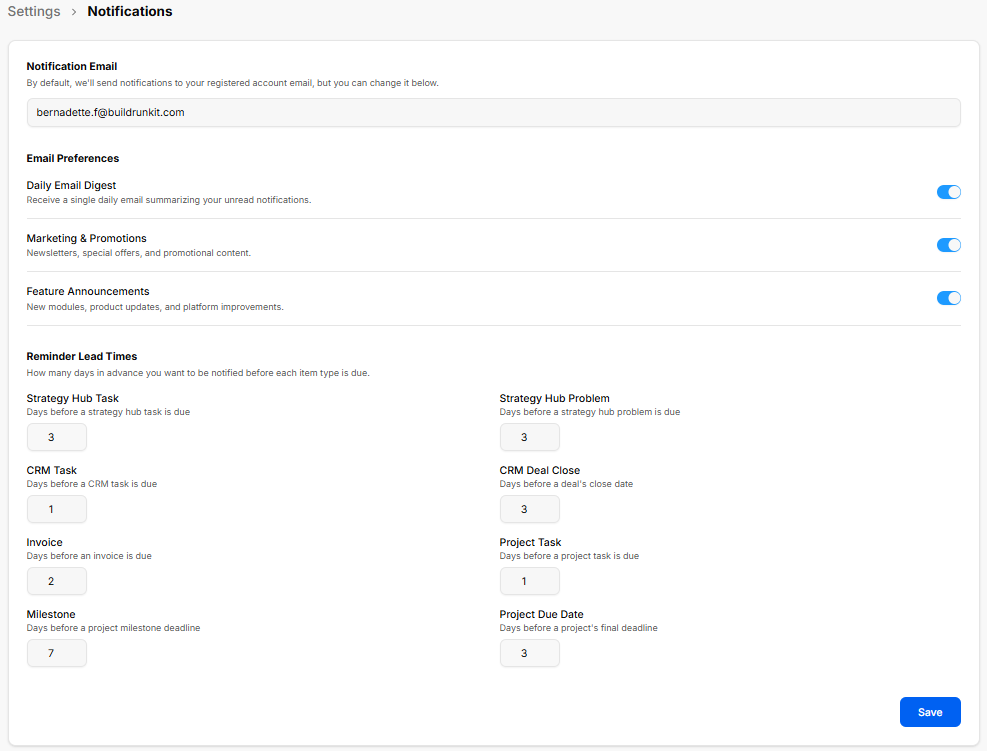
The Notifications settings section allows users to configure delivery email destinations, toggle system email preferences, and set advance notice lead times for upcoming tasks, milestones, deals, and invoice deadlines.
Notification Delivery & Email Preferences
-
Notification Email: Input field to set the email address where notifications are sent (defaults to registered account email).
-
Daily Email Digest: Toggle on/off to receive a single daily email summarizing unread notifications.
-
Marketing & Promotions: Toggle on/off for newsletters, special offers, and promotional updates.
-
Feature Announcements: Toggle on/off for new modules, product updates, and platform improvements.
Reminder Lead Times
-
Strategy Hub Task: Numeric field for advance warning days before a strategy hub task is due (e.g., 3 days).
-
Strategy Hub Problem: Numeric field for advance warning days before a strategy hub problem is due (e.g., 3 days).
-
CRM Task: Numeric field for advance warning days before a CRM task is due (e.g., 1 day).
-
CRM Deal Close: Numeric field for advance warning days before a deal's close date (e.g., 3 days).
-
Invoice: Numeric field for advance warning days before an invoice is due (e.g., 2 days).
-
Project Task: Numeric field for advance warning days before a project task is due (e.g., 1 day).
-
Milestone: Numeric field for advance warning days before a project milestone deadline (e.g., 7 days).
-
Project Due Date: Numeric field for advance warning days before a project's final deadline (e.g., 3 days).
-
Save Button: Updates and saves all notification settings.
CRM Settings Sub-Section
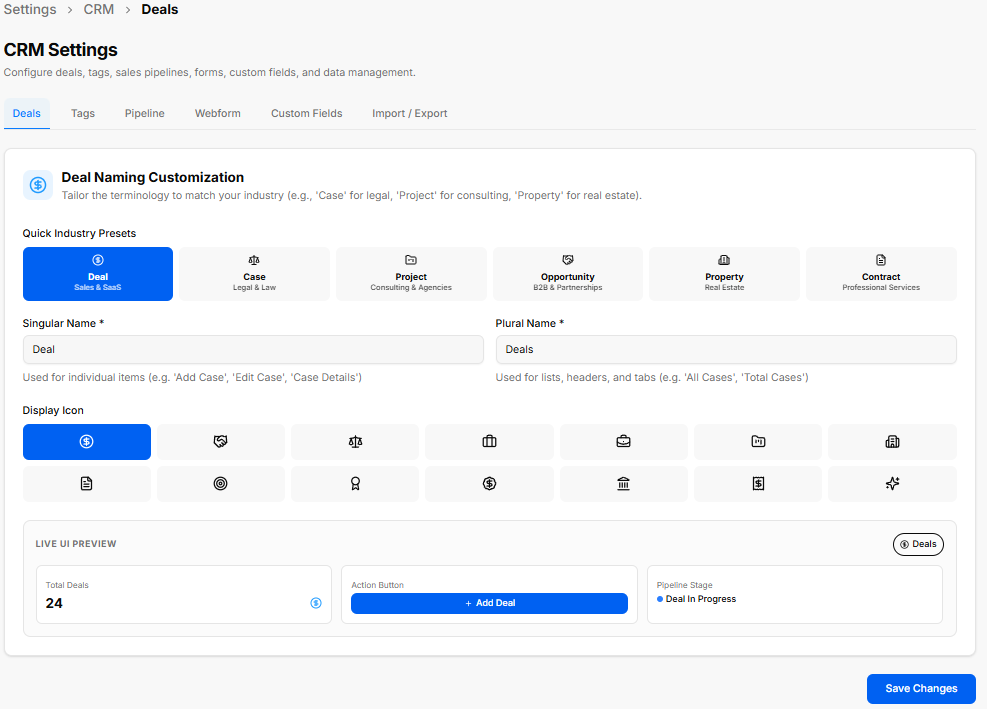
The CRM Settings section under Settings allows workspace owners to configure deals, tags, sales pipelines, webforms, custom fields, and data import/export rules.
CRM Settings Tabs
-
Deals: Customizes deal terminology, presets, singular/plural naming, display icons, and presents a Live UI Preview before saving changes.
-
Tags: Manages category tags for filtering CRM records.
-
Pipeline: Configures custom sales pipeline stages and progress workflows.
-
Webform: Sets up lead capture forms for embedding or sharing.
-
Custom Fields: Adds tailored data fields across contacts and deal profiles.
-
Import / Export: Handles bulk CSV data backups and lead imports.
-
Detailed Module Guide: For full step-by-step instructions and deeper breakdowns of each tab, see the BuildRunKit CRM > CRM Settings section of this user guide.
Projects Settings Sub-Section
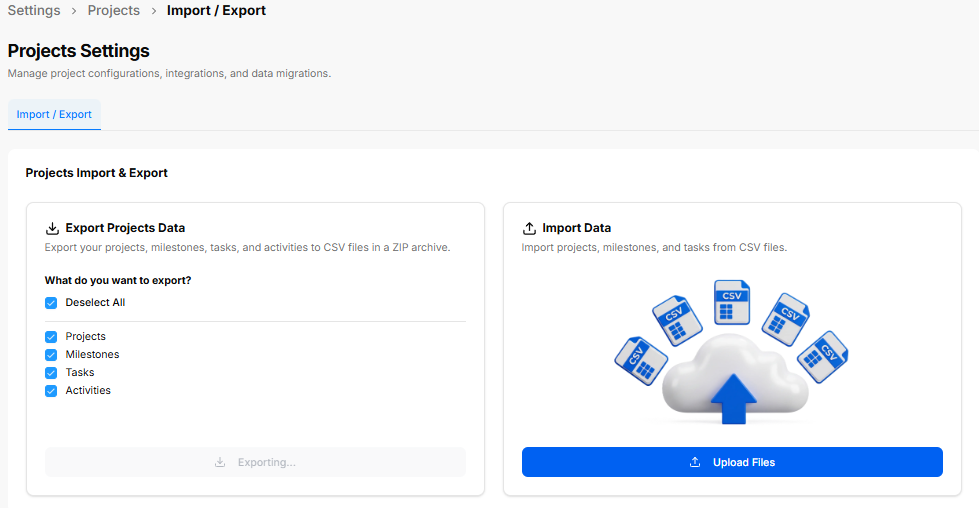
The Projects Settings section allows workspace owners to manage project configurations, data backups, and CSV file migrations.
Projects Import & Export Controls
-
Export Projects Data: Downloads selected project items to CSV files archived in a ZIP folder.
-
Export Options: Select or deselect specific categories including Projects, Milestones, Tasks, and Activities.
-
Exporting Button: Initiates the export package generation.
-
-
Import Data: Allows importing external project structures, milestones, and tasks via CSV uploads.
-
Upload Files Button: Opens the file picker to upload external CSV files into the workspace.
-
-
Detailed Module Guide: For full step-by-step instructions and deeper breakdowns of project configurations, see the BuildRunKit Projects > Projects Settings section of this user guide.
Invoice Settings Sub-Section
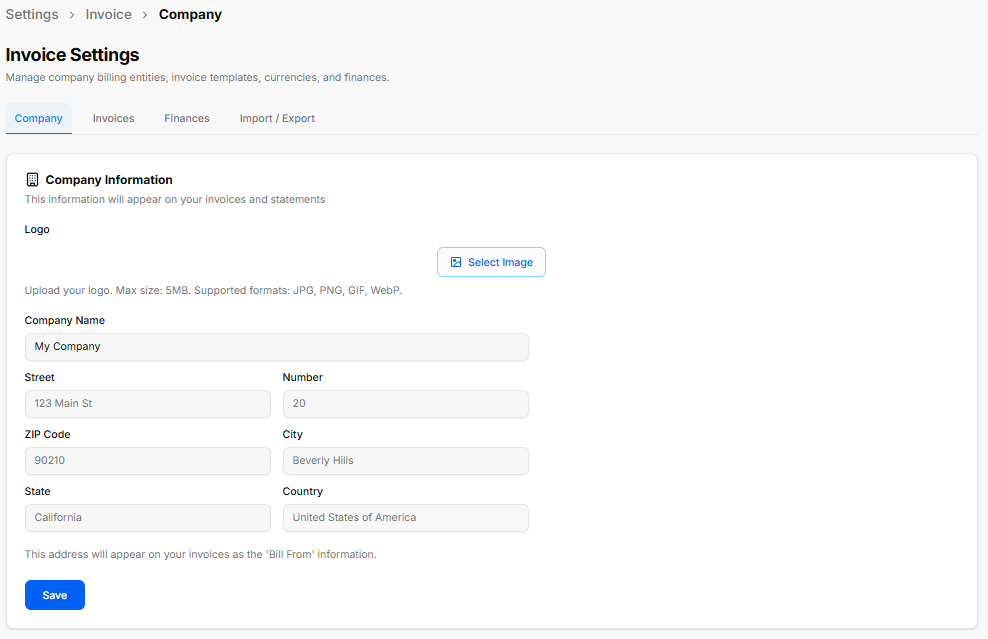
The Invoice Settings section allows workspace owners to manage billing entities, invoice display parameters, default currencies, and financial settings.
Invoice Settings Tabs
-
Company: Configures basic branding and sender details displayed under the "Bill From" section on outgoing invoices and statements.
-
Logo: Click Select Image to upload a company logo (Max size: 5MB; Formats: JPG, PNG, GIF, WebP).
-
Company Name: Input field for the business name (e.g., My Company).
-
Address Fields: Form fields for Street, Number, ZIP Code, City, State, and Country.
-
Save Button: Stores company identity and location updates.
-
-
Invoices: Controls default payment terms, invoice prefixing, numbering sequences, and notes.
-
Finances: Manages accepted payment gateways, tax percentages, and default currency formats.
-
Import / Export: Handles invoice history backups and CSV data migrations.
-
Detailed Module Guide: For full step-by-step instructions and detailed explanations of all invoice options, see the BuildRunKit Invoice > Invoice Settings section of this user guide.
Preferences Settings Sub-Section
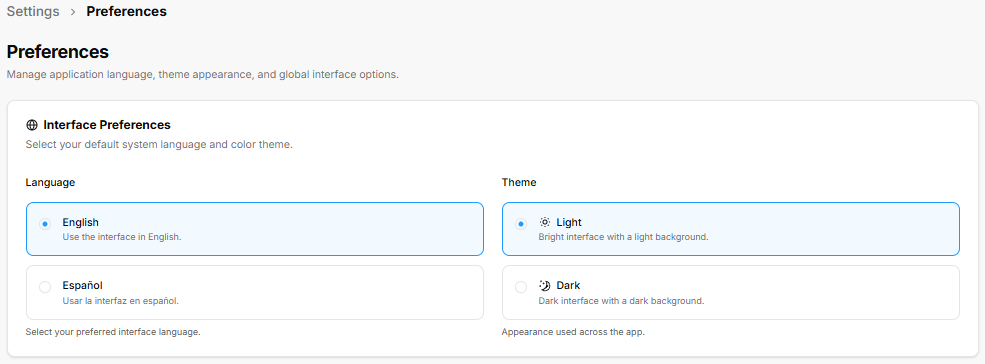
The Preferences section allows users to customize overall application language, visual themes, and global interface options.
Interface Preferences
-
Language Selection: Radio options to choose the preferred application interface language:
-
English: Sets the interface language to English.
-
Español: Sets the interface language to Spanish (Usar la interfaz en español).
-
-
Theme Selection: Radio options to switch the visual appearance across the entire platform:
-
Light: Applies a bright interface with a light background.
-
Dark: Applies a dark interface with a dark background.
-
No comments to display
No comments to display