
BuildRunKit Brands Module Sub-Section
Brands Module Sub-Section
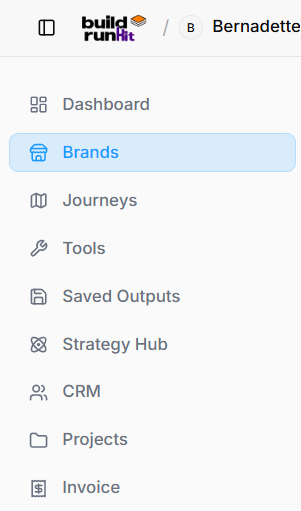
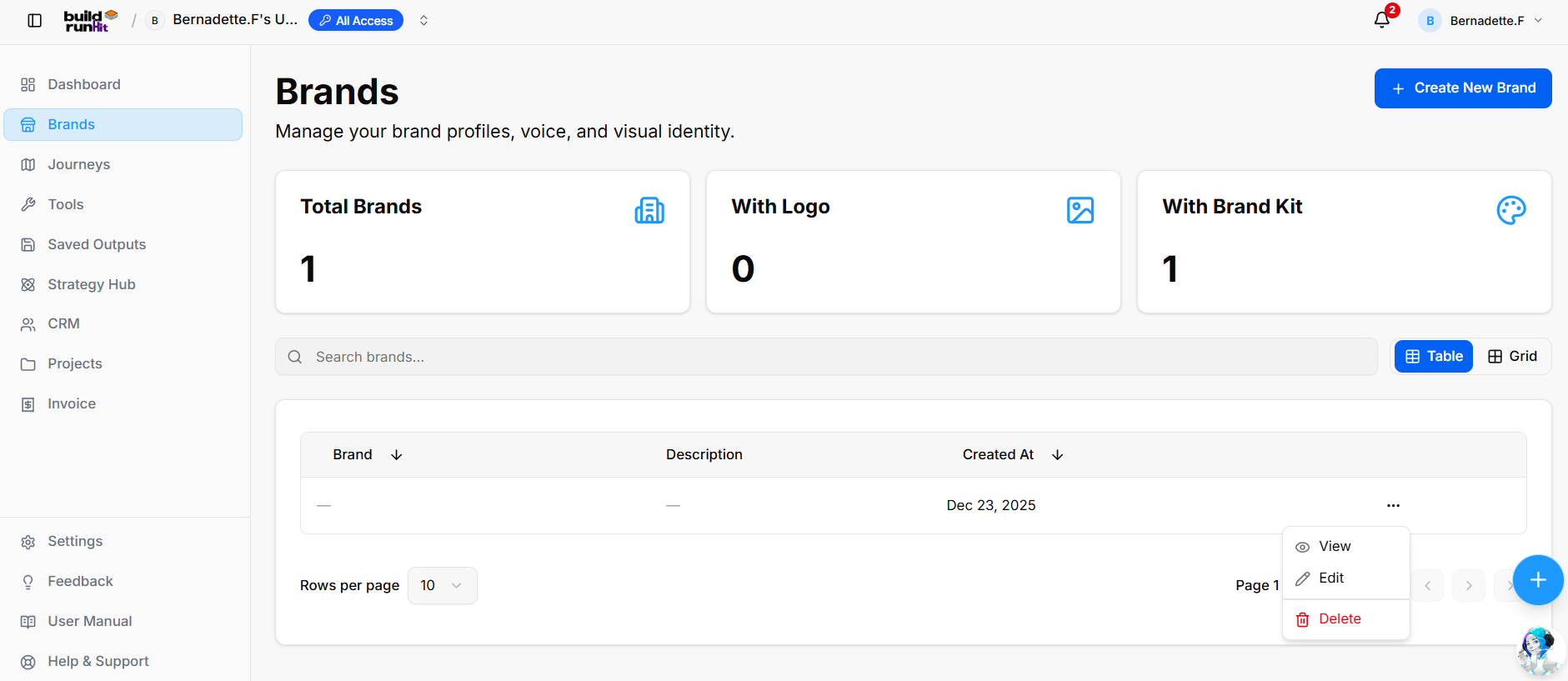
The Brands module allows users to establish, manage, and maintain brand profiles, tone of voice guidelines, and visual identity assets across their business projects.
Metrics Summary Cards
-
Total Brands: Displays the total number of created brand profiles (e.g., 1).
-
With Logo: Tracks brand profiles containing an uploaded logo image (e.g., 0).
-
With Brand Kit: Tracks profiles configured with a complete visual style kit (e.g., 1).
Search & Layout Controls
-
Create New Brand Button: Opens the creation wizard to set up a new brand identity.
-
Search Input Field: Real-time filter to search brand profiles (e.g., "Search brands...").
-
View Toggles: Switches data display between Table view and Grid view.
Brand Profiles List
-
Brand Column: Displays the brand name.
-
Description Column: Displays the short summary or mission statement.
-
Created At Column: Timestamp showing when the profile was generated (e.g., Dec 23, 2025).
-
Action Menu: Context menu (
...) offering profile management choices: View, Edit, and Delete.
Create New Brand Form Configuration
-
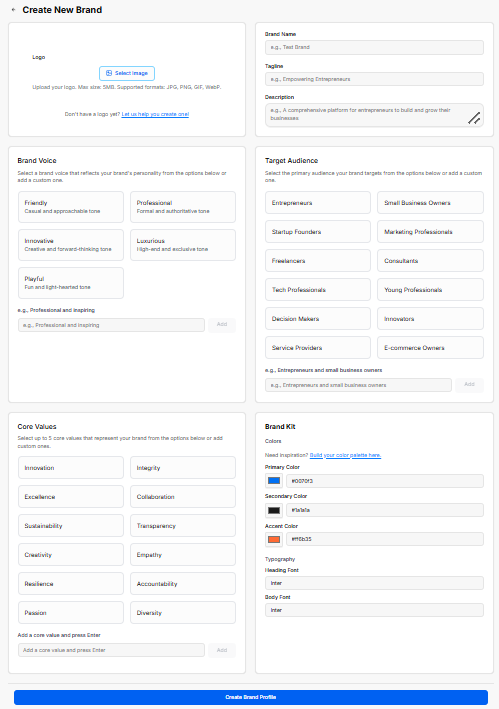
Logo Upload: Image upload area supporting JPG, PNG, GIF, and WebP formats (max 5MB), plus a link to assist with logo creation.
-
Basic Information: Form fields for Brand Name, Tagline, and a detailed Description.
-
Brand Voice: Selectable personality cards (Friendly, Professional, Innovative, Luxurious, Playful) or custom voice input field.
-
Target Audience: Multi-select tags for audience groups (e.g., Entrepreneurs, Small Business Owners, Startup Founders, Marketing Professionals) or custom audience entry.
-
Core Values: Selection cards for up to 5 core principles (e.g., Innovation, Integrity, Excellence, Sustainability, Creativity) or custom value inputs.
-
Brand Kit: Color palette fields (Primary, Secondary, Accent Color with integrated color picker links) and typography settings (Heading Font and Body Font).
-
Create Brand Profile Button: Submits and saves the fully configured brand identity.
Viewing Brand Profile Details
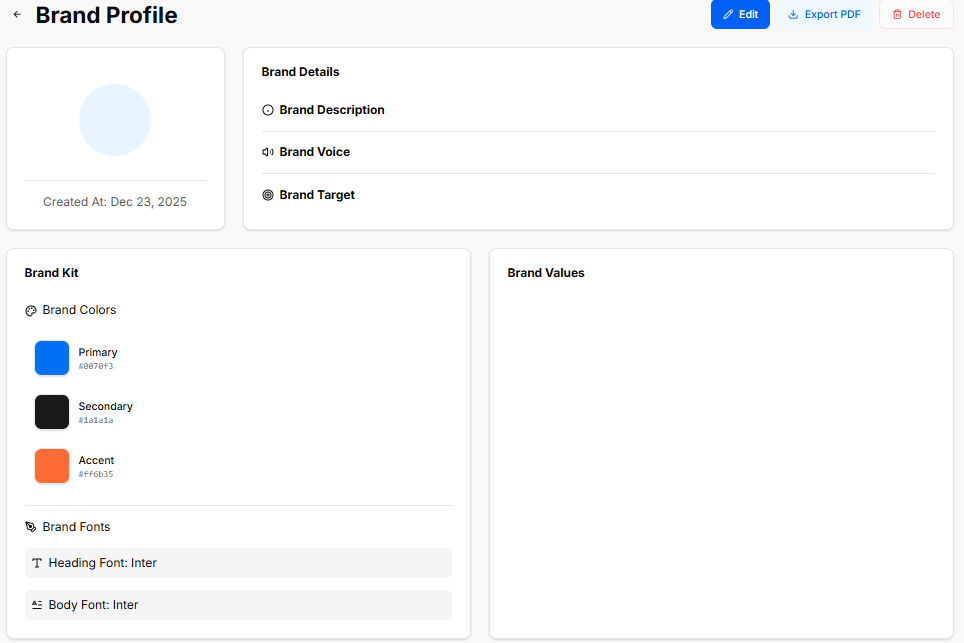
When selecting View from a brand's action menu, the Brand Profile detailed view displays the saved identity assets and configuration:
-
Header Actions: Action buttons to Edit the profile, Export PDF for brand guideline sharing, or Delete the profile.
-
Logo & Timestamp Card: Displays the uploaded brand logo image alongside the creation timestamp (e.g., Created At: Dec 23, 2025).
-
Brand Details Panel: Summarizes key strategic messaging:
-
Brand Description: Overview of the business background and mission.
-
Brand Voice: Selected tone guidelines for marketing and communication.
-
Brand Target: Defined target audience and buyer personas.
-
-
Brand Kit Panel: Outlines visual design standards:
-
Brand Colors: Visual color swatches with exact Hex codes (e.g., Primary #0070F3, Secondary #1A1A1A, Accent #FF6B35).
-
Brand Fonts: Typography guidelines showing designated Heading Font (e.g., Inter) and Body Font (e.g., Inter).
-
-
Brand Values Panel: Dedicated section listing the saved core brand values and operational principles.
Editing a Brand Profile
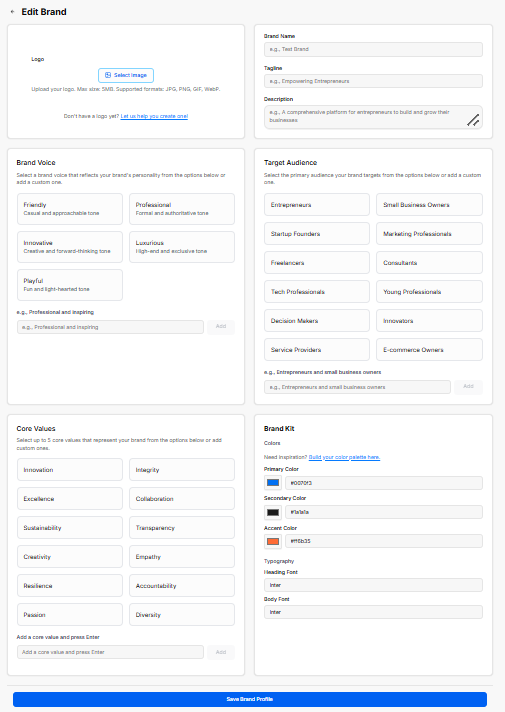
Clicking Edit from either the brand action menu or the Brand Profile header opens the Edit Brand interface, pre-populated with existing brand parameters for updates:
-
Logo Update Area: Option to upload a new logo image file or generate one using the external link.
-
Basic Information: Editable fields for Brand Name, Tagline, and Description.
-
Brand Voice & Audience Adjustments: Selectable buttons and input fields to update tone options or refine target audience categories.
-
Core Values & Visual Kit: Modify core brand value tags, color hex values (Primary, Secondary, Accent), and typography selections (Heading Font, Body Font).
-
Save Brand Profile Button: Blue action button at the bottom of the page to commit and save all updated changes.
No comments to display
No comments to display