
Strategy Relationship Sub-Section
Strategy Relationship Sub-Section
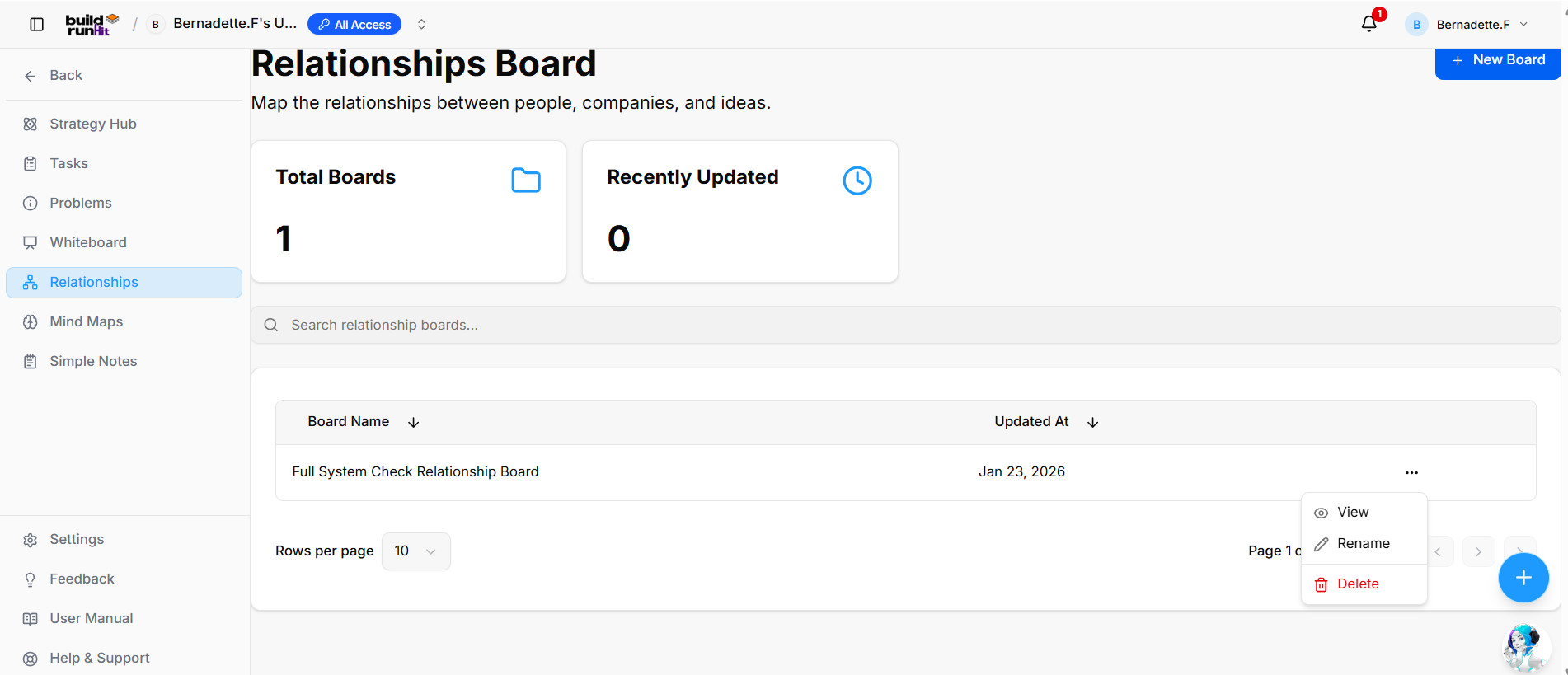
The Strategy Relationship sub-section allows you to map connections between people, companies, and ideas across your workspace.
Create New Relationship Board
-
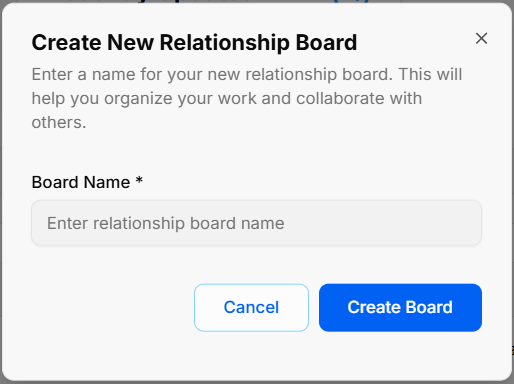
Open Modal: Click the blue + New Board button at the top right of the directory view.
-
Enter Board Name: Type your title into the required Board Name * field (Enter relationship board name).
-
Confirm Creation: Click Create Board to generate your board canvas, or select Cancel to close without saving.
Overview Metrics & Search
-
Total Boards: Displays the total count of relationship boards created in your workspace.
-
Recently Updated: Displays the number of relationship boards recently updated.
-
Search Bar: Input field (Search relationship boards...) to filter boards by name.
Board Directory Table
-
Table Columns: Displays existing boards organized under Board Name and Updated At headers (with sorting arrows).
-
Row Quick Menu (
...): Context menu on board rows providing options to:-
View: Open the selected relationship board.
-
Rename: Change the title of the relationship board.
-
Delete: Permanently remove the relationship board.
-
-
Pagination Controls: Adjust items displayed per page via the Rows per page dropdown or step through pages using the pagination arrows.
Strategy Relationship
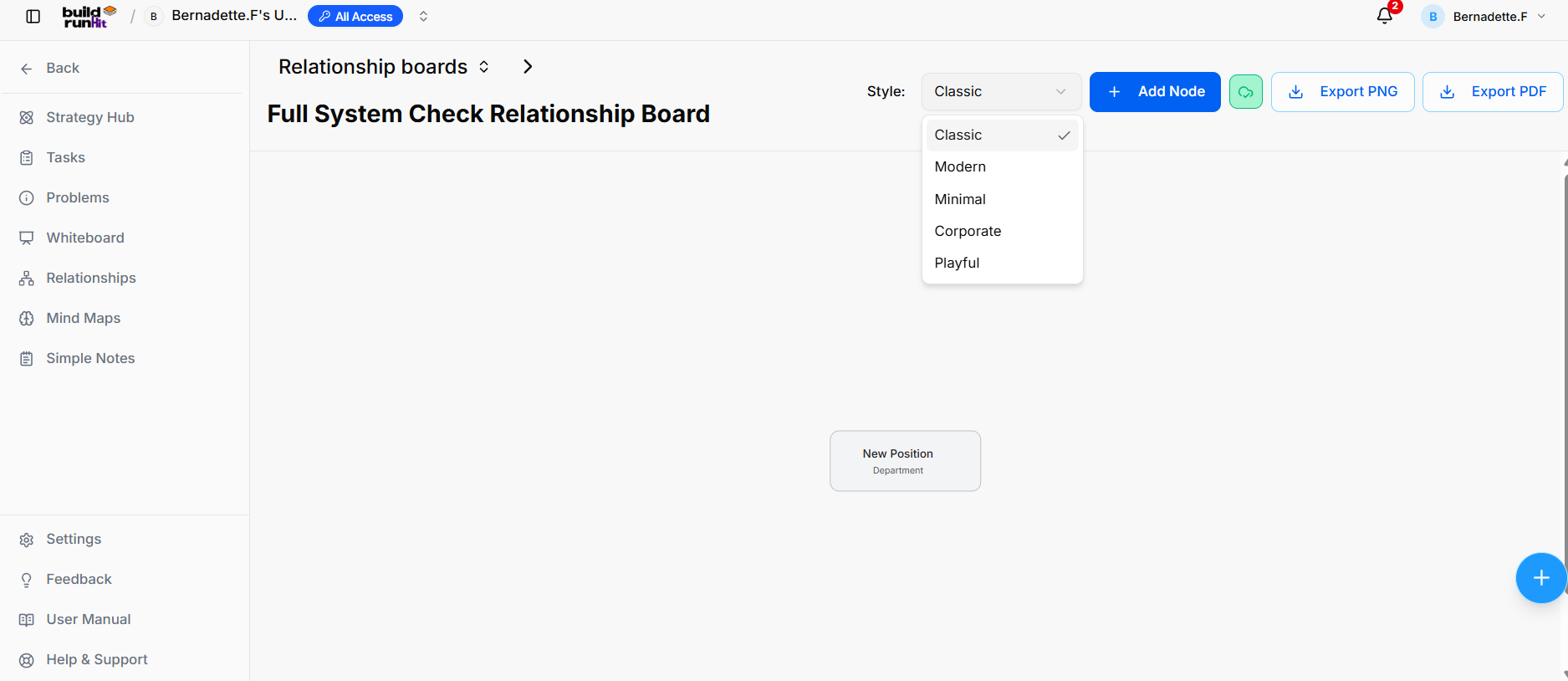
Board Header & Controls
-
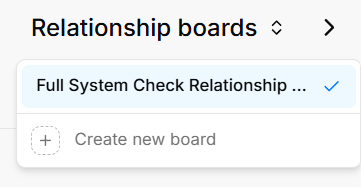
Relationship Boards Selector: Dropdown menu displaying the current active board (Full System Check Relationship Board), with an option to select + Create new board.
-
Style Selector: Dropdown menu to customize the visual theme of the diagram (Classic, Modern, Minimal, Corporate, Playful).
-
+ Add Node: Primary button to add a standalone position or entity card to the canvas.
-
Export Options: Action buttons to download the relationship diagram as Export PNG or Export PDF.
Node Elements & Action Controls
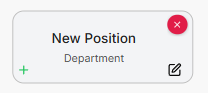
-
Position Card: Represents individual entities, displaying a title (New Position) and subtitle (Department).
-
Delete Node (
×): Red button at the top right of a node card to remove the item from the canvas. -
Edit Node (Pencil Icon): Located at the bottom right of a node card to update position and department labels.
-
Add Child Node (
+): Green plus icon at the bottom left of a node card to attach nested or subordinate nodes directly underneath.
No comments to display
No comments to display