
BuildRunKit CRM: Activities Sub-Section
BuildRunKit CRM: Activities Sub-Section
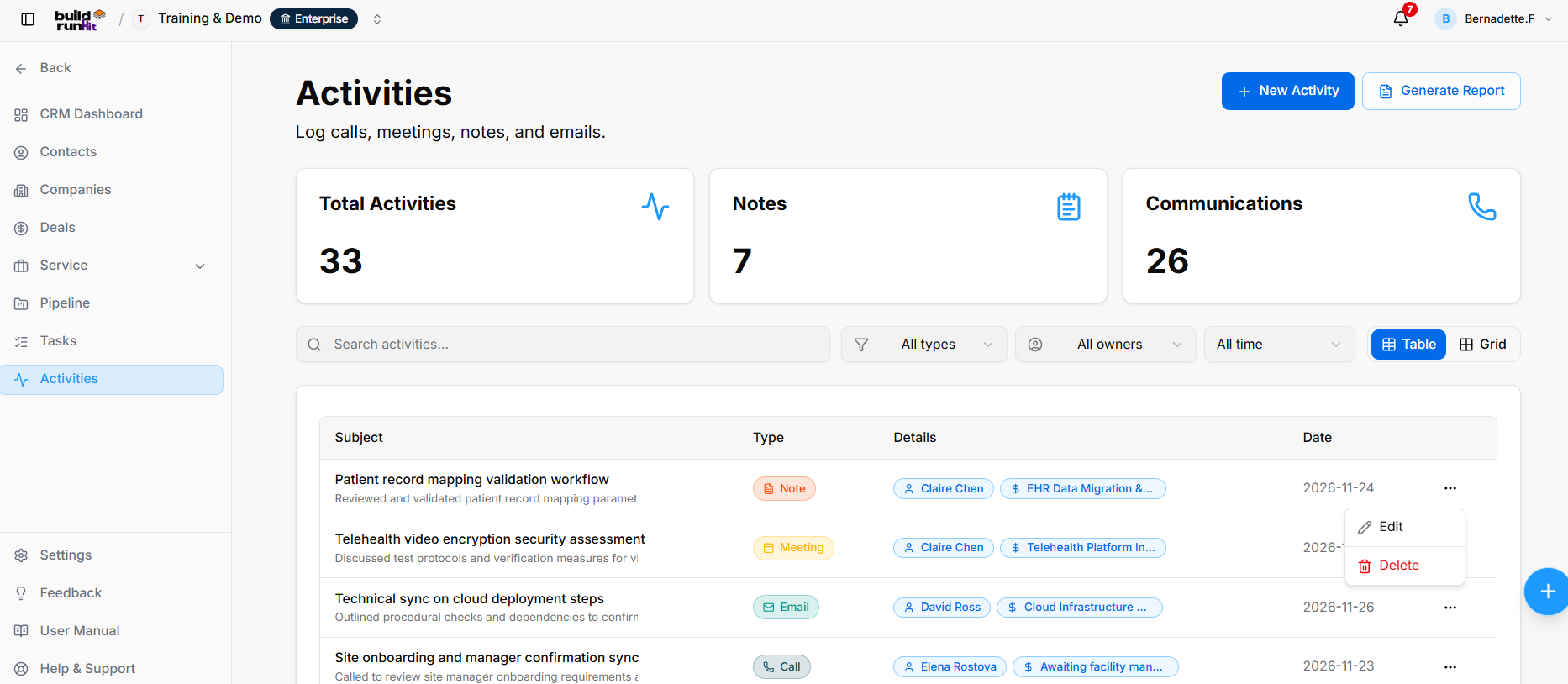
The Activities sub-section lets users log and review client interactions, including notes, calls, meetings, and emails.
Activities List
Header & Action Buttons
- New Activity: Opens the activity form.
- Generate Report: Opens the CRM Activities Report dialog.
Activity Summary Metrics
The summary cards display:
- Total Activities: Number of activity records.
- Notes: Number of activities recorded as notes.
- Communications: Number of communication activities, such as calls, meetings, and emails.
These figures reflect workspace data and may change over time.
Directory Controls & Search Bar
- Search activities…: Searches for activities by subject or keyword.
- All types: Filters activities by type.
- All owners: Filters activities by owner.
- All time: Filters activities by date range.
- Table / Grid: Switches between table and grid views.
Activities Table
The table displays:
- Subject: Activity title, with a brief description preview when available.
- Type: Activity category, such as Note, Meeting, Email, or Call.
- Details: Related contact, deal, and activity details.
- Date: Date the activity was logged.
- Edit: Opens the activity form to update the record.
- Delete: Removes the activity record.
CRM Activities Report
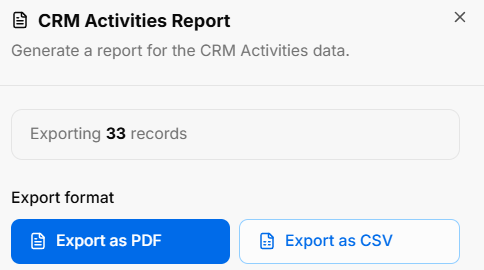
The report dialog displays the number of activity records to export and provides Export as PDF and Export as CSV options.
Logging a New Activity
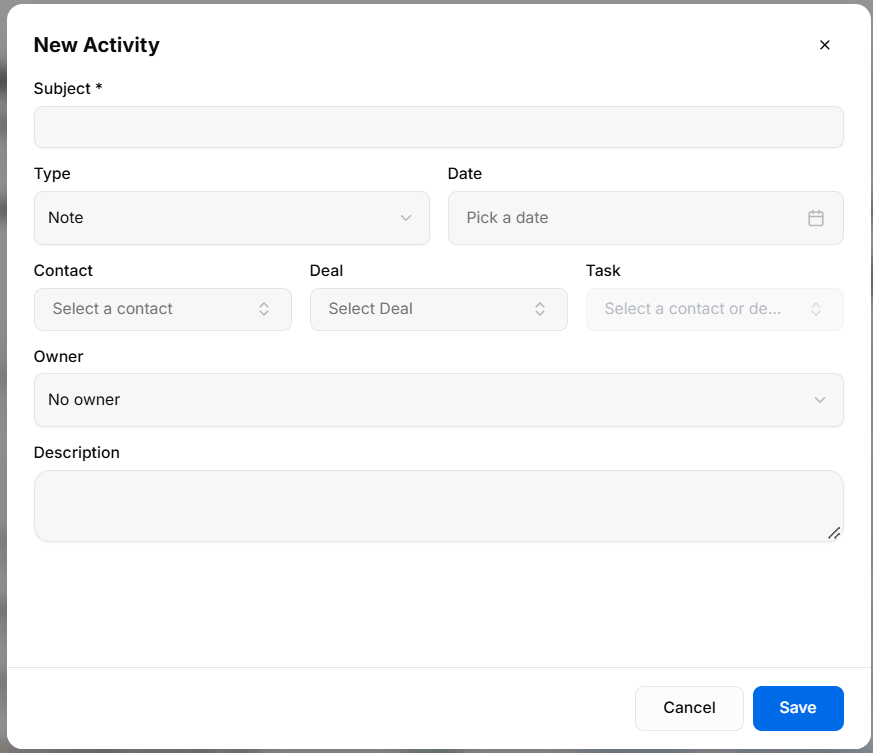
Select New Activity to open the activity form.
The form includes:
- Subject *: Required activity title.
- Type: Select Note, Call, Email, or Meeting.
- Date: Select when the activity occurred.
- Contact: Link the activity to a contact.
- Deal: Link the activity to a deal.
- Task: Link the activity to a related task where applicable.
- Owner: Assign an owner; No owner is available.
- Description: Enter additional details about the interaction.
Select Save to record the activity or Cancel to close without saving. Select X to close the form.
Editing an Activity
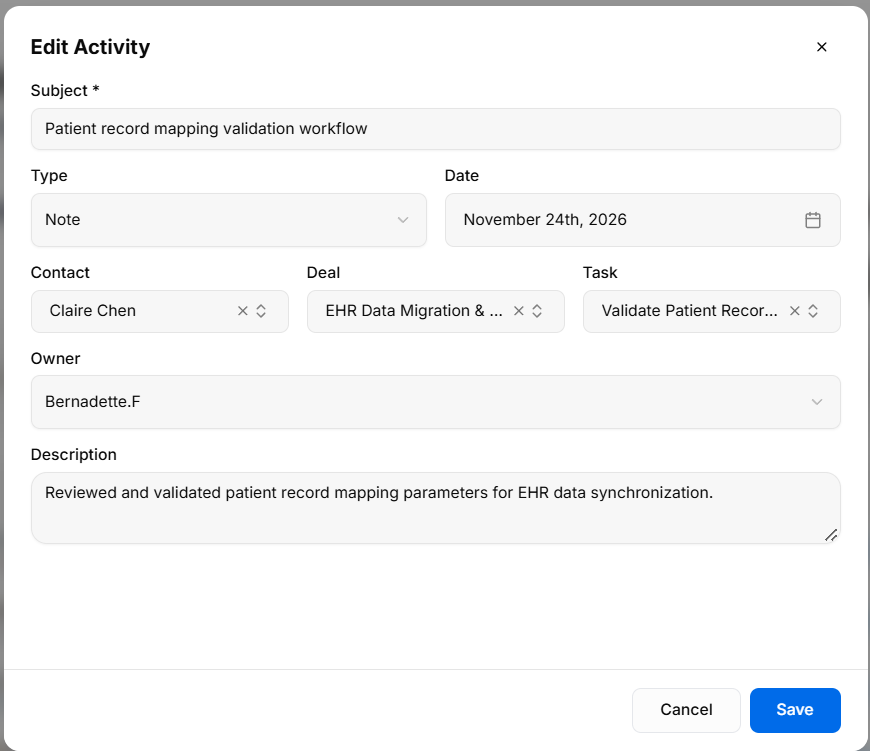
Select Edit from an activity’s row actions menu to update the record.
The form allows users to update the subject, type, date, contact, deal, task, owner, and description. Select Save to apply changes or Cancel to close without saving.
No comments to display
No comments to display