
BuildRunKit CRM: Pipeline Sub-Section
BuildRunKit CRM: Pipeline Sub-Section
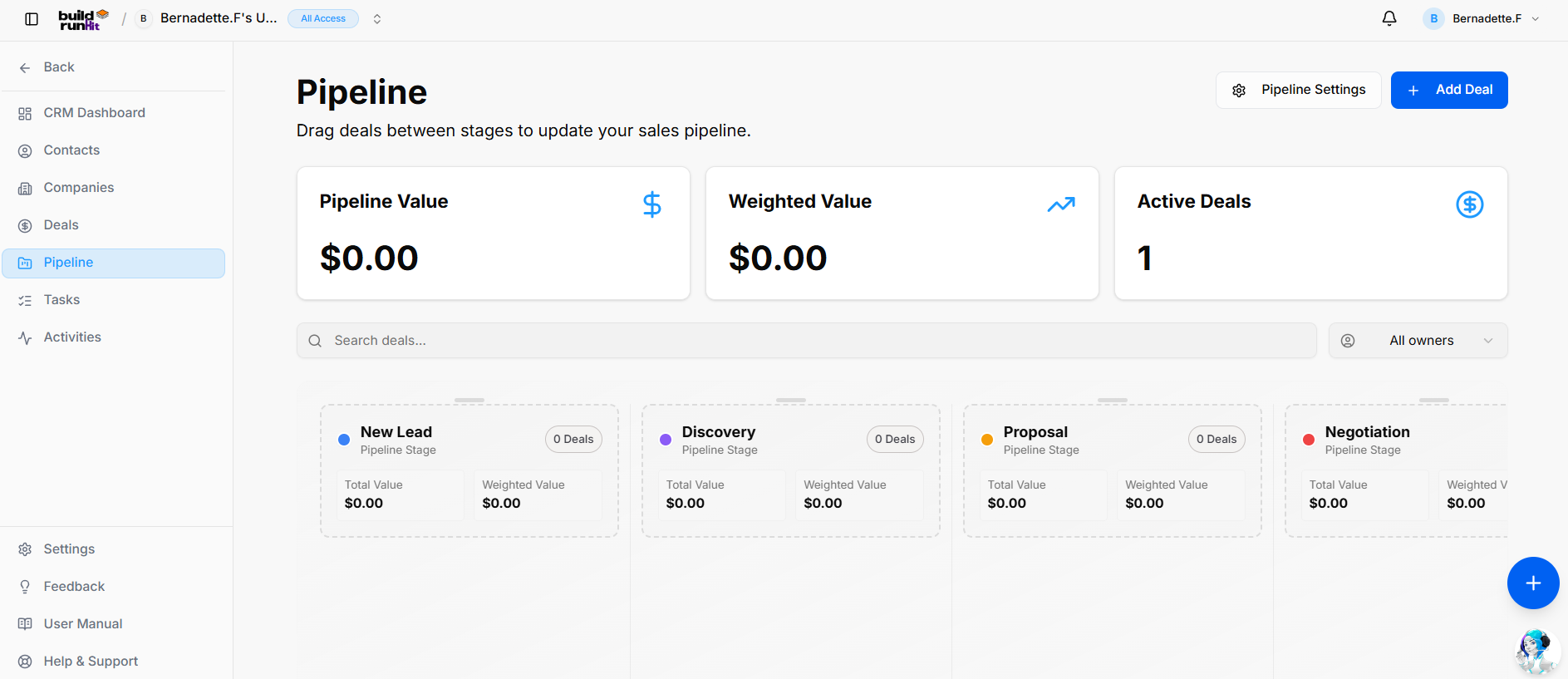
The Pipeline sub-section offers a Kanban-style view of your sales process, allowing you to drag and drop deals across custom stages while monitoring stage-by-stage valuations.
Header & Action Buttons
-
Pipeline Settings: Access stage configurations to customize, add, or reorder pipeline stages.
-
+ Add Deal: Direct action button to open the deal creation modal.
Pipeline Metrics Cards
-
Pipeline Value: Total unweighted financial value across all active pipeline stages.
-
Weighted Value: Cumulative projected value calculated using probability percentages.
-
Active Deals: Count of open opportunities currently moving through the pipeline.
View Controls & Search
-
Search deals...: Global text input to locate deal cards by title or contact.
-
All owners Dropdown: Filter active stage columns by assigned team member.
Pipeline Stages (Kanban Columns) Each column summarizes stage metrics (Total Value, Weighted Value, and deal count) and supports drag-and-drop deal movement across stages:
-
New Lead: Initial entry point for incoming prospects.
-
Discovery: Stage for qualifying lead requirements and budget fit.
-
Proposal: Quote or formal proposal delivered to the prospect.
-
Negotiation: Active contract or scope terms evaluation.
-
Closed Won: Final stage for successfully closed opportunities.
-
Closed Lost: Archive stage for deals that did not convert.
BuildRunKit CRM: Pipeline Settings Modal
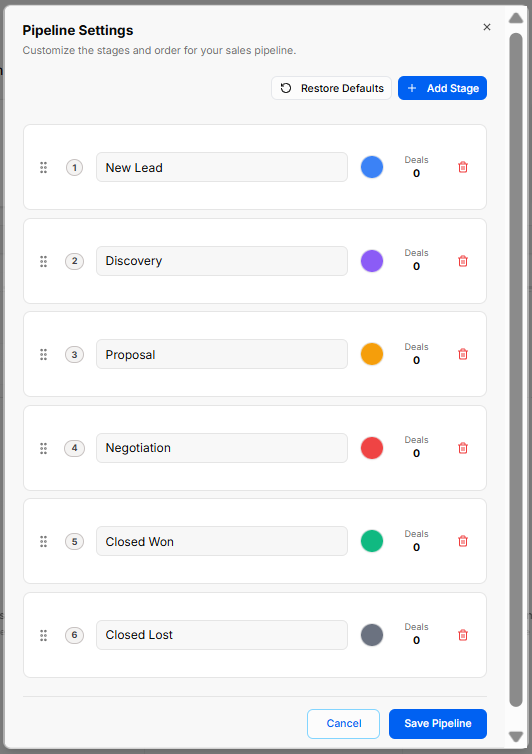
Clicking the Pipeline Settings button opens a configuration modal that allows you to customize the stages and order for your sales pipeline:
-
Restore Defaults: Resets the pipeline stages, sequence order, and color coding back to the system default configuration.
-
+ Add Stage: Adds a new customizable stage row to your sales process.
-
Stage Controls & Ordering:
-
Drag Handle (
::): Click and drag to reorder stage sequence numbers. -
Sequence Indicator: Displays the numerical order of each stage (1 through 6).
-
Stage Name Input: Editable text field to customize stage labels (e.g., New Lead, Discovery, Proposal, Negotiation, Closed Won, Closed Lost).
-
Color Picker Circle: Assigns distinct visual color indicators to each stage for quick Kanban identification.
-
Deals Counter: Displays the total count of active deals currently assigned to that stage.
-
Trash Bin Icon: Deletes individual stages from the pipeline.
-
-
Modal Actions: Click Cancel to discard changes or Save Pipeline to apply the updated stage configuration.
No comments to display
No comments to display