
BuildRunKit CRM: Settings Dashboard Overview
BuildRunKit CRM: Settings Dashboard Overview
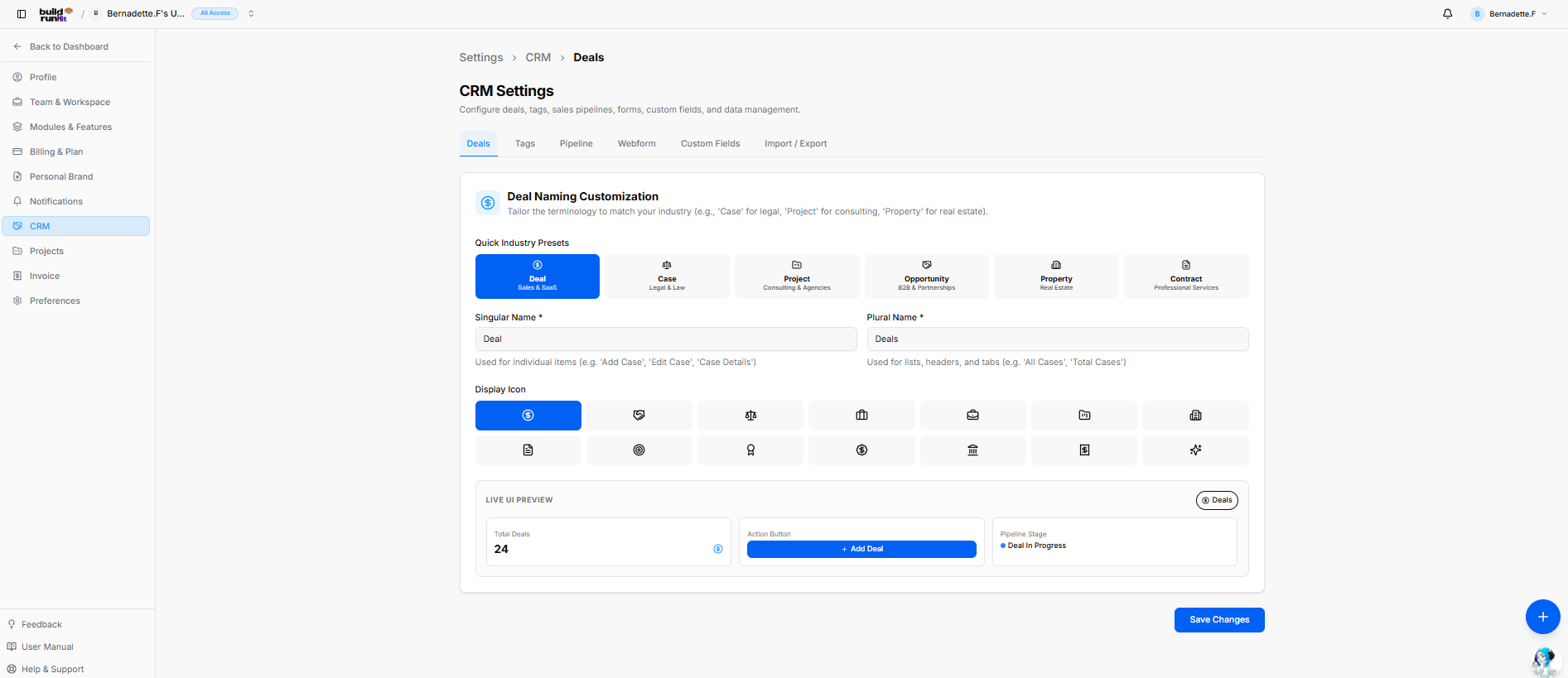
-
Brand Logo: BuildRunKit logo in top-left corner.
-
Workspace Selector: Dropdown showing current workspace (Bernadette.F's Workspace) with access tier badge (All Access).
-
Top Right Actions: Notification bell icon and user profile dropdown menu (Bernadette.F).
-
Back Control: <- Back to Dashboard button to exit settings.
-
Account Settings Links:
-
Profile
-
Team & Workspace
-
Modules & Features
-
Billing & Plan
-
Personal Brand
-
Notifications
-
-
Module Settings Links:
-
CRM (Currently Active)
-
Projects
-
Invoice
-
Preferences
-
-
Bottom Sidebar Links:
-
Feedback
-
User Manual
-
Help & Support
-
CRM Settings Header & Location Tracking
-
Deals (Active Tab)
-
Tags
-
Pipeline
-
Webform
-
Custom Fields
-
Import / Export
Deals Tab Configuration Controls
-
Section Title: Deal Naming Customization
-
Section Subtext: "Tailor the terminology to match your industry (e.g., 'Case' for legal, 'Project' for consulting, 'Property' for real estate)."
-
Quick Industry Presets:
-
Deal (Sales & SaaS) — Selected
-
Case (Legal & Law)
-
Project (Consulting & Agencies)
-
Opportunity (B2B & Partnerships)
-
Property (Real Estate)
-
Contract (Professional Services)
-
-
Singular Name *: Input text field showing
Deal(Helper text: Used for individual items (e.g. 'Add Case', 'Edit Case', 'Case Details')). -
Plural Name *: Input text field showing
Deals(Helper text: Used for lists, headers, and tabs (e.g. 'All Cases', 'Total Cases')). -
Display Icon: 14 selectable icon choices to represent deals across the UI (Dollar symbol currently selected).
Live UI Preview Panel
-
Preview Tab Badge: Shows top right button preview (
Deals). -
Total Deals Metric Card: Preview showing
24with dollar icon. -
Action Button Preview: Shows blue + Add Deal primary button.
-
Pipeline Stage Preview: Shows stage badge with status dot (
Deal In Progress).
-
Save Changes: Primary action button in the bottom right of the panel to apply configuration.
-
Floating Action Button: Blue
+button in bottom-right corner. -
Support Widget: AI assistant icon in bottom-right corner.
BuildRunKit CRM: CRM Settings - Tags Tab
Location & Header
Contact Tag Management Section
-
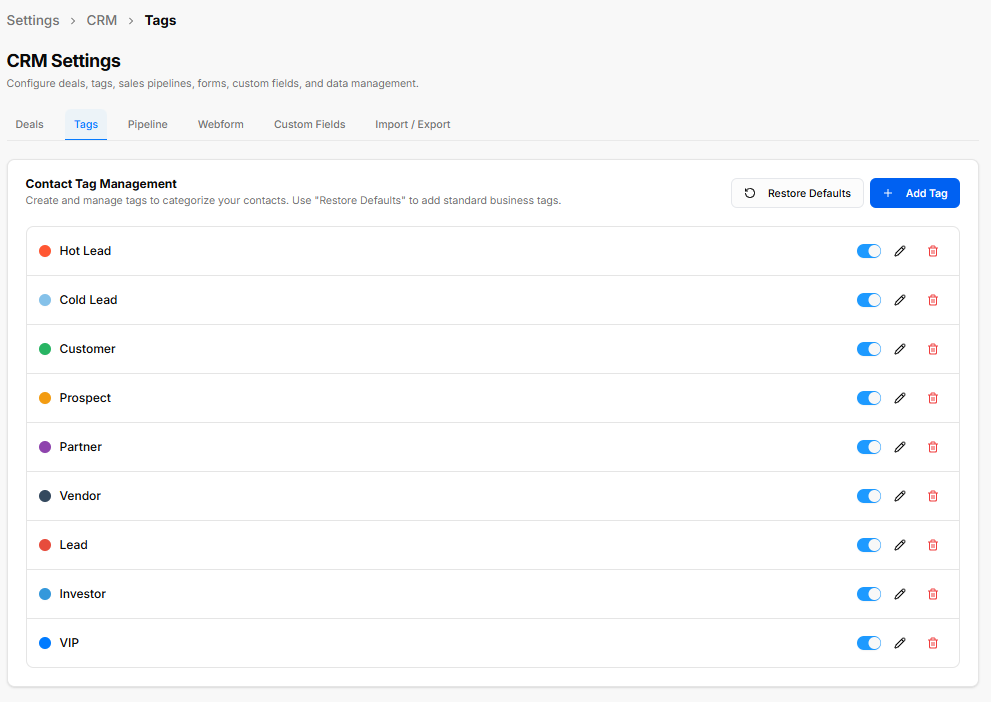
Section Header: Contact Tag Management
-
Section Description: "Create and manage tags to categorize your contacts. Use 'Restore Defaults' to add standard business tags."
-
Header Actions:
-
Restore Defaults: Button to reset or populate default system tags.
-
+ Add Tag: Primary button to create a new contact category tag.
-
Default Tag List & Row Controls Each tag item displays a custom color badge, label name, and individual management toggles/actions:
-
Hot Lead (Red Dot)
-
Cold Lead (Light Blue Dot)
-
Customer (Green Dot)
-
Prospect (Orange Dot)
-
Partner (Purple Dot)
-
Vendor (Dark Navy Dot)
-
Lead (Red Dot)
-
Investor (Medium Blue Dot)
-
VIP (Bright Blue Dot)
Row Action Icons (Right Side)
-
Active Toggle Switch: Enables or disables the tag for contact categorization across the CRM.
-
Pencil Icon: Edits the tag name or assigned color badge.
-
Trash Bin Icon: Deletes the tag entry from the system.
BuildRunKit CRM: CRM Settings - Pipeline Tab
Location & Header
Pipeline Stages Section
-
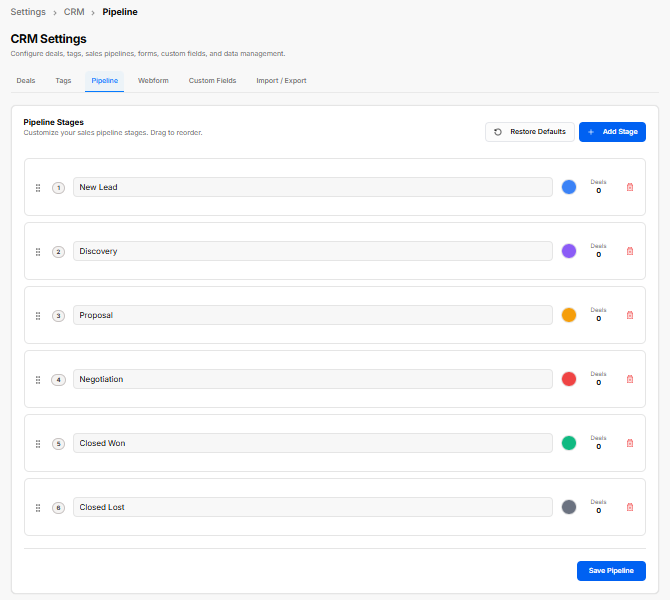
Section Header: Pipeline Stages
-
Section Description: "Customize your sales pipeline stages. Drag to reorder."
-
Header Actions:
-
Restore Defaults: Button to reset stage order, names, and color coding to default presets.
-
+ Add Stage: Primary button to append a new stage to the sales process.
-
Configured Stages & Controls Each stage row includes drag-and-drop handles, sequence numbering, text customization, status colors, deal counters, and delete actions:
-
Stage 1: New Lead (Blue Circle Dot | Deals Count: 0)
-
Stage 2: Discovery (Purple Circle Dot | Deals Count: 0)
-
Stage 3: Proposal (Orange Circle Dot | Deals Count: 0)
-
Stage 4: Negotiation (Red Circle Dot | Deals Count: 0)
-
Stage 5: Closed Won (Green Circle Dot | Deals Count: 0)
-
Stage 6: Closed Lost (Grey Circle Dot | Deals Count: 0)
Row Control Elements
-
Drag Handle (
::): Reorders the stage position in the Kanban sequence. -
Sequence Badge: Displays the numerical step order (1 through 6).
-
Stage Name Field: Editable text box to update stage titles.
-
Color Picker Circle: Assigns custom badge colors for Kanban board identification.
-
Deals Counter: Tracks the number of open deals currently sitting in that stage.
-
Trash Bin Icon: Removes the selected stage row.
-
Save Pipeline: Primary action button located at the bottom right to apply all pipeline structural changes across the CRM.
BuildRunKit CRM: CRM Settings - Webform Tab
Location & Header
-
Breadcrumb Trail (Traction Navigation Path):
Settings > CRM > Webform -
Page Heading: CRM Settings
-
Sub-description: "Configure deals, tags, sales pipelines, forms, custom fields, and data management."
-
Active Tab: Webform
Lead Capture Webforms Section
-
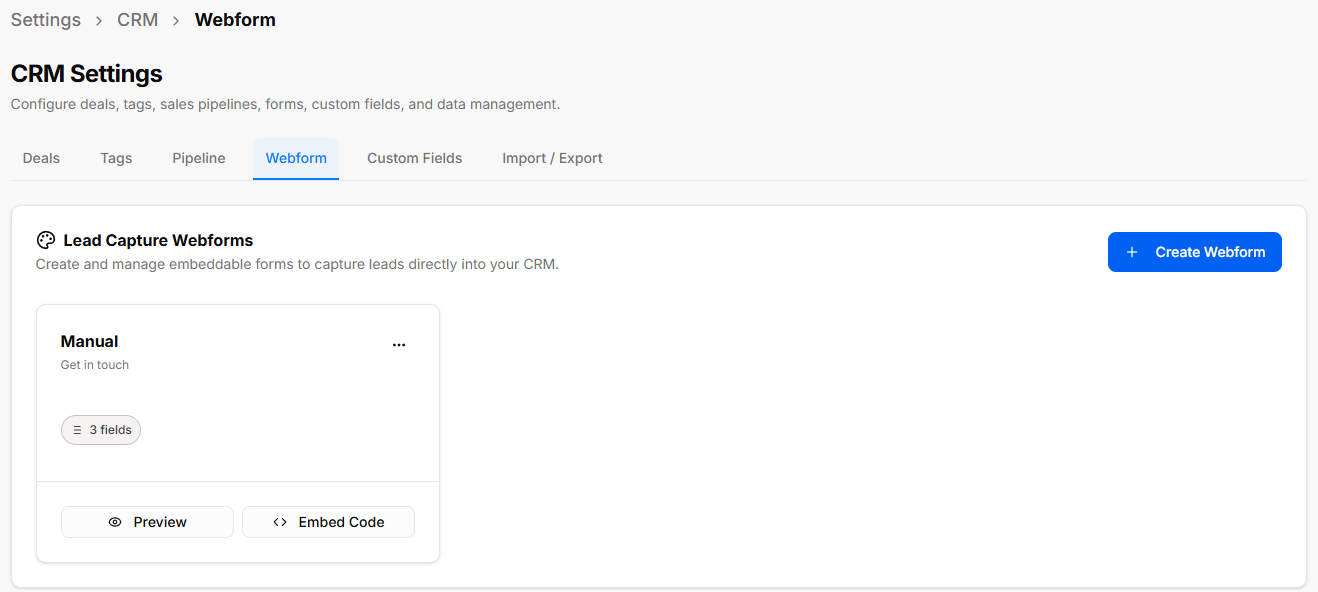
Section Header: Lead Capture Webforms
-
Section Description: "Create and manage embeddable forms to capture leads directly into your CRM."
-
Header Actions:
-
+ Create Webform: Primary button to open the webform creation wizard.
-
Configured Webform Cards Saved lead capture forms display as individual summary cards with the following details and controls:
-
Form Title & Subheading: Displays the internal form name (e.g., Manual) and the public heading (e.g., Get in touch).
-
Card Action Menu (
...): Context menu containing options to Edit Webform or Delete. -
Field Counter Badge: Displays the total number of configured input fields (e.g.,
3 fields). -
Card Quick Actions:
-
Preview: Launches a modal showing the live public layout of the form.
-
Embed Code: Generates code snippets for website embedding.
-
Create Lead Capture Form Wizard
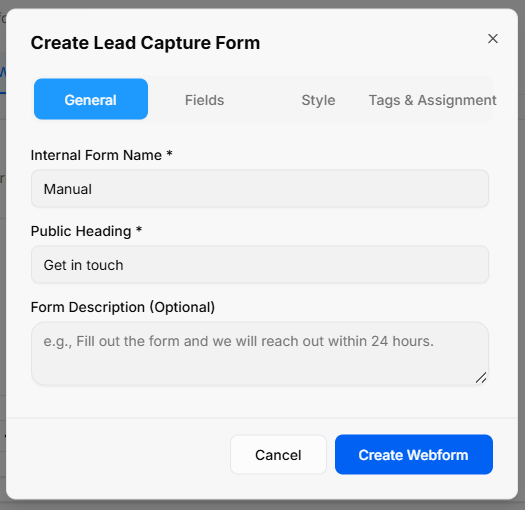
Clicking + Create Webform (or selecting Edit Webform) opens the multi-tab setup modal:
1. General Tab
-
Internal Form Name *: Required text field for internal workspace identification (e.g., Manual).
-
Public Heading *: Required text field for the main title displayed to website visitors (e.g., Get in touch).
-
Form Description (Optional): Multi-line text field for visitor instructions (e.g., Fill out the form and we will reach out within 24 hours.).
2. Fields Tab
-
Active Form Fields: Managed list of fields currently enabled on the form (e.g., First Name, Last Name, Email).
-
Available Contact Fields: System fields that can be individually toggled on or off:
-
First Name
-
Last Name
-
Email Address
-
Phone Number
-
Company
-
Address
-
Job Title
-
Message
-
3. Style Tab
-
Background Color: Color picker to set the main container background.
-
Text Color: Color picker to set the typography shade.
-
Submit Button Text: Custom text field for the call-to-action button (e.g., Submit, Send Message).
-
Button Background Color: Color picker to set the primary button color.
-
Button Text Color: Color picker to adjust text contrast inside the submit button.
-
Automatic Lead Processing: Automatically assigns tags and team owners upon submission.
-
Associate Contact Tags: Multi-select choices using active global tags (Hot Lead, Cold Lead, Customer, Prospect, Partner, Vendor, Lead, Investor, VIP).
-
Create Tag Action: Inline shortcut button to create a new category tag directly from this tab.
-
Default Lead Owner: Dropdown selector to automatically assign newly captured leads to a designated team member.
Wizard Modal Actions
-
Cancel: Discards changes and exits the modal.
-
Create Webform / Save Changes: Saves the setup and generates/updates the lead capture form.
BuildRunKit CRM: CRM Settings - Custom Fields Tab
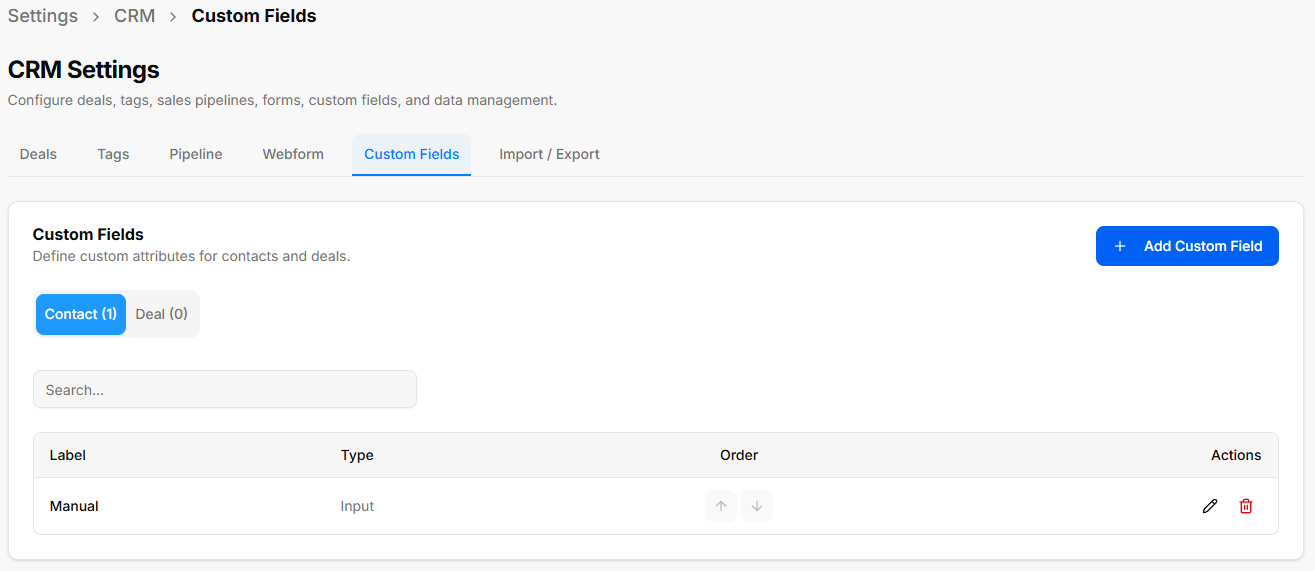
Location & Header
-
Breadcrumb Trail (Traction Navigation Path):
Settings > CRM > Custom Fields -
Page Heading: CRM Settings
-
Sub-description: "Configure deals, tags, sales pipelines, forms, custom fields, and data management."
-
Active Tab: Custom Fields
Custom Fields Management Section
-
Section Header: Custom Fields
-
Section Description: "Define custom attributes for contacts and deals."
-
Header Actions:
-
+ Add Custom Field: Primary button to open the field creation modal.
-
-
Module Scope Switches:
-
Contact (Count): Switch to view and manage attributes applied to client contact records (e.g.,
Contact (1)). -
Deal (Count): Switch to view and manage attributes applied to sales opportunities (e.g.,
Deal (0)).
-
-
Search Field: Text input (
Search...) to quickly filter created fields by label.
Custom Fields Data Table
-
Label: Display title of the field (e.g., Manual).
-
Type: Input format assigned to the field (e.g., Input).
-
Order: Up/Down arrow buttons (
↑↓) to reorder field positioning on record forms. -
Actions:
-
Pencil Icon: Edits existing field label, placeholder, or options.
-
Trash Bin Icon: Deletes the custom field attribute.
-
Add / Edit Custom Field Modal
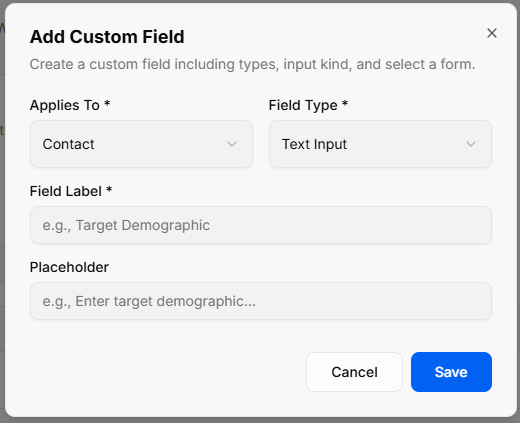
Clicking + Add Custom Field opens a modal to configure tailored data fields:
-
Modal Header: Add Custom Field
-
Modal Description: "Create a custom field including types, input kind, and select a form."
-
Applies To *: Dropdown selector to choose the target record type (Contact or Deal).
-
Field Type *: Dropdown selector to define input behavior:
-
Text Input
-
Long Text
-
Number
-
Date Picker
-
Dropdown Select
-
Checkbox
-
Switch
-
Radio Group
-
Color
-
-
Field Label *: Required text field for the visible field title (e.g., Target Demographic).
-
Placeholder: Text field for prompt text inside empty inputs (e.g., Enter target demographic...).
-
Modal Actions:
-
Cancel: Discards changes and closes modal.
-
Save: Stores and deploys the custom field across selected records.
-
BuildRunKit CRM: CRM Settings - Import / Export Tab
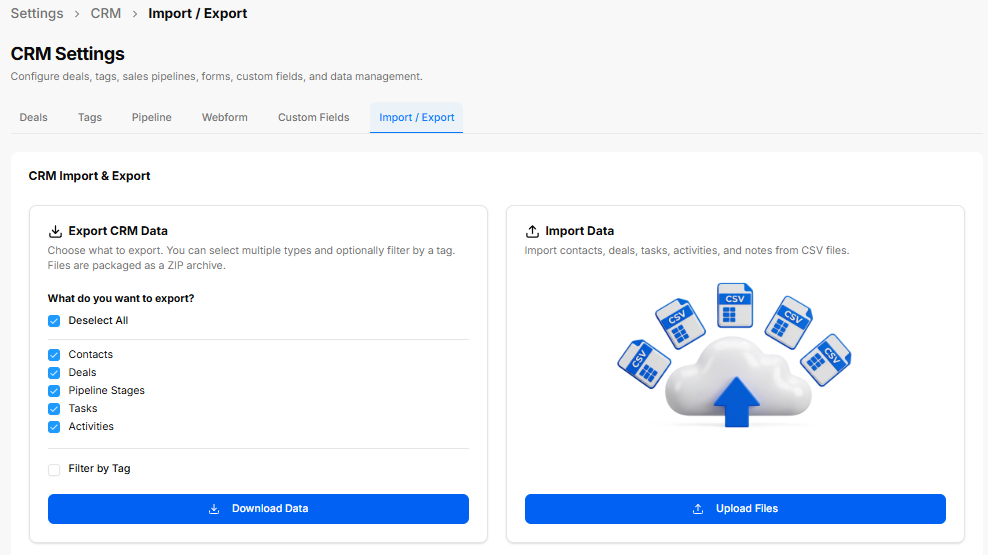
Location & Header
CRM Import & Export Dashboard
The dashboard provides side-by-side modules for exporting system backups and importing bulk data:
-
Export CRM Data Panel:
-
Description: "Choose what to export. You can select multiple types and optionally filter by a tag. Files are packaged as a ZIP archive."
-
Select All / Deselect All Toggle: Master checkbox to select or deselect all record categories.
-
Export Categories Checkboxes: Selectable data sets (Contacts, Deals, Pipeline Stages, Tasks, Activities).
-
Filter by Tag Checkbox: Optional toggle to scope exports to specific contact tags.
-
Download Data Button: Primary action button to generate and export the compressed ZIP archive.
-
-
Import Data Panel:
-
Description: "Import contacts, deals, tasks, activities, and notes from CSV files."
-
Upload Files Button: Primary action button to open the step-by-step Import Assistant modal.
-
Import Assistant Wizard
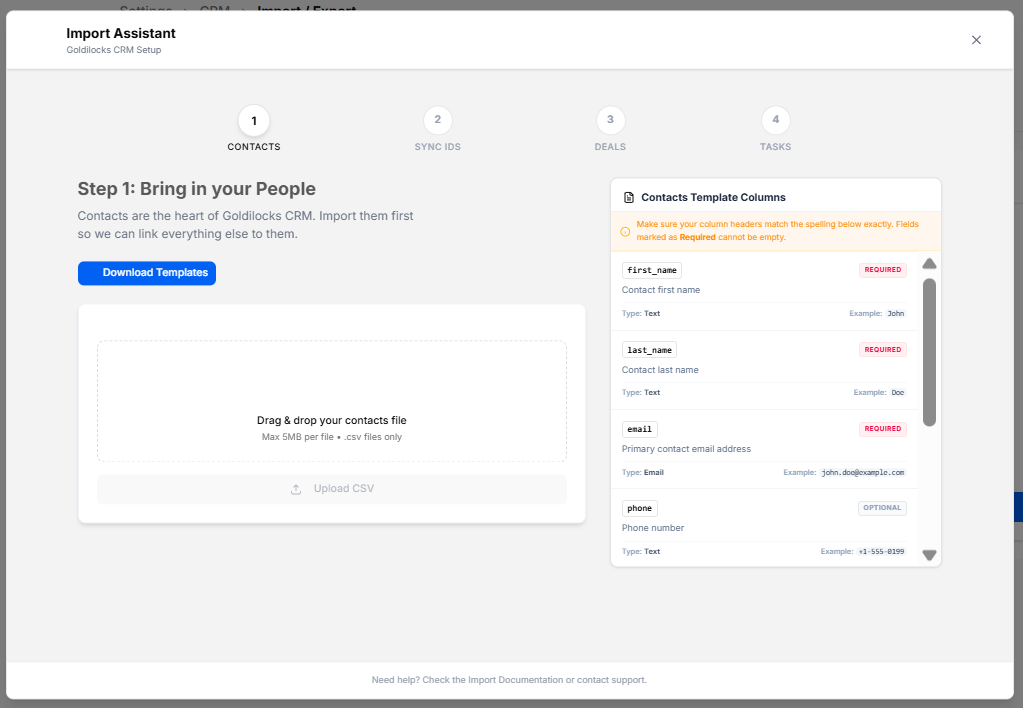
Clicking Upload Files launches the 4-step guided import tool:
Progress Indicator Steps
-
CONTACTS (Currently Active)
-
SYNC IDS
-
DEALS
-
TASKS
Step 1: Bring in your People Panel
-
Heading & Subtext: "Step 1: Bring in your People — Contacts are the heart of Goldilocks CRM. Import them first so we can link everything else to them."
-
Download Templates Button: Downloads pre-formatted CSV template files to ensure correct column matching.
-
File Drag & Drop Zone: Target area supporting file uploads up to 5MB per file (
.csvfiles only). -
Upload CSV Button: Primary button to select and process local
.csvfiles.
Contacts Template Columns Reference Sidebar A reference guide detailing exact column mapping requirements:
-
Notice Callout: "Make sure your column headers match the spelling below exactly. Fields marked as Required cannot be empty."
-
Field Schema List:
-
first_name(REQUIRED): Contact first name | Type: Text | Example: John -
last_name(REQUIRED): Contact last name | Type: Text | Example: Doe -
email(REQUIRED): Primary contact email address | Type: Email | Example: [email protected] -
phone(OPTIONAL): Phone number | Type: Text | Example: +1-555-0199
-
-
Documentation Access: "Need help? Check the Import Documentation or contact support."
No comments to display
No comments to display