
BuildRunKit CRM: Activities Sub-Section
BuildRunKit CRM: Activities Sub-Section
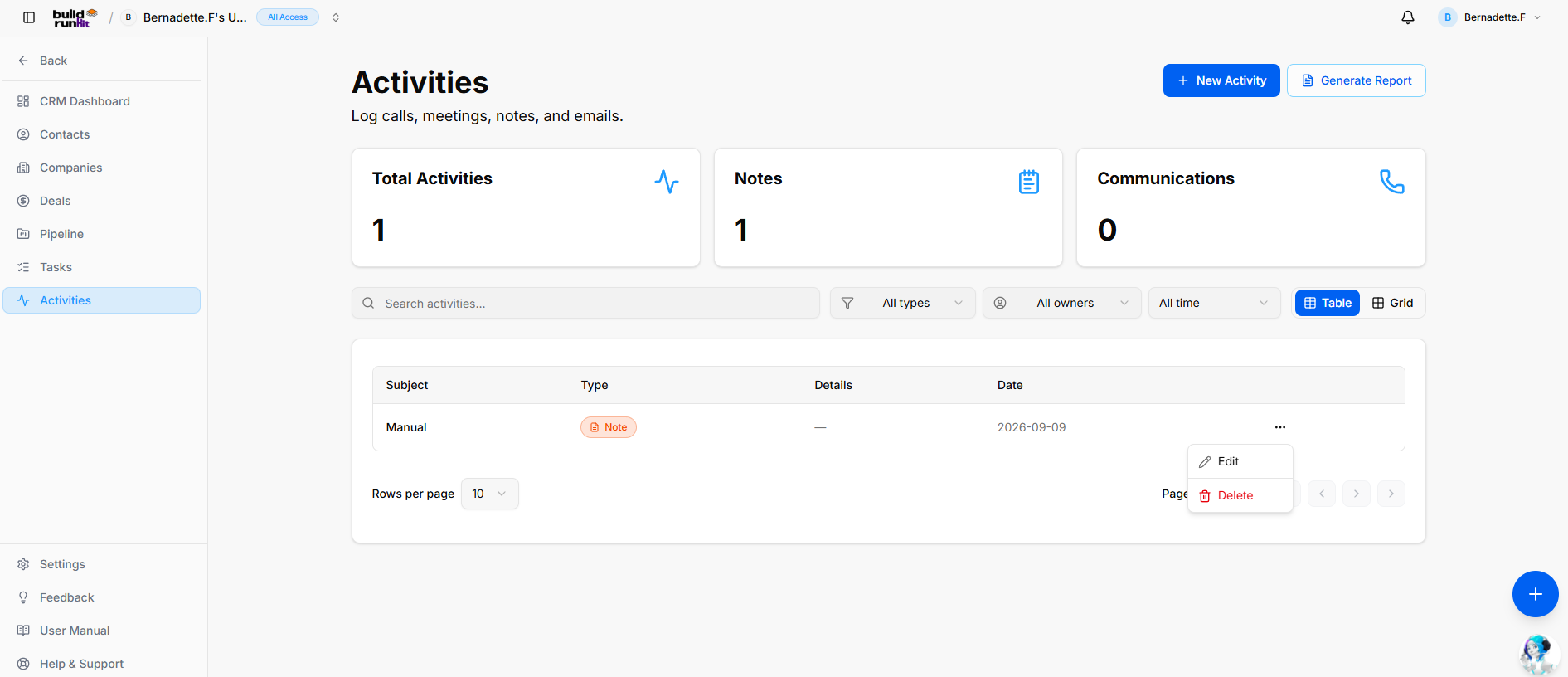
The Activities sub-section tracks client interactions, including logged calls, meetings, internal notes, and email records.
Header & Action Buttons
-
+ New Activity: Opens the activity logging modal.
-
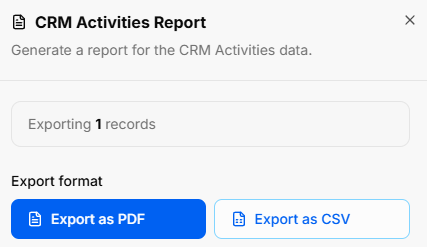
Generate Report: Opens the CRM Activities Report export window:
-
Export Count: Displays total targeted activity records (e.g., Exporting 1 records).
-
Export Format Options: Exports data instantly using Export as PDF or Export as CSV.
-
Activity Summary Metrics Top KPI cards display cumulative interaction counts:
-
Total Activities: Counts all registered logs across categories.
-
Notes: Displays total standalone internal notes.
-
Communications: Tracks direct client interactions, such as calls, meetings, and emails.
Directory Controls & Search Bar
-
Search activities...: Text input to filter logs by subject or keyword.
-
All types Dropdown: Filters activities by log category (e.g., Note, Call, Meeting, Email).
-
All owners Dropdown: Filters entries by assigned workspace team member.
-
All time Dropdown: Filters records by specific date ranges.
-
View Switches: Toggles between Table (list view) and Grid (card view) layouts.
-
Rows per page & Pagination: Controls visible row density and steps through multi-page logs.
Activities Table Data Columns
-
Subject: The headline title describing the logged interaction.
-
Type: Visual badge categorizing the entry type (e.g., Note).
-
Details: Brief text preview or full summary of the activity.
-
Date: The logged completion date (formatted as YYYY-MM-DD).
-
Row Actions Menu (
...): Quick management options for individual entries:-
Edit: Opens the setup editor to update activity details, subjects, or dates.
-
Delete: Removes the record from the activity log.
-
BuildRunKit CRM: Logging a New Activity
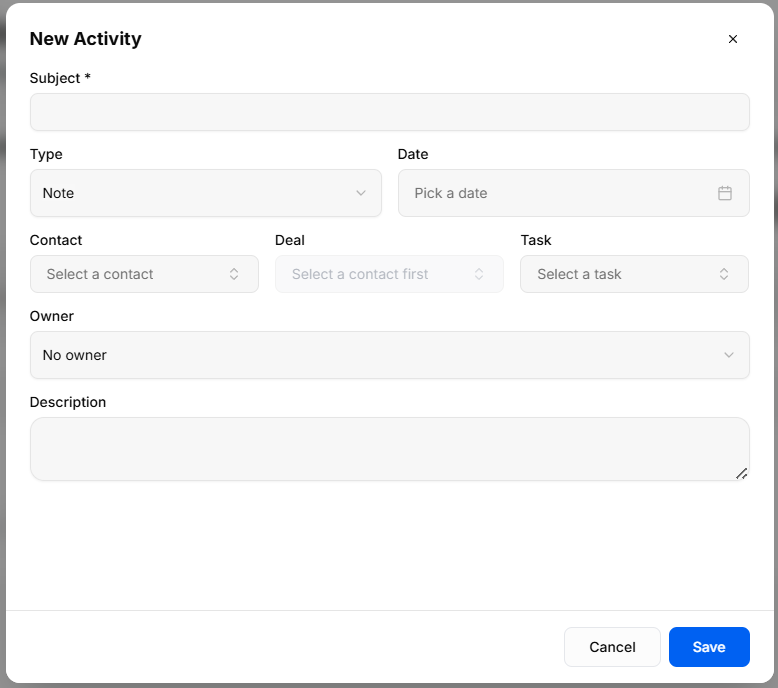
Clicking the + New Activity button opens a setup modal to log interactions and record updates:
-
Subject *: Required text field to enter the activity headline or topic.
-
Type: Dropdown selector to classify the activity (Note, Call, Email, or Meeting).
-
Date: Date picker input to log when the interaction occurred.
-
Contact: Dropdown menu to link the activity to a specific client record.
-
Deal: Dropdown menu to associate the entry with a specific sales opportunity (requires selecting a contact first).
-
Task: Dropdown menu to associate the activity with a related task item.
-
Owner: Dropdown selector to assign activity logging responsibility to a team member in your workspace.
-
Description: Multi-line text field for detailed meeting notes, email copies, or interaction summaries.
-
Modal Actions: Click Cancel to discard or Save to log the activity record.
No comments to display
No comments to display