
Strategy Hub: Simple Notes Module
Strategy Hub: Simple Notes Module
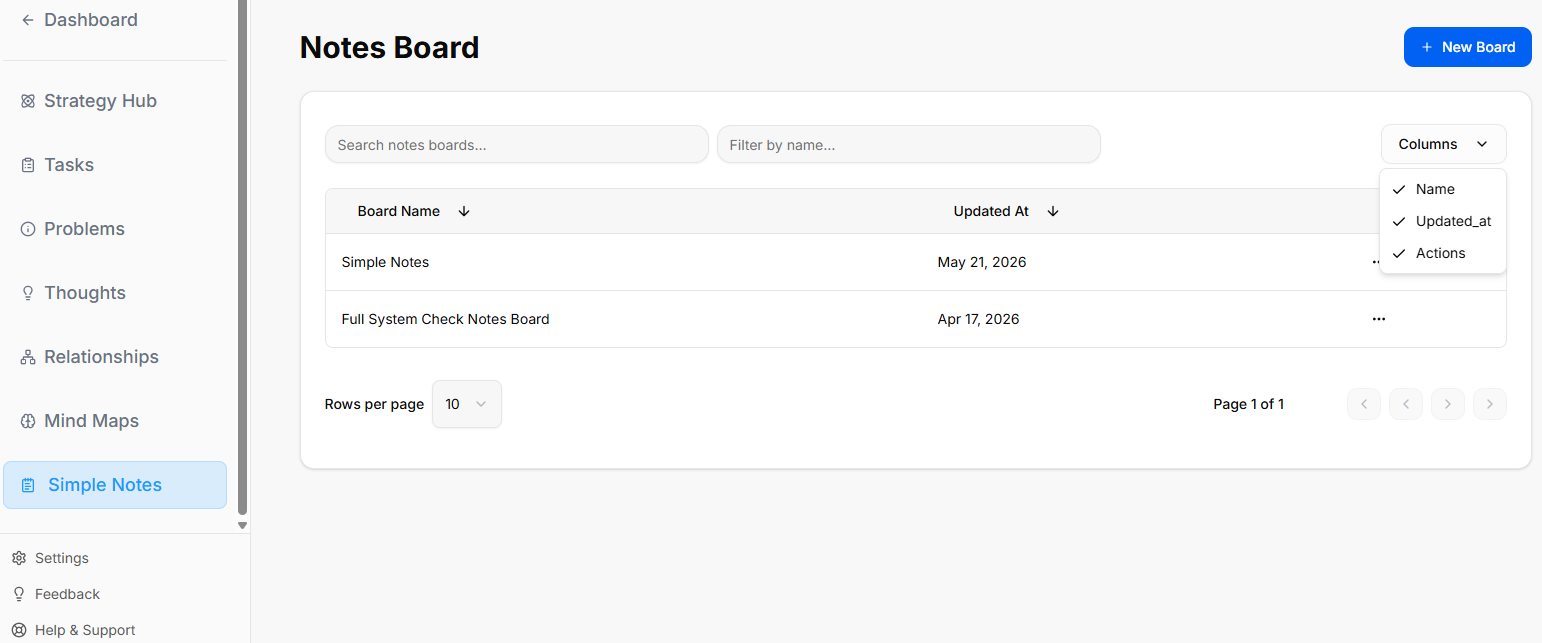
The Simple Notes module within the Strategy Hub enables you to organize, track, and manage your operational action items using structured note directories and document environments.
Managing Notes Boards
When you enter the Simple Notes module, you are presented with a global directory of your active planning environments:
-
Creating a Board: Click the blue + New Board button at the top right to start a fresh project environment.
-
Board Directory View: Track active spaces like your Simple Notes board or Full System Check Notes Board, along with their last relative modification date under the Updated At column.
-
Filtering & Columns: Use the top text bars to search specific project names. Use the Columns dropdown tool to show or hide parameters like Name, Updated_at, or Actions.
-
Board Context Menu: Clicking the three dots icon (
...) on the right side of any individual board row opens control configurations for that board.
Inside a Simple Notes Board
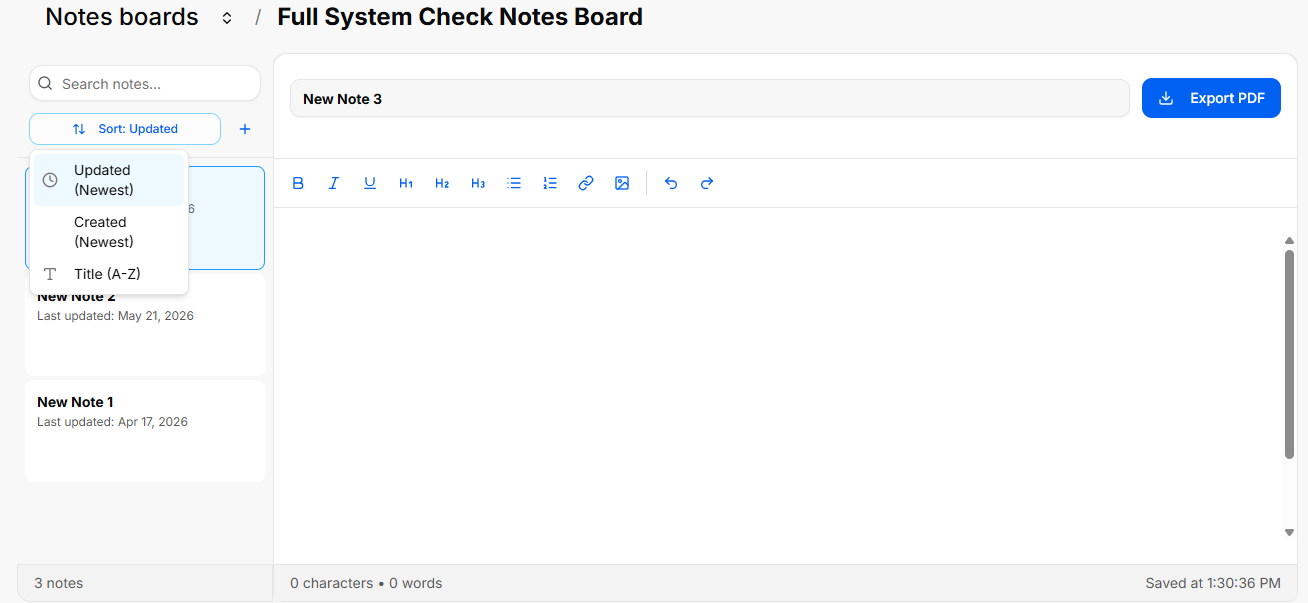
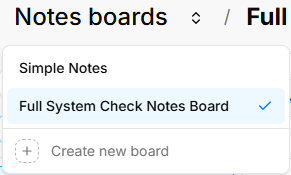
When you select and open an individual notes board from your directory, you enter a split-screen document editor environment designed to create, filter, and write detailed records.
Canvas Layout & Header Controls
The top header of an active notes board keeps track of your location and provides options to download your text files:
The Notes Sidebar Menu (Left Panel)
The left side of the workspace acts as a navigation column to search, organize, and toggle through the documents assigned to this specific board:
-
Search Bar: A text search box labeled Search notes... allows you to look up existing documents inside the board by typing keywords from their titles.
-
Sort Dropdown: Clicking the Sort button opens a configuration filter layout to rearrange how your document list is organized. It features three sorting criteria options:
-
Updated (Newest)
-
Created (Newest)
-
Title (A-Z)
-
-
Add Note Button (Plus Icon): Clicking the blue + icon directly to the right of the sort dropdown creates a brand-new blank document inside the directory folder.
-
Document Cards: Individual text logs are listed vertically as clickable preview cards showing the card title (e.g., New Note 3, New Note 2, New Note 1) and a subtitle logging its exact relative save status date (e.g., Last updated: May 21, 2026).
-
Live Counter: The very bottom of the left column tracks your folder volume with a static counter showing the exact total numbers of documents stored inside the active board (e.g., 3 notes).
The Rich Text Editor (Right Panel)
Selecting any card from the sidebar opens its contents inside the primary workspace panel on the right:
-
Document Title Input: A prominent text box located at the top of the workspace allows you to add or modify the title of your active card text document (e.g., New Note 3).
-
Text Formatting Toolbar: A horizontal utility bar floats directly above the main text workspace area to give you text-styling options:
-
B: Bold
-
I: Italic
-
U: Underline
-
H1 / H2 / H3: Main headers and subsection headers styling options
-
Bullet Points: Bullet list toggle button
-
Numbered List: Numbered list tracking toggle button
-
Link (Chain-link Icon): Insert hyperlinked text parameters
-
Image (Picture Icon): Insert external image variables into your text canvas
-
Undo / Redo (Arrows): Backtrack text entries or restore modifications on the fly
-
-
Editor Stats Footer: The footer bar running along the bottom edge of the document workspace tracks your formatting updates live:
-
Counters: Displays real-time content size variables on the left side of the row (e.g., 0 characters • 0 words).
-
Auto-Save Status: Displays a confirmation timestamp indicator on the right edge of the row tracking exactly when the system last secured your updates.
-
No comments to display
No comments to display