
Feedback and help
Feedback and help
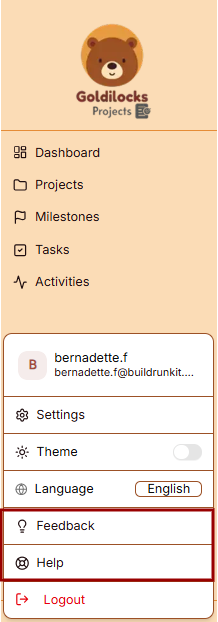
This section allows you to communicate with the team and access support resources directly within the platform.
Sidebar Menu
-
Feedback: The primary link to open the feedback submission window.
-
Help: The link located directly underneath "Feedback" for support resources.
Feedback
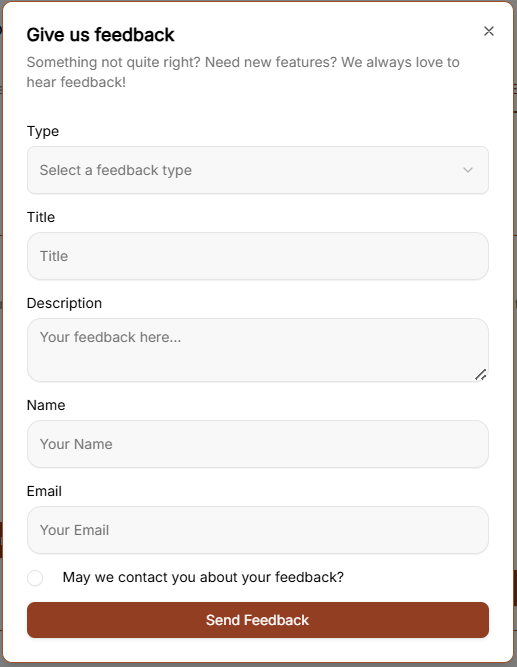
Clicking Feedback opens a window with the following fields:
-
Category: A dropdown menu to select the nature of your message. The options include:
-
Bug Report
-
Feature Request
-
General Feedback
-
Question
-
-
Subject: A text input field to summarize your feedback.
-
Message: A large text area for providing the full details of your report or suggestion.
-
Send Feedback: The brown button at the bottom of the form used to submit your information.
Help
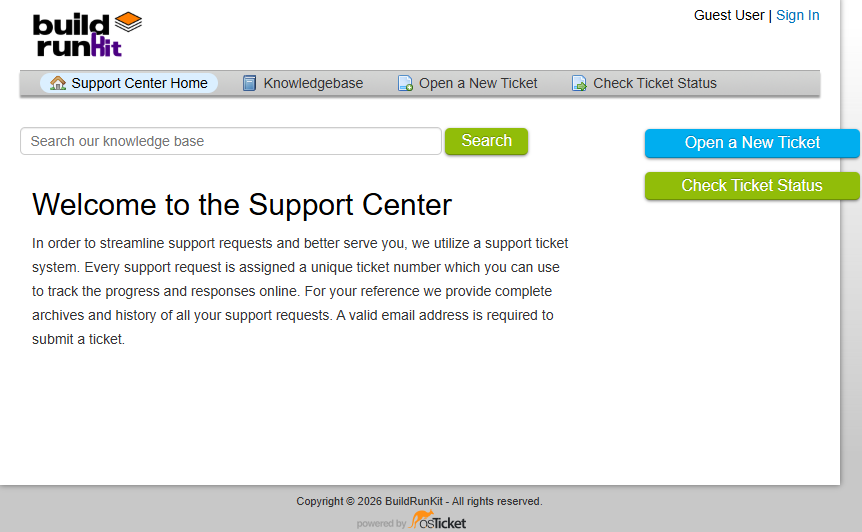
To access the support portal, click the Help option located at the bottom of the navigation sidebar. This opens the Support Center in a new window.
Support Center Home
The main landing page of the Support Center provides a centralized location for managing support requests:
-
Search: A search bar is located at the top to search the knowledge base for specific information.
-
Support Ticket System: The platform uses a ticket system where every request is assigned a unique number to track progress online.
-
Email Requirement: A valid email address is required to submit a new ticket.
Navigation Menu
-
Support Center Home: Returns you to the main welcome page.
-
Knowledgebase: Provides access to categorized FAQs and documentation.
-
Open a New Ticket: Opens a form to submit a direct support request.
-
Check Ticket Status: Allows you to view the progress of existing tickets using your email and ticket number.
Knowledgebase
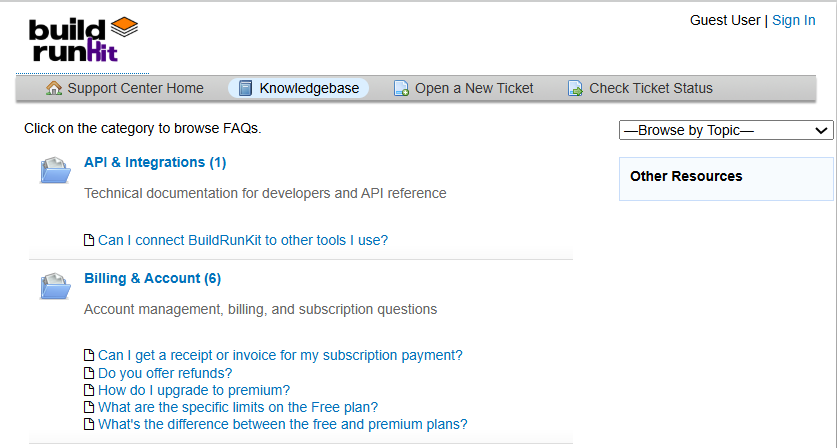
The Knowledgebase tab allows you to browse support articles by category to find answers to common questions.
-
Browse by Topic: Use the dropdown menu on the right to jump directly to a specific help topic.
Open a New Ticket
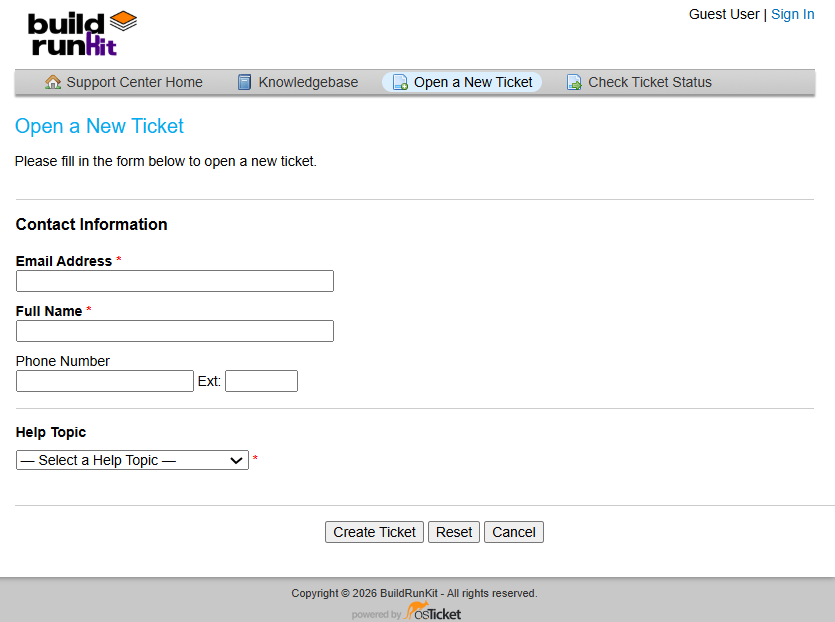
This section allows you to submit a formal support request to the team.
Contact Information
-
Email Address *: A required field to enter your contact email.
-
Full Name *: A required field to provide your name.
-
Phone Number: An optional field with a separate box for an Ext: (extension).
Ticket Details
-
Help Topic *: A required dropdown menu where you must "-Select a Help Topic -" to categorize your request.
Form Actions
-
Create Ticket: Click this button to submit your request.
-
Reset: Click this button to clear all information currently entered in the form.
-
Cancel: Click this button to exit the ticket creation process.
Check Ticket Status
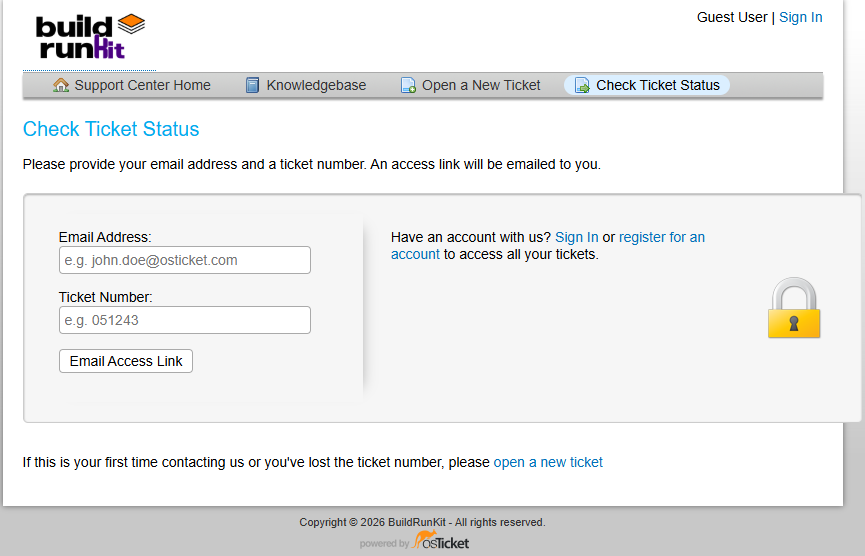
This section allows you to track the progress of your existing support requests.
Check Status via Email To access a specific ticket, provide the following details to receive an access link via email:
-
Email Address: Enter the email address associated with your ticket (e.g., [email protected]).
-
Ticket Number: Enter the unique ID assigned to your request (e.g., 051243).
-
Email Access Link Button: Click this to have the login link sent to your inbox.
Account Access
-
Sign In / Register: If you have an account, you can Sign In or register for an account to view a complete history of all your tickets in one place.
-
Security: This form is protected, indicated by the padlock icon on the right.
Troubleshooting
-
First-time contact: If you have never contacted support before or have lost your ticket number, click the open a new ticket link at the bottom of the page.
No comments to display
No comments to display