
BuildRunKit Invoices: Items Sub-Section
BuildRunKit Invoices: Items Sub-Section
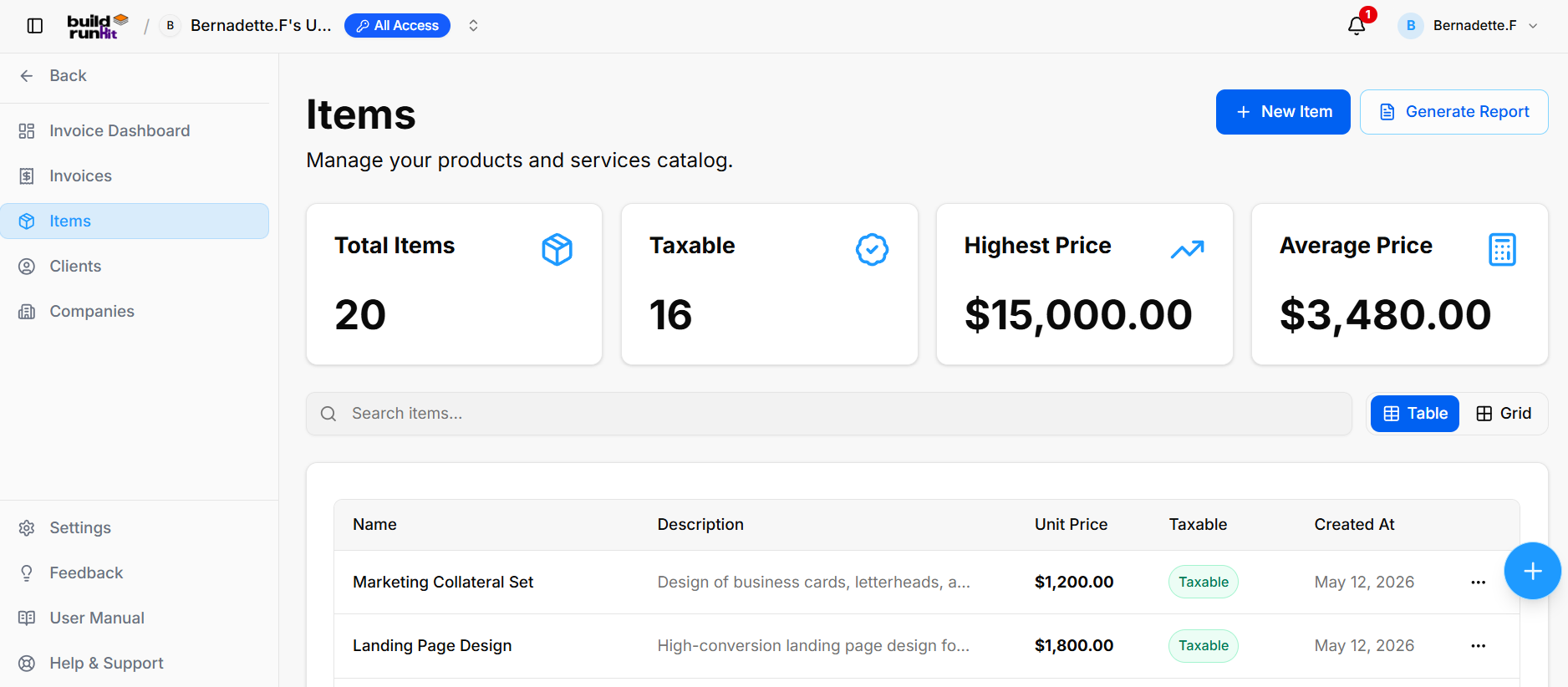
The Items sub-section provides central management for your products and services catalog used across billing records.
Item Summary Metrics
Top KPI cards display key catalog breakdown totals:
-
Total Items: Tracks the overall number of registered product/service entries (e.g.,
20). -
Taxable: Displays total count of taxable catalog items (e.g.,
16). -
Highest Price: Highlights the maximum unit price recorded in the catalog (e.g.,
$15,000.00). -
Average Price: Calculates the average price across all catalog entries (e.g.,
$3,480.00).
Directory Controls & Search Bar
-
Search items...: Global filter input for locating products or services by name and description.
-
View Switcher: Toggle viewing modes between Table (list layout) and Grid (card layout).
Items Table Data Columns
-
Name: Title of the product or service entry (e.g., Marketing Collateral Set, Landing Page Design).
-
Description: High-level details of the offering (e.g., Design of business cards, letterheads..., High-conversion landing page design...).
-
Unit Price: Standard billing cost per unit (e.g., $1,200.00, $1,800.00).
-
Taxable: Badge indicating tax status (Taxable).
-
Created At: Date when the item entry was added to the catalog (e.g., May 12, 2026).
Row Actions Menu (...)
Clicking the three dots icon on any item row displays quick record management actions:
-
View: Opens full item details.
-
Edit: Opens the item editor to adjust pricing, tax status, or description.
-
Delete: Removes the item from the catalog.
Header & Action Buttons
-
+ New Item: Direct action button to open the product/service setup modal.
-
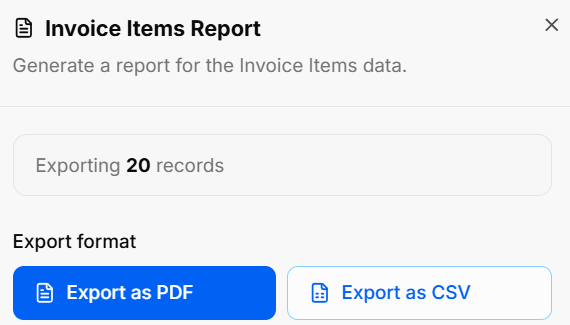
Generate Report: Opens the Invoice Items Report export modal:
-
Export Count: Displays total targeted item records (e.g., Exporting 20 records).
-
Export Format Options: Allows instant downloads via Export as PDF or Export as CSV.
-
BuildRunKit Invoices: Creating a New Item
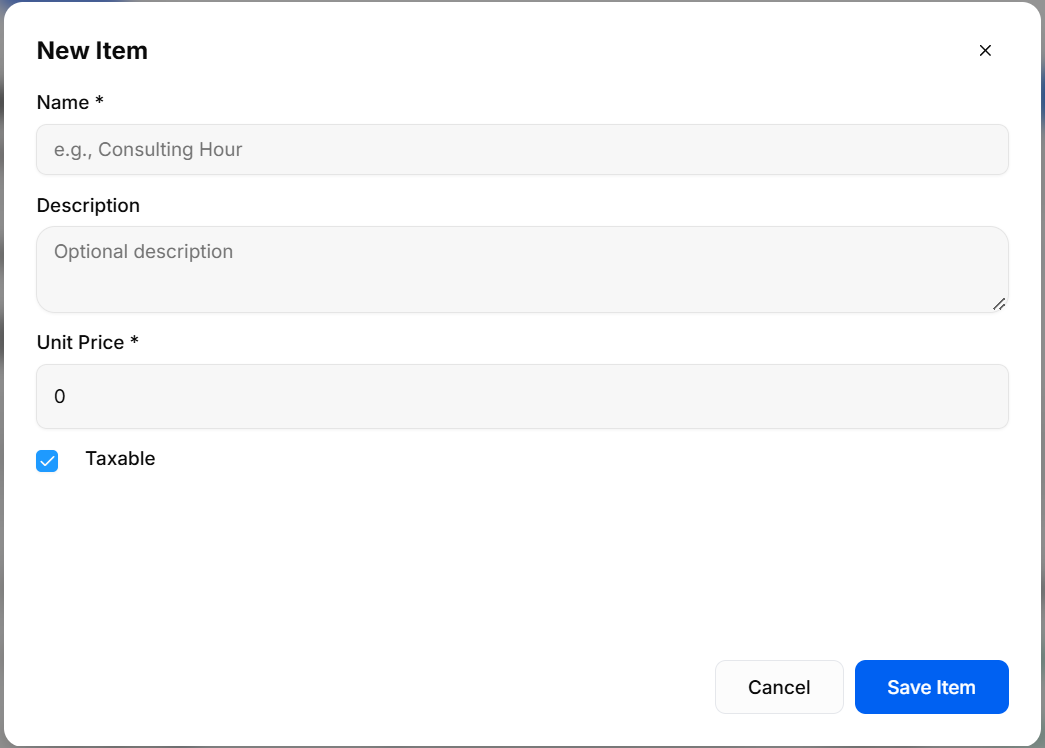
The New Item modal provides a creation interface for adding products or services to the catalog for invoice line item selection.
Input Fields & Form Controls
-
Name *: Required text field to enter the item name (placeholder:
e.g., Consulting Hour). -
Description: Optional text area to provide detailed item specifications (placeholder:
Optional description). -
Unit Price *: Required numeric input field to set default item pricing (default:
0). -
Taxable: Checkbox control to specify whether tax applies to this product/service (checked by default).
Header & Action Buttons
-
Close (
x): Top-right button to dismiss the modal without saving changes. -
Cancel: Outline button to close the setup modal and discard inputs.
-
Save Item: Primary blue action button to save the new entry to the catalog directory.
No comments to display
No comments to display