
Strategy Hub: Mind Maps Module
Strategy Hub: Mind Maps Module
The Mind Maps module within the Strategy Hub enables you to organize, track, and manage your operational action items using flexible visual mapping environments.
Managing Mind Maps Boards
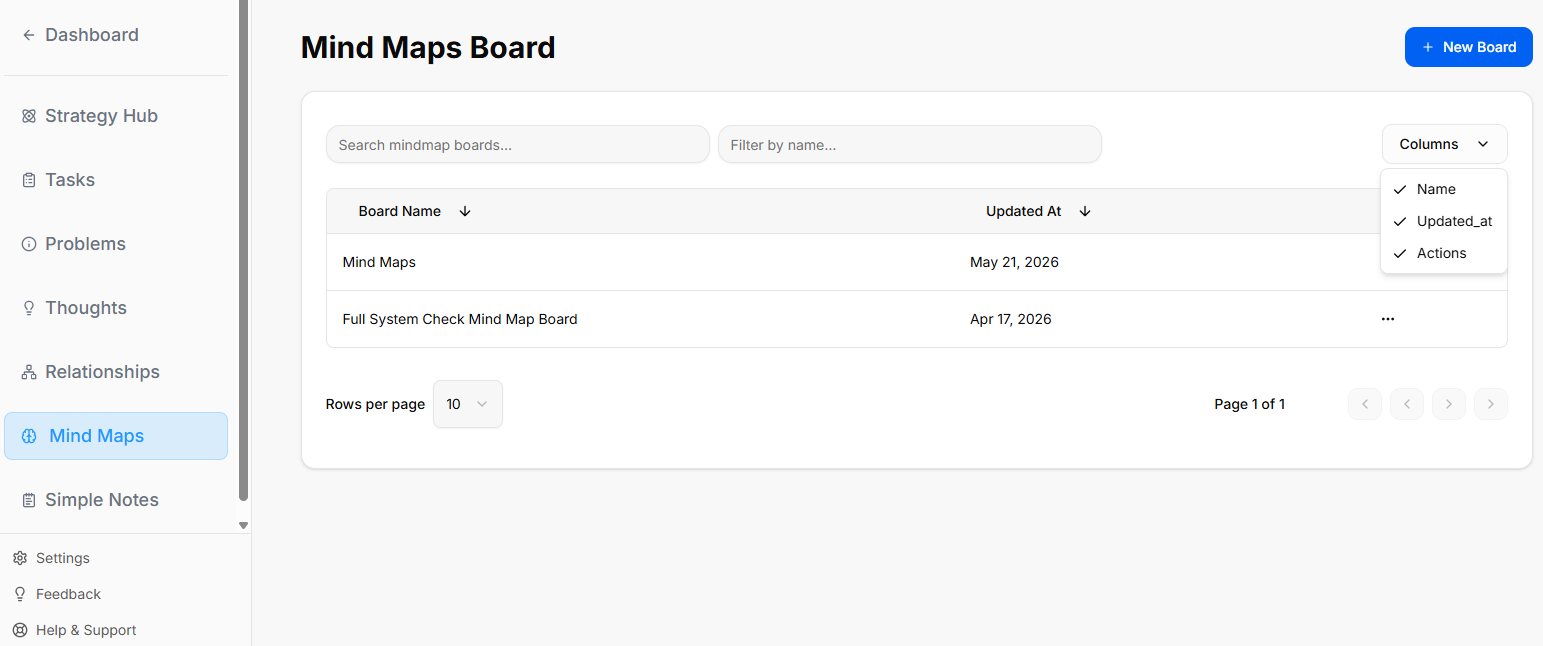
When you enter the Mind Maps module, you are presented with a global directory of your active planning environments:
-
Creating a Board: Click the blue + New Board button at the top right to start a fresh project environment.
-
Board Directory View: Track active spaces like your Mind Maps board or Full System Check Mind Map Board, along with their last relative modification date under the Updated At column.
-
Filtering & Columns: Use the top text bars to search specific project names. Use the Columns dropdown tool to show or hide parameters like Name, Updated_at, or Actions.
-
Board Context Menu: Clicking the three dots icon (
...) on the right side of any individual board row opens control configurations for that board.
Inside a Mind Maps Board
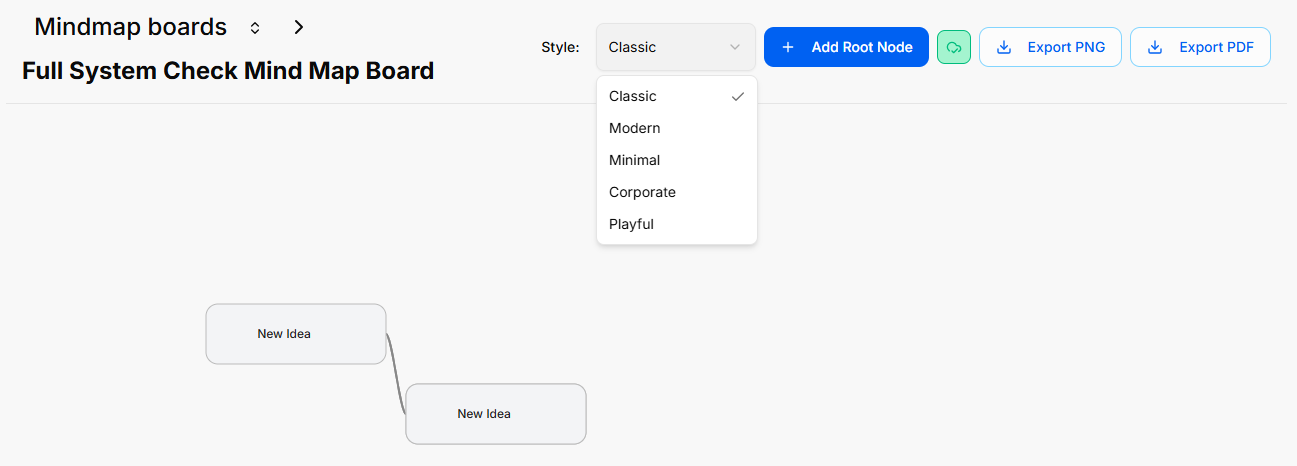
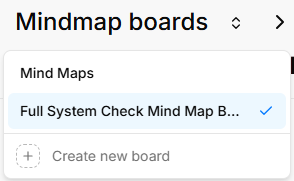
When you select and open an individual mind map board from your directory, you enter a canvas space designed to build out ideas and branches.
Canvas Layout & Header Controls
The top header of an active mind map board provides specific controls for styling, adding nodes, and exporting your map:
Managing Mind Map Nodes
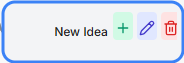
When interacting with an active node (e.g., New Idea) on the canvas, a quick action toolbar appears directly inside the card boundaries to manage branches:
-
Add a Node (Green Cross Icon): Click the green + button to branch off and add a connected sub-node to your mind map.
-
Edit Node Title (Pencil Icon): Click the purple pencil button to quickly rename or modify the text displayed inside that specific node card.
-
Delete Node (Trash Can Icon): Click the red trash can button to permanently remove the node from your mind map layout.
No comments to display
No comments to display