
Feedback, Help & Support Navigation
Feedback, Help & Support Navigation
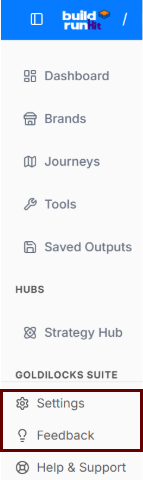
The bottom section of the primary application sidebar menu manages direct user input channels, technical support ticketing, and educational platform resources.
Navigation Utilities Overview
The two bottom items on the sidebar provide straightforward gateways to assist with operational questions or platform evaluations:
-
Feedback: Clicking this option opens an interactive portal designed for submitting tool feature suggestions, performance reviews, or specific software optimization requests.
-
Help & Support: Selecting this final option launches the platform’s customer service hub, providing immediate access to technical troubleshooting articles, user documentation, and live support resources.
Give Us Feedback
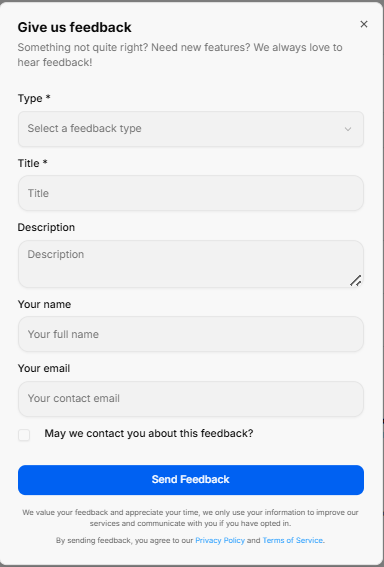
The Give us feedback portal opens as a dedicated pop-up modal designed to collect user input, feature requests, and system evaluations directly.
1. Feedback Input Fields
The submission form contains structured fields to accurately categorize and detail user input:
-
Type: A required dropdown menu to select the specific category of input, such as choosing a feature idea.
-
Title: A required text field to provide a brief, high-level summary of your input.
-
Description: A multi-line text area to expand on your idea, issue, or enhancement request with full context.
-
Your name: An optional text block to enter your full identification name.
-
Your email: An optional field to input your primary contact email address for follow-up correspondence.
2. Permissions & Execution
-
Contact Permission: A checkbox labeled May we contact you about this feedback? allows you to opt into direct follow-up communications regarding your submission.
-
Send Feedback: A solid blue action button centered at the base to execute and submit the form data to the support team.
Support Center
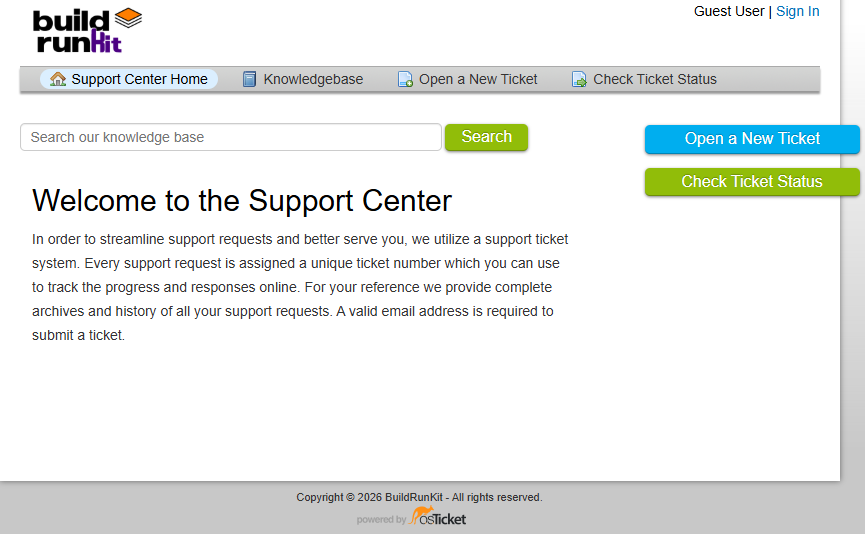
The Support Center is a dedicated external portal designed to streamline assistance requests and provide self-service documentation. It operates on a structured ticketing system to track, archive, and manage technical inquiries.
1. Main Navigation Header
The upper dashboard contains a persistent menu bar to jump between standard support desks:
-
Support Center Home: Navigates back to the main welcome dashboard landing page.
-
Knowledgebase: Opens a repository of self-service articles, setup documentation, and platform user guides.
-
Open a New Ticket: Toggles the submission form to file a new technical assistance request.
-
Check Ticket Status: Opens a login and tracking screen to check the history or updates of an active request.
-
Authentication Links: Located in the top right corner, allowing users to sign in or view their profile status.
2. Search Engine & Core Features
-
Knowledge Base Search: A prominent search bar sits beneath the header navigation. Users can type keywords, tools, or errors directly into the input line and click the green Search button to query documentation.
-
Ticketing System Overview: To maintain organization and response quality, every submitted request is instantly assigned a unique ticket number. This reference string allows you to review historical archives, monitor progress, and read technician responses online. A valid email address is mandatory to lodge a ticket.
3. Direct Action Sidebar
Two high-visibility action buttons are anchored on the right side of the layout for fast access:
-
Open a New Ticket: A bright blue tab providing an immediate shortcut to create a help request.
-
Check Ticket Status: A green tab offering a quick shortcut to log in and look over active ticket histories.
No comments to display
No comments to display