
BuildRunKit Projects: Projects Settings
BuildRunKit Projects: Projects Settings - Import / Export Tab
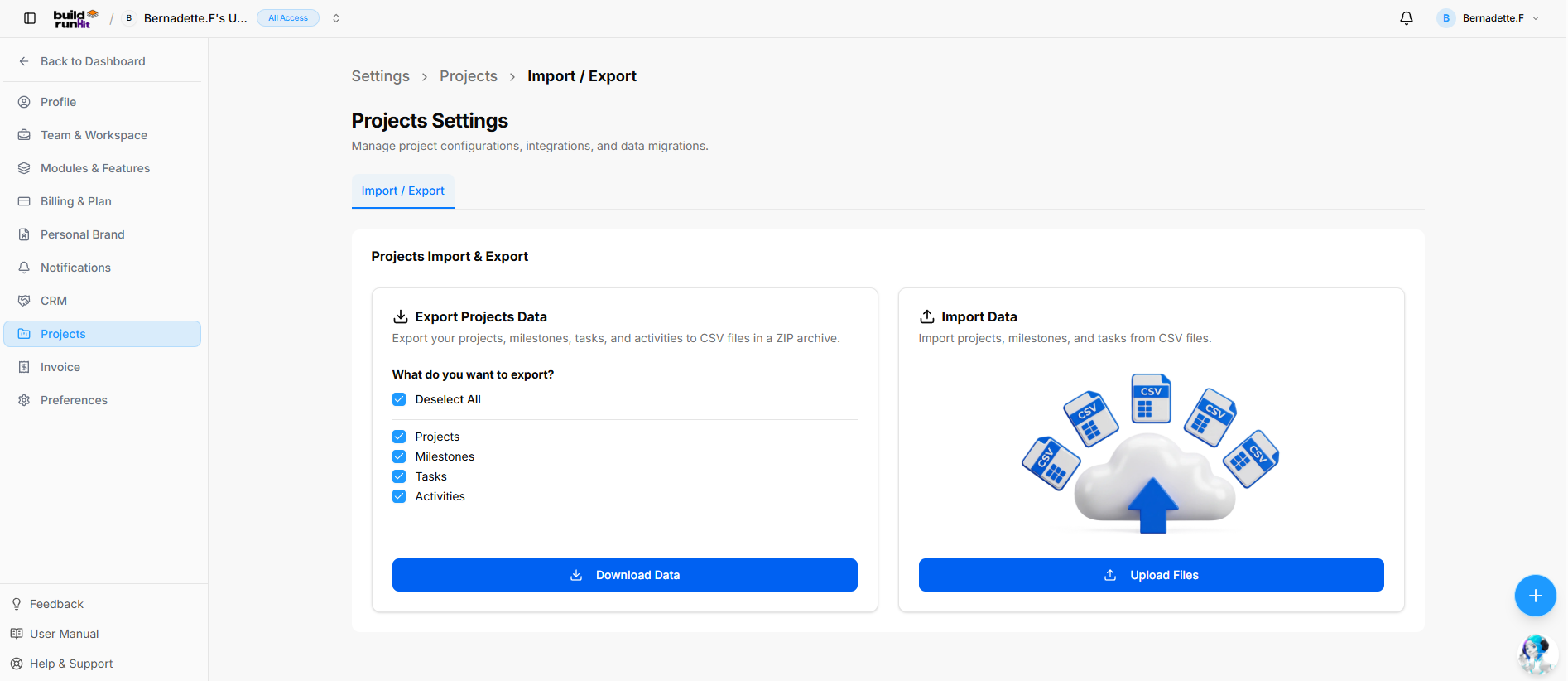
Location & Header
-
Breadcrumb Trail (Traction Navigation Path):
Settings > Projects > Import / Export -
Page Heading: Projects Settings
-
Sub-description: "Manage project configurations, integrations, and data migrations."
-
Active Tab: Import / Export
Projects Import & Export Dashboard
The dashboard provides side-by-side modules for exporting system backups and importing bulk data:
-
Export Projects Data Panel:
-
Description: "Export your projects, milestones, tasks, and activities to CSV files in a ZIP archive."
-
Select All / Deselect All Toggle: Master checkbox to select or deselect all record categories.
-
Export Categories Checkboxes: Selectable data sets (Projects, Milestones, Tasks, Activities).
-
Download Data Button: Primary action button to generate and export the compressed ZIP archive.
-
-
Import Data Panel:
-
Description: "Import projects, milestones, and tasks from CSV files."
-
Upload Files Button: Primary action button to open the import wizard modal.
-
BuildRunKit Projects: Import Assistant Wizard Modal
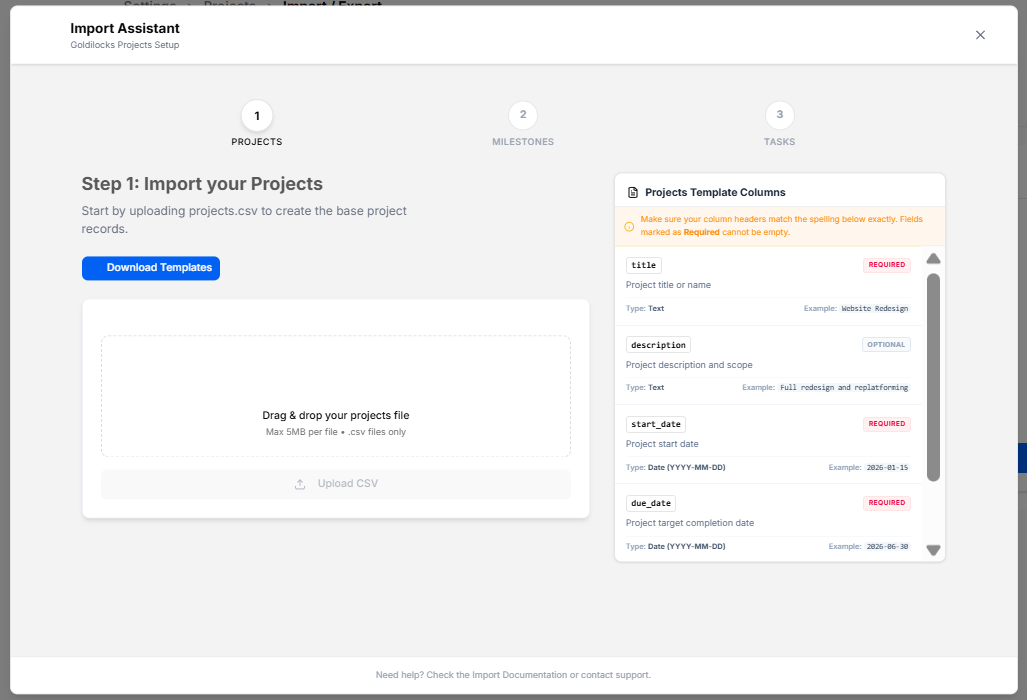
Modal Setup
-
Trigger Action: Clicking the blue Upload Files button on the Import / Export settings tab opens the multi-step Import Assistant overlay.
-
Modal Header: Import Assistant with sub-heading (Goldilocks Projects Setup) and an x close icon in the top-right corner.
-
Progress Tracker: Displays numbered 3-step navigation sequence:
-
PROJECTS (Active)
-
MILESTONES
-
TASKS
-
Step 1: Import your Projects
-
Section Heading: Step 1: Import your Projects
-
Sub-description: "Start by uploading projects.csv to create the base project records."
-
Download Templates Button: Action button to download standardized sample
.csvfile structures for mapping. -
File Drag & Drop Upload Zone:
-
Interactive upload box (
Drag & drop your projects file, Max 5MB per file • .csv files only). -
Upload CSV: Button to trigger local file directory selection.
-
Projects Template Columns Reference Panel
-
Panel Warning Header: "Make sure your column headers match the spelling below exactly. Fields marked as Required cannot be empty."
-
Column Mapping Specifications:
-
title(REQUIRED): Project title or name (Type: Text, Example: Website Redesign). -
description(OPTIONAL): Project description and scope (Type: Text, Example: Full redesign and replatforming). -
start_date(REQUIRED): Project start date (Type: Date (YYYY-MM-DD), Example: 2026-01-15). -
due_date(REQUIRED): Project target completion date (Type: Date (YYYY-MM-DD), Example: 2026-06-30).
-
Footer Support Text
-
"Need help? Check the Import Documentation or contact support."
No comments to display
No comments to display