
BuildRunKit Invoices: Companies Sub-Section
BuildRunKit Invoices: Companies Sub-Section
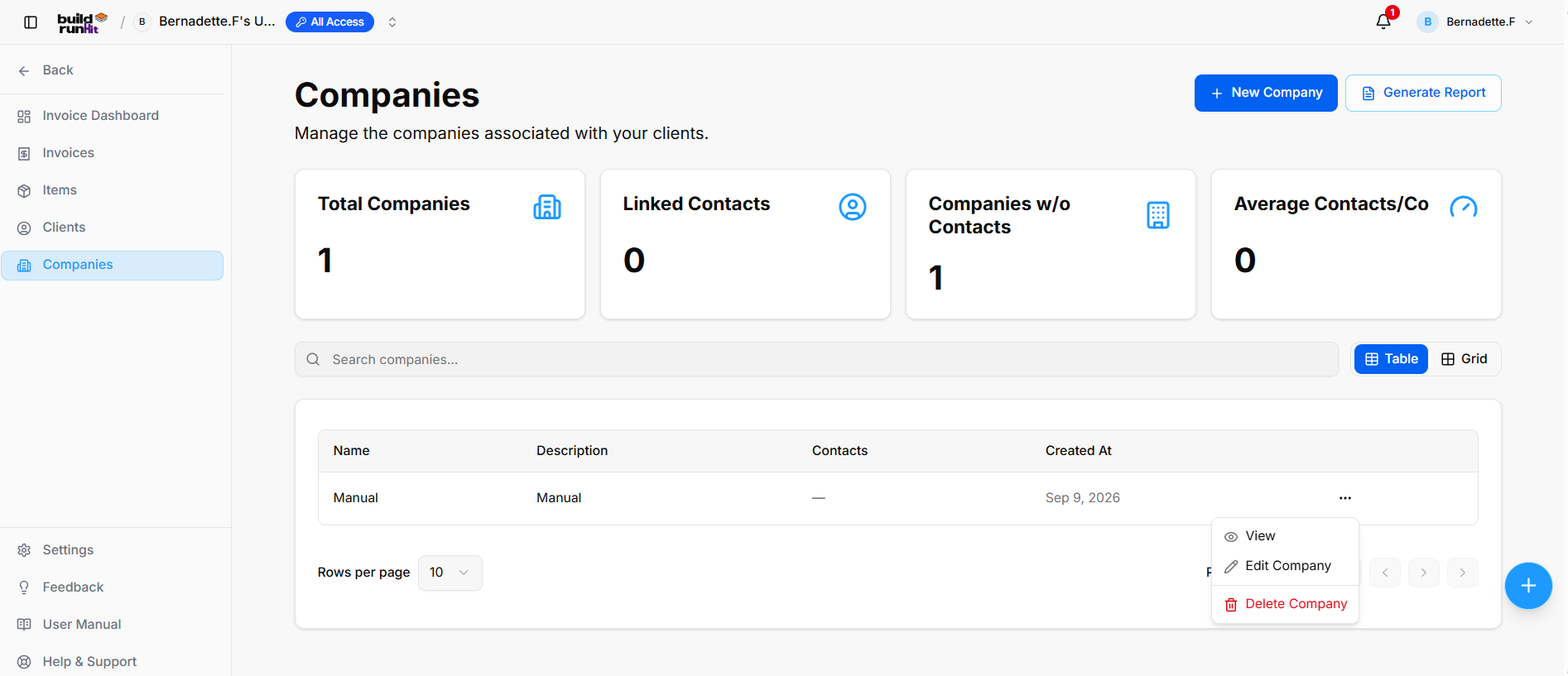
The Companies sub-section provides central directory management for client businesses, partner organizations, and associated company accounts.
Company Summary Metrics
Top KPI cards display key organization breakdown totals:
-
Total Companies: Tracks the overall number of registered company profiles (e.g.,
1). -
Linked Contacts: Counts individual contact records attached across all company profiles (e.g.,
0). -
Companies w/o Contacts: Identifies orphaned company records requiring contact assignment (e.g.,
1). -
Average Contacts/Co: Displays the mean contact ratio per parent organization profile (e.g.,
0).
Directory Controls & Search Bar
-
Search companies...: Global filter input for locating accounts by name or description keywords.
-
View Switcher: Toggle viewing modes between Table (list layout) and Grid (card layout).
-
Rows per page: Dropdown selector to control row density per page (e.g.,
10). -
Pagination: Directional controls to step through company directory pages.
Companies Table Data Columns
-
Name: Primary registered company or trading entity name (e.g., Manual).
-
Description: High-level summary of the company's business focus or internal account notes (e.g., Manual).
-
Contacts: Total linked contact profiles associated with the organization (e.g.,
—). -
Created At: Date when the company record was added (e.g., Sep 9, 2026).
Row Actions Menu (...)
Clicking the three dots icon on any company row displays quick record management actions:
-
View: Opens the dedicated company profile view showing linked contacts and account details.
-
Edit Company: Opens the setup editor to update organization details or descriptions.
-
Delete Company: Removes the organization record from the directory.
Header & Action Buttons
-
+ New Company: Direct action button to open the company setup modal.
-
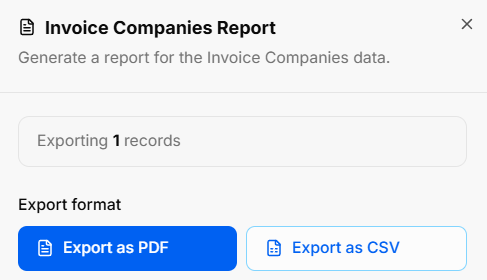
Generate Report: Opens the Invoice Companies Report export modal:
-
Export Count: Displays total targeted organization records (e.g., Exporting 1 records).
-
Export Format Options: Allows instant downloads via Export as PDF or Export as CSV.
-
BuildRunKit Invoices: Creating a New Company
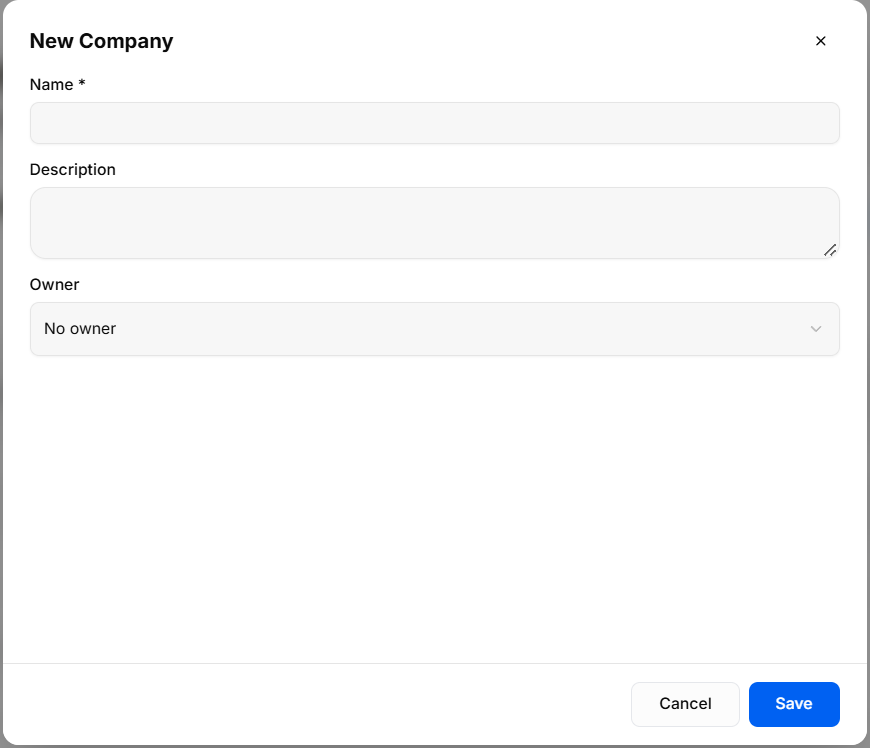
The New Company modal provides a setup interface for creating and registering organization profiles in the Companies directory.
Input Fields & Form Controls
-
Name *: Required text field to enter the official company or business entity name.
-
Description: Optional text area to provide company details, business overview, or internal account notes.
-
Owner: Dropdown menu to assign an internal team member or account manager (No owner).
Header & Action Buttons
-
Close (
x): Top-right icon to dismiss the modal without saving changes. -
Cancel: Outline button to close the modal and discard entered information.
-
Save: Primary blue action button to register and save the new company profile.
No comments to display
No comments to display