
BuildRunKit Projects: Projects Sub-Section
BuildRunKit Projects: Projects Sub-Section
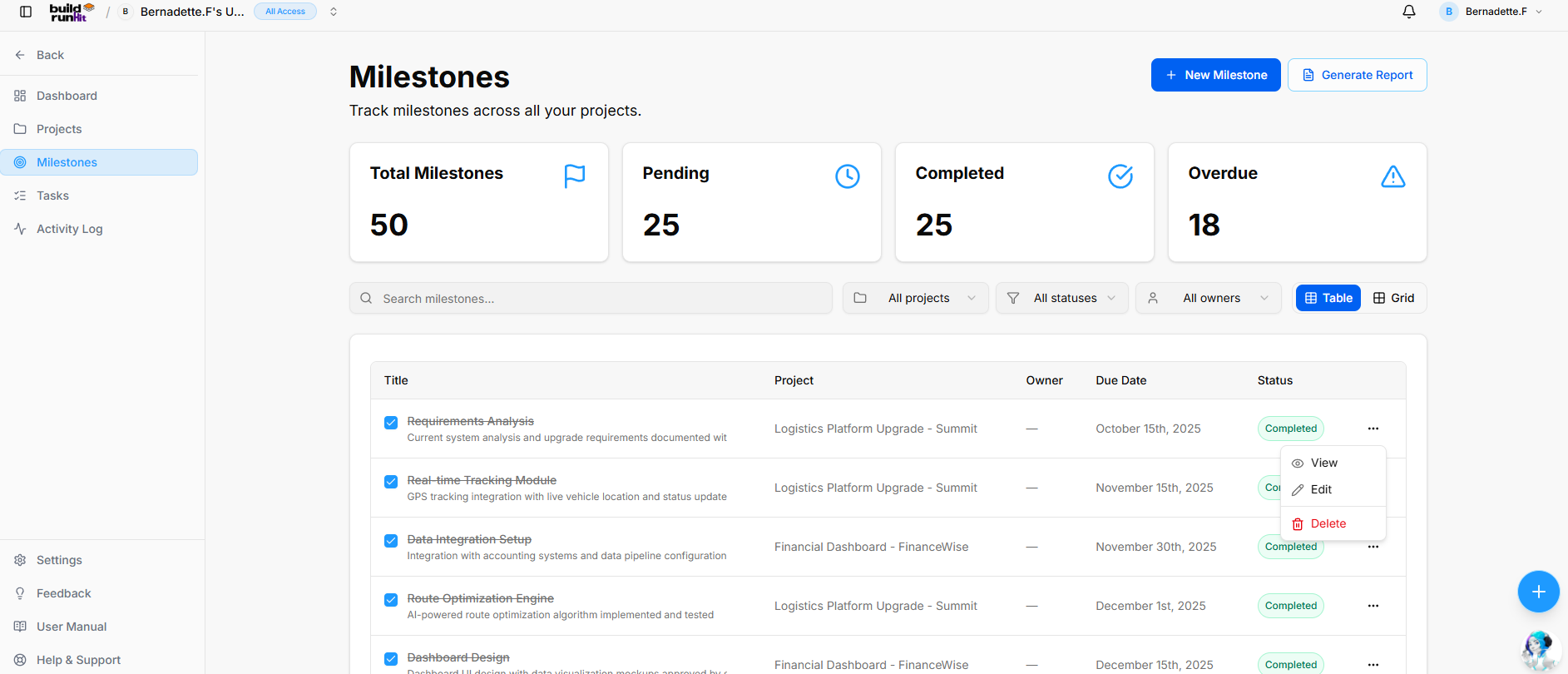
Location & Navigation Sidebar
-
Top Left Action: <- Back button to return to main workspace navigation.
-
Module Views:
-
Dashboard (Currently Active)
-
Projects
-
Milestones
-
Tasks
-
Activity Log
-
-
Bottom Sidebar Links: Settings, Feedback, User Manual, Help & Support.
Header Actions
-
Page Title: Projects Dashboard
-
Primary Action: + New Project button.
Top Metric Cards
-
Total Projects: Displays total workspace projects (e.g.,
11). -
Total Tasks: Tracks overall task count across projects (e.g.,
0). -
Overdue Tasks: Highlights overdue items needing attention with alert icon (e.g.,
0, "Need attention"). -
Total Estimated Hours: Tracks total estimated duration (e.g.,
0h, "Across all tasks").
Analytics & Visual Chart Panels
-
Project Status: Donut chart breaking down project states (Active, On_hold, Completed, Cancelled).
-
Task Priority: Distribution chart monitoring task urgencies (Low, Medium, High).
-
Tasks by Project: Visual breakdown chart mapping task volume across individual projects.
Projects Overview Section
-
Section Header: Projects Overview with View all -> quick link.
-
Project Cards: Grid preview showing active project titles and status badges (e.g., Mobile App Development - RetailPro, Website Redesign for TechVision, Design System Documentation - PixelPerfect).
Task Lists & Activity Feed (Lower Dashboard)
-
Overdue Tasks Panel: Dedicated list box displaying urgent past-due items (displays "No data available" / "Create your first task to get started" when clear).
-
Tasks Panel: General task assignment feed (displays "No tasks yet" / "Create your first task to get started" when clear).
-
Recent Activity Section:
-
Section Title & Counter: Recent Activity badge (e.g.,
1). -
View All Link: View all -> shortcut to the full log.
-
Activity Log Table Columns:
-
Event: Action type (e.g., Project created badge).
-
Project: Name of the associated project record.
-
User: Team member who performed the action.
-
Date: Timestamp of the event (e.g., 2026-05-13).
-
-
BuildRunKit Projects List Subsection
Page Header & Primary Actions
-
Page Heading: Projects
-
Sub-description: "Manage your projects and track progress."
-
Header Buttons:
-
+ New Project: Primary action button to create a project entry.
-
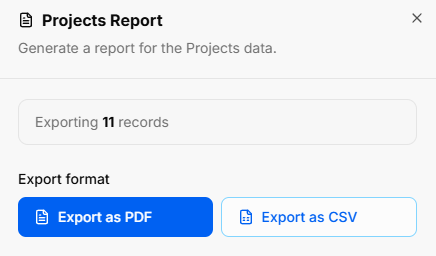
Generate Report: Opens the Projects Report modal.
-
Top Metric Summary Cards
-
Total Projects: Displays total logged project records (e.g.,
11). -
Active: Counts ongoing projects currently in progress (e.g.,
11). -
Completed: Counts finalized projects (e.g.,
0). -
On Hold: Counts paused or delayed projects (e.g.,
0).
Search, Filter, and Layout Bar
-
Search Field: Text input (
Search projects...) for instant keyword filtering. -
Status Filter: Dropdown menu to filter list items by stage (All statuses).
-
Owner Filter: Dropdown menu to filter items by assigned manager (All owners).
-
View Switcher: Toggle controls between Table view (Active) and Grid view.
Projects Data Table
-
Title: Displays project name and short description text (e.g., Mobile App Development - RetailPro, Website Redesign for TechVision, Design System Documentation - PixelPerfect, Logistics Platform Upgrade - Summit, Financial Dashboard - FinanceWise).
-
Status: Badge displaying project state (e.g., Active).
-
Due Date: Targeted completion deadline (e.g., 2026-05-30, 2026-03-15).
-
Owner: Assigned project owner (e.g.,
—). -
Actions (
...): Context menu per row for additional record options.
Projects Report Modal
Clicking Generate Report opens the export utility overlay:
-
Modal Title: Projects Report
-
Modal Sub-text: "Generate a report for the Projects data."
-
Export Count Indicator: Displays total scope of records to be generated (e.g., Exporting 11 records).
-
Export Format Options:
-
Export as PDF: Primary action button to download styled PDF document.
-
Export as CSV: Secondary outline button to export structured CSV file.
-
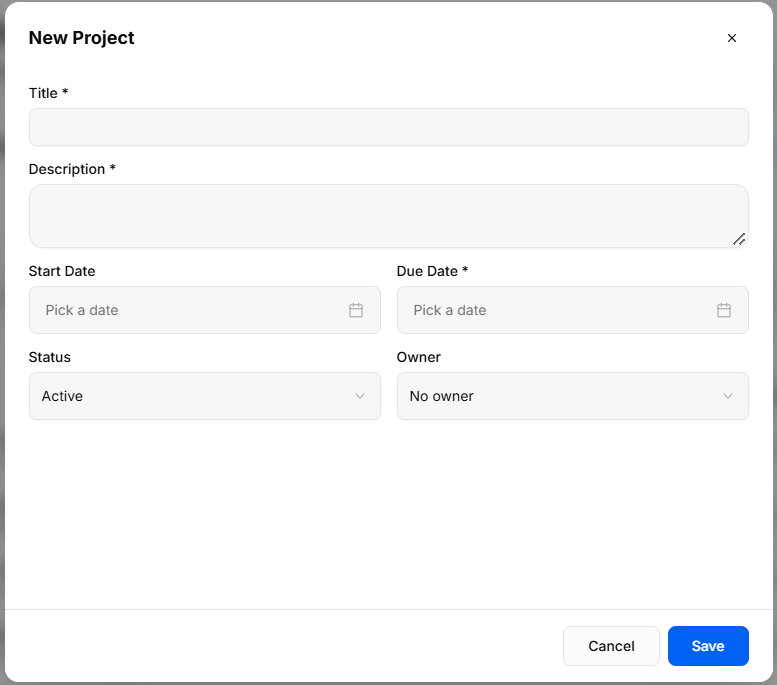
BuildRunKit Projects: New Project Modal
Modal Setup
-
Trigger Action: Clicking the blue + New Project button on the Projects Dashboard or Projects List view opens the New Project creation modal.
-
Modal Header: New Project title with an x close icon in the top-right corner to exit without saving.
Field Specifications & Layout
-
Title *: Required text field to enter the project name.
-
Description *: Required multi-line text box to define project scope and details.
-
Start Date: Date picker field (
Pick a date) to schedule project commencement. -
Due Date *: Required date picker field (
Pick a date) to set the completion deadline. -
Status: Dropdown selector to set initial state (Active by default).
-
Owner: Dropdown selector to assign a project manager from workspace team members (No owner by default).
Modal Actions
-
Cancel: Discards all entered data and closes the overlay.
-
Save: Validates required fields, creates the project record, and updates the project list and dashboard counters.
No comments to display
No comments to display