
BuildRunKit Projects Dashboard Overview
BuildRunKit Projects: Projects Dashboard
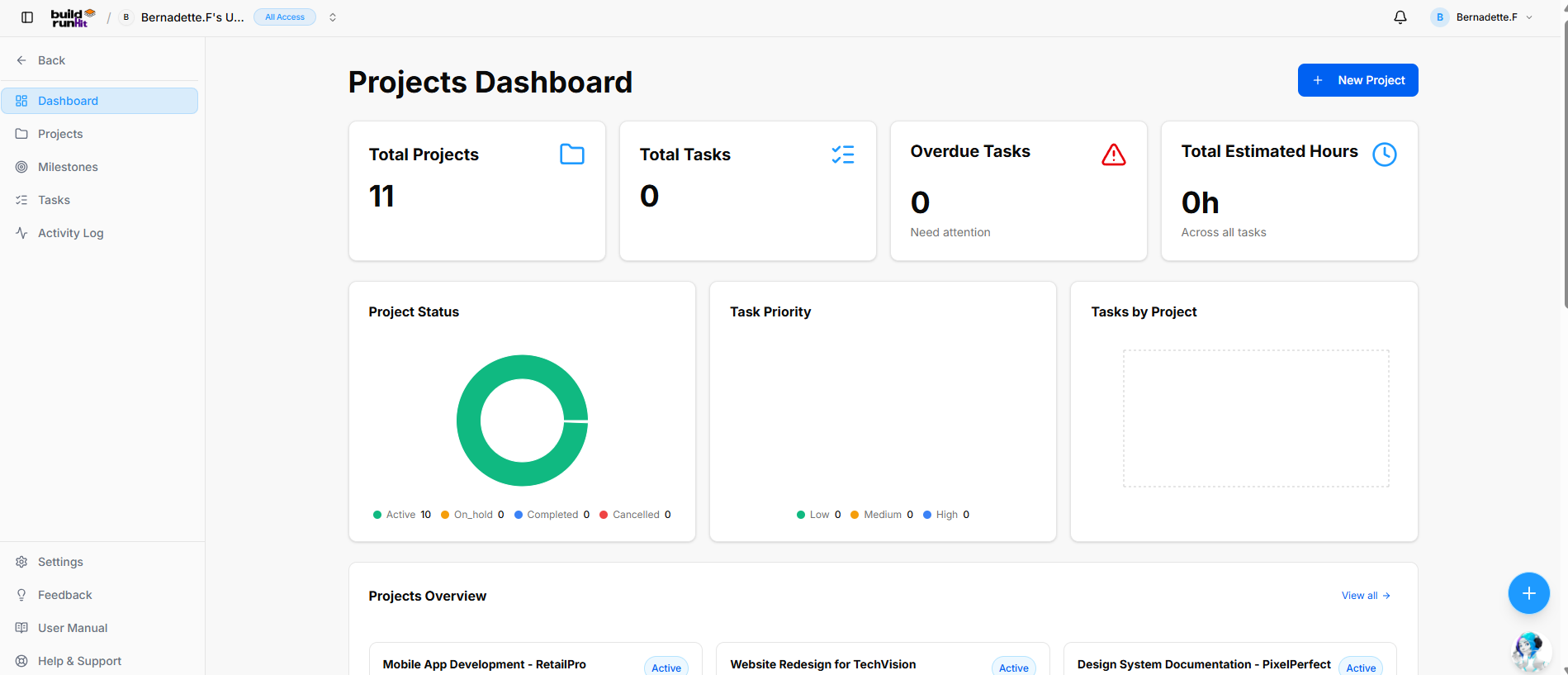
Location & Navigation Sidebar
-
Top Left Action: <- Back button to return to main workspace navigation.
-
Module Views:
-
Dashboard (Currently Active)
-
Projects
-
Milestones
-
Tasks
-
Activity Log
-
-
Bottom Sidebar Links: Settings, Feedback, User Manual, Help & Support.
Header Actions
-
Page Title: Projects Dashboard
-
Primary Action: + New Project button.
Top Metric Cards
-
Total Projects: Displays total workspace projects (e.g.,
11). -
Total Tasks: Tracks overall task count across projects (e.g.,
0). -
Overdue Tasks: Highlights overdue items needing attention with alert icon (e.g.,
0, "Need attention"). -
Total Estimated Hours: Tracks total estimated duration (e.g.,
0h, "Across all tasks").
Analytics & Visual Chart Panels
-
Project Status: Donut chart breaking down project states (Active, On_hold, Completed, Cancelled).
-
Task Priority: Distribution chart monitoring task urgencies (Low, Medium, High).
-
Tasks by Project: Visual breakdown chart mapping task volume across individual projects.
Projects Overview Section
-
Section Header: Projects Overview with View all -> quick link.
-
Project Cards: Grid preview showing active project titles and status badges (e.g., Mobile App Development - RetailPro, Website Redesign for TechVision, Design System Documentation - PixelPerfect).
Task Lists & Activity Feed (Lower Dashboard)
-
Overdue Tasks Panel: Dedicated list box displaying urgent past-due items (displays "No data available" / "Create your first task to get started" when clear).
-
Tasks Panel: General task assignment feed (displays "No tasks yet" / "Create your first task to get started" when clear).
-
Recent Activity Section:
-
Section Title & Counter: Recent Activity badge (e.g.,
1). -
View All Link: View all -> shortcut to the full log.
-
Activity Log Table Columns:
-
Event: Action type (e.g., Project created badge).
-
Project: Name of the associated project record.
-
User: Team member who performed the action.
-
Date: Timestamp of the event (e.g., 2026-05-13).
-
-
No comments to display
No comments to display