Managing Your Projects
Managing Projects
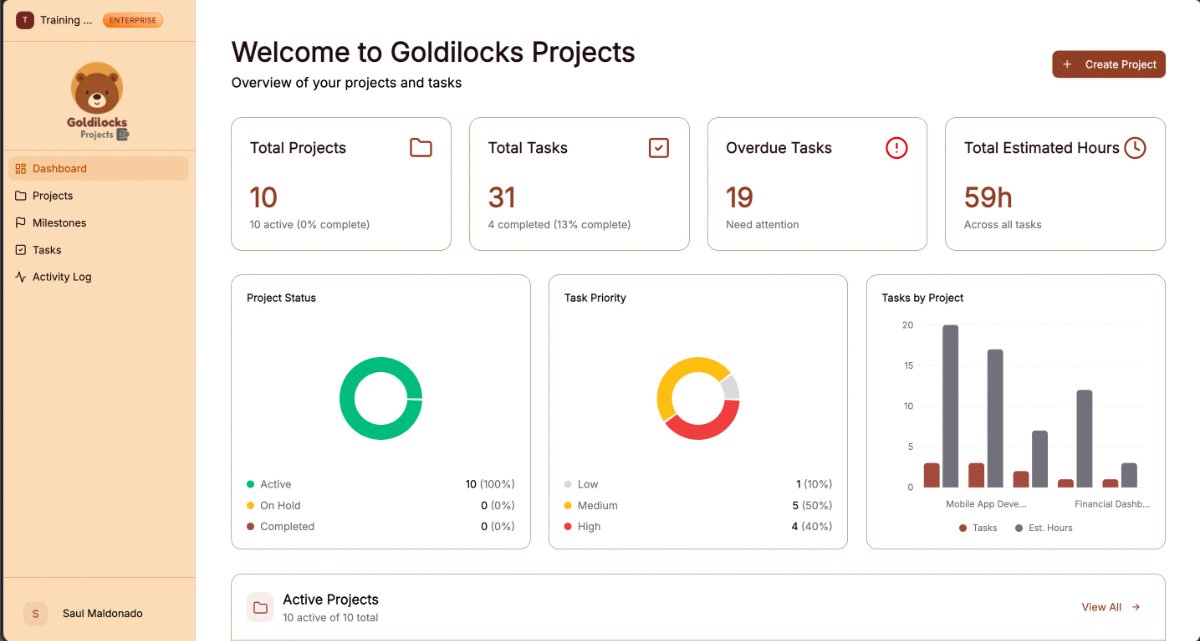
The Projects page features a completely refactored main dashboard and individual project views designed to give you a much clearer, high-level overview of project statuses, associated tasks, and upcoming milestones at a single glance. You can track their progress through a searchable list or grid view, which now includes built-in pagination across the data tables to improve speed and navigation.
Managing Your Projects
At the top of the Projects page, you have several tools to organize and filter your workspace:
-
Search: Use the search bar to find projects by title or description.
-
Filter by Status: Use the dropdown menu to filter your view. Options include:
-
All Projects
-
Active
-
On Hold
-
Completed
-
-
View Toggle: Switch between a List View or Grid View using the icons next to the status filter.
-
Generate Report: Click this button to export your project data.
Creating a New Project
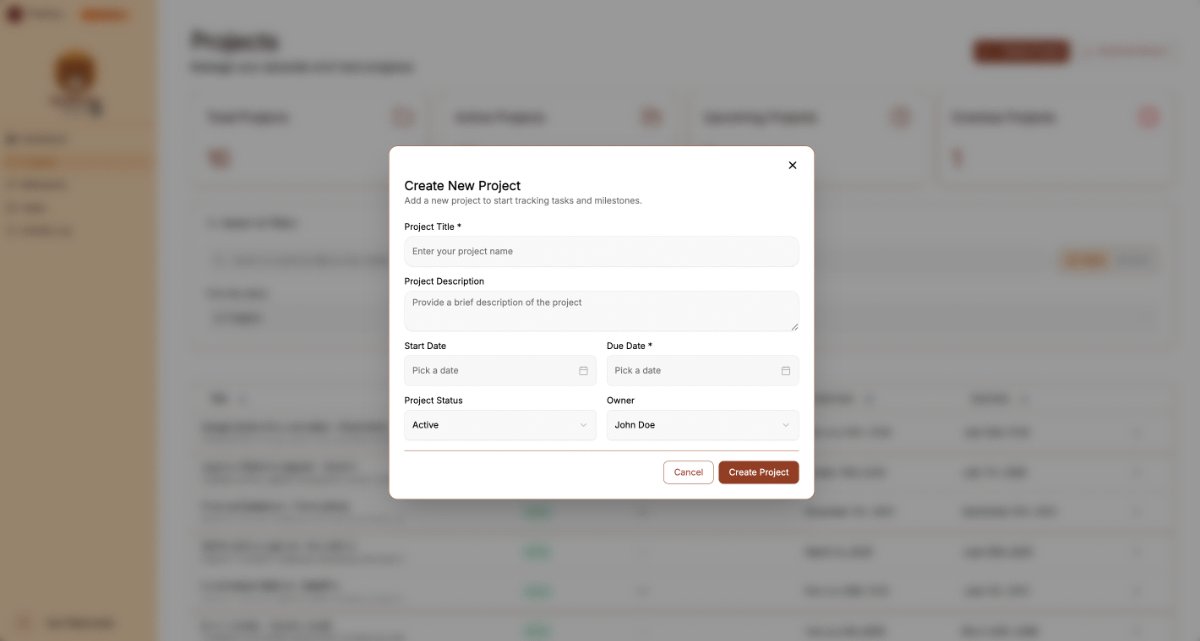
To start a new initiative, click the brown "+ Create Project" button. This opens a unified modal window, which saves loading time by letting you update the system without reloading the page:
-
Project Title *: Enter a unique name for your project (Required).
-
Project Description: Provide a brief summary of the project’s goals or scope.
-
Start Date: Select the date when work on the project begins.
-
Due Date *: Select the final deadline for the project (Required).
-
Project Status: Use the dropdown to set the current state (e.g., Active).
-
Create Project Button: Click the brown button to save and launch your project.
Exporting Data
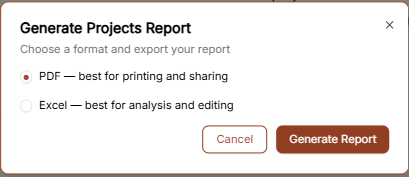
When you click Generate Report, a pop-up window allows you to choose your preferred export format:
-
PDF: Best for printing and sharing official progress updates.
-
Excel: Best for deep analysis and manual data editing.
-
Generate Report Button: Finalize the export in your chosen format.