
Mentor Alliance Business Coach Kit – Messages & Notifications
Mentor Alliance Business Coach Kit – Messages & Notifications

The Messages and Notifications features provide real-time direct communication tools and alert management directly within the platform header and navigation layout.
Messages Center
-
Client Conversations Sidebar:
-
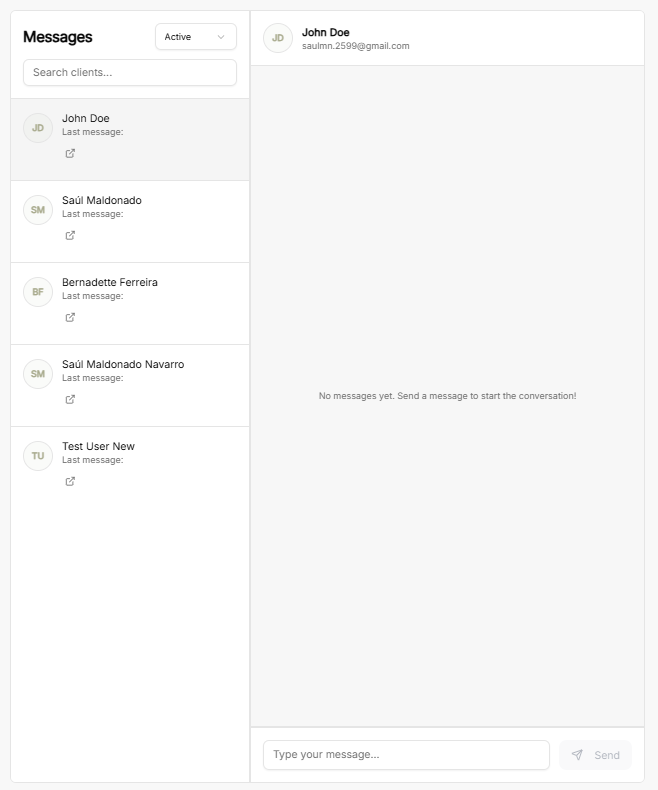
Client Filter Dropdown: Filter client list by account status (e.g., Active).
-
Search Bar: Quickly locate specific client conversations by typing the client's name.
-
Client List: Select active conversations with clients (e.g., John Doe, Saúl Maldonado, Bernadette Ferreira, Saúl Maldonado Navarro, Test User New). Shows client avatar initials and the status of the last message sent.
-
-
Chat Window & Workspace:
-
Recipient Details: Displays selected client's full name, profile initials, and primary email address.
-
Message History Pane: Workspace displaying past thread messages or starting a new conversation.
-
Message Input Controls: Text box to compose new messages paired with a Send button.
-
Notifications Panel
-
Header Controls:
-
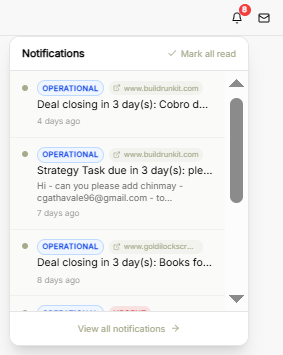
Notification Bell Icon: Displays an unread badge indicator showing total pending alerts (e.g., 8 pending).
-
Mark All Read: Quick action button to clear all unread alert highlights simultaneously.
-
-
Alert Feed & Categories:
-
Operational Tags: Highlights system and operational reminders (e.g., deal closing updates, strategy task due notices).
-
Origin Source Links: Displays origin domain links associated with each alert (e.g., buildrunkit.com, goldilockscrm.com).
-
Alert Time Stamps: Indicates elapsed time since alert generation (e.g., 4 days ago, 7 days ago, 8 days ago).
-
-
Navigation: Click View all notifications at the bottom of the popover menu to access the full notification log.
No comments to display
No comments to display