
Mentor Alliance Business Coach Kit – Invite Client & Manage Templates
Mentor Alliance Business Coach Kit – Invite Client & Manage Templates
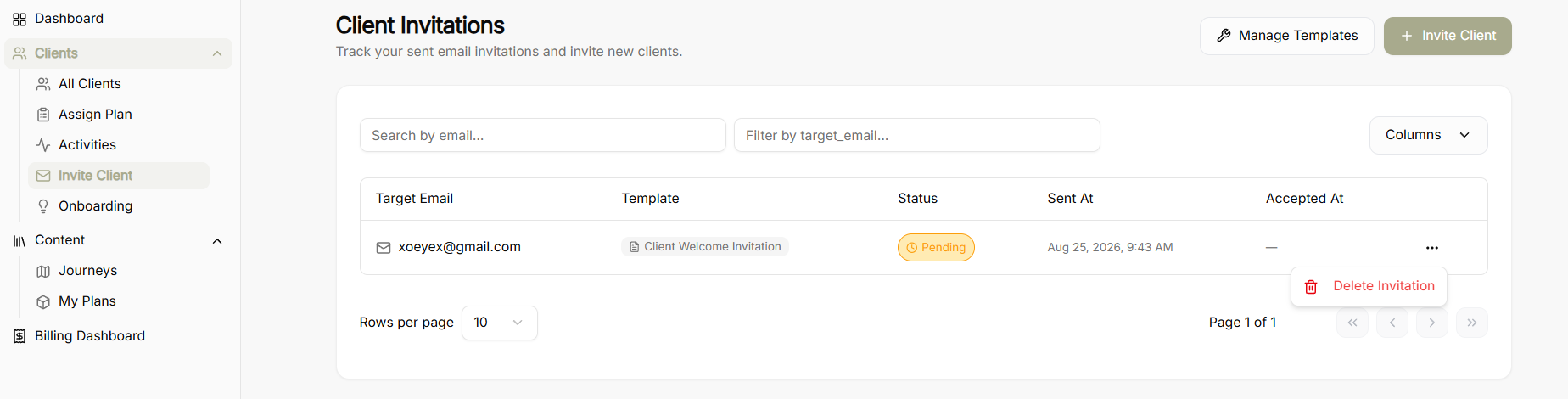
The Invite Client module allows coaches to dispatch custom, branded email invitations to prospective clients, track invitation statuses, and manage reusable email templates.
Client Invitations Overview Dashboard
-
Top Controls:
-
Manage Templates: Opens the reusable invitation template manager.
-
Invite Client: Launches the guided 3-step invitation creation wizard.
-
-
Filter & Search Bar: Search sent invitations by target email address or filter by column parameters.
-
Invitations Table Columns:
-
Target Email: Recipient email address.
-
Template: The specific template used for the invitation.
-
Status: Current invitation delivery/acceptance state (e.g., Pending).
-
Sent At: Timestamp of when the email was sent.
-
Accepted At: Timestamp of when the client accepted the invitation.
-
Row Actions (...): Options to delete or revoke active invitations.
-
Email Templates Manager & Creation Modal
-
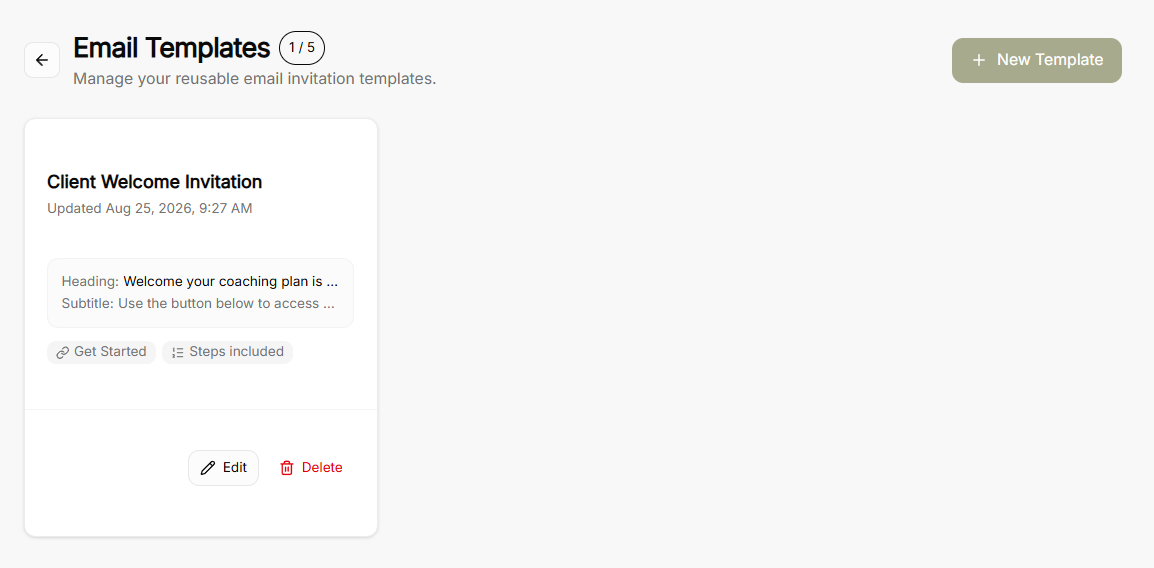
Template List Screen: Displays all saved reusable email templates with options to edit, delete, or create a New Template.
-
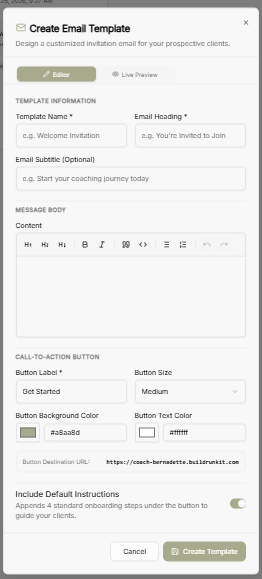
Create/Edit Email Template Modal:
-
Template Information: Define the template name, main email heading, and optional subtitle.
-
Message Body: Rich text editor for formatting body copy (headings, bold, lists, links).
-
Call-to-Action Button: Customize button label text, size, background color, text color, and destination URL.
-
Include Default Instructions Toggle: Automatically appends 4 standard onboarding steps under the call-to-action button to guide new clients through sign-up.
-
Invite Client by Email Wizard
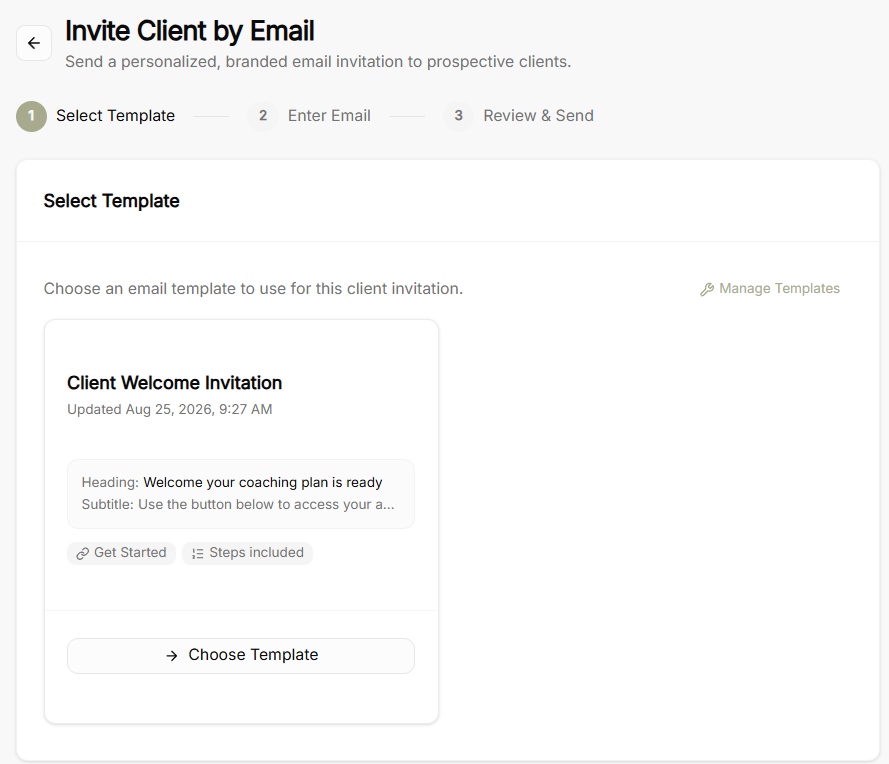
Step 1: Select Template
-
Choose an existing email template from your saved library or click Manage Templates to configure a new one.
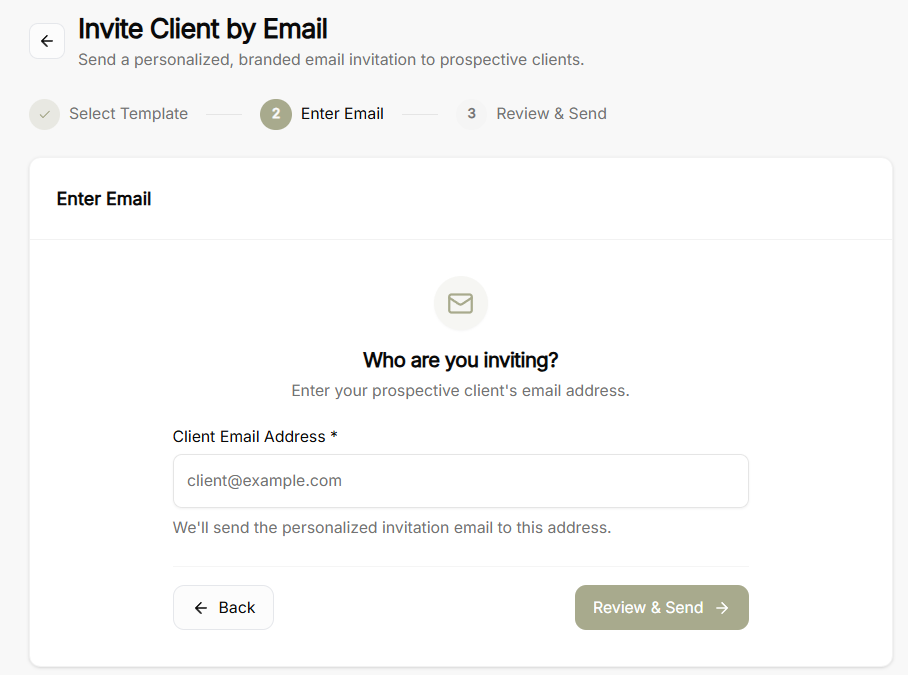
Step 2: Enter Email
-
Enter the prospective client’s email address where the personalized invitation will be sent.
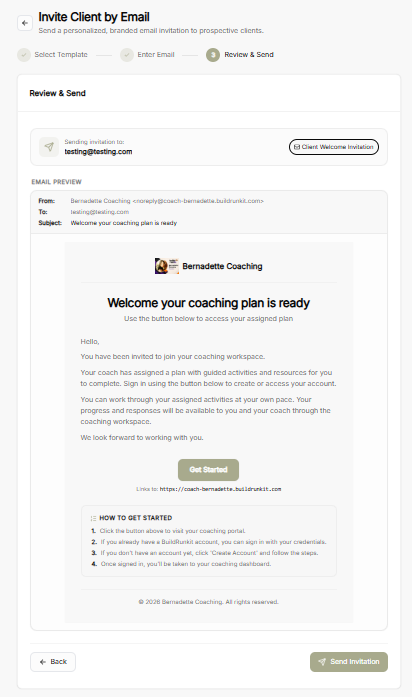
Step 3: Review & Send
-
Live Email Preview: Renders the complete branded email layout, including coach profile header, custom messaging, call-to-action button, and onboarding instructions.
-
Final Actions: Use Back to adjust details or Send Invitation to dispatch the email.
No comments to display
No comments to display