
Mentor Alliance Business Coach Kit – Client Portal
Mentor Alliance Business Coach Kit – Client Portal: Dashboard & Assignments
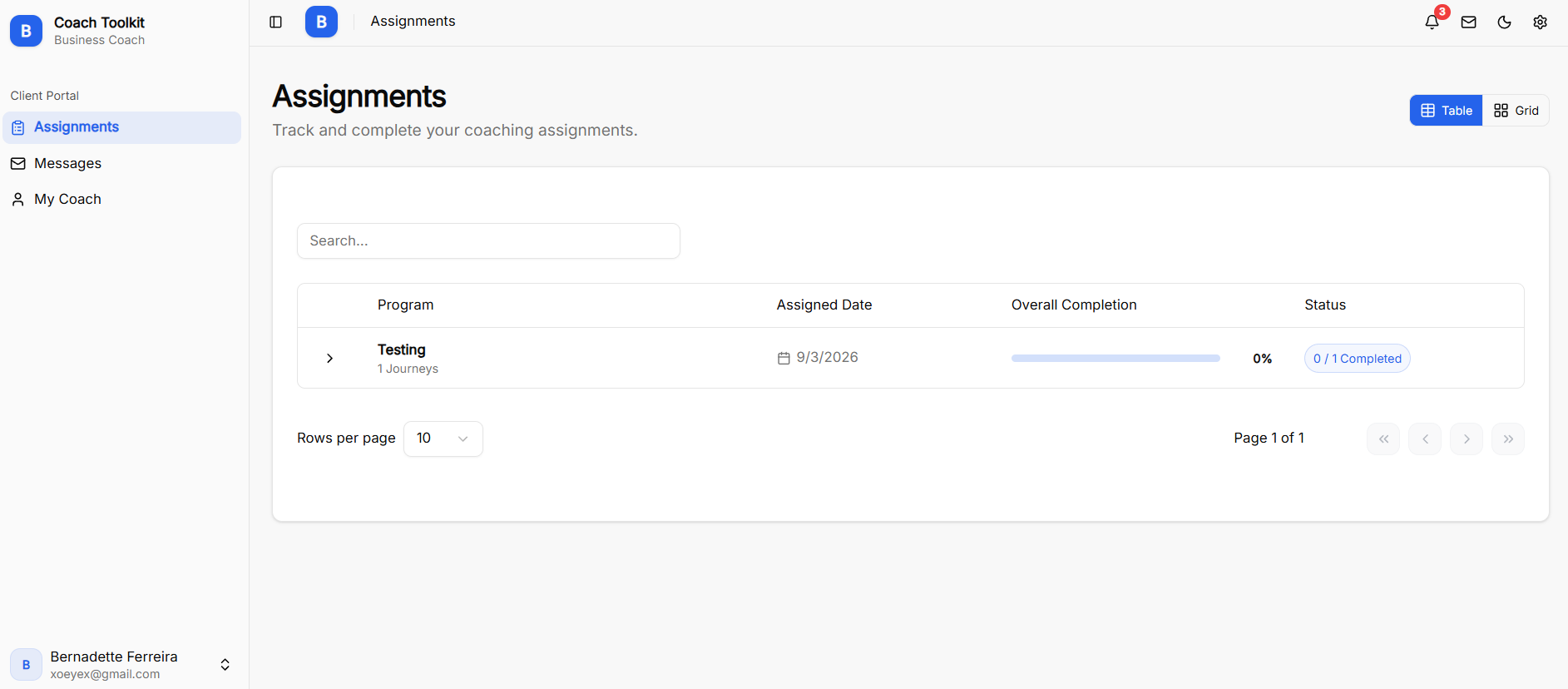
The Dashboard (Assignments) view serves as the main hub when a client logs into the Client Portal, providing an overview of assigned coaching programs, completion rates, and account navigation.
Client Portal Navigation
-
Assignments: Main dashboard showing assigned programs, overall completion, and active tasks.
-
Messages: Chat hub for direct communication with the assigned business coach.
-
My Coach: Dedicated page displaying the coach's contact info, bio, and profile.
Dashboard Features & Program Tracking
-
Layout View: Toggle between Table and Grid views to customize how programs are displayed.
-
Program Search: Search bar to locate specific assigned coaching programs.
-
Program Details:
-
Program Name: Shows the title of assigned plans (e.g., Testing) and total journey count (e.g., 1 Journeys).
-
Assigned Date: Displays the exact date the coach assigned the program.
-
Overall Completion: Progress bar rendering total completed percentage.
-
Status Badge: Tracks finished milestones (e.g., 0 / 1 Completed).
-
Client Portal: Messages
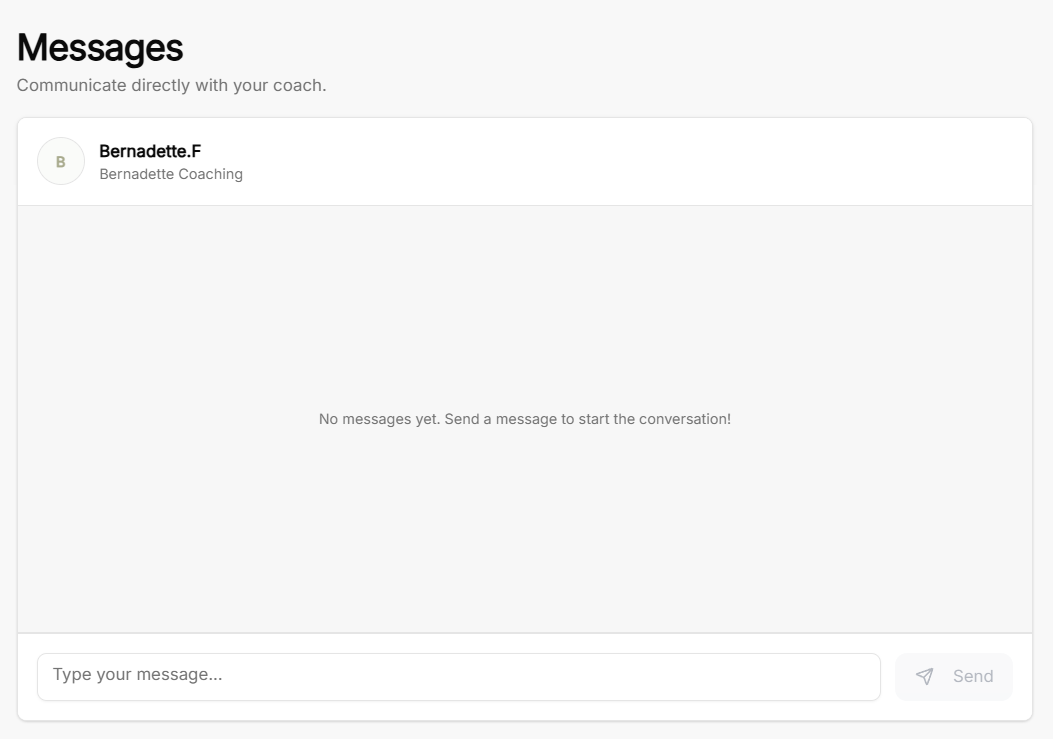
The Messages screen in the Client Portal provides a direct chat interface for clients to communicate with their assigned business coach.
Client Messages Workspace
-
Header & Purpose: Clearly titled Messages with the subtext "Communicate directly with your coach".
-
Coach Profile Info: Displays the assigned coach's name (e.g., Bernadette.F) and coaching practice title (e.g., Bernadette Coaching) along with their profile avatar.
-
Conversation Pane: Main chat window showing conversation history or a starting placeholder ("No messages yet. Send a message to start the conversation!").
-
Message Controls: Includes a text input box ("Type your message...") and a Send button to post direct updates, questions, or feedback.
Client Portal: Notifications
The Notifications panel in the Client Portal gives clients real-time updates regarding new package assignments, coaching plan updates, and operational activity.
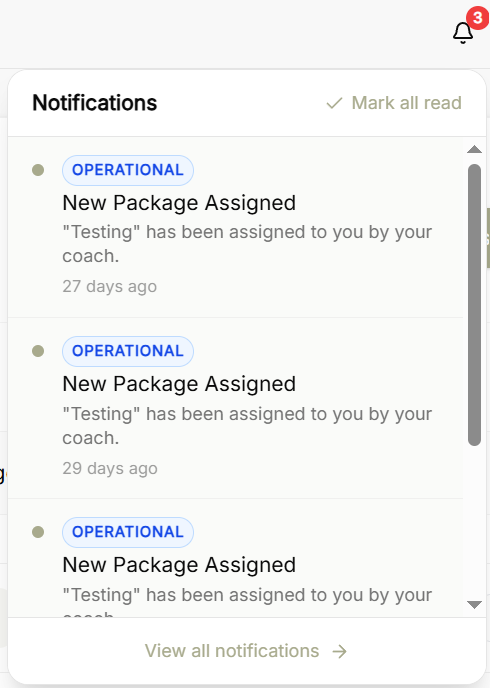
Notifications Panel
-
Header Controls:
-
Notification Bell Icon: Features a counter badge indicating total unread alerts.
-
Mark All Read: Allows clients to clear all unread alert indicators with a single click.
-
-
Alert Feed:
-
Category Badges: Categorizes alerts with operational tags.
-
Alert Details: Displays system notifications, such as new coaching package assignments from the coach.
-
Time Stamps: Shows elapsed time since each alert was issued.
-
-
Navigation: Includes a View all notifications option to access the complete notifications page.
Client Portal: My Coach
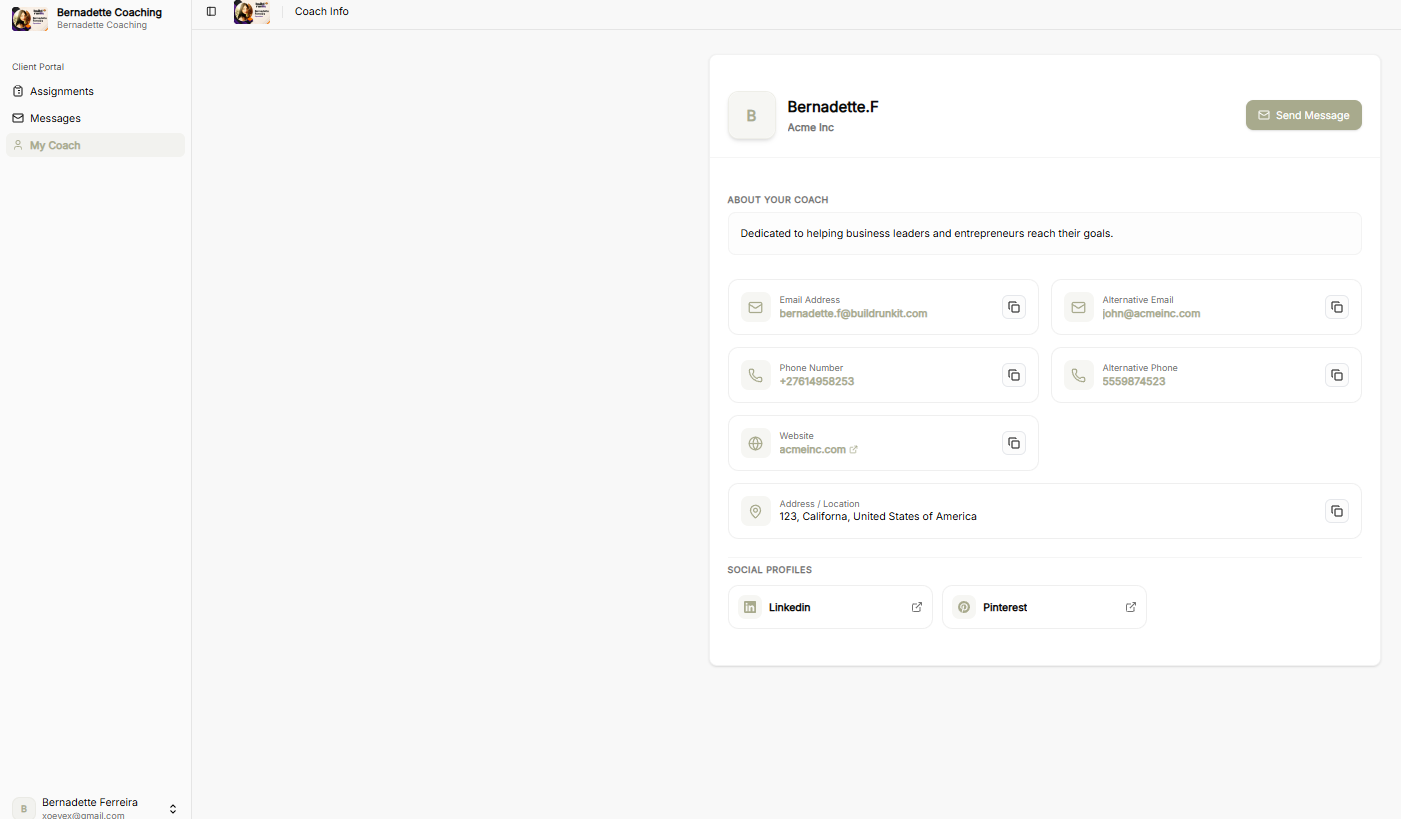
The My Coach screen provides clients with a clear overview of their assigned coach's public profile, business branding, and direct communication channels.
Coach Profile Header
-
Coach & Organization: Shows the coach's full name and company branding alongside their profile avatar.
-
Send Message: Prominent button allowing clients to initiate a direct message thread immediately.
About Your Coach
-
Coach Bio: Displays a concise summary of the coach's background and core coaching approach.
Contact Information
-
Email Details: Lists primary and alternative email addresses, complete with single-click copy buttons.
-
Phone Contact: Displays primary and alternative contact numbers, paired with copy buttons.
-
Website: Provides a direct external link to the coach's site with quick-copy functionality.
-
Office Location: Displays the physical business or mailing address.
Social Profiles
-
External Links: Buttons offering direct access to the coach's external social media profiles.
Client Portal: Account Settings
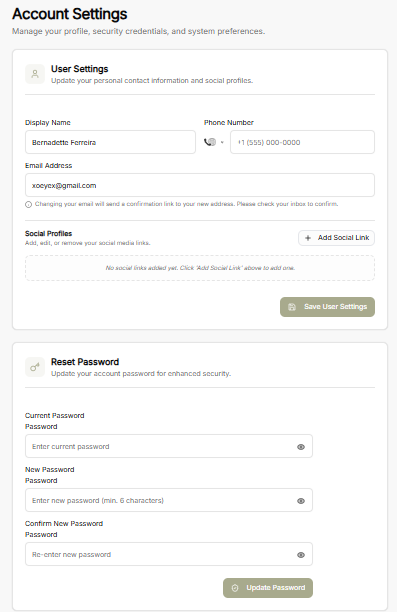
The Account Settings view allows clients to manage personal profile details, update security credentials, configure notification triggers, and customize portal display preferences.
User Settings
-
Contact Information: Update personal details, including display name, phone number, and email address. Updating the email address sends a confirmation link to the new address.
-
Social Profiles: Add, edit, or remove social media profile links.
-
Save Changes: Apply updated account details using the Save User Settings button.
Reset Password
-
Credential Management: Update account security credentials by entering the current password alongside a new password.
-
Password Confirmation: Re-enter the new password to confirm accuracy.
-
Update Security: Apply changes via the Update Password button.
Notification Preferences
-
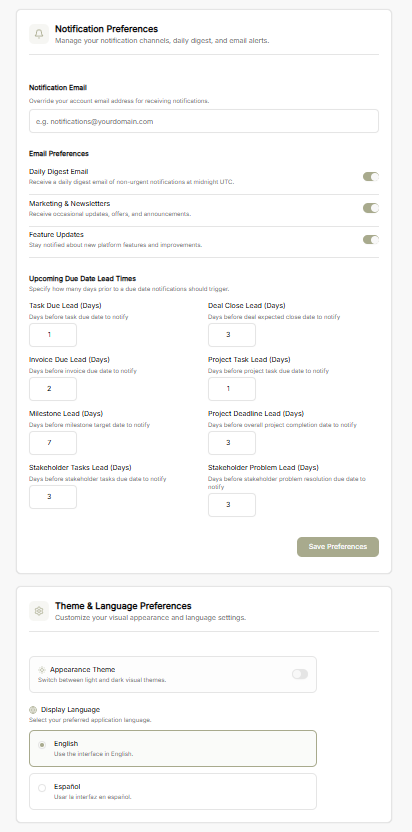
Custom Notification Email: Set a specific email address to override default account notification routing.
-
Email Preferences: Toggle options for daily digest emails, marketing updates, and feature announcements.
-
Due Date Lead Times: Specify lead days for automated task, project, invoice, and milestone reminder alerts.
-
Save Preferences: Confirm updated notification settings with the Save Preferences button.
Theme & Language Preferences
-
Appearance Theme: Switch between light and dark visual modes.
-
Display Language: Select preferred application interface language.
No comments to display
No comments to display