
User Profile & Settings
User Profile & Settings
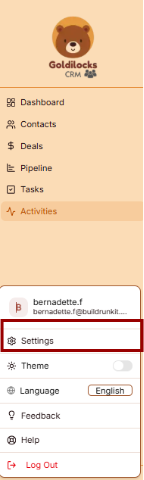
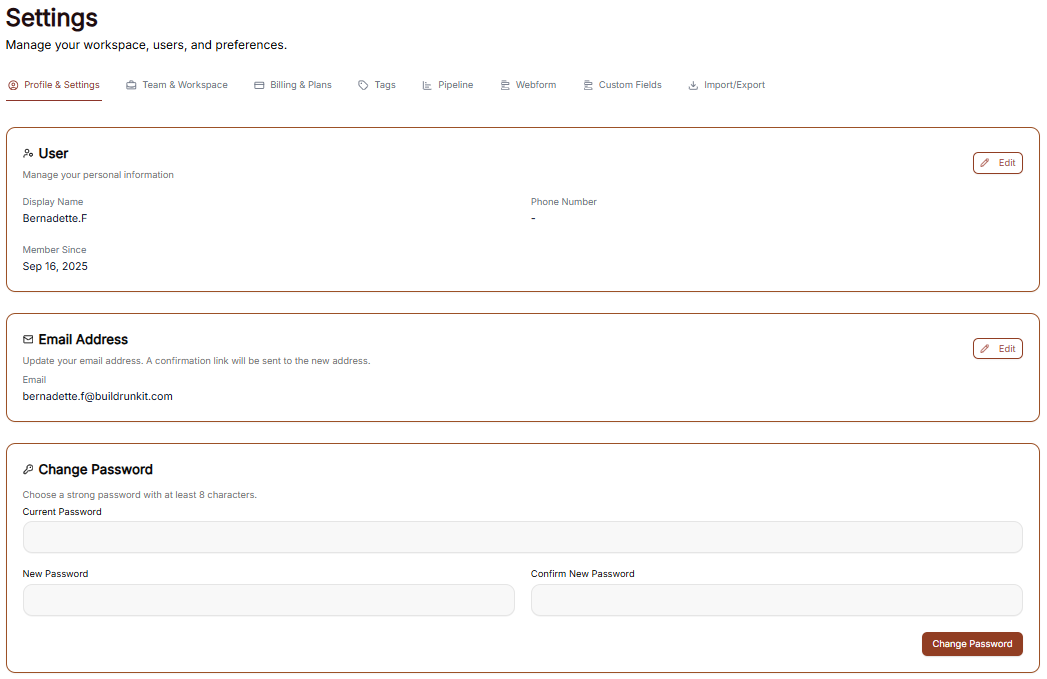
The Settings area allows you to manage your personal information, account security, and how the interface appears to you.
Managing Personal Information
Under the User Settings tab, you can view and update your primary account details:
-
Profile Details: This section allows you to manage your identity. You can enter and update your First Name, Last Name, Email, and Phone number in the provided text fields.
-
Bio: Use the larger text area to add a brief professional summary or description to your profile.
-
Save Changes: Click the brown Save Changes button at the bottom right to finalize any updates to your personal information.
Account Security
You can manage your account access and protection through the Security menu:
-
Password Management: Update your login credentials to keep your account secure.
-
Notifications: Configure how and when you receive system alerts and updates.
Interface Preferences
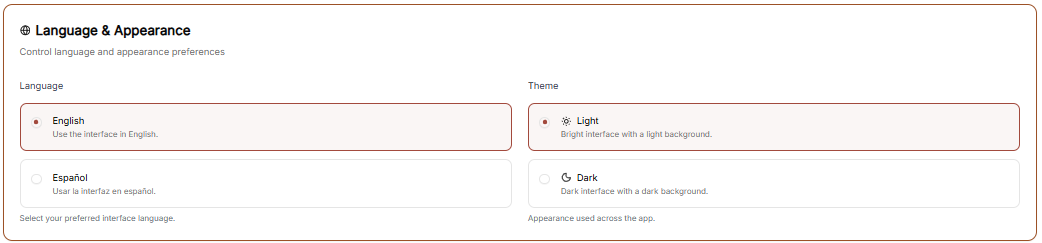
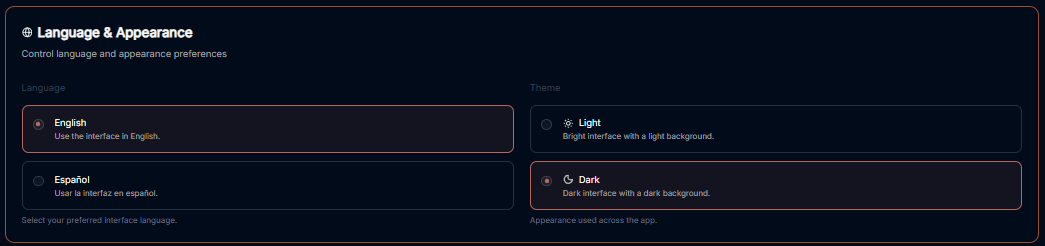
You can customize the look of your workspace through the Appearance menu to match your working environment.
Theme Selection Adjust the visual style of the application:
-
Light: A bright interface with a light-colored background.
-
Dark: A high-contrast interface with a dark background, ideal for low-light environments.
-
System: Automatically syncs the interface theme with your device's operating system settings.
-
Update Theme: Click the brown Update Theme button to apply your chosen visual style.