
User Profile & Settings
User Profile & Settings
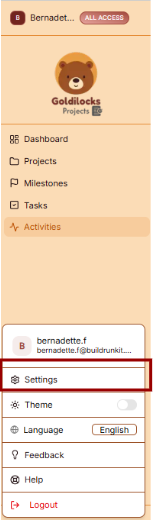
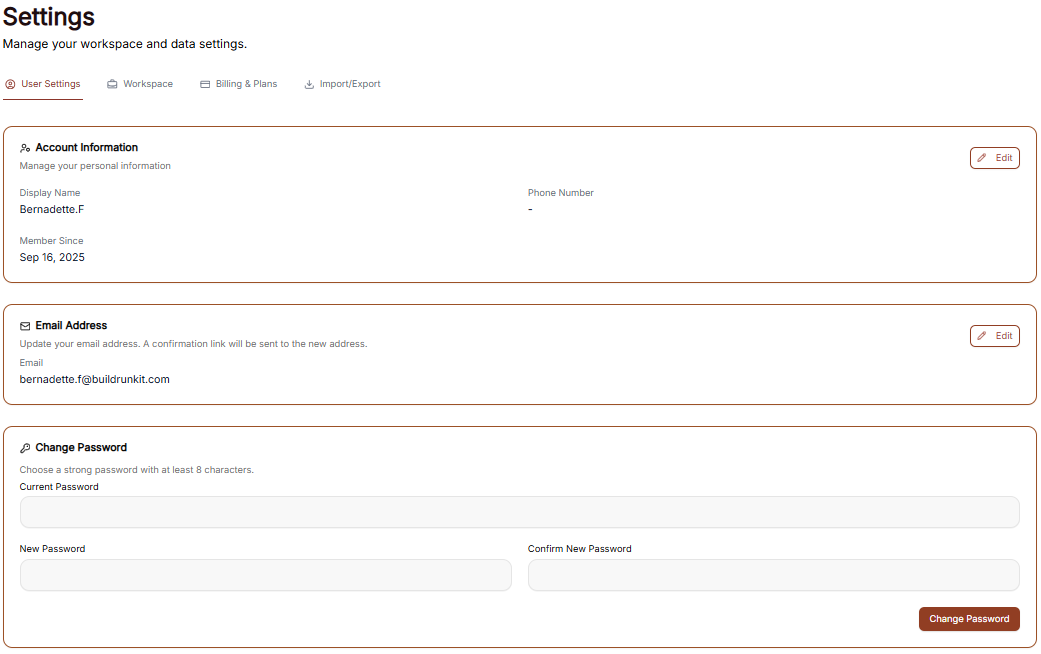
The Settings area allows you to manage your personal information, account security, and how the interface appears to you.
Managing Personal Information
Under the User Profile tab, you can view and update your primary account details:
-
User Profile: This section displays your First Name, Last Name, and Email Address. Enter your details into the text fields to keep your account information current.
-
Update Profile: After making changes to your name or email, click the brown Update Profile button at the bottom of the form to save your details.
Account Security
You can update your login credentials at any time in the Security section:
-
Current Password: Enter your existing password for verification.
-
New Password: Create a new password in the provided field.
-
Confirm New Password: Re-enter the new password to ensure it matches.
-
Update Password: Click the brown Update Password button to finalize your new credentials.
Interface Preferences
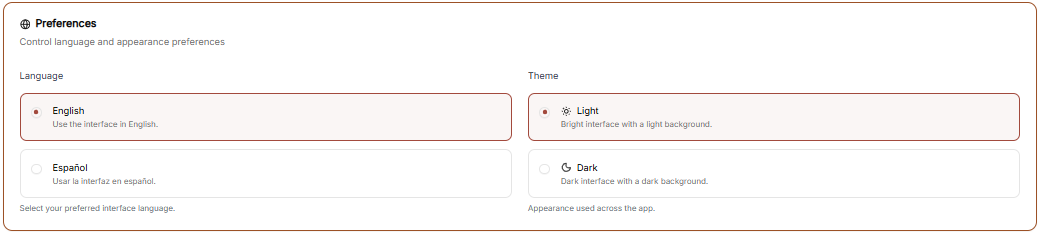
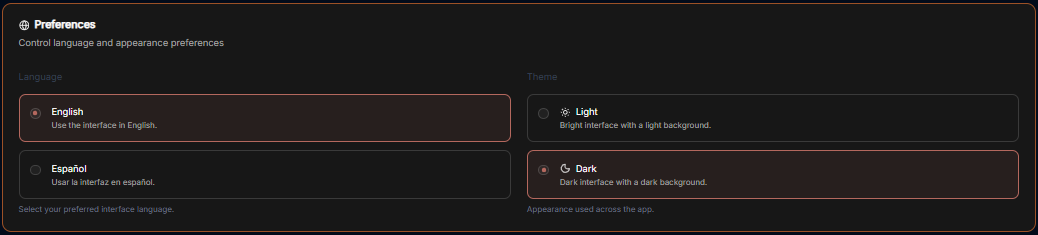
You can customize the look of your workspace through the General Settings menu.
Theme Selection Adjust the visual appearance of the application to match your working environment:
-
Dark Mode: Use the toggle switch to enable or disable the high-contrast dark theme.
-
Light Theme: When toggled off, the interface uses a bright background.
-
Dark Theme: When toggled on, the interface uses a dark background, ideal for low-light environments.
-
Workspace Management
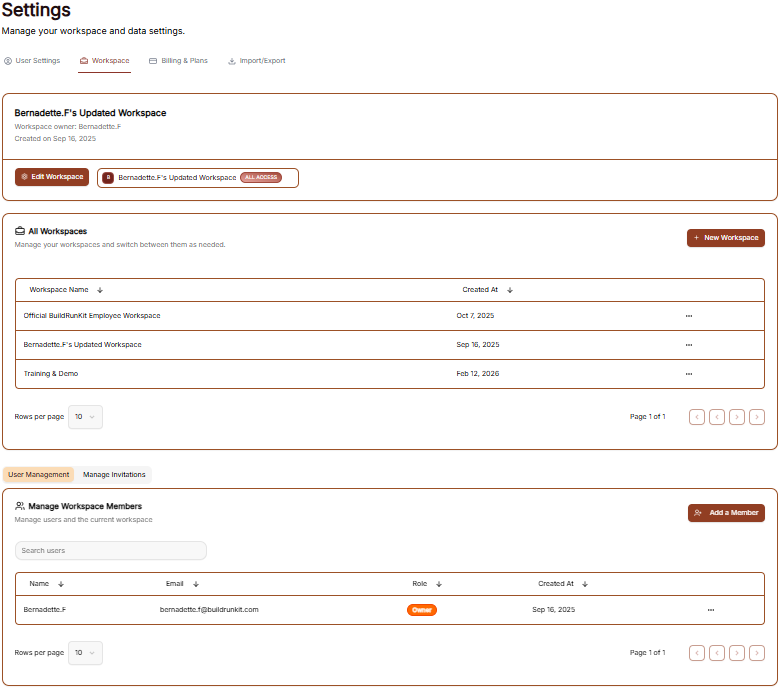
The Workspaces settings allow you to manage the different environments you belong to and see your current access levels.
All Workspaces
This tab provides an overview of the workspace your account is currently associated with.
-
Workspace Details: You can see the name of the workspace (e.g., "Goldilocks Projects") and its current subscription plan (e.g., "Free").
-
Actions: By clicking the three dots (actions menu) next to the workspace, you can manage your involvement in that environment:
-
Exit: Select this to remove yourself from the workspace.
-
Manage Workspace Members
Control who has access to your workspace in this section.
-
Member List: View all users, their email addresses, and their assigned roles.
-
User: Displays the name of the member (e.g., "Bernadette F").
-
Email: Displays the email address associated with the member.
-
Role: Shows the permissions level of the user (e.g., "Owner").
-
-
Invite Members: Click the brown "+ Invite member" button at the top right to add a new person to the team via email.
-
Removing Users: To revoke access, click the three dots (actions menu) next to a member's name and select Remove user.
Billing & Plans
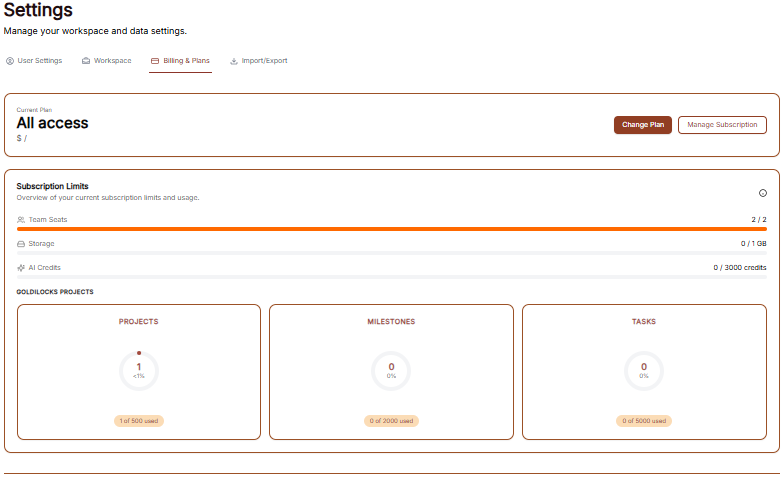
The Billing & Plans section provides a complete overview of your current subscription, usage limits, and available upgrades to ensure your workspace has the resources it needs.
Current Plan Overview
At the top of the page, you can see the status of your primary subscription:
-
Plan Type: Displays your current level of access (e.g., "All access").
-
Change Plan: Click this brown button to browse different subscription tiers.
-
Manage Subscription: Click this white button to update payment methods or view billing history.
Subscription Limits
Track your real-time resource consumption through the Subscription Limits dashboard:
-
Resource Progress Bars: Visual indicators show your usage for:
-
Team Seats: Displays the number of active members out of your total limit (e.g., 2 / 2).
-
Storage: Shows how much data you have used (e.g., 0 / 1 GB).
-
AI Credits: Tracks your monthly or evergreen AI usage (e.g., 0 / 3000 credits).
-
-
Module Statistics: Detailed cards provide a breakdown of specific workspace items:
-
Projects: Tracks active initiatives (e.g., 1 of 500 used).
-
Milestones: Tracks project phases (e.g., 0 of 2000 used).
-
Tasks: Tracks individual work items (e.g., 0 of 5000 used).
-
Available Add-ons & Expansions
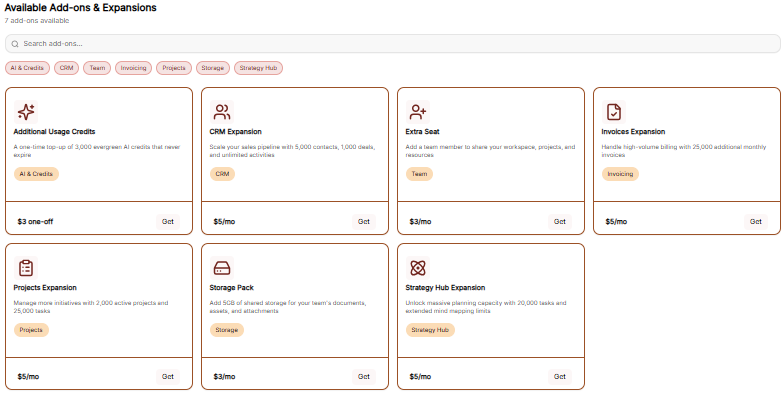
Customize your workspace by adding specific resources without changing your entire plan:
-
Search & Filter: Use the search bar or category tags (AI & Credits, CRM, Team, Invoicing, etc.) to find specific upgrades.
-
Add-on Options:
-
Additional Usage Credits: A one-time top-up of 3,000 evergreen AI credits ($3 one-off).
-
CRM Expansion: Increase capacity for contacts, deals, and activities ($5/mo).
-
Extra Seat: Add a new team member to your workspace ($3/mo).
-
Invoices Expansion: Handle high-volume billing with 25,000 additional monthly invoices ($5/mo).
-
Projects Expansion: Manage 2,000 active projects and 25,000 tasks ($5/mo).
-
Storage Pack: Add 5GB of shared storage for documents and assets ($3/mo).
-
Strategy Hub Expansion: Unlock 20,000 tasks and extended mind mapping limits ($5/mo).
-
-
Purchasing: Click the "Get" button on any card to add the expansion to your account.
Import & Export
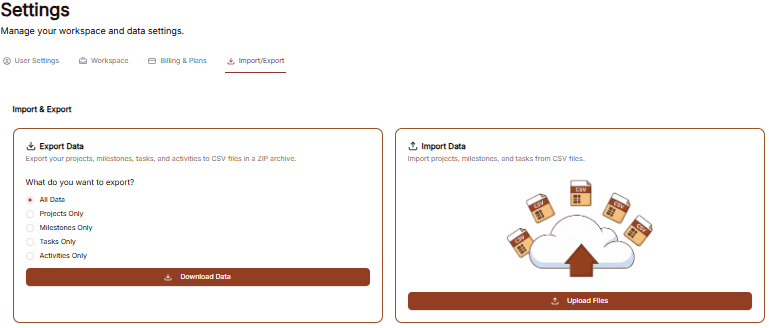
The Import/Export section allows you to manage your data by downloading it for external use or uploading existing records into the Goldilocks Projects ecosystem.
Exporting Your Data
You can export your workspace records into CSV files, which are compiled into a single ZIP archive for easy download.
-
Selection Options: Choose what data you wish to download by selecting All Data, or specific categories including Projects Only, Milestones Only, Tasks Only, or Activities Only.
-
Download: Click the brown Download Data button to generate and save your ZIP file.
-
Activities Reports: For specialized reporting, you can choose to generate an Activities Report in PDF (best for printing and sharing) or Excel (best for analysis and editing) formats.
Importing Your Data
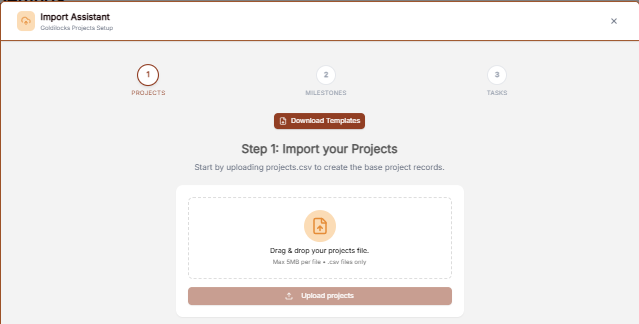
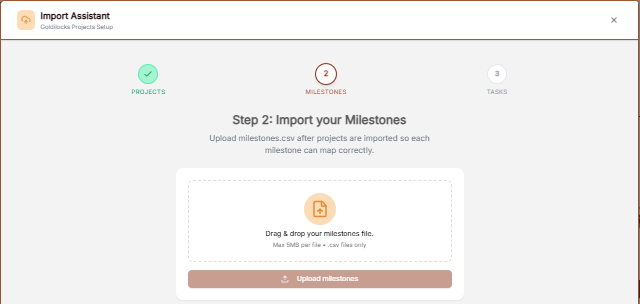
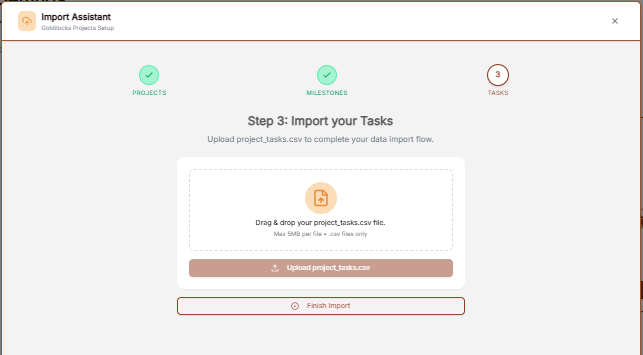
The Import Assistant guides you through a multi-step process to ensure all data is mapped correctly between projects, milestones, and tasks.
-
Step 1: Import Projects: Start by dragging and dropping your
projects.csvfile to create the base project records. Projects are a required component of the import process. -
Step 2: Import Milestones: Once projects are imported, upload your
milestones.csvfile so each milestone can map correctly to its parent project. Milestones are also a required component of the import. -
Step 3: Import Tasks (Optional): After the milestones are imported, you have the option to upload a
project_tasks.csvto complete your data flow. -
Finalizing: You can choose to click Finish Import immediately after successfully importing your milestones, or you can continue to the task import step if you have task data to include.
Technical Note: All import files must be in .csv format with a maximum size of 5MB per file.