
Strategy Tasks Sub-Section
Strategy Tasks Sub-Section
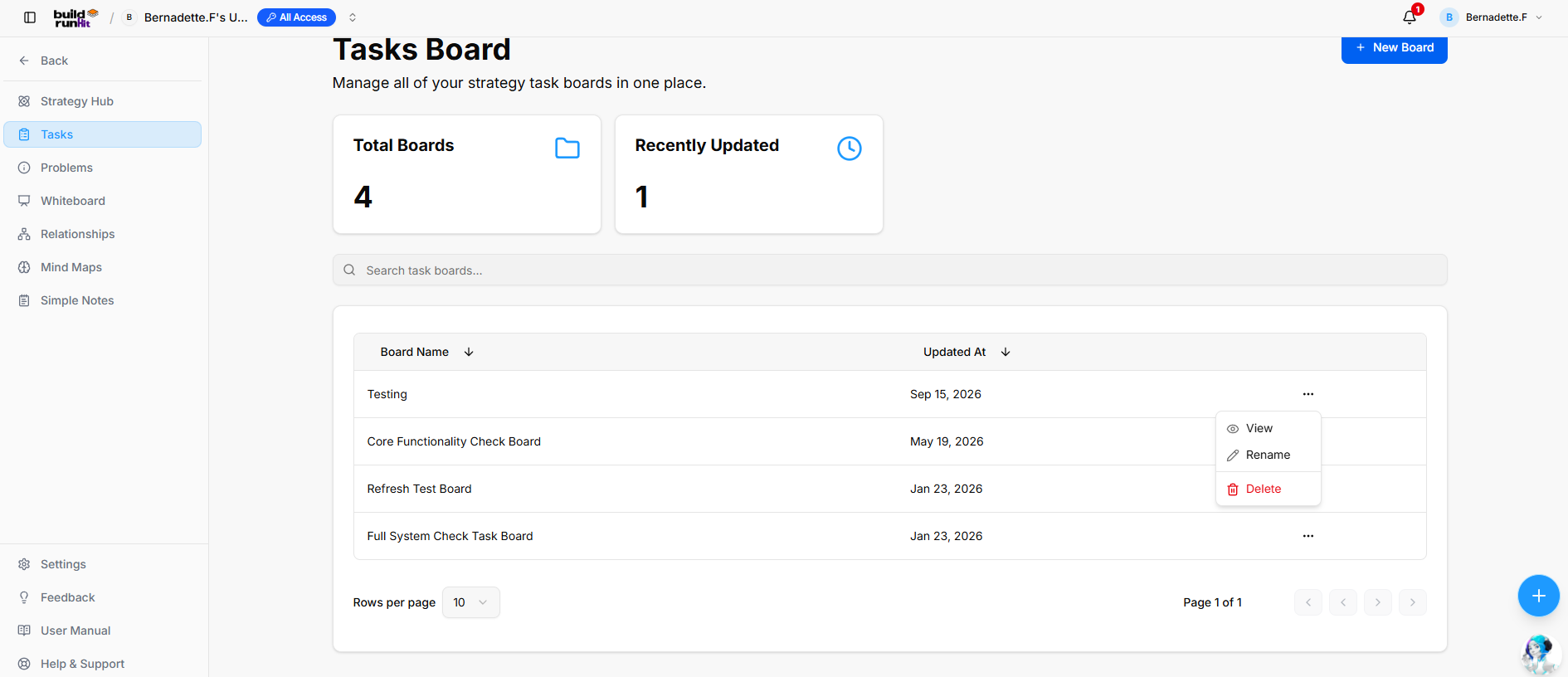
The Strategy Tasks sub-section provides an interactive canvas for managing tasks within a specific board, organizing workflows across status columns, tracking completion progress, and filtering action items.
Create New Task Board
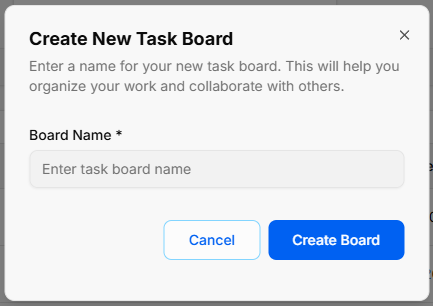
Open Modal: Click the blue + New Board button in the top right of the main directory screen, or select + Create new board from the board switcher dropdown menu.
Enter Board Name: Type your title into the required Board Name * input field (Enter task board name).
Confirm Creation: Click Create Board to generate your new workspace canvas, or click Cancel to close the modal.
Board Header & Progress Overview
-
Board Title: Displays the name of the active board along with breadcrumb navigation back to the main Strategy Hub directory.
-
Progress Bar: Visual progress indicator showing the percentage of completed tasks relative to total board items.
-
Status Metrics: High-level counters tracking tasks across operational states (e.g., In Progress, Upcoming, Overdue, Completed).
Board Controls & View Options
-
Search Tasks: Text input field to instantly filter tasks on the board by title or keywords.
-
View Switcher: Options to toggle between different workflow representations (e.g., Kanban Board, List View, or Grid View).
-
Filter & Sort: Dropdown controls to group or filter tasks by priority, assignee, or due date.
Kanban Workflow Columns & Task Cards
-
Columns: Custom or default status stages (e.g., To Do, In Progress, Review, Done) used to structure project workflows.
-
Task Cards: Individual task items displaying key meta-information, including title, priority badge, assigned owner, due date, and sub-task checklists.
-
Card Quick Menu (
...): Context menu on individual cards for viewing details, editing information, changing status, or deleting the item.
Header & Action Buttons
-
+ New Task: Direct button within columns or the header to add a new task card to the board.
-
Board Actions: Dropdown menu options to rename the board, export task data, or adjust board settings.
Strategy Tasks
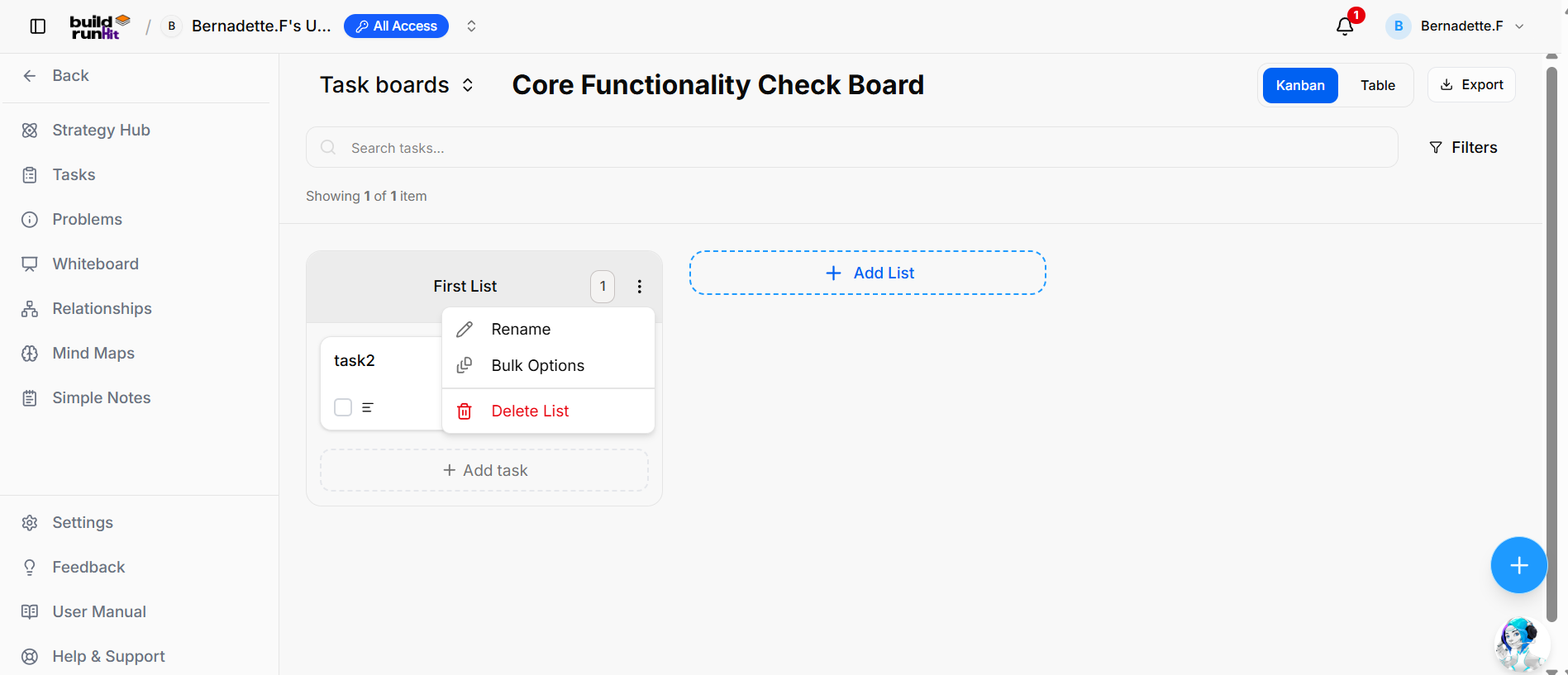
The Strategy Tasks sub-section provides an interactive canvas for creating lists, tracking task progression, filtering work items, and switching between task boards.
Header Controls & Board Selection
-
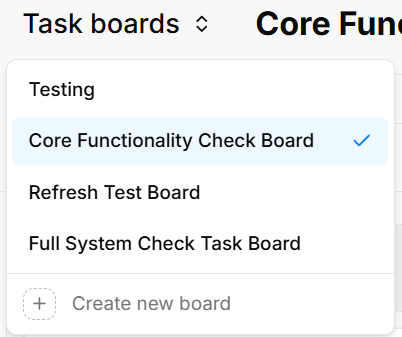
Task boards Selector: Dropdown selector displaying the current board name (e.g., Core Functionality Check Board) with options to switch directly between available boards (Testing, Refresh Test Board, Full System Check Task Board) or select + Create new board.
-
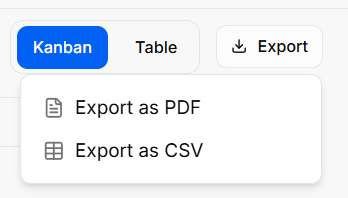
View Switcher: Toggle options to display items in either Kanban or Table view.
-
Export Menu: Action button to download task data, offering options to Export as PDF or Export as CSV.
-
Search & Filters: Search input bar (Search tasks...) with a Filters action button to refine displayed tasks.
List Management & Workflow Columns
-
List Container: Named status columns (e.g., First List) displaying total contained items in a numerical badge.
-
List Quick Menu (
...): Context menu on list headers containing:-
Rename: Edits the list name.
-
Bulk Options: Applies batch operations to tasks within the list.
-
Delete List: Removes the entire list column from the board.
-
-
+ Add List: Action card button to generate a new column on the board canvas.
-
+ Add task: Dashed button at the bottom of lists to insert a new task card.
Task Cards & Options
-
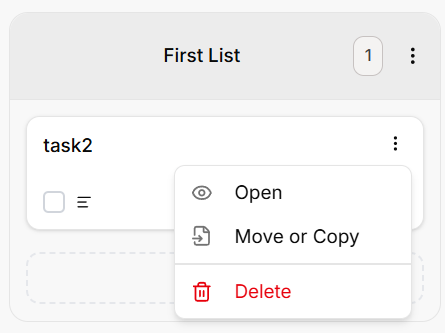
Task Card: Card displaying the task title (e.g., task2) alongside completion status indicators and item details.
-
Task Quick Menu (
...): Dropdown actions for individual task cards:-
Open: Opens full task details modal.
-
Move or Copy: Relocates or duplicates the task card across lists or boards.
-
Delete: Removes the task card from the board.
-
Strategy Hub: How to Create and Edit Tasks
Creating a New Task
-
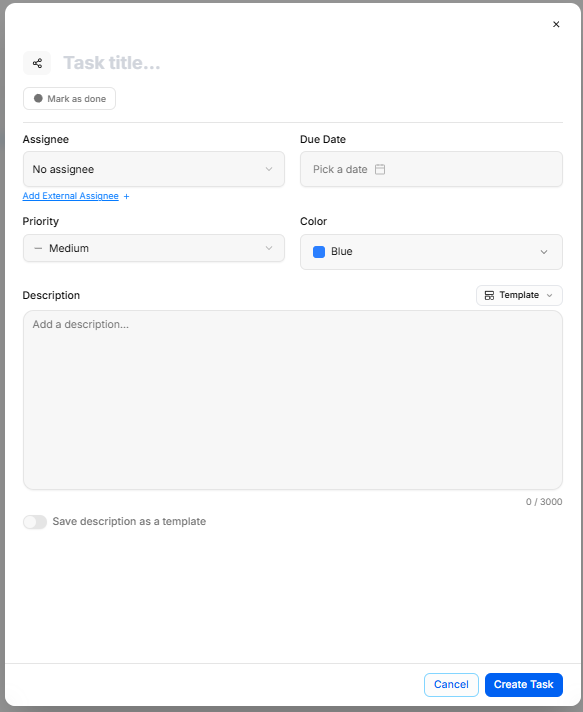
Open the Task Modal: Select the dashed + Add task button at the bottom of any status column on your board canvas.
-
Enter Basic Info: Type your task title in the Task title... field and set an optional deadline using Due Date.
-
Assign & Tag: Choose team members from the Assignee dropdown (or use Add External Assignee +) and categorize the item using Priority and Color tags.
-
Write Description: Add details into the text area. You can apply pre-made templates via the Template dropdown or enable Save description as a template to reuse your text later.
-
Finalize: Click Create Task to post the new card to your board, or toggle Mark as done if the task is already finished.
Editing Task Details
-
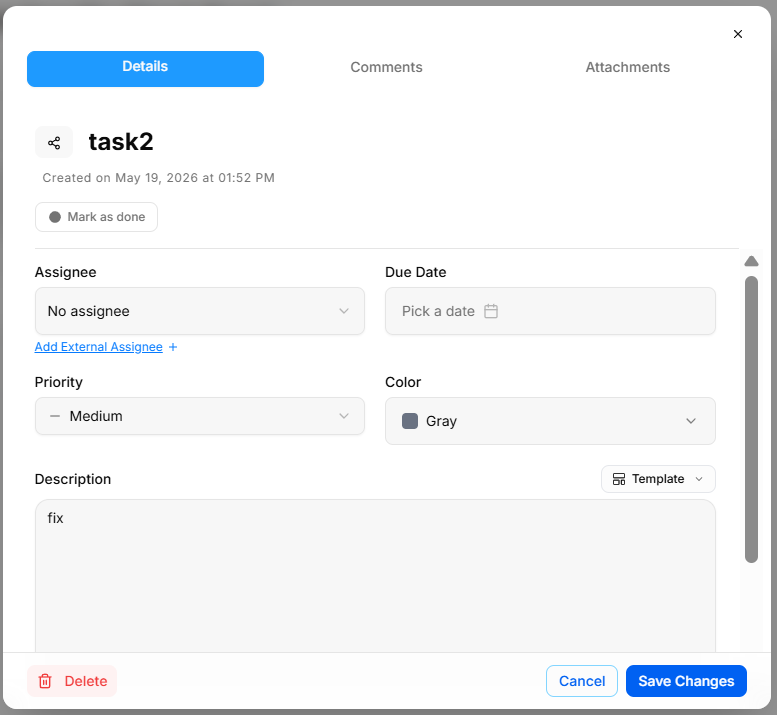
Access Edit View: Click any task card or select Open from the card's action menu (
...) to open the task modal. -
Update Properties: Modify titles, assignees, dates, priority levels, or descriptions directly within the Details tab.
-
Save Updates: Select Save Changes to apply your edits, or click Delete in the bottom corner to remove the task completely.
Adding Comments & Attachments
-
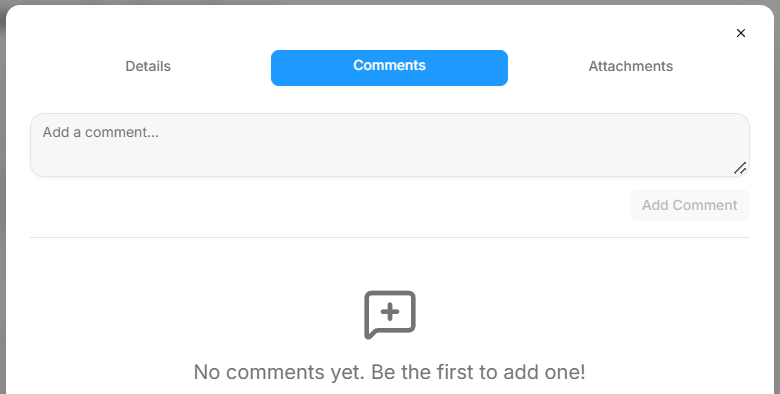
Discussion: Switch to the Comments tab to post updates or leave notes for team members in the comment box.
-
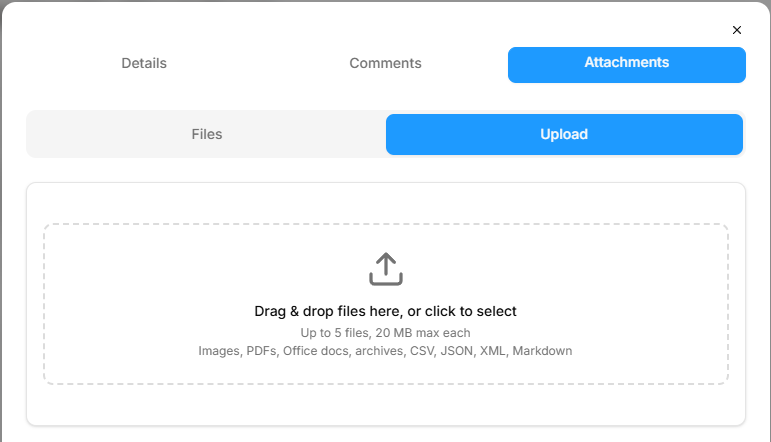
File Sharing: Switch to the Attachments tab to drag and drop supporting assets (up to 5 files, max 20 MB each; supports PDFs, images, Office docs, CSV, JSON, and Markdown).