
Strategy Tasks Sub-Section
Strategy Hub: Tasks ModuleSub-Section
The Strategy Tasks modulesub-section provides an interactive canvas for managing tasks within thea Strategyspecific Hubboard, enablesorganizing youworkflows toacross organize,status track,columns, tracking completion progress, and manage your operationalfiltering action items using flexible Kanban boards or structured table lists.items.
Board
ManagingProgress Tasks Boards
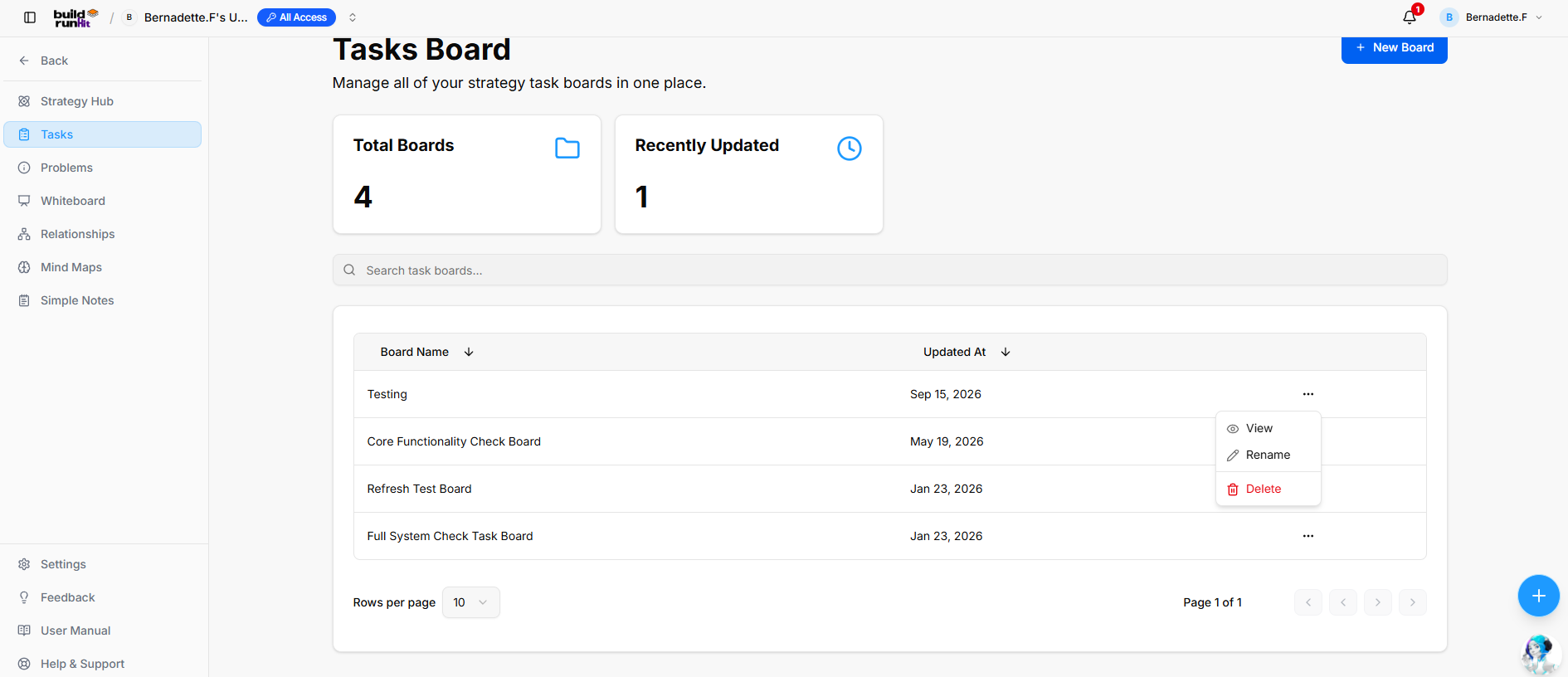
When you enter the Tasks module, you are presented with a global directory of your active planning environments:
-
CreatingBoardaTitle:Board: ClickDisplays thebluename+ New Board button atof thetopactiverightboard along with breadcrumb navigation back tostarttheamainfreshStrategyprojectHubenvironment.directory. -
BoardProgressDirectoryBar:View:VisualTrackprogressactiveindicatorspacesshowingliketheyourpercentageCoreofFunctionalitycompletedCheck Board or Full System Check Task Board, along with their lasttasks relativemodificationtodatetotalunderboardthe Updated At column.items. -
FilteringStatus&Metrics:Columns:High-levelUsecountersthetrackingtoptaskstextacrossbarsoperationaltostatessearch specific project names. Use the Columns dropdown tool to show or hide parameters like(e.g.,NameIn Progress,Updated_atUpcoming, Overdue, Completed).
Board Controls & View Options
Search Tasks: Text input field to instantly filter tasks on the board by title or Actions.keywords.
BoardView ContextSwitcher: Menu: Clicking the three dots icon (...) on the right side of any individual board row opens control configurationsOptions to View,toggle Rename,between or Delete that board.
Working Inside a Task Board
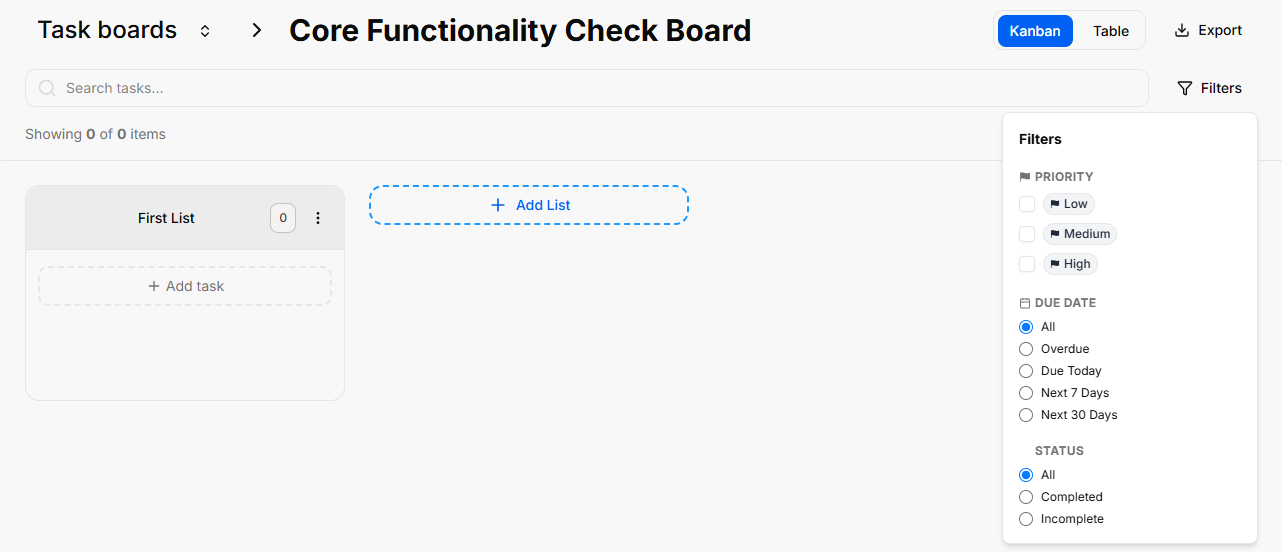
Opening an individual board reveals yourdifferent workflow columns (lists) where standalone action cards reside:
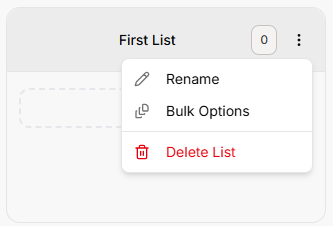
Lists Management: Organize progression stages by clicking the + Add List container. Clicking the three dots (...) next to a column header like "First List" allows you to select Rename, Bulk Options, or Delete List.
Board Layout Controls: Switch between dynamic visual cards using Kanban view or structural line rows using Table view.
Data Retrieval: Use the Export button to extract your active list details, or utilize the right-hand Filters side-panel to slice view parameters by Priority (Low, Medium, High), Due Date (Overdue, Due Today, Next 7/30 Days), or completion Status.
Quick Board Switching
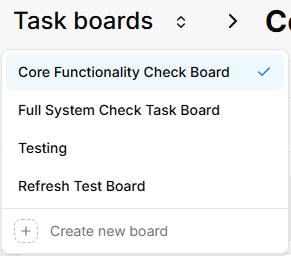
Arrow Navigation: When working inside an individual board view, you can seamlessly navigate between your different workspace environments without returning to the main registry list.
How to Use: Click the up and down arrow buttons located directly to the right of the board's name at the top-left of your workspace header. This allows you to cycle through your boards on the fly.
Adding and Populating Tasks
You can populate your workflow boards using quick single entries or rapid multi-line creation tools:
Bulk Tasks Creation
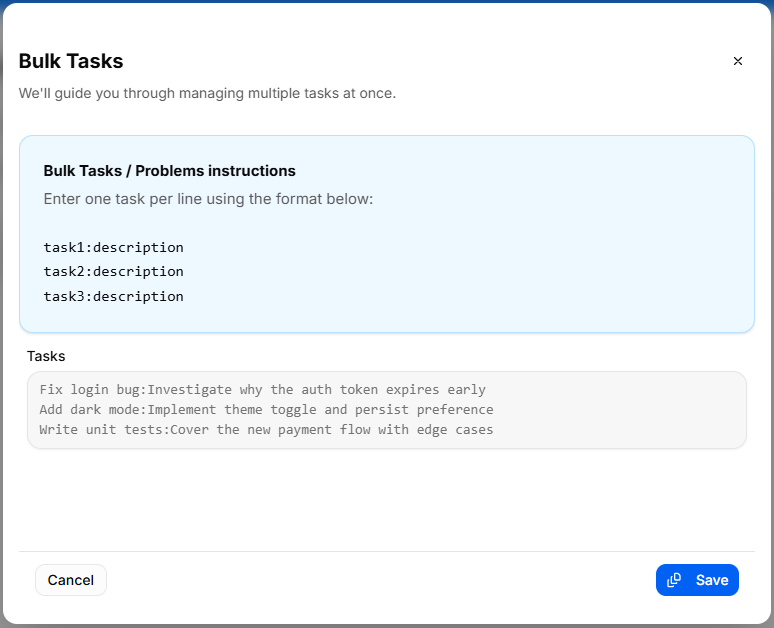
To quickly seed a list with multiple workflow elements without opening individual cards:
Click the list settings menu and select Bulk Options.
In the Bulk Tasks workspace modal, enter one task item per line.
Use the explicit colon format: task:descriptionFixKanban loginBoard, bug:InvestigateList why the auth token expires early).
Click the blue Save button to automatically generate distinct task cards down your targeted list.
Individual Task Management & Customization
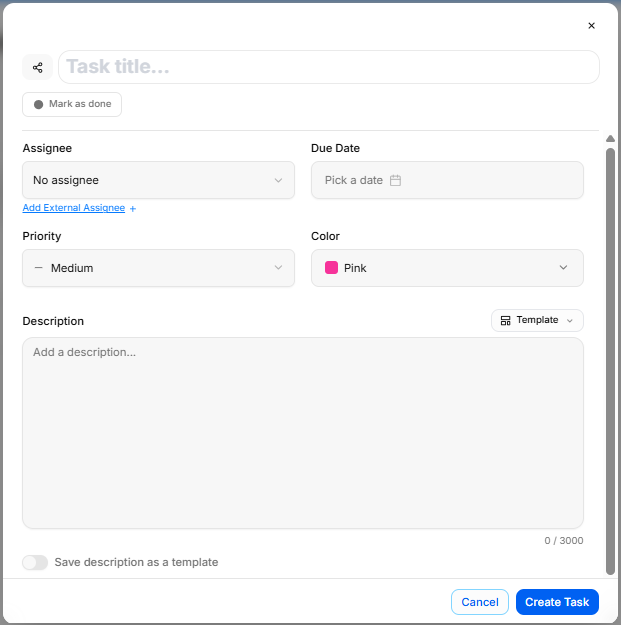
To configure granular details for an individual work item, click + Add taskView, or clickGrid on any existing card to launch the editor window:
Task Title: Provide a concise action statement at the top input line.
Assignee: Use the selection dropdown to route accountability to a team member, or click Add External Assignee + to invite an outside contributor.
Due Date: Use the interactive Pick a date calendar picker to establish your hard deadline.
Priority: Designate importance tiers using the classification selector (Low, Medium, HighView).
Color:Filter Assign& coloredSort: visualDropdown identifierscontrols to group or filter tasks by priority, assignee, or due date.
Kanban Workflow Columns & Task Cards
Columns: Custom or default status stages (such ase.g., PinkTo Do, In Progress, Review, Done) used to makestructure cardsproject stand out on your board grid.workflows.
Task Templates:Cards: Individual task items displaying key meta-information, including title, priority badge, assigned owner, due date, and sub-task checklists.
Card Quick Menu (...): Context menu on individual cards for viewing details, editing information, changing status, or deleting the item.
Header & Action Buttons
+ New Task: Direct button within columns or the header to add a new task card to the board.
Board Actions: Dropdown menu options to rename the board, export task data, or adjust board settings.
Strategy Tasks
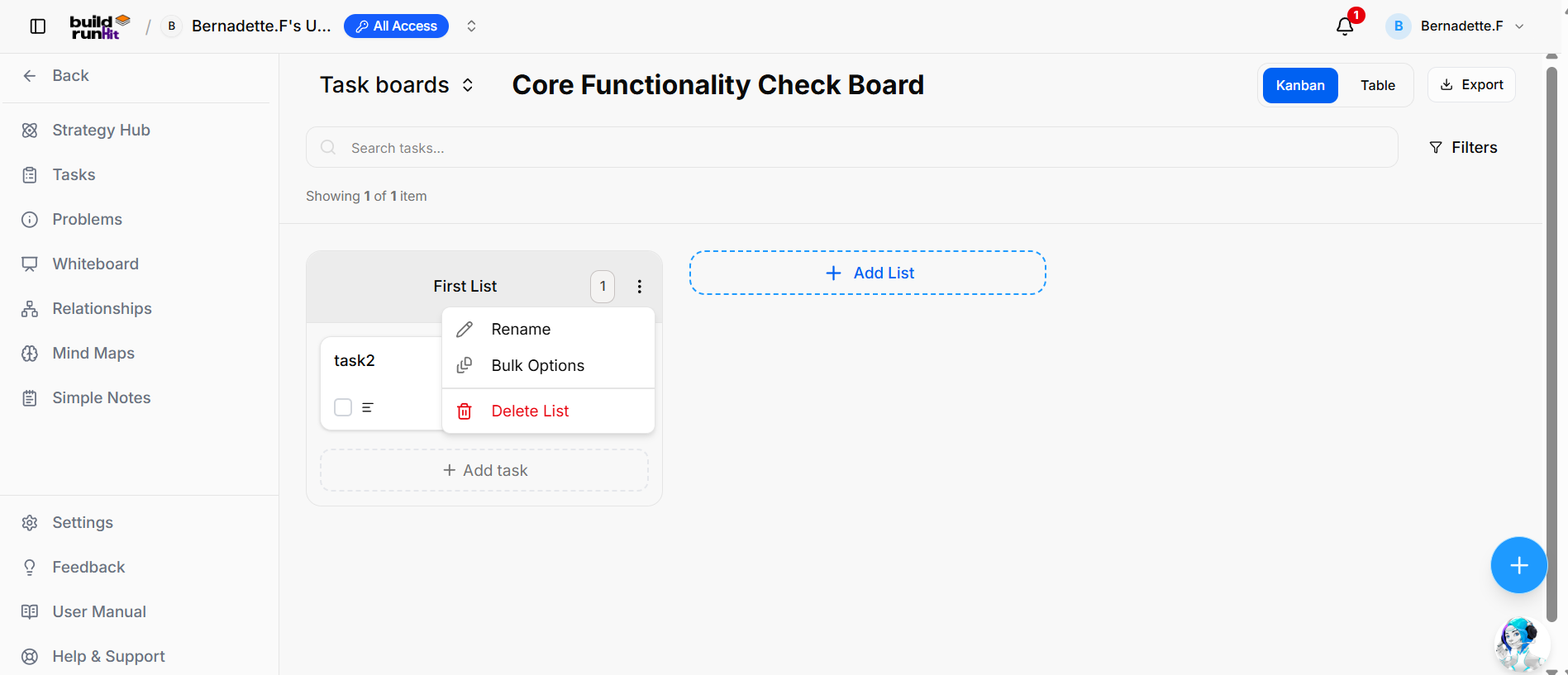
AvoidStrategy startingTasks fromsub-section scratchprovides byan clickinginteractive canvas for creating lists, tracking task progression, filtering work items, and switching between task boards.
Header Controls & Board Selection
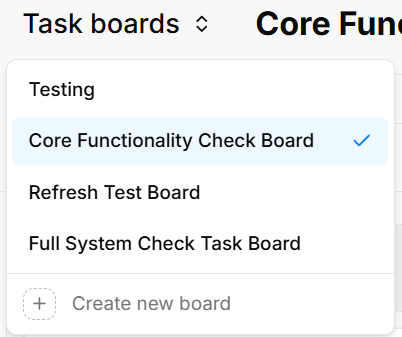
Task boards Selector: Dropdown selector displaying the Templatecurrent dropdownboard toolname on(e.g., theCore descriptionFunctionality block.Check SelectBoard) fromwith pre-structuredoptions blueprintto outlines,switch including:directly between available boards (Testing, Refresh Test Board, Full System Check Task Board) or select + Create new board.
-
StrategicViewDecisionSwitcher: Toggle options to display items in either Kanban or Table view. -
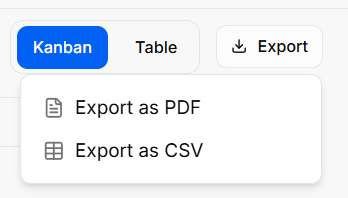
Export Menu: Action button to download task data, offering options to Export as PDF or Export as CSV.
Search & Filters: Search input bar (MarketingSearch Tasktasks...) with a Filters action button to refine displayed tasks.
List Management & Workflow Columns
List Container: Named status columns (e.g., First List) displaying total contained items in a numerical badge.
FeatureList RequestQuick /Menu User(...): StoryContext menu on list headers containing:
Rename: Edits the list name.
MeetingBulk /Options: BrainstormingApplies batch operations to tasks within the list.
S.M.A.R.T.Delete FrameworkList: Removes the entire list column from the board.
+ Add List: Action card button to generate a new column on the board canvas.
Root+ Cause
Risk Assessment
Product-Market Friction
Resource Bottleneck
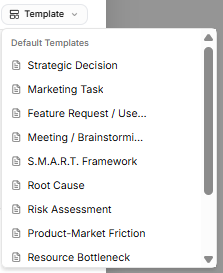
Technical Debt Audit (Note: If you haven't saved any custom layouts yet, the system will display a "No workspace templates yet" noticebutton at the bottom of thelists listto until you toggle on the "Save description asinsert a template"new switch.)task card.
Description Editor: Fill out your action details manually, or toggle the Save description as a template switch at the bottom to store your layout for future use.
Status Action: Click the Mark as done check button to shift the task state instantly. Click Create
Task to finalize.
Advanced Ticket Details: CommentsCards & Attachments

Once an individual task card is generated, you can open it to access dedicated deep-dive tabs for enhanced team collaboration and evidence tracking:
Details Tab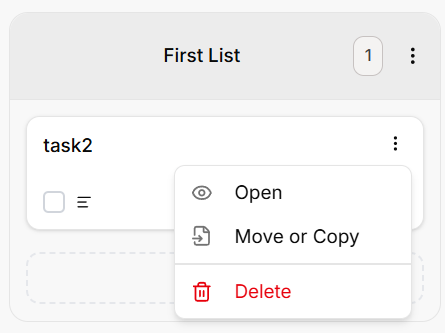
-
ContextTask&Card:Metadata:CardDisplaysdisplayingyourthefoundationaltaskcoretitlesettings,(e.g.,includingtask2)assignedalongsideteamcompletionowners,statusset deadlines, importance tiers,indicators andtemplate-guideditemproblem descriptions.details.
CommentsTask TabQuick Menu (...): Dropdown actions for individual task cards:
-
TeamOpen:Communication:OpensExchangefullreal-timetaskfeedbackdetailsdirectly within the card context window.modal. -
PostingMoveUpdates:orTypeCopy:messageRelocatesnotesordirectly intoduplicates theAddtaskacardcomment...acrosstextlistsentryorblock and click the blue Send arrow button to publish.boards. -
ActivityDelete:Stream: Tracks a clear, chronological conversation log underneath the main card workspace history.
Attachments Tab
Evidence Collection: Centralize external files, technical logs, or system screenshots directly ontoRemoves the task record.
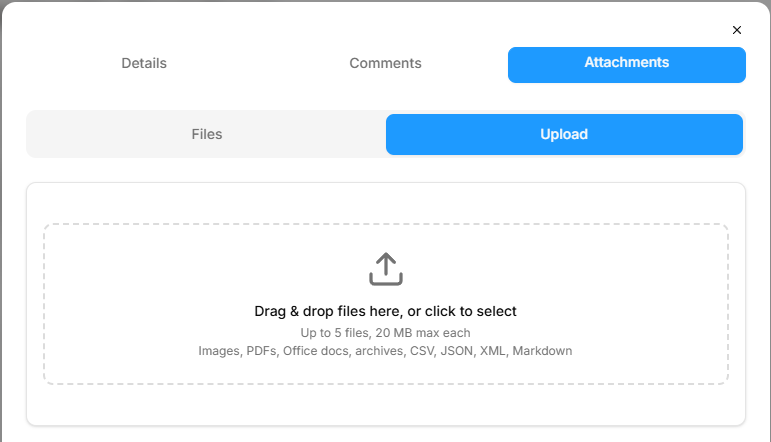
Uploading Files: Click the Choose Files icon block to drag and drop or browse local storage for relevant documentation items.
Storage Rules: The platform handles image verification and securely anchors your uploaded assets right inside the targeted issue ticket layout.
Task Card Actions & Migration Assistant
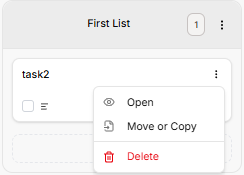
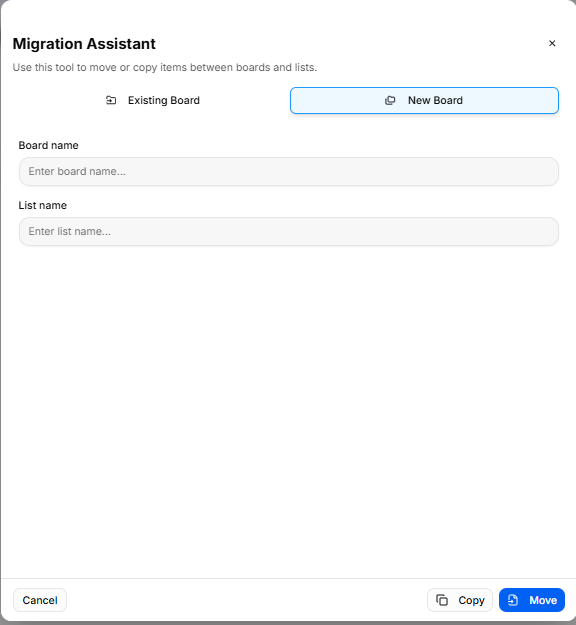
Once a card is created on your workspace list, clicking the three vertical dots icon directly on that task card opens immediate item controls:
Open: Launches the full individual configuration details view.
Delete: Permanently drops the selected card from your board workspace records.
Move or Copy (Migration Assistant): Selecting this action triggers a modal that helps you reposition or duplicate task items across different spaces without losing formatting details:
Existing Board Tab: Reposition or duplicate your item into another list layer inside any active environment already saved to your workspace profile.
New Board Tab: Type in a brand-new Board name and List name inline to build a fresh destination space on the fly, immediately routing the migrated card there.
Execution: Click the soft Copy button to clone the item, or click the blue Move button to shift the original record entirely.board.
Strategy Hub: How to Create and Edit Tasks
Creating a New Task
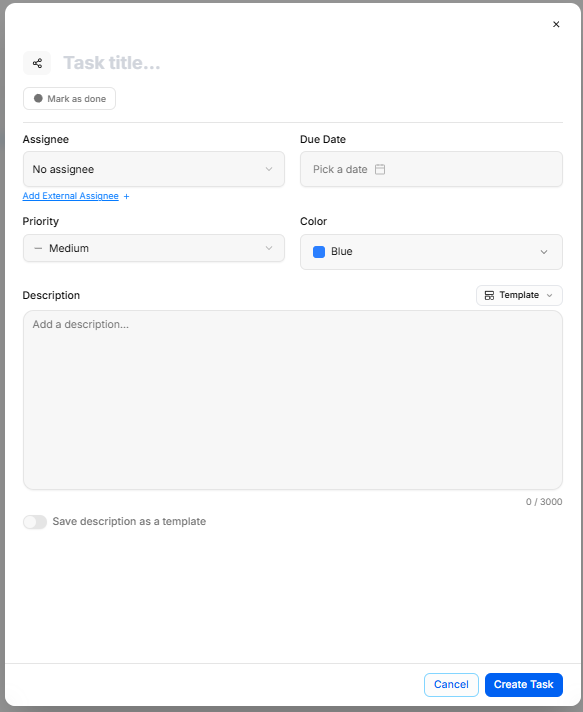
Open the Task Modal: Select the dashed + Add task button at the bottom of any status column on your board canvas.
Enter Basic Info: Type your task title in the Task title... field and set an optional deadline using Due Date.
Assign & Tag: Choose team members from the Assignee dropdown (or use Add External Assignee +) and categorize the item using Priority and Color tags.
Write Description: Add details into the text area. You can apply pre-made templates via the Template dropdown or enable Save description as a template to reuse your text later.
Finalize: Click Create Task to post the new card to your board, or toggle Mark as done if the task is already finished.
Editing Task Details
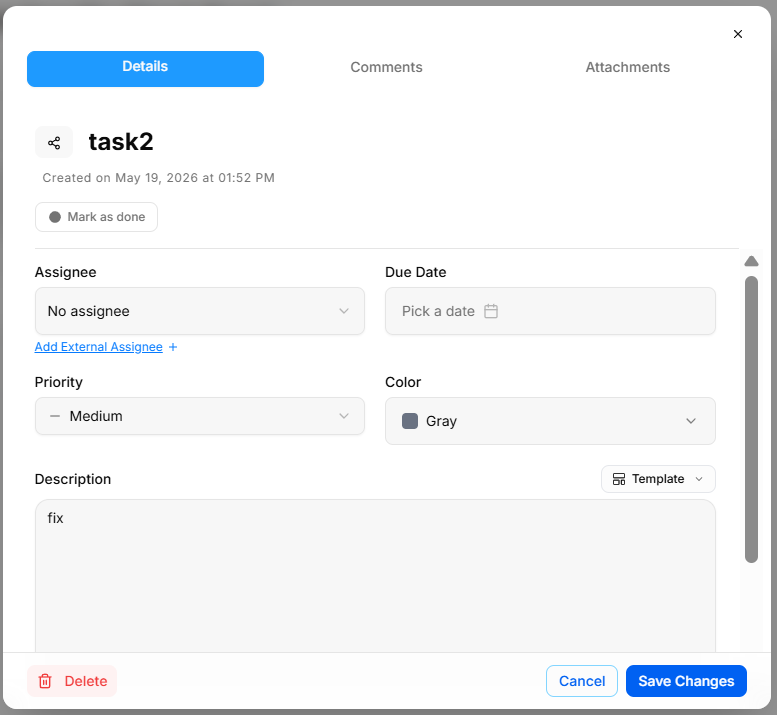
Access Edit View: Click any task card or select Open from the card's action menu (...) to open the task modal.
Update Properties: Modify titles, assignees, dates, priority levels, or descriptions directly within the Details tab.
Save Updates: Select Save Changes to apply your edits, or click Delete in the bottom corner to remove the task completely.
Adding Comments & Attachments
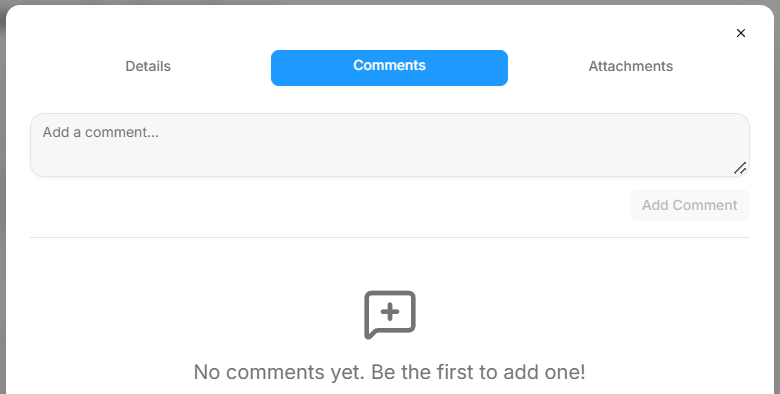
Discussion: Switch to the Comments tab to post updates or leave notes for team members in the comment box.
File Sharing: Switch to the Attachments tab to drag and drop supporting assets (up to 5 files, max 20 MB each; supports PDFs, images, Office docs, CSV, JSON, and Markdown).