
Strategy Relationship Sub-Section
Strategy Hub:Relationship Mind Maps ModuleSub-Section
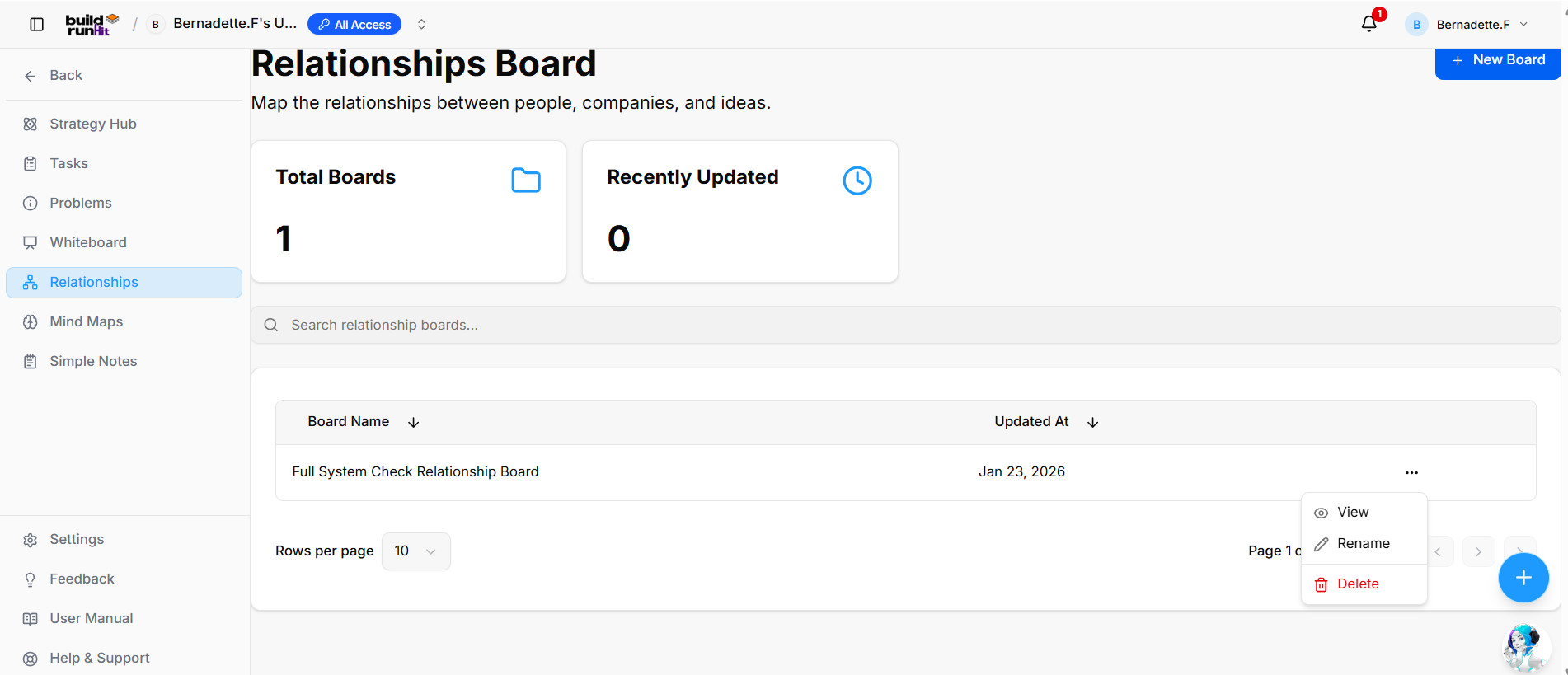
The Mind Maps module within the Strategy HubRelationship enablessub-section allows you to organize,map track,connections between people, companies, and manageideas across your operational action items using flexible visual mapping environments.
Managing Mind Maps Boards
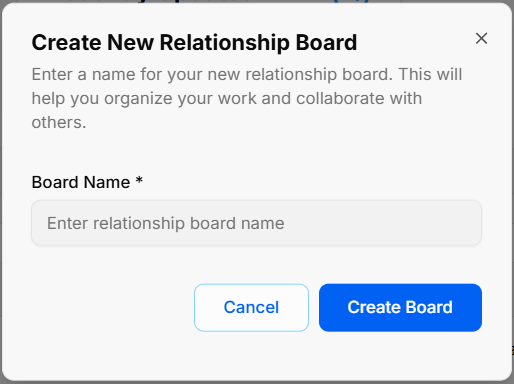
WhenCreate youNew enterRelationship theBoard
-
CreatingOpena Board:Modal: Click the blue + New Board buttonat the top right to start a fresh project environment.
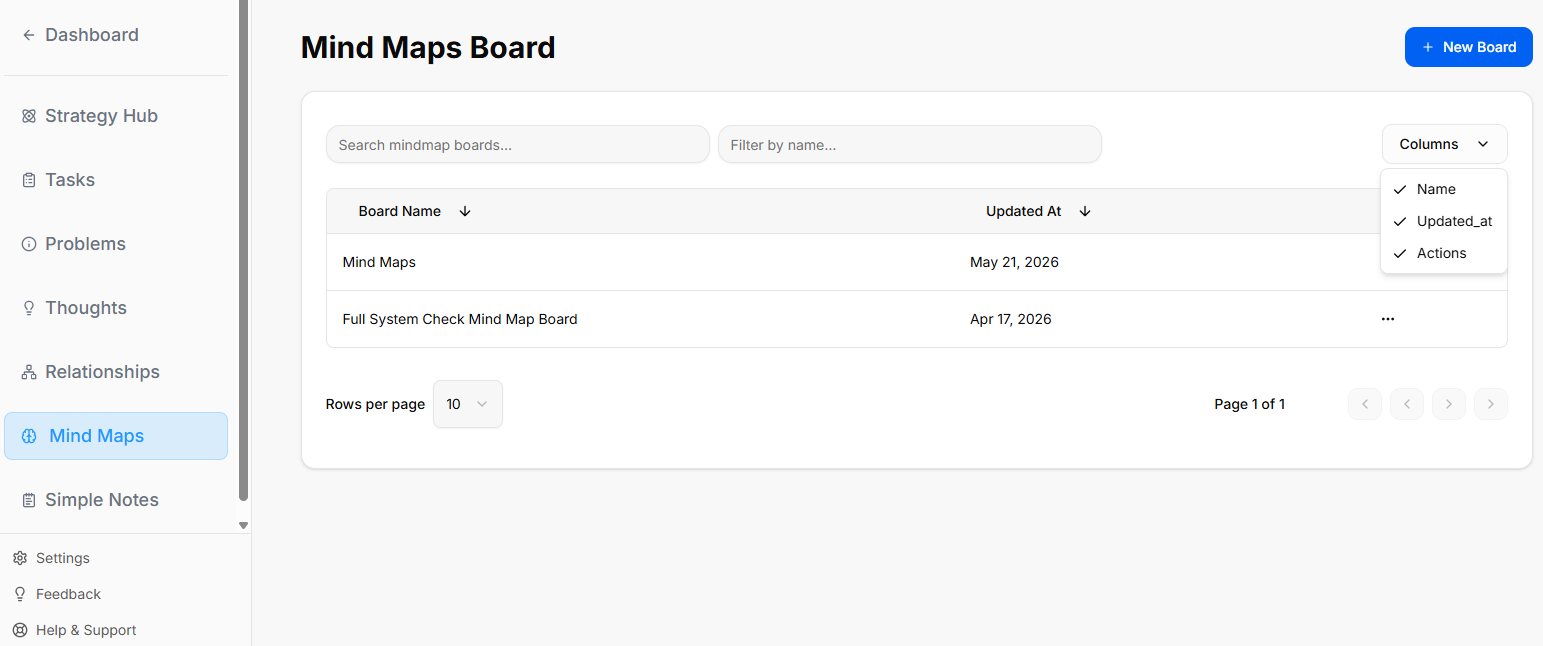
Board Directory View: Track active spaces like your Mind Maps board or Full System Check Mind Map Board, along with their last relative modification date under the Updated At column.
Filtering & Columns: Use the top text bars to search specific project names. Use the Columns dropdown tool to show or hide parameters like Name, Updated_at, or Actions.
Board Context Menu: Clicking the three dots icon (...) on the right side of any individual board row opens control configurations for that board.
Inside a Mind Maps Board
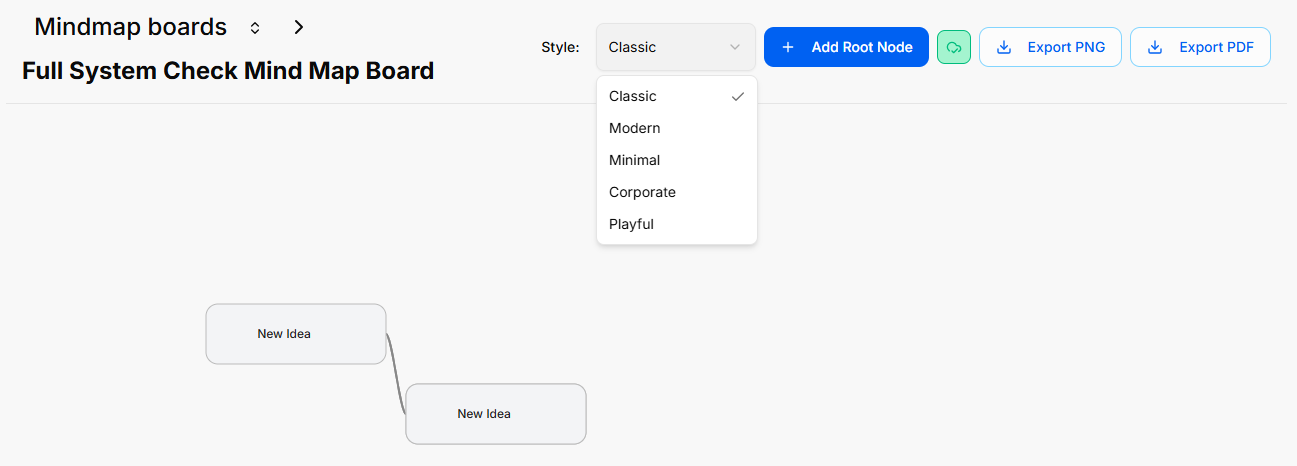
When you select and open an individual mind map board from your directory, you enter a canvas space designed to build out ideas and branches.
Canvas Layout & Header Controls
The top header of an active mind map board provides specific controls for styling, adding nodes, and exporting your map:
Breadcrumb Navigation: The top left displays your current location, showing Mindmap boards next to an arrow pointing to the title of your active board (e.g., Full System Check Mind Map Board).
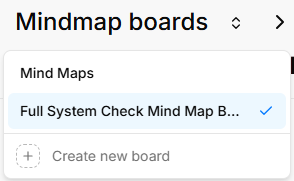
Quick Switch Dropdown: Clicking the up and down arrow icon directly next to "Mindmap boards" allows you to quickly switch between different mind map boards in your workspace without exiting to the main menu.
Style Dropdown: A dedicated Style selector menu allows you to alter the visual appearance of your map. Clicking the dropdown reveals five distinct options:
Classic (selected by default with a checkmark)
Modern
Minimal
Corporate
Playful
Canvas Actions: Located at the top right of the screendirectory areview.
Enter Board Name: Type your actiontitle keys:into the required Board Name * field (Enter relationship board name).
Confirm Creation: Click Create Board to generate your board canvas, or select Cancel to close without saving.
Overview Metrics & Search
Total Boards: Displays the total count of relationship boards created in your workspace.
Recently Updated: Displays the number of relationship boards recently updated.
Search Bar: Input field (Search relationship boards...) to filter boards by name.
Board Directory Table
Table Columns: Displays existing boards organized under Board Name and Updated At headers (with sorting arrows).
Row Quick Menu (...): Context menu on board rows providing options to:
-
+View:Add Root Node: A blue button used to place a main foundational node ontoOpen thecanvas.selected relationship board. -
Mini-Map Toggle (Green Icon)Rename:TogglesChangeathesmalltitleoverlayofwindowthetorelationshiphelp navigate around your branches.board. -
ExportDelete:PNG:PermanentlyClickremovetotheexportrelationshipand download your current mind map structure as an image file.
Export PDF: Click to save your structural layout as a document file.board.
Managing Mind Map Nodes
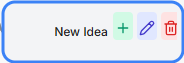
Add a Node (Green Cross Icon): Click the green + button to branch off and add a connected sub-node to your mind map.
Edit Node Title (Pencil Icon): Click the purple pencil button to quickly rename or modify the text displayed inside that specific node card.
Delete Node (Trash Can Icon): Click the red trash can button to permanently remove the node from your mind map layout.arrows.