
Strategy Hub: Strategy Whiteboard Sub-Section
Strategy Hub: ThoughtsStrategy ModuleWhiteboard Sub-Section
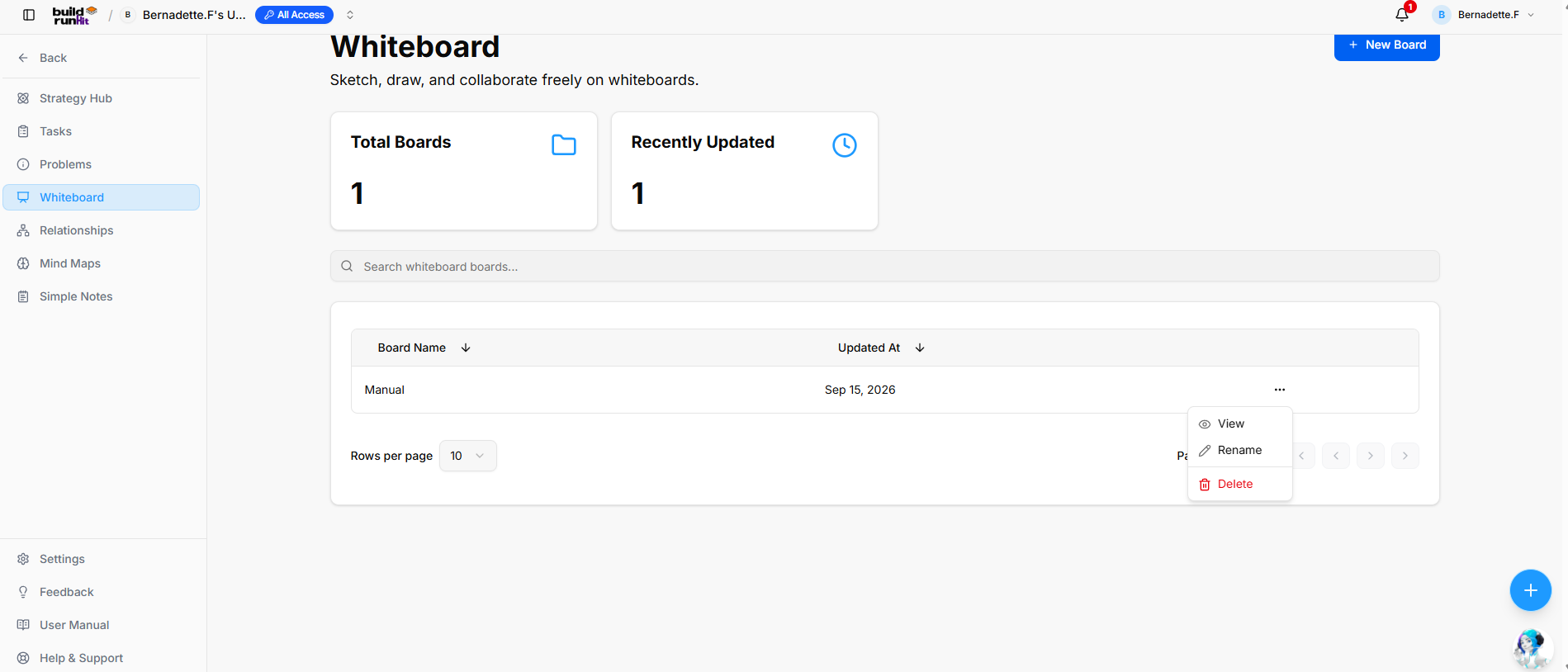
The Thoughts module within the Strategy HubWhiteboard functionssub-section asprovides a digitalfreeform canvas orto whiteboard,sketch, allowingdraw, youand tocollaborate visually map out brainstorming sessions, strategy links, and project ideas using interactive shapes.
Managing Thoughts Boards
When you enter the Thoughts module, you are presented with a global directory of your activeteam.
Create andNew strategyWhiteboard environments:Board
-
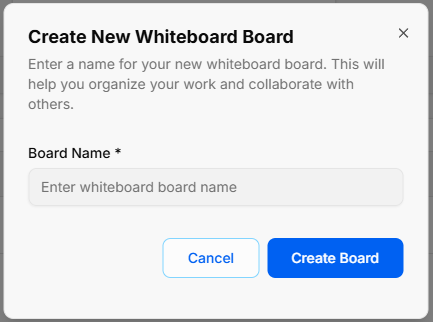
CreatingOpena Whiteboard:Modal: Click the blue + NewWhiteboardBoard buttonat the top right to start a fresh visual planning environment.
Board Directory View: Track active design spaces along with their last relative modification date under the Updated At column.
Filtering & Columns: Use the top text bars to search specific whiteboard names. Use the Columns dropdown tool to show or hide parameters like Name, Updated_at, or Actions.
Board Context Menu: Clicking the three dots icon (...) on the right side of any individual board row opens control configurations to View, Rename, or Delete that whiteboard.
Inside a Thoughts Board
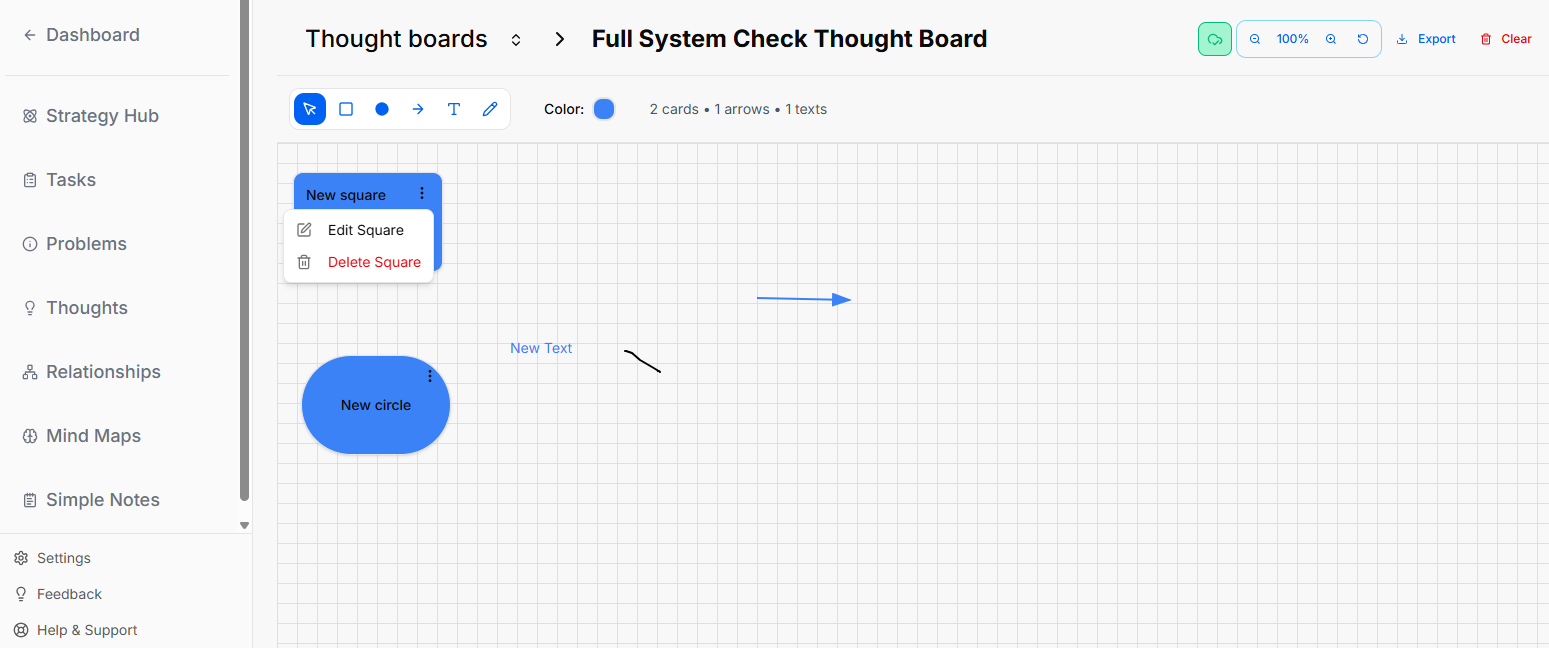
When you select and open an individual whiteboard from your directory, you enter an interactive grid canvas workspace where you can sketch, label, and manipulate shapes.
Canvas Layout & Header Controls
The top header of the whiteboard area contains configuration data, canvas actions, and canvas statistics:
Breadcrumb Navigation: The top left displays the active path, showing Thought boards followed by an arrow pointing to your currently opened board name (e.g., Full System Check Thought Board).
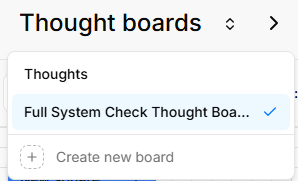
Quick Switch Dropdown: Clicking the small up and down arrow icon directly next to "Thought boards" pulls up a quick menu to toggle between your saved boards or click + Create new board without returning to the main directory.
Canvas Settings & Zoom Toolbar: Located at the top right of the main directory view.
Enter Board Name: Type your desired title into the required Board Name * field (Enter whiteboard board name).
Confirm Creation: Click Create Board to generate your canvas, thisor barselect givesCancel youto layoutclose controls:the pop-up without saving.
Overview Metrics & Search
Total Boards: Displays the total count of existing whiteboard boards in your workspace.
Recently Updated: Displays the number of board canvases updated recently.
Search Bar: Input field (Search whiteboard boards...) to filter boards by title.
Board Directory Table
Table Columns: Organizes saved canvases under Board Name and Updated At headers (both support column sorting).
Row Quick Menu (...): Options accessible directly on individual board rows:
-
ZoomView:Controls: UseOpen thezoom-outselected(minus),whiteboardpercentage display (e.g.,100%), zoom-in (plus), andreseticons to navigate a dense board.canvas. -
Export:Rename:ClickUpdate thedownloadwhiteboardarrowboard title.
Delete: Permanently remove the whiteboard board.
Pagination Controls: Adjust items shown via Rows per page dropdown or step through pages using the navigation arrows.
Strategy Whiteboard
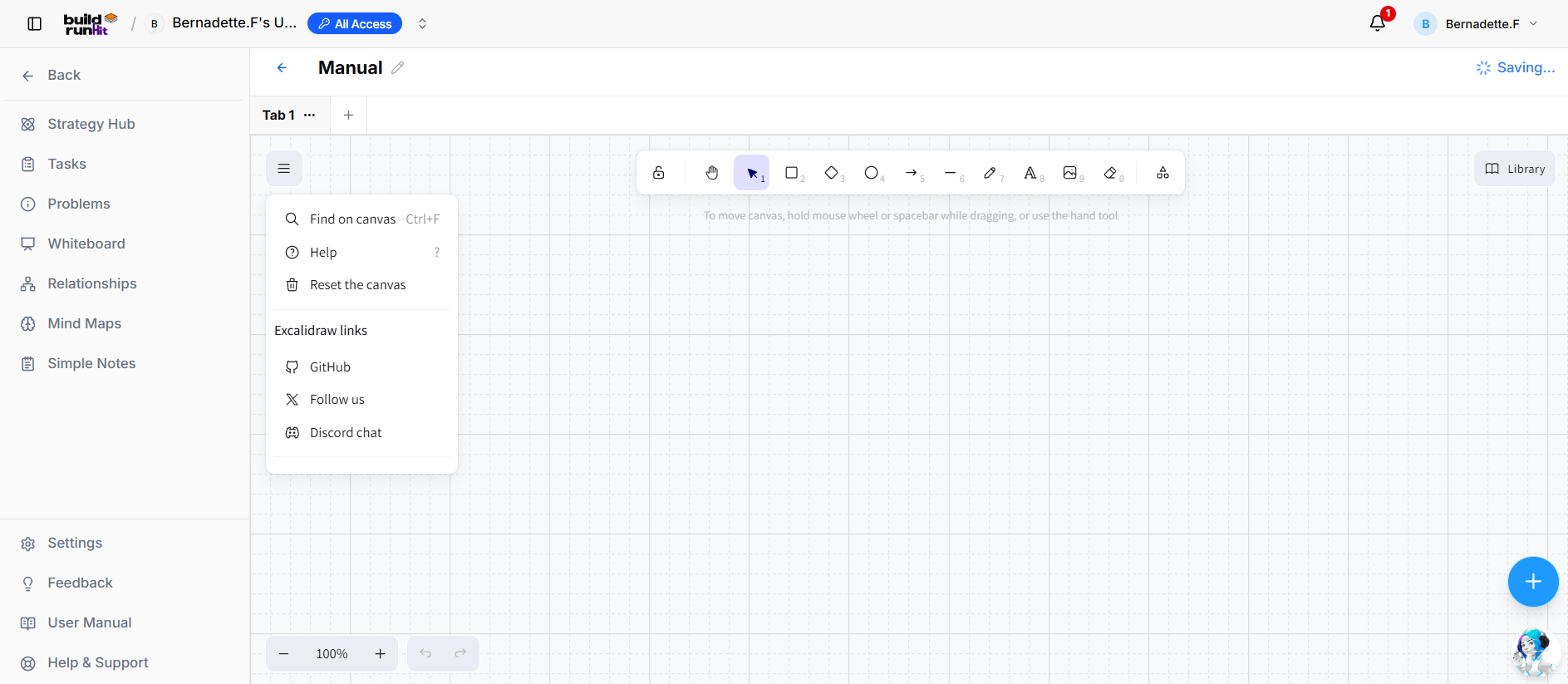
Top Navigation & Canvas Controls
Menu Drawer (☰): Opens canvas options including Find on canvas (Ctrl+F), Help (?), Reset the canvas, and links to GitHub, social media, or Discord support.
Canvas Title: Displays board name with edit capabilities.
Tabs & Navigation: Switch between canvas tabs or select + to open a new tab.
Zoom & Undo: Bottom control panel with zoom percentage buttons, zoom slider, and Undo / Redo arrows.
Floating Main Toolbar & Shortcuts
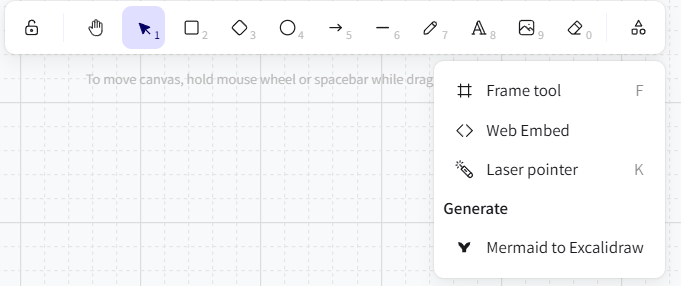
Keep Selected Tool Active: Lock icon to savemaintain atool localselection copyafter ofdrawing.
Hand (Panning Tool) (H): Click and drag to move freely around the canvas layout.
ClearSelection (TrashV Canor Icon)1): ASelect, red button that completely wipes all shapes, lines,move, and data off the current canvas.
The Canvas Toolbar
A horizontal toolbar floats at the top-left section of the grid canvas to let you build out your board:
Selection Tool (Cursor Icon): The primary blue pointer used to select, drag, or highlight elements on the grid.
Square Shape: Click this icon to drop a customizable square onto the workspace.
Circle Shape: Click this icon to drop a customizable circle onto the workspace.
Connection Arrow: Click this tool to manually draw directional lines connecting youredit elements.
Text ToolRectangle ("T"R Icon)or 2): AllowsDraw yousquare and rectangular shapes.
Diamond (D or 3): Draw diamond and decision shapes.
Ellipse (O or 4): Draw circles and ovals.
Arrow (A or 5): Connect elements with directional arrows.
Line (L or 6): Draw straight connecting lines.
Draw (P or 7): Freehand sketching and drawing pencil.
Text (T or 8): Insert text fields directly on the board.
Insert Image (9): Upload image files onto the canvas.
Eraser (E or 0): Click or drag to dropdelete standalonecanvas textelements.
More Tools: Access additional drawing tools:
Frame tool (F): Group elements inside labeled frames.
Web Embed: Embed external web content or media directly onto the open canvas grid.board.
DrawLaser Toolpointer (Pencil Icon)K): ActivatesHighlight freehandareas drawingduring orlive sketching directly on top of the grid space.presentations.
Global Canvas Color: Shows a Color circle indicator (e.g., blue) that tracks your currently selected element tint.
Board Statistics: Live counters immediately follow the color wheelMermaid to showExcalidraw: youGenerate thevisual exactdiagrams totalfrom ofMermaid items placed on the canvas (e.g., 2 cards • 1 arrows • 1 texts).
Editing a Shape Modal
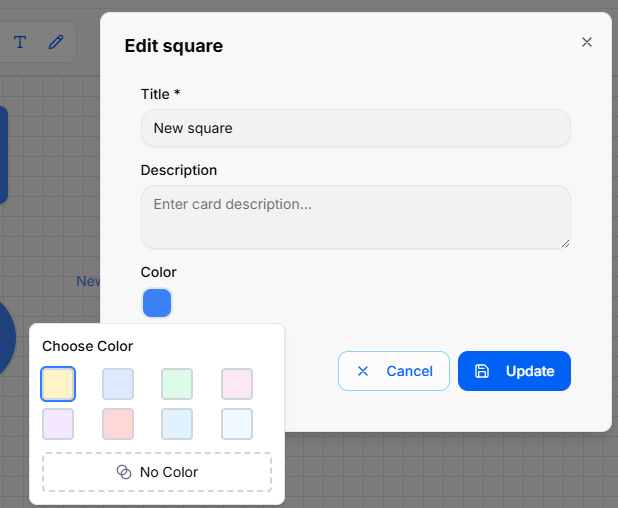
When you click the three dots menu (...) on a shape and choose to edit it, a modal pop-up window appears in the center of the screen with the following configuration fields:
Modal Title: Displays the name of the shape type (e.g., Circle) at the top left.
Title Field: A text input box where you can type or change the main title text displayed on the shape.
Description Field: A larger text area box labeled Description to add detailed notes or context inside the shape properties.
Color Selection: A row of interactive circular color buttons that allows you to click and choose the color styling for the shape.
Action Buttons: Two options sit at the bottom right corner of the window to finalize your changes:
Cancel: Closes the modal without saving any modifications.
Update: Saves your text and color changes directly to the canvas element.syntax.
Editing
Library Canvas Text Blocks
Panel
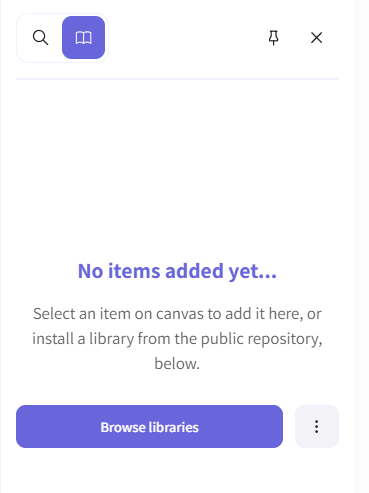
When managing a standalone text element on the canvas, the properties window changes to a streamlined Edit Text modal with specific sizing attributes:
-
Text:LibraryAToggle:multi-line editing box where you inputOpen theliteralsidebarmessagepaneldisplayedtoonaccessthereusablecanvascomponentsgrid.and shapes. -
FontBrowseSize:Libraries:ASearchnumericalandboximportwhereassetyoupackagesmanually type or changefrom thefontpublicscaling size directly (e.g.,15). Note: There is no font-family picker layout; styling changes are strictly adjusted by size.repository. -
Color:PinA/colorUnpin:indicator box showingKeep thecurrentlibrarycolorpanelassignedfixedtoor floating on thetext layer.canvas.
Form Submissions:
Cancel: Standard link text button to abandon changes.
Save: A blue button to lock in your text edits and font scaling parameters.