
Goldilocks Invoice Dashboard
Goldilocks Invoice Dashboard
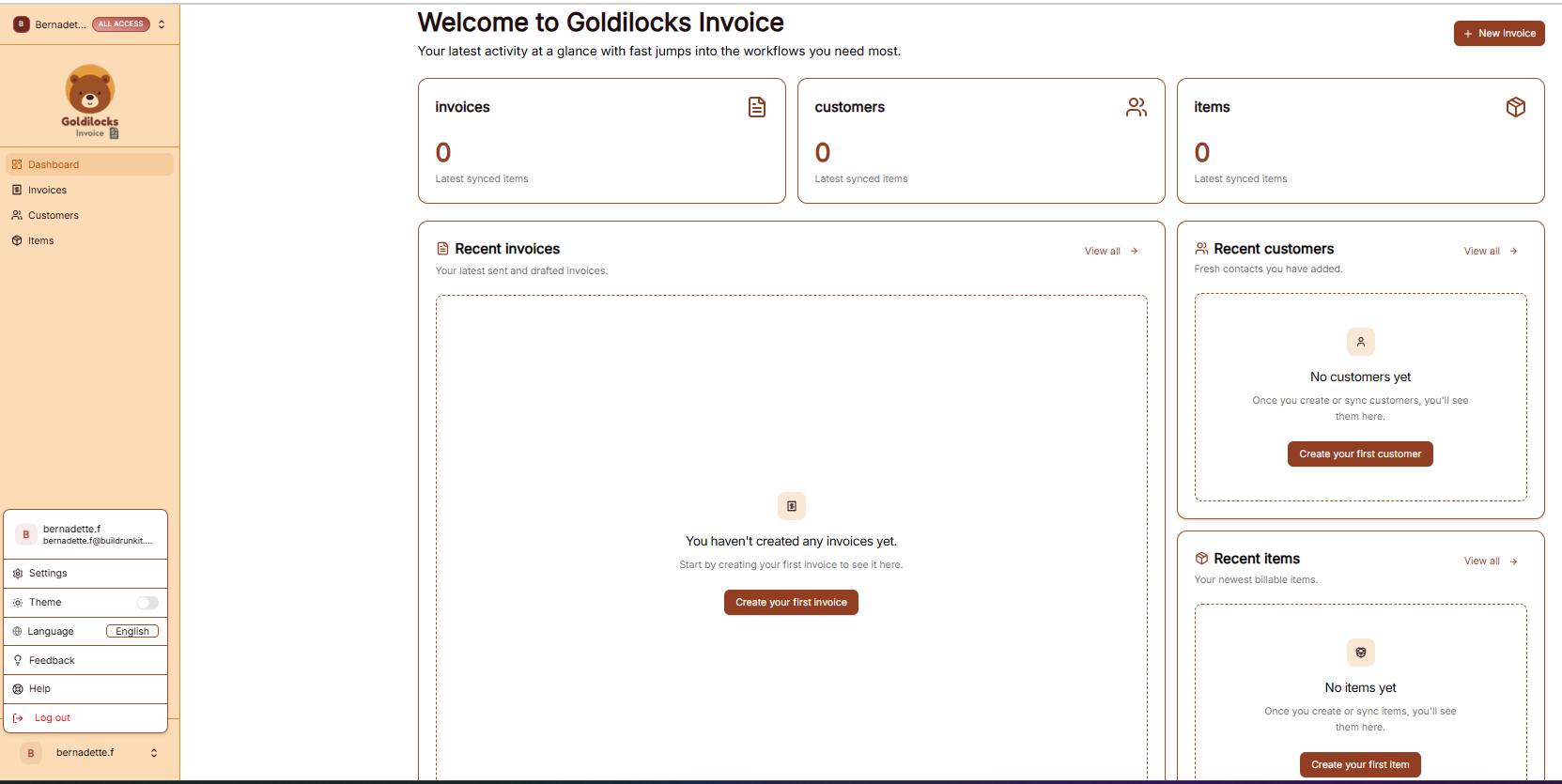
Once you have successfully signed in, you will be greeted by the Dashboard. This page is designed to give you a "at a glance" view of your latest activity and provide fast jumps into your most important billing workflows.
Activity Overview Cards
At the top of the dashboard, you will see three main stat cards that track your latest synced items:
-
Invoices: Displays the total count of your recent billables.
-
Customers: Shows the number of clients currently in your database.
-
Items: Tracks the total number of services or products you have saved.
Quick Action Sections
The dashboard is split into dedicated zones to help you manage your data quickly:
Recent Invoices (Center) This is where your latest sent and drafted invoices will appear.
-
Action: Click the brown "Create your first invoice" button in the middle to start billing a client immediately.
Recent Customers (Right Sidebar) Keep track of the fresh contacts you have added.
-
Action: Click "Create your first customer" to add a new client's contact and billing information to the system.
Recent Items (Right Sidebar) View your newest billable items or services.
-
Action: Click "Create your first item" to add a standard service (like "Consulting" or "Web Design") to your catalog for easy selection later.