
Settings Overview
Settings Overview
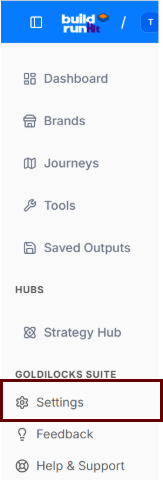
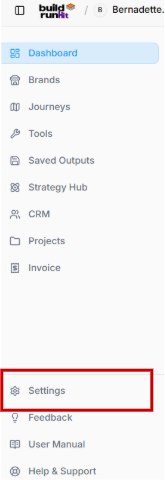
The Settings optionsection servesmanages asuser theprofile maindetails, entryworkspace pointmanagement, forsecurity managingcredentials, yoursubscription entire accountbilling, and platformmodule configuration.preferences through a dedicated secondary sidebar navigation menu.
Settings Menu Navigation
-
Function:Profile:ClickingViewthisanditemupdateopensaccountupcredentials,thecontactcentralinformation,administrativeandhubsecurityof the application.settings. -
Purpose: It allows you to access and modify your personal profile details, look over your active subscription, adjust team permissions, change layout languages, and update security credentials like your password.
Profile & Settings
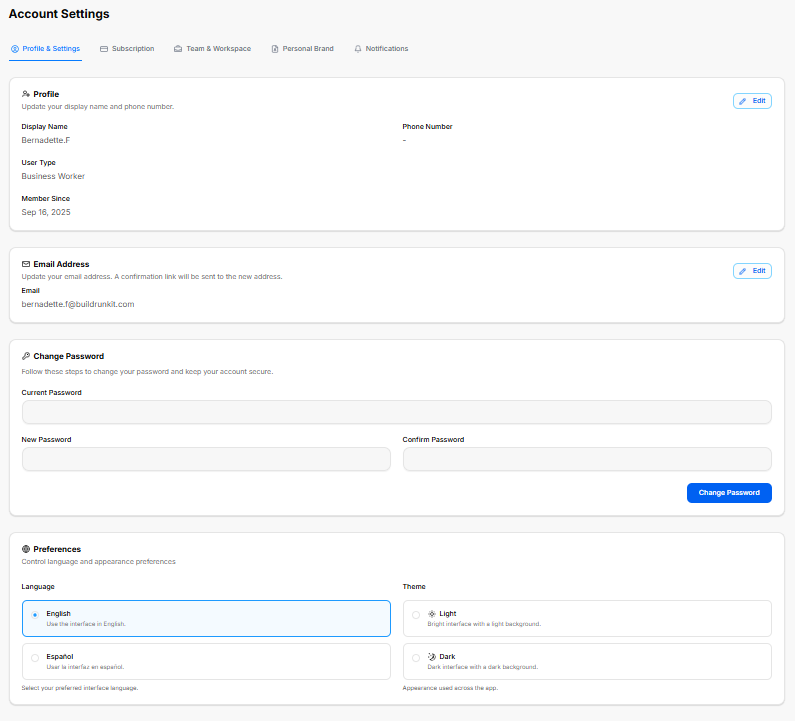
The Profile & Settings workspace is the primary tab within the global Account Settings dashboard. It consolidates personal identity details, contact information, authentication security fields, and universal layout preferences into an organized interface.
1. Account Navigation Framework
The main workspace header provides top-level tab links to access alternative configuration dashboards:
Profile & Settings: The default view for user identity and workspace customization.
Subscription: Manages billing, platform tiers, and payment options.
Team & Workspace:Workspace: CoordinatesManage organizationalworkspace permissions,settings, collaboratorteam access,members, and teamaccess roles.
PersonalModules Brand:& ManagesFeatures: customToggle brandingapplication visual assetsmodules and identityplatform configurations.feature settings.
Notifications:Billing Configures& systemPlan: alerts,Manage emailaccount updates,subscription plans, view invoices, and messagingupdate payment methods.
Personal Brand: Configure personal branding defaults and assets.
Notifications: Set notification preferences and alert triggers.
CRM: Manage customer relationship management module settings.
Projects: Configure project management defaults and workflows.
Invoice: Adjust invoicing templates and billing parameters.
Preferences: Set global UI and account localization preferences.
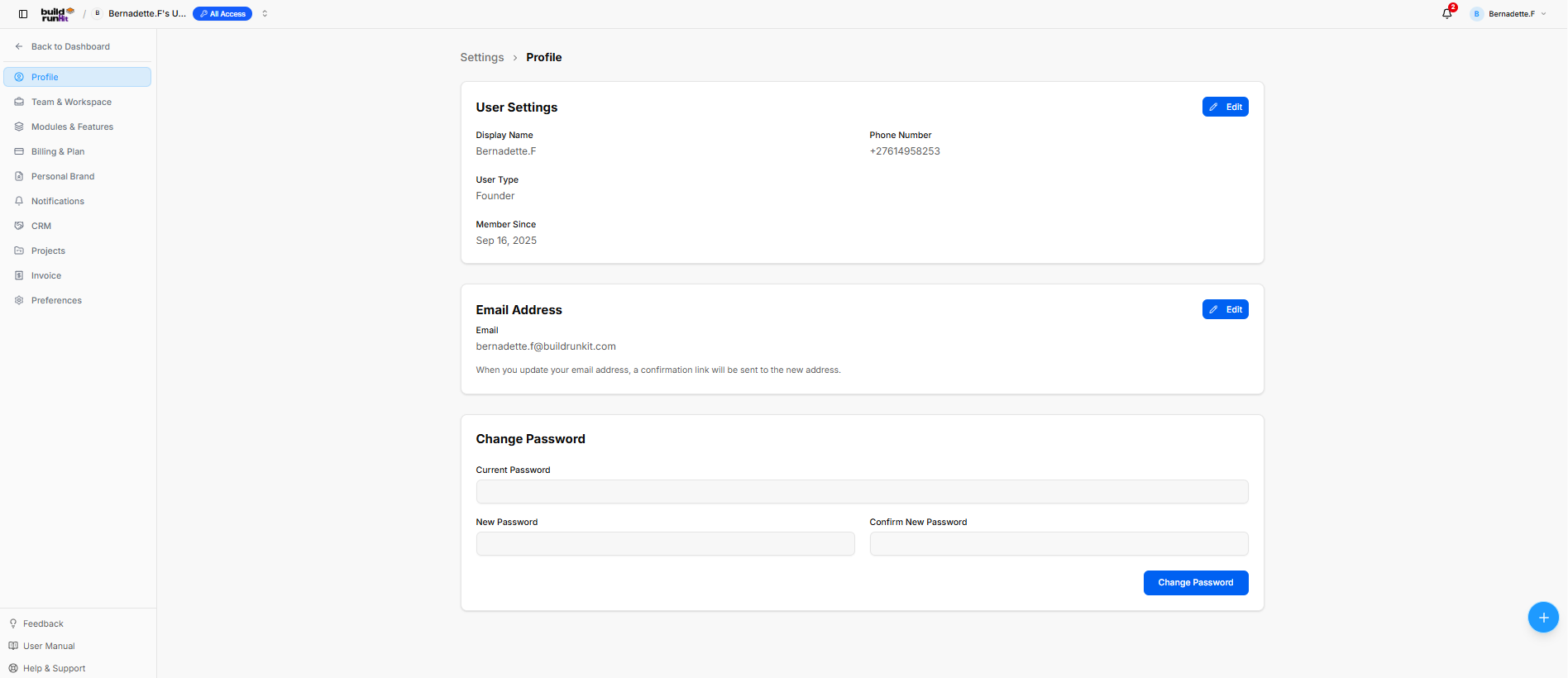
2. Profile IdentitySettings
User Settings Card
Displayed Fields: Shows Display Name (Bernadette.F), Phone Number (+27614958253), User Type (Founder), and account creation date under Member Since (Sep 16, 2025).
Edit Button: Blue action button at the top right to update user details.
Email Address Card
Displayed Email: Shows current account email ([email protected]).
Edit Button: Blue action button at the top right to update the email address (triggers a confirmation link).
Change Password Card
Password Fields: Contains input fields for Current Password, New Password, and Confirm New Password.
Change Password Button: Blue submission button at the bottom right to apply new login security credentials.
Team & Workspace Settings Sub-Section
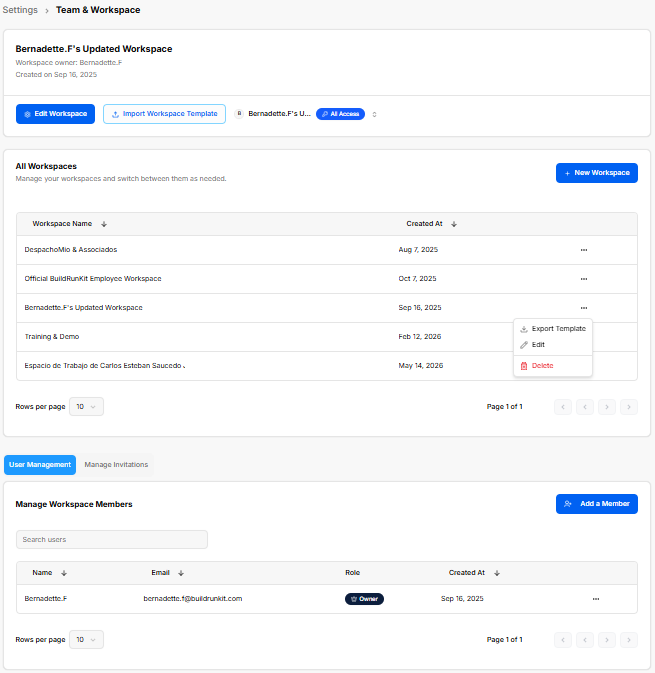
The ProfileTeam block& tracksWorkspace basicsettings identificationsection manages workspace creation, workspace switching, user memberships, and usercollaborator classificationinvitations data:across team environments.
Active Workspace Controls
Active Workspace Header: Displays current workspace details (Bernadette.F's Updated Workspace), owner name (Bernadette.F), and creation date (Sep 16, 2025).
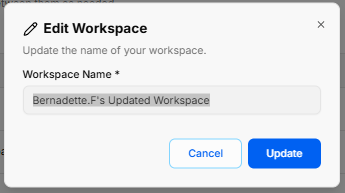
Edit Workspace Button: Opens a modal to update the current workspace title.
Import Workspace Template Button: Allows importing workspace configurations from a template file.
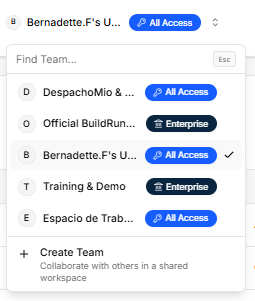
Workspace Switcher Dropdown (Top Navigation Bar): Click the active workspace pill to search existing teams, view subscription tiers (All Access, Enterprise), or click + Create Team to set up a shared environment.
Workspace Directory & Management
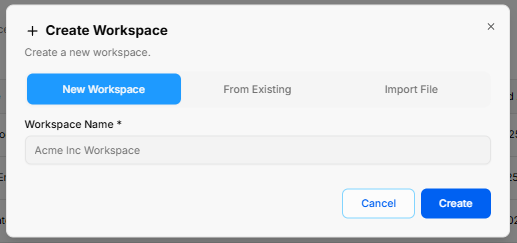
+ New Workspace: Opens the Create Workspace modal with three options:
-
DisplayNewName:WorkspaceSetsTab:theEntervisibleanamerequiredacrossWorkspacetheNameplatform.* (e.g., Acme Inc Workspace) and click Create. -
UserFromType:ExistingDisplaysTab:yourDuplicateassignedsettingssystemfromoperationalantier.active workspace. -
MemberImportSince:FileRecordsTab:theUploadexactworkspacecreationconfigurationdatefiles.of
All Workspaces Table: Lists workspaces by Workspace Name and Created At.
PhoneRow Number:Context DisplaysMenu (...):
Export Template: Downloads the linkedworkspace mobile or direct contact number.structure.
Edit: Opens the Edit Control:Workspace A dedicated Edit action button opens an override panelmodal to update displaythe credentialsname.
Delete: Removes the workspace.
3.
User Management Tab
Manage Workspace Members Table: Displays active members by Name, Email, Role (Owner, Member), and Created At.
Search Users: Filters the member directory by name or email.
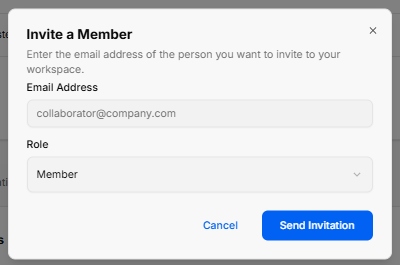
+ Add a Member: Opens the Invite a Member modal to enter an Email Address ([email protected]), assign a Role (Member), and click Send Invitation.
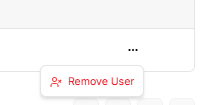
Member Action (...): Click to select Remove User and revoke workspace access.
Manage Invitations Tab
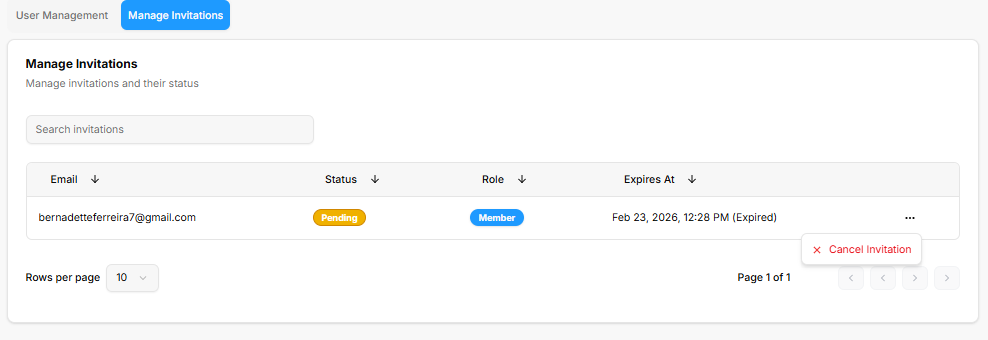
Search Invitations: Input field to filter sent invitations.
Invitations Table: Lists sent invites by Email, Status (Pending), assigned Role, and Expires At timestamp.
Invitation Action (...): Select Cancel Invitation to revoke pending access.
Modules & Features Settings Sub-Section
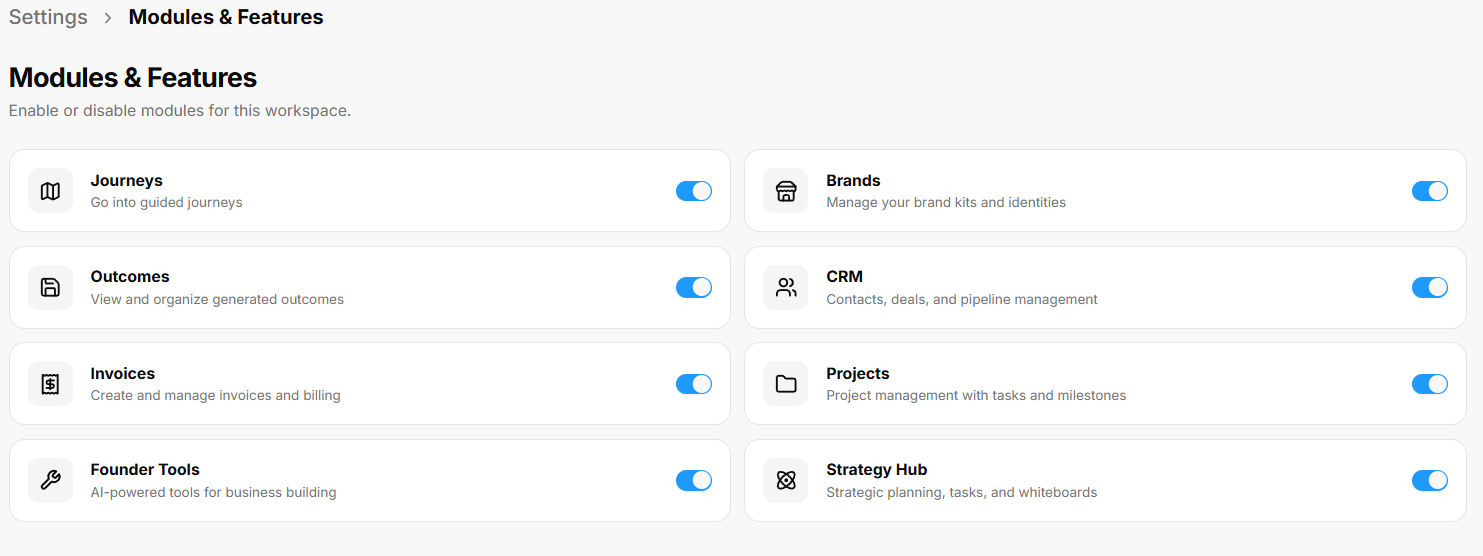
The EmailModules Address& blockFeatures handlessettings communicationsection routingenables workspace owners to toggle specific tools and updates:navigation options on or off to customize the active workspace sidebar layout.
Available Workspace Modules
Journeys (Map Icon): Toggle on/off guided paths (Go into guided journeys).
Brands (Storefront Icon): Toggle on/off brand kit tools (Manage your brand kits and identities).
Outcomes (Save Icon): Toggle on/off generated output storage (View and organize generated outcomes).
CRM (People Icon): Toggle on/off contact and sales tools (Contacts, deals, and pipeline management).
Invoices (Dollar Ticket Icon): Toggle on/off billing tools (Create and manage invoices and billing).
Projects (Folder Icon): Toggle on/off task tracking (Project management with tasks and milestones).
Founder Tools (Wrench Icon): Toggle on/off founder startup journeys.
Strategy Hub (Atom Icon): Toggle on/off strategic planning features (Strategic planning, tasks, and whiteboards).
Billing & Plan Settings Sub-Section
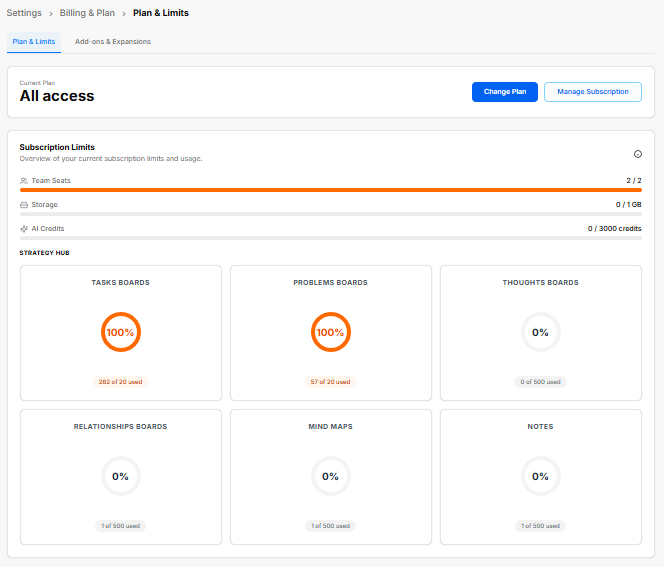
The Billing & Plan settings section provides visibility into active subscription tiers, core resource limits, usage metrics, and expansion add-ons across the workspace.
Plan & Limits Overview
Current Plan Banner: Displays active tier (All access) with controls to Change Plan or Manage Subscription.
Subscription Limits: Tracks real-time resource allocation and consumption:
-
EmailTeamField:Seats:Displays theShows activecorporatevs.electronicmaxmailuseraddressseatslinked(2to/the profile.2). -
VerificationStorage:Note:DisplaysAdvisesfilethatstoragechangingusagethis(0address/triggers1an automated confirmation security link to the newly requested location.GB). -
EditAIControl:Credits:ATracksdedicatedmonthlyEditAIbuttonbalancetoggles(0input/capabilities3000for this field.
4. Password Authentication
The Change Password section handles credential security updates and account protection:
Current Password: A full-width input block where you type your active password to verify identity.
New Password: A secure data entry bar where you input your fresh passphrase combination.
Confirm Password: A secondary verification entry block to match and confirm the new string entry exactly.
Execution Key: A solid blue Change Password action button processes and locks in the update.
5. System Preferences
The Preferences workspace controls the language framework and visual appearance settings:
Language Options: Large toggle blocks change the system translation output:
English: Configures the user interface to use English strings.
Español: Configures the user interface to use Spanish translations.credits).
ThemeStrategy Options:Hub DirectUsage: selectionGauge cardsmeters switchdisplaying thecategory applicationusage backdrop profile:percentages:
-
Light:TasksEnforcesBoards:aUsagebrightstatusbackground(282interface.of 20 used - 100%). -
Dark:ProblemsTransitionsBoards: Usage status (57 of 20 used - 100%).
Thoughts Boards: Usage status (0 of 500 used - 0%).
Relationships Boards: Usage status (1 of 500 used - 0%).
Mind Maps: Usage status (1 of 500 used - 0%).
Notes: Usage status (1 of 500 used - 0%).
Add-ons & Expansions
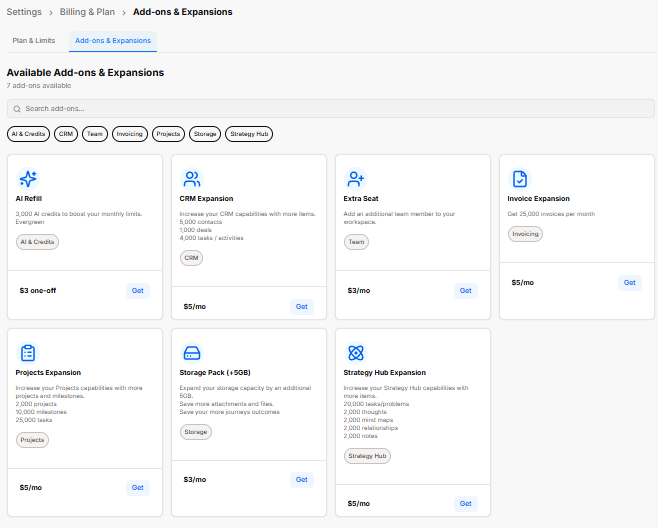
Category Filters: Quick-filter available expansions by tag (AI & Credits, CRM, Team, Invoicing, Projects, Storage, Strategy Hub).
Add-on Marketplace:
AI Refill: Adds 3,000 evergreen AI credits ($3 one-off).
CRM Expansion: Increases CRM capacity to 5,000 contacts, 1,000 deals, and 4,000 tasks ($5/mo).
Extra Seat: Adds an additional user seat to the appworkspace layout($3/mo).
Invoice Expansion: Increases limit to a25,000 darkinvoices backgroundper interface.month ($5/mo).
Projects Expansion: Increases capacity to 2,000 projects, 10,000 milestones, and 25,000 tasks ($5/mo).
Storage Pack (+5GB): Expands file storage capacity by 5 GB ($3/mo).
Strategy Hub Expansion: Increases limits to 20,000 tasks/problems, 2,000 thoughts, 2,000 mind maps, 2,000 relationships, and 2,000 notes ($5/mo).
Subscription Tiers Comparison Modal
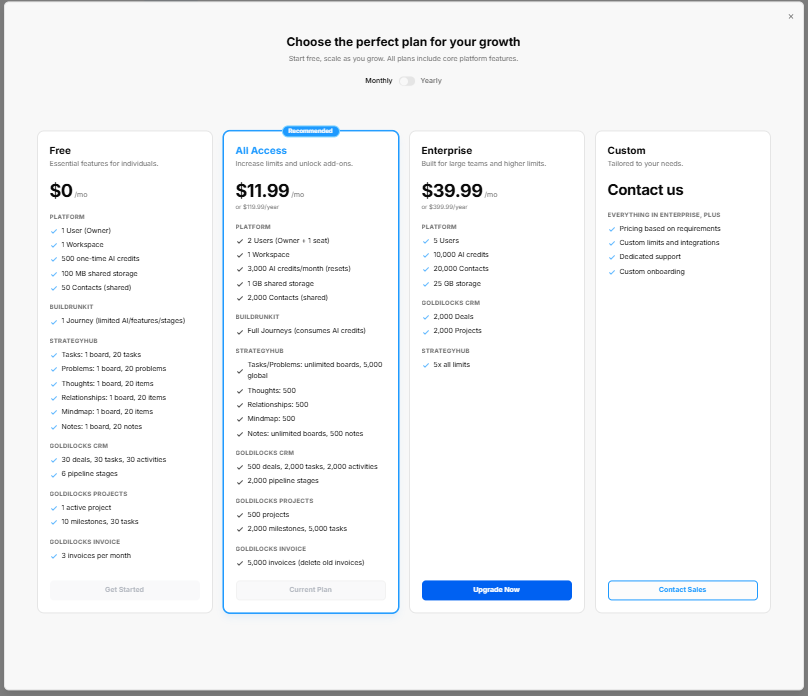
Billing Toggle: Switch between Monthly and Yearly billing cycles.
Tier Options:
Free: $0/mo for individual essentials (1 User, 1 Workspace, 500 AI credits, 100 MB storage).
All Access (Recommended): $11.99/mo ($119.99/year) including 2 Users, 3,000 AI credits/mo, 1 GB storage, full Journeys, and expanded CRM/Project limits.
Enterprise: $39.99/mo ($399.99/year) including 5 Users, 10,000 AI credits/mo, 25 GB storage, 20,000 contacts, and 5x Strategy Hub limits.
Custom: Contact Sales for enterprise onboarding, dedicated support, and custom limits.
SubscriptionPersonal Brand Settings Sub-Section
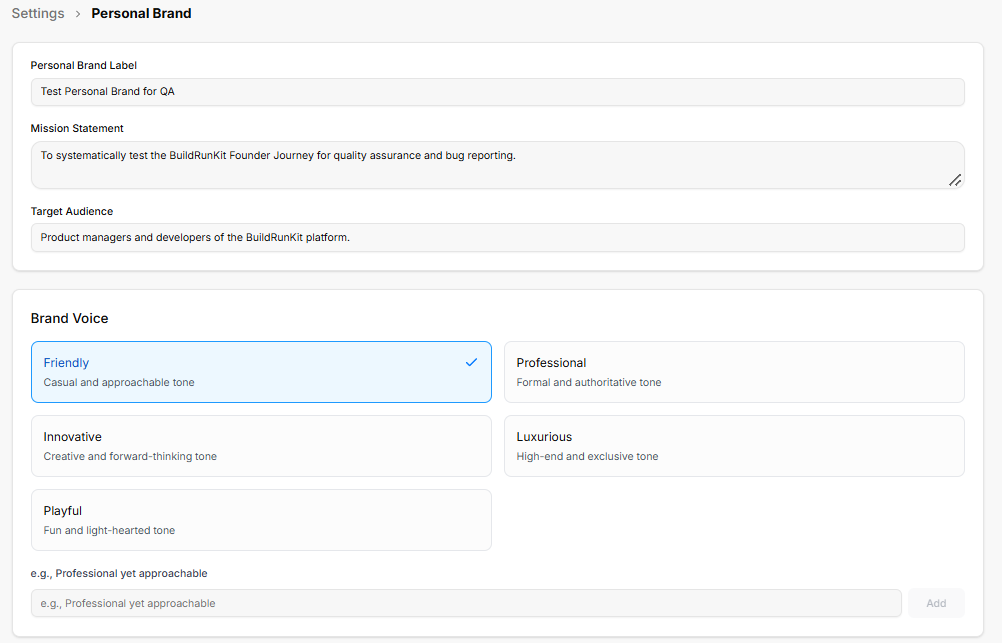
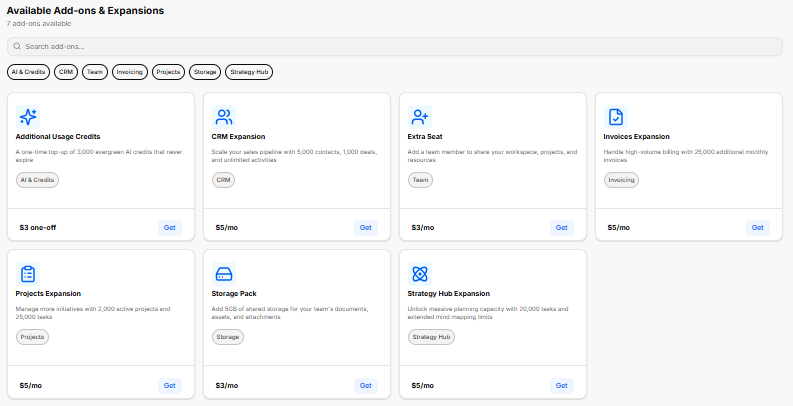
The SubscriptionPersonal dashboardBrand letssettings yousection trackconfigures activecore membershipmessaging, tiers,target monitordemographics, datatone resourceof usage caps,voice, and purchaseprofessional modularattributes resourceused upgrades.
1.platform-generated Plan Overview
The top workspace displays structural tier statusescontent and directjourneys.
Identity controls:& Positioning
-
TestCurrentPersonalPlan:BrandShowsLabel:yourTextactiveinputmembershipdefininglevel,theprice,brandandtitlebilling(e.g.,cycle.
Change Plan: A blue action button to transition to a completely different tier.
Manage Subscription: A secondary button to modify billing methods or update payment profiles.
2. Subscription Limits & Allocation Meters
This panel charts real-time usage metrics against your plan parameters to track overages or open capacity:
Global Account Seats & Resources:
Team Seats: Track allocated user slots against plan allowances.
Storage: Monitors active media, file, and asset storage allocations.
AI Credits: Displays available generation allowances used by automated modules.
Core Modules Tracker:
Tasks Boards: Measures layout parameters and active task counts.
Problems Boards: Monitors active problem-tracking logs.
Thoughts Boards: Measures dedicated long-form brainstorming inputs.
Relationships Boards: Tracks customer profiles or network directories.
Mind Maps: Counts active organizational layouts.
Notes: Tracks basic scratchpads and text documents.
3. Available Add-ons & Expansions
A modular store lets you expand specific capacity allocations without upgrading your entire core plan tier. It includes a search filter bar alongside category tags to quickly isolate upgrades:
Additional Usage Credits: Provides a one-time purchase top-upBrand for evergreen AI credits that do not expire.
CRM Expansion: Scales sales pipelines by adding contacts, deals, and activities.
Extra Seat: Appends a team member slot to share workspace projects and assets.
Invoices Expansion: Raises monthly billing limits for high-volume invoice generation.
Projects Expansion: Increases your maximum allowed active projects and tasks.
Storage Pack: Adds blocks of shared cloud storage for team documentation and attachments.
Strategy Hub Expansion: Unlocks extra planning capacity for tasks and extended mind-mapping elements.
Team & Workspace Settings
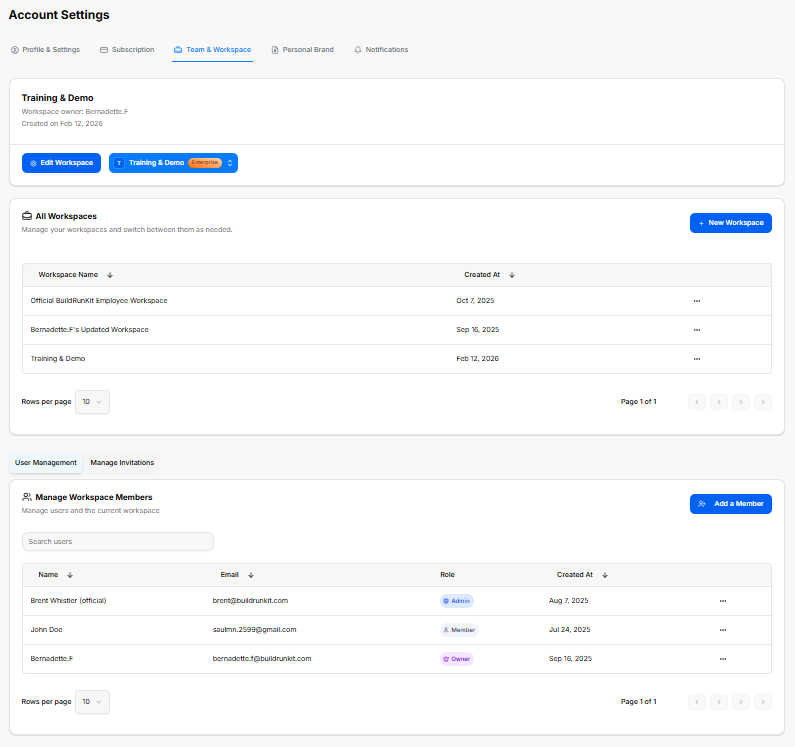
The Team & Workspace dashboard allows you to organize multiple operational environments, manage collaborator permissions, and control user access across your organization.
1. Active Workspace Summary
The top section highlights details for the workspace you are currently modifying:
Workspace Identity: Displays the current workspace name, its designated owner, and the exact creation date.
Workspace Controls:
Edit Workspace: A blue action button to update the active workspace's configuration or change its main settings.
Workspace Selector Switcher: A dropdown button labeled with your active plan tier that lets you swap or pivot between active accounts.
2. All Workspaces Directory
A master data table structures all environments tied to your profile, allowing you to manage environments and switch between them as needed:
Workspace Creation: A blue + New Workspace button allows you to instantly spin up a separate operational environment.
Workspace Ledger: Tracks all created environments with dedicated columns for Workspace Name and Created At timestamp records, complete with a settings icon menu for individual row actions.
3. Member Management Hub
The bottom management suite coordinates access controls and is split into two administrative tabs: User Management and Manage Invitations. Under the active User Management view, you can configure users and the current workspace:
Add a Member: A blue button to invite new collaborators directly into the workspace.
Search Box: A filter bar to quickly search users by name or credential.
Manage Workspace Members Table: A detailed directory tracking all active team members using four descriptive data columns:
Name: Displays the user's name.
Email: Lists the direct communication address linked to their seat.
Role: Displays designated permission levels using colored badges (such as Admin, Member, or Owner)QA).
CreatedMission At:Statement: LogsMultiline text area defining overall purpose (e.g., To systematically test the exactBuildRunKit historicalFounder date the user was added to the platform.
Personal Brand Settings
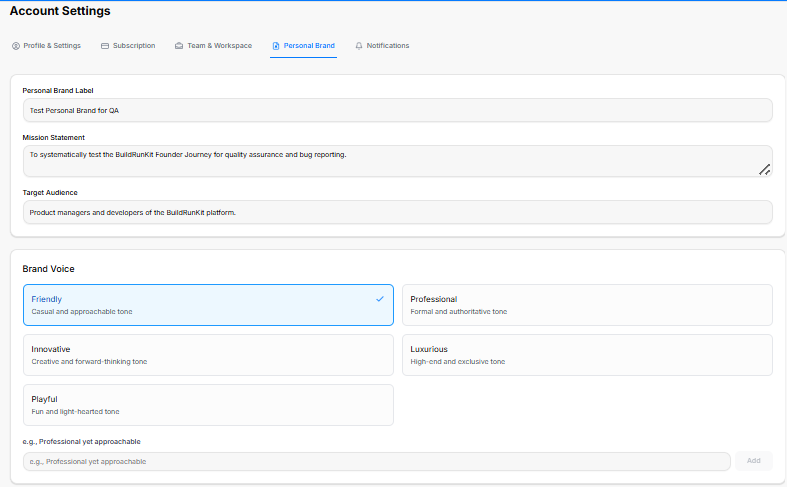
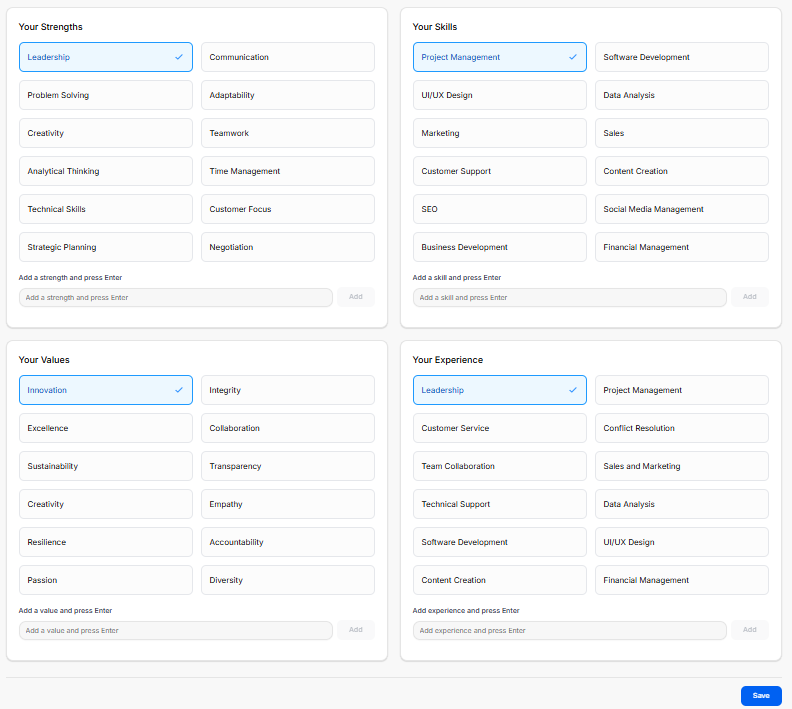
The Personal Brand settings dashboard is a comprehensive workspace divided across two view areas to configure your unique professional identity framework. These parameters feed direct context to the platform's AI generation engines.
1. Core Identity & Formatting Fields
The upper console segment manages the foundational details of your professional persona:
Personal Brand Label: A clear text entry box to input an internal identification nameJourney for thequality specificassurance profile.and bug reporting.).
MissionTarget Statement:Audience: AText multi-lineinput textspecifying blockprimary designeddemographic targets (e.g., Product managers and developers of the BuildRunKit platform.).
Brand Voice Configuration
Preset Voice Options: Selectable tone tiles to framedefine yourcontent corestyle:
Friendly: targets,Casual orand businessapproachable purpose.tone.
TargetProfessional: Audience: A baseline input line to specify the exact consumer demographics, professionals, or market sectors your content aims to reach.
2. Brand Voice Profiles
The system lets you select the exact tonal delivery for your platform outputs using distinct selectable cards or completely custom entries:
Friendly: A casualFormal and approachableauthoritative style.tone.
Professional:Innovative: A formalCreative and authoritativeforward-thinking communication style.tone.
Innovative:Luxurious: A creative and forward-thinking perspective.
Luxurious: A high-end, highly premium,High-end and exclusive tone.
Playful:Playful: A fun, dynamic,Fun and light-hearted tone.
Custom Selection:Voice AnInput: extension line at the baseField to type incustom unique,tone specific stylistic traitsdescriptors (e.g., Professional yet approachable)approachable) and registerclick them with the Add key..
Core
3.& ProfessionalExpertise Foundation Pillars
The lower portion of the setup space is organized into a interactive four-quadrant selection grid to map out your skillsets and professional philosophy: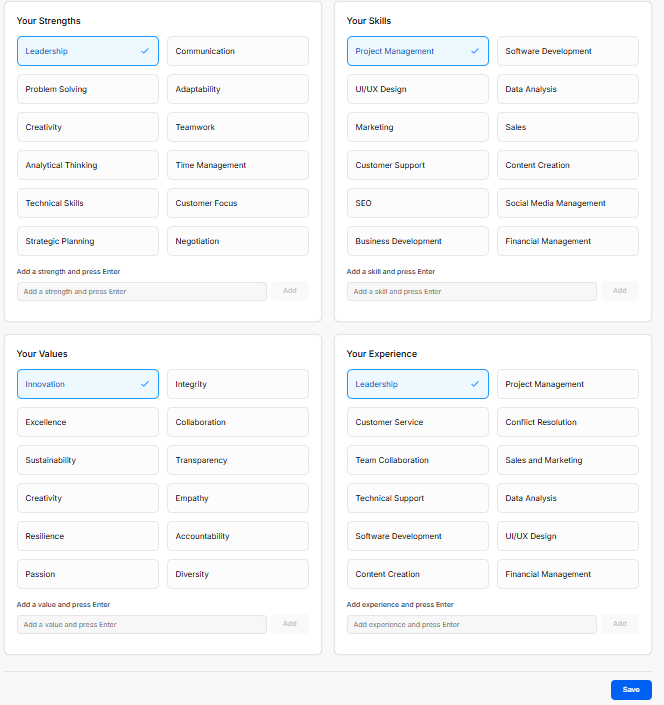
-
Your
Strengths:Strengths:High-levelSelectableindividualbadgestraits(Leadership, Communication, Problem Solving, Adaptability, Creativity, Teamwork, Analytical Thinking, Time Management, Technical Skills, Customer Focus, Strategic Planning, Negotiation). Includes custom input to type a strength andcoreclicksoft skills. Selectable tags include options like Leadership, Problem Solving, Creativity, Analytical Thinking, Technical Skills, Strategic Planning, Communication, Adaptability, Teamwork, Time Management, Customer Focus, and Negotiation.Add. -
Your
Skills: Direct execution capabilities and industrial focus areas.Skills: Selectableoptionsbadgesinclude(ProjectManagement,Management, Software Development, UI/UXDesign,Design,Marketing,Data Analysis, Marketing, Sales, CustomerSupport,Support,SEO, Business Development, Software Development, Data Analysis, Sales,ContentCreation,Creation, SEO, Social MediaManagement,Management, Business Development, Financial Management). Includes custom input to type a skill andFinancialclickManagement.Add. -
Your
Values:Values:UnderlyingSelectablecorporatebadgesstandards(Innovation, Integrity, Excellence, Collaboration, Sustainability, Transparency, Creativity, Empathy, Resilience, Accountability, Passion, Diversity). Includes custom input to type a value anddrivingclickexecution principles. Preset toggles include Innovation, Excellence, Sustainability, Creativity, Resilience, Passion, Integrity, Collaboration, Transparency, Empathy, Accountability, and Diversity.Add. -
Your
Experience:Experience:KeySelectableprofessionalbadgesenvironments(Leadership,andProjectfunctionalManagement,roles you have operated within. Quick tags list Leadership,CustomerService,Service, Conflict Resolution, TeamCollaboration,Collaboration,Technical Support, Software Development, Content Creation, Project Management, Conflict Resolution,Sales andMarketing,Marketing, Technical Support, DataAnalysis,Analysis, Software Development, UI/UXDesign,Design, Content Creation, Financial Management). Includes custom input to type experience andFinancialclickManagement.Add.
Save Button: Saves all profile configurations to the active workspace.
Each of the four quadrants includes an internal generation field at its baseline where you can type an unlisted trait, press your enter key, or click Add to expand your profile matrix.
4. Committing Changes
Global Save: Once you have selected your voice traits and structured your background vectors across both segments, clicking the solid blue Save action button in the bottom-right corner locks the dataset into your profile.
Notifications Settings Sub-Section
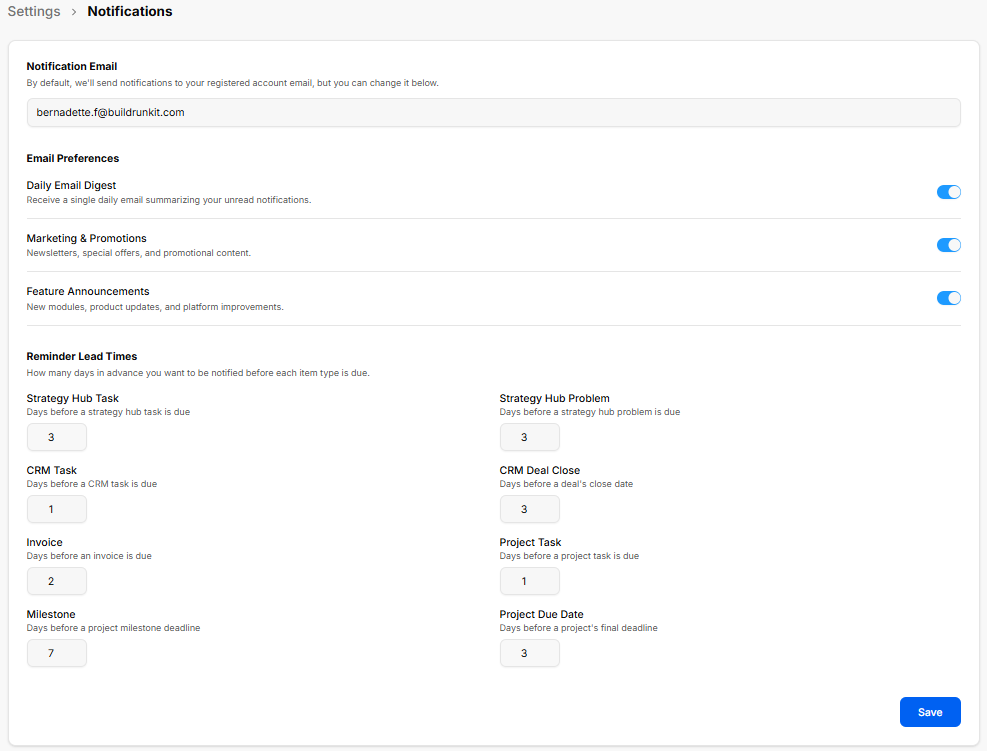
The Notifications dashboardsettings letssection youallows manageusers whereto youconfigure receivedelivery email destinations, toggle system alerts, toggle specific email delivery preferences, and customizeset automatedadvance remindernotice timelineslead times for upcoming tasks, milestones, deals, and invoice deadlines.
1. Notification RoutingDelivery & Email Preferences
-
Notification
Email:Email:A centralized text entryInput fieldthattodesignatesset the email address whereyour platform updatesnotifications aresent.sentBy default, the system routes notifications directly(defaults toyourregistered accountemail, but it can be manually overridden here.email).
2. Email Preferences
A suite of master toggle switches allows you to opt into or out of specific communication streams:
Daily Email Digest:Digest: TogglesToggle on/off to receive a single, consolidatedsingle daily email summarizing your unread platform notifications.
Marketing & Promotions:Promotions: ControlsToggle theon/off delivery of generalfor newsletters, special campaign offers, and seasonal promotional content.updates.
Feature Announcements:Announcements: ManagesToggle alertson/off regardingfor new software modules, immediate product updates, and continuous platform improvements.
3. Reminder Lead Times
This section lets you configure exactly how many days in advance you want to be system-notified before a specific item type hits its official due date:
-
Strategy Hub
Task:Task:AdjustsNumericthefield for advancenoticewarningwindowdays before a strategy hub task isdue.due (e.g., 3 days). -
Strategy Hub
Problem:Problem:ConfiguresNumericthefield for advance warningbufferdays beforean activea strategy hub problemreaches itsis duedate.(e.g., 3 days). -
CRM
Task:Task:SetsNumericthefieldnumberforofadvance warning daysleadingbeforeup to an assigneda CRM taskdeadline.is due (e.g., 1 day). -
CRM Deal
Close:Close:CoordinatesNumeric field for advancenotificationwarninglead timesdays before aspecific customerdeal'stargetclosedate.date (e.g., 3 days). -
Invoice:Invoice:EstablishesNumericthefield for advance warningperioddaysprior tobefore an invoicefallingisdue.due (e.g., 2 days). -
Project
Task:Task:RestructuresNumericthefielddayforbufferadvanceleadingwarningupdaystobeforean assigneda project taskdeadline.is due (e.g., 1 day). -
Milestone:Milestone:DictatesNumericthefieldlong-termfor advance warningbuffer sentdays beforean overarchinga project milestone deadlinearrives.(e.g., 7 days). -
Project Due
Date:Date:SetsNumericthefieldgeneralforreminderadvanceleadwarningtimedays before a project'sabsolutefinalcompletiondeadlinedeadline.(e.g., 3 days).
Save Button: Updates and saves all notification settings.
CRM Settings Sub-Section
Once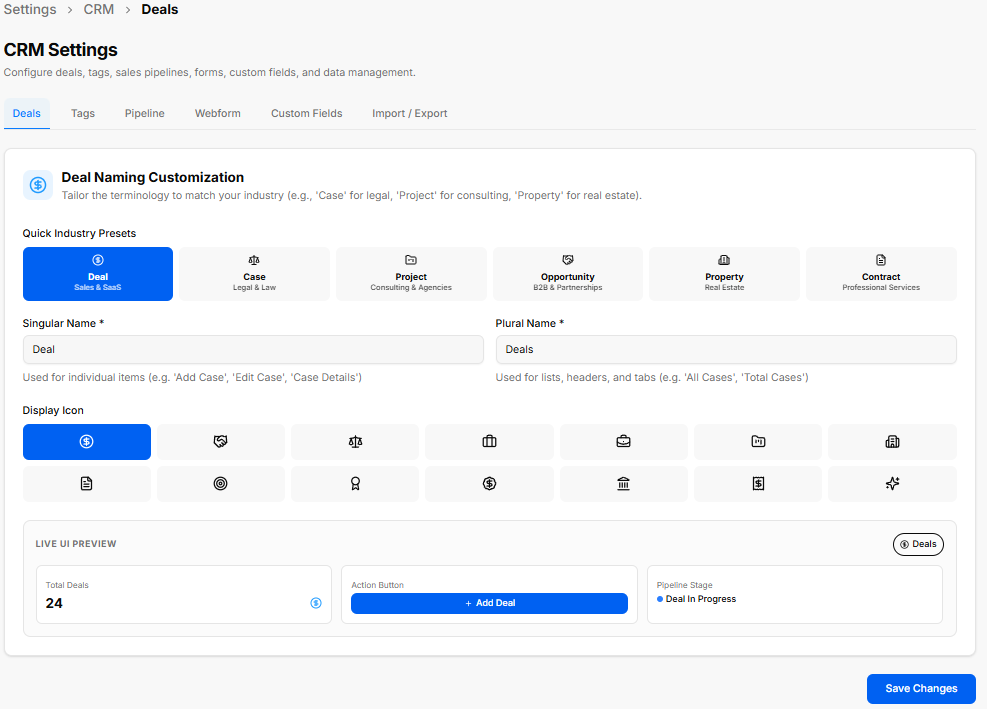
The CRM Settings section under Settings allows workspace owners to configure deals, tags, sales pipelines, webforms, custom fields, and data import/export rules.
CRM Settings Tabs
Deals: Customizes deal terminology, presets, singular/plural naming, display icons, and presents a Live UI Preview before saving changes.
Tags: Manages category tags for filtering CRM records.
Pipeline: Configures custom sales pipeline stages and progress workflows.
Webform: Sets up lead capture forms for embedding or sharing.
Custom Fields: Adds tailored data fields across contacts and deal profiles.
Import / Export: Handles bulk CSV data backups and lead imports.
Detailed Module Guide: For full step-by-step instructions and deeper breakdowns of each tab, see the BuildRunKit CRM > CRM Settings section of this user guide.
Projects Settings Sub-Section
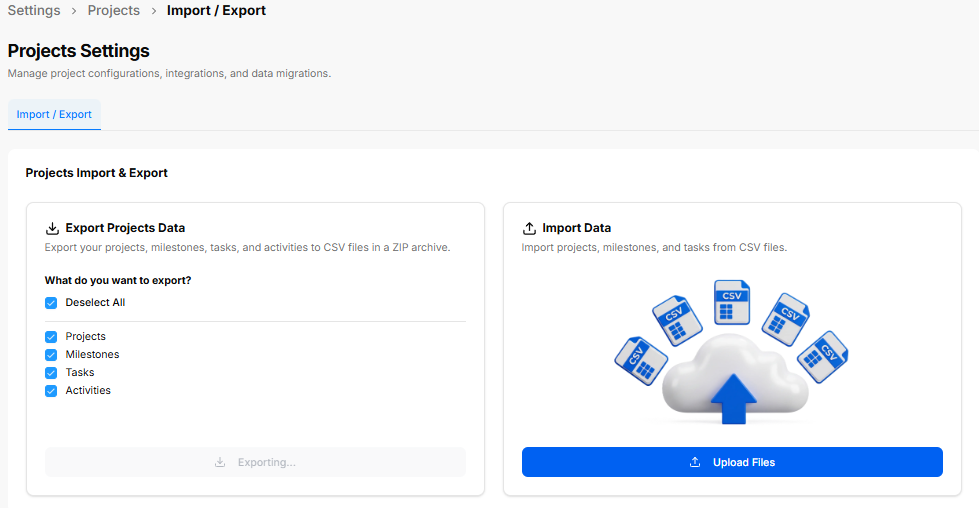
The Projects Settings section allows workspace owners to manage project configurations, data backups, and CSV file migrations.
Projects Import & Export Controls
Export Projects Data: Downloads selected project items to CSV files archived in a ZIP folder.
Export Options: Select or deselect specific categories including Projects, Milestones, Tasks, and Activities.
Exporting Button: Initiates the export package generation.
Import Data: Allows importing external project structures, milestones, and tasks via CSV uploads.
Upload Files Button: Opens the file picker to upload external CSV files into the workspace.
Detailed Module Guide: For full step-by-step instructions and deeper breakdowns of project configurations, see the BuildRunKit Projects > Projects Settings section of this user guide.
Invoice Settings Sub-Section
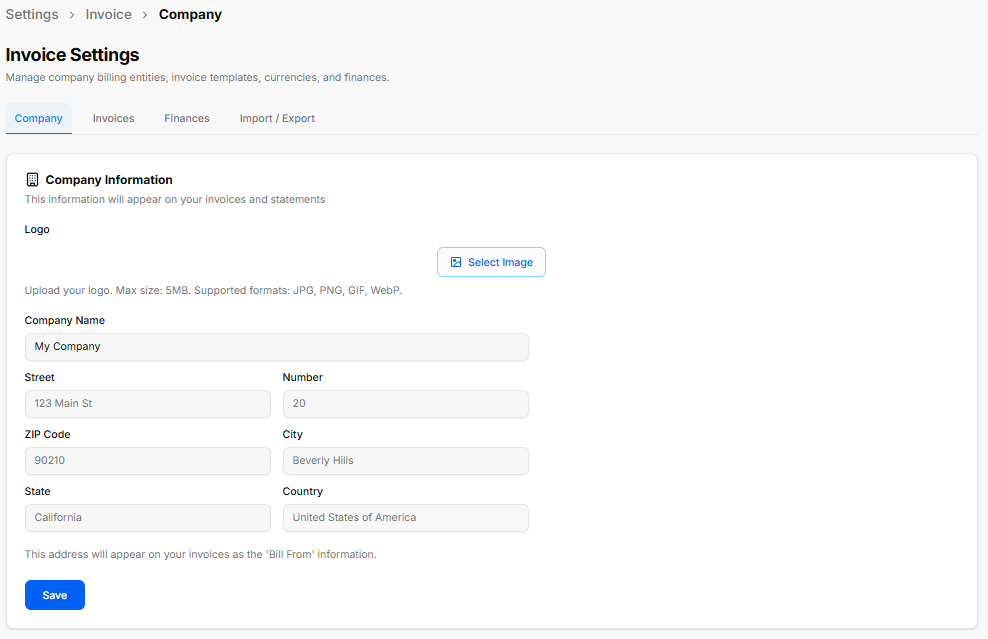
The Invoice Settings section allows workspace owners to manage billing entities, invoice display parameters, default currencies, and financial settings.
Invoice Settings Tabs
Company: Configures basic branding and sender details displayed under the "Bill From" section on outgoing invoices and statements.
Logo: Click Select Image to upload a company logo (Max size: 5MB; Formats: JPG, PNG, GIF, WebP).
Company Name: Input field for the business name (e.g., My Company).
Address Fields: Form fields for Street, Number, ZIP Code, City, State, and Country.
Save Button: Stores company identity and location updates.
Invoices: Controls default payment terms, invoice prefixing, numbering sequences, and notes.
Finances: Manages accepted payment gateways, tax percentages, and default currency formats.
Import / Export: Handles invoice history backups and CSV data migrations.
Detailed Module Guide: For full step-by-step instructions and detailed explanations of all alertinvoice preferencesoptions, see the BuildRunKit Invoice > Invoice Settings section of this user guide.
Preferences Settings Sub-Section
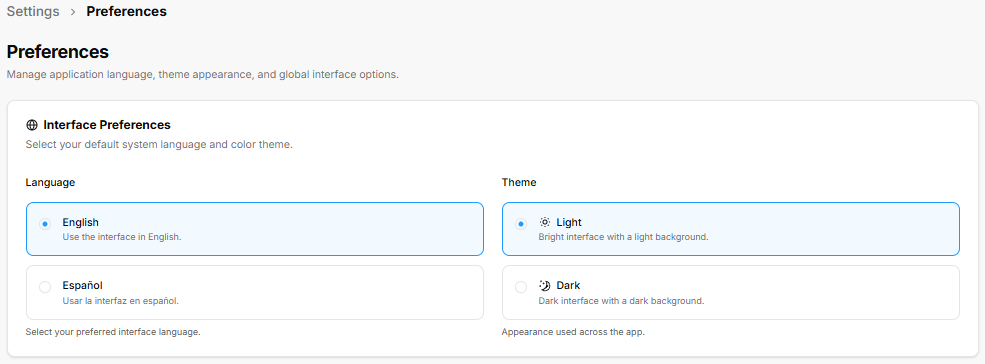
The Preferences section allows users to customize overall application language, visual themes, and calendarglobal dayinterface buffersoptions.
Interface updated,Preferences
Language Selection: Radio options to choose the solidpreferred blueapplication Saveinterface actionlanguage:
English: Sets the lowerinterface right-handlanguage cornerto commitsEnglish.
Español: Sets the rulesinterface language to yourSpanish profile.(Usar la interfaz en español).
Theme Selection: Radio options to switch the visual appearance across the entire platform:
Light: Applies a bright interface with a light background.
Dark: Applies a dark interface with a dark background.