
BuildRunKit Invoices: Invoices Sub-Section
BuildRunKit Invoices: Invoices Sub-Section
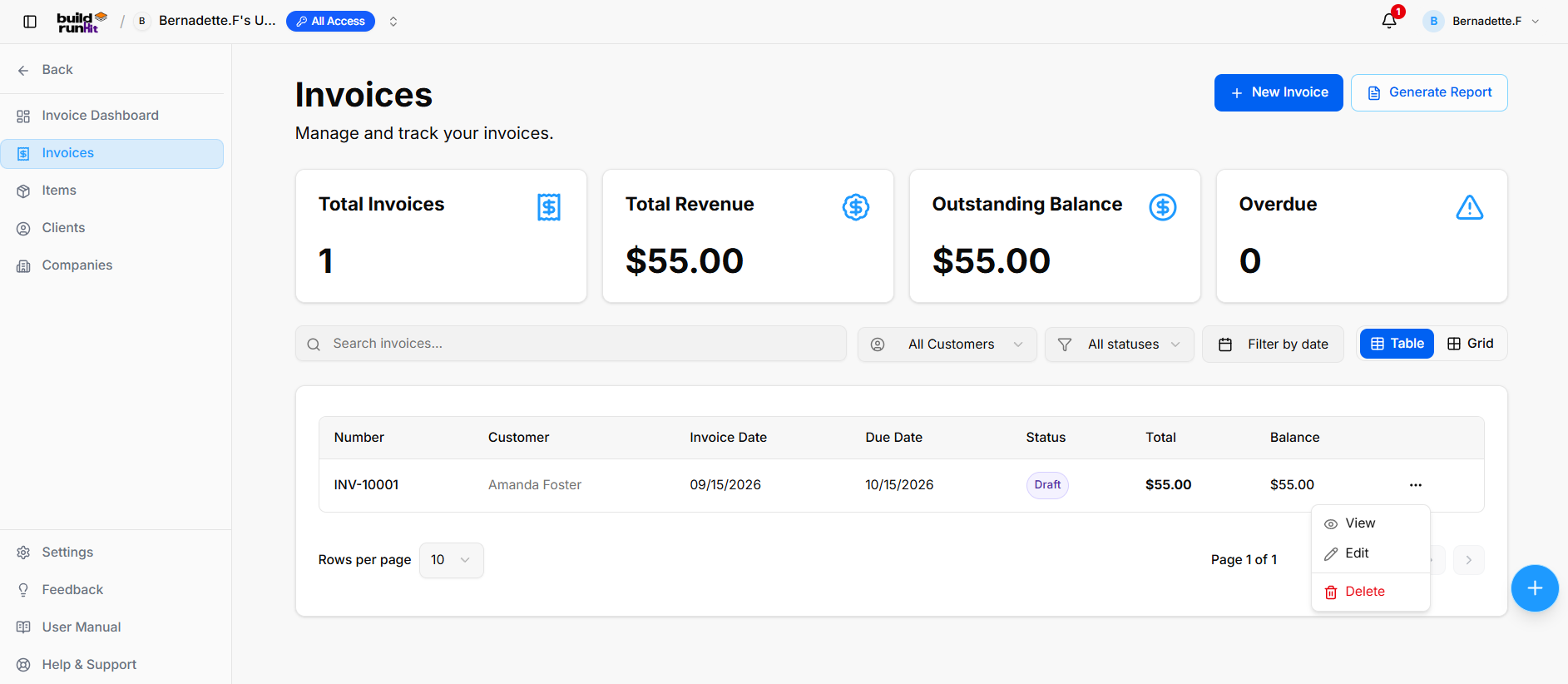
The Invoices sub-section provides central management for creating, tracking, filtering, and reporting on all customer billing statements and payment statuses.
Invoice Summary Metrics Top KPI cards display key billing breakdown totals:
-
Total Invoices: Tracks the overall number of registered invoice records.
-
Total Revenue: Displays total gross revenue collected across paid invoices.
-
Outstanding Balance: Displays total unpaid balances across active invoices.
-
Overdue: Highlights past-due invoices requiring immediate collection.
Directory Controls & Search Bar
-
Search invoices...: Global filter input for locating records by number, customer, or details keywords.
-
All Customers: Dropdown menu to filter records by specific client.
-
All statuses: Dropdown menu to filter records by status (Draft, Sent, Paid, Overdue).
-
Filter by date: Date picker control to isolate billing records within specific date ranges.
-
View Switcher: Toggle viewing modes between Table (list layout) and Grid (card layout).
-
Rows per page: Dropdown selector to control row density per page (e.g., 10 rows).
-
Pagination: Standard directional controls to step through invoice pages.
Invoices Table Data Columns
-
Number: Unique system invoice tracking code.
-
Customer: Name of the billed client or organization.
-
Invoice Date: Date of invoice issuance.
-
Due Date: Payment deadline date.
-
Status: Badge displaying current state.
-
Total: Full invoice amount billed.
-
Balance: Remaining unpaid balance due.
-
View: Opens the dedicated invoice preview and line item details.
-
Edit: Opens the setup editor to update billing details, line items, or customer assignment.
-
Delete: Removes the invoice record from the Invoices directory.
Header & Action Buttons
-
+ New Invoice: Direct action button to open the invoice setup modal.
-
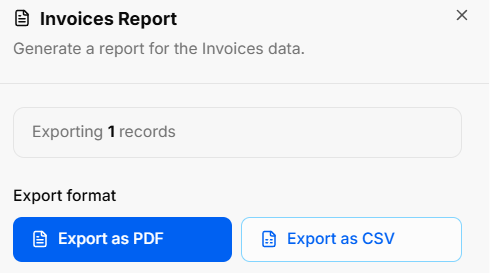
Generate Report: Opens the Invoices Report export modal:
-
Export Count: Displays total targeted invoice records (e.g., Exporting 1 records).
-
Export Format Options: Allows instant downloads via Export as PDF or Export as CSV.
-
BuildRunKit Invoices: Creating a New Invoice
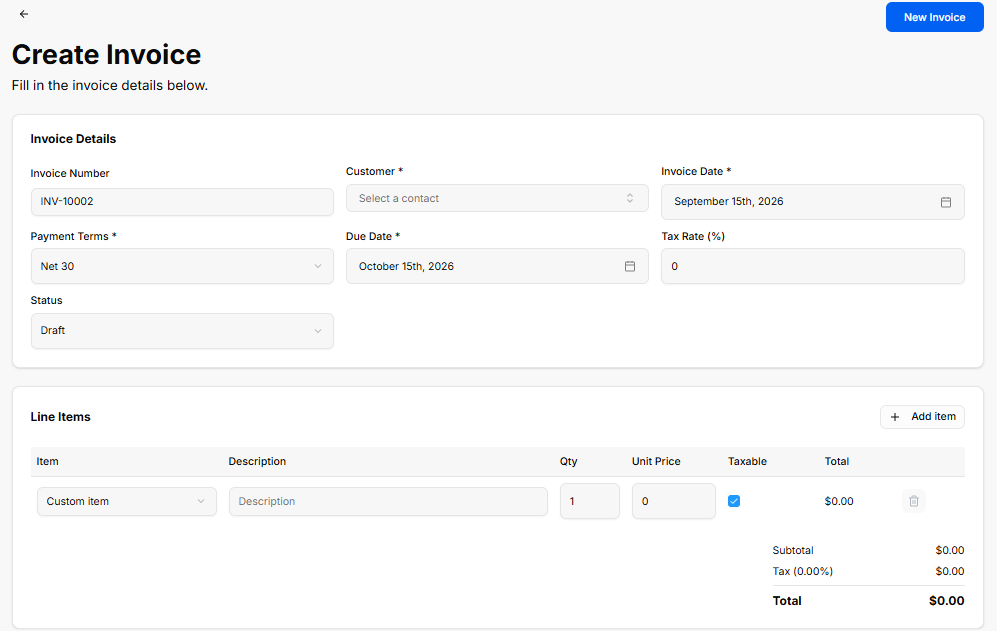
The Create Invoice view provides a setup interface for generating custom client invoices, configuring payment terms, applying tax rates, and adding line items.
Invoice Details Panel
-
Invoice Number: Auto-generated tracking code (e.g., INV-10002).
-
Customer *: Required dropdown selector to assign a contact profile (Select a contact).
-
Invoice Date *: Date picker field for the issue date (e.g., September 15th, 2026).
-
Payment Terms *: Dropdown selector for payment terms (e.g., Net 30).
-
Due Date *: Date picker field for the payment deadline (e.g., October 15th, 2026).
-
Tax Rate (%): Numeric input field to specify applicable tax percentage (e.g.,
0). -
Status: Dropdown selector to set the initial state (Draft).
Line Items Panel
-
+ Add item: Action button to add additional row items to the invoice.
-
Item Table Columns & Inputs:
-
Item: Dropdown selector to choose a pre-saved item or custom entry (Custom item).
-
Description: Text field for line item details or notes.
-
Qty: Numeric input for quantity ordered (e.g.,
1). -
Unit Price: Numeric input for price per unit (e.g.,
0). -
Taxable: Checkbox toggle to apply tax to the line item.
-
Total: Calculated row total (e.g., $0.00).
-
Delete (Trash Icon): Action button to remove the line item row.
-
-
Totals Summary:
-
Subtotal: Calculated sum of all line items before tax (e.g., $0.00).
-
Tax (0.00%): Calculated tax amount based on selected rate (e.g., $0.00).
-
Total: Final calculated invoice total (e.g., $0.00).
-
Header & Action Buttons
-
Back Arrow (
<-): Returns to the main Invoices list view. -
New Invoice: Primary blue button to save and generate the invoice record.