
BuildRunKit Invoices: Clients Sub-Section
BuildRunKit Invoices: Clients Sub-Section
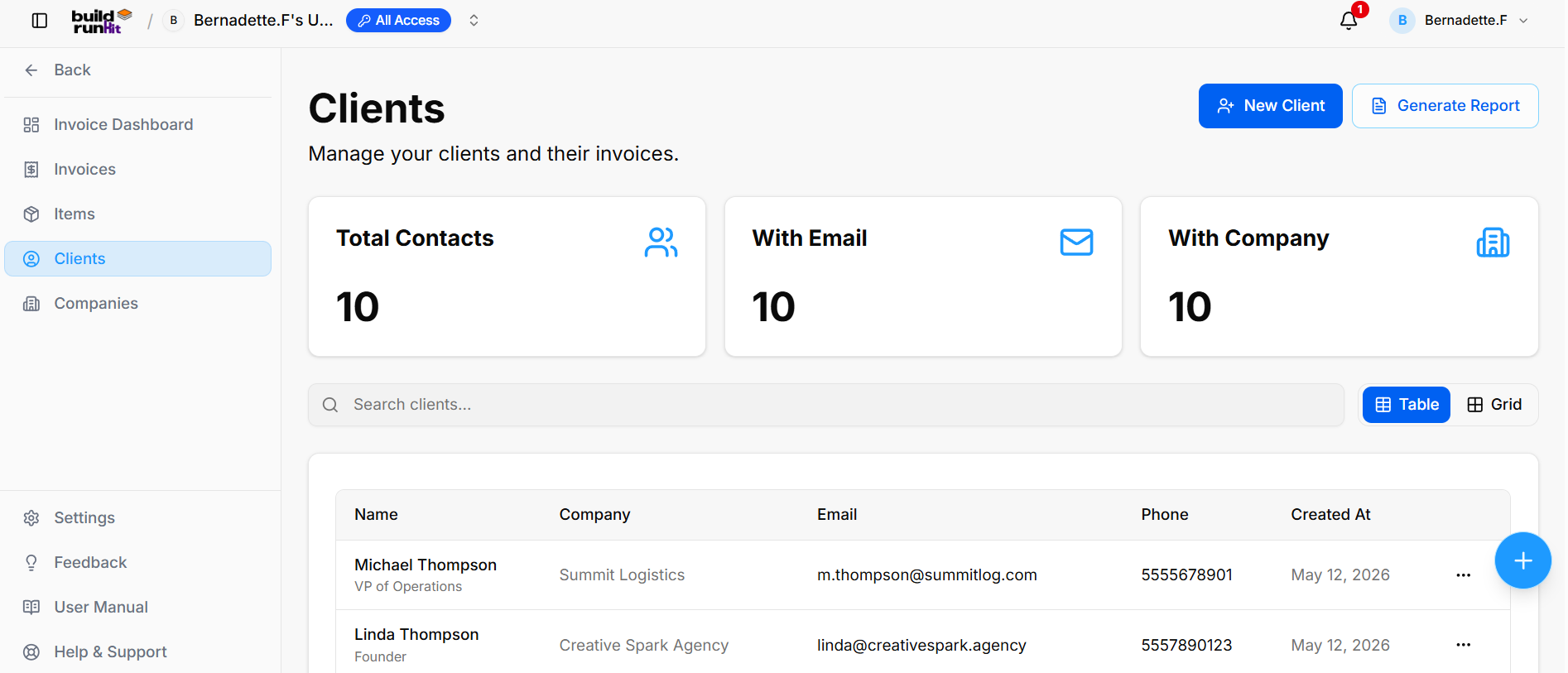
The Clients sub-section provides central directory management for client profiles, contact information, associated companies, and billing accounts.
Client Summary Metrics
Top KPI cards display key directory breakdown totals:
-
Total Contacts: Tracks the overall number of registered client profiles (e.g.,
10). -
With Email: Displays total count of client profiles with attached email addresses (e.g.,
10). -
With Company: Highlights client profiles linked to specific company records (e.g.,
10).
Directory Controls & Search Bar
-
Search clients...: Global filter input for locating clients by name, company, email, or details.
-
View Switcher: Toggle viewing modes between Table (list layout) and Grid (card layout).
Clients Table Data Columns
-
Name: Primary contact name and title/role.
-
Company: Associated organization or business entity (e.g., Summit Logistics, Creative Spark Agency).
-
Email: Primary contact email address.
-
Phone: Contact phone number (e.g., 5555678901, 5557890123).
-
Created At: Date when the client profile was created (e.g., May 12, 2026).
Row Actions Menu (...)
Clicking the three dots icon on any client row displays quick record management actions:
-
View: Opens full client profile and invoice history.
-
Edit: Opens the setup editor to update contact information or company assignment.
-
Delete: Removes the client profile from the directory.
Header & Action Buttons
-
+ New Client: Direct action button to open the client creation modal.
-
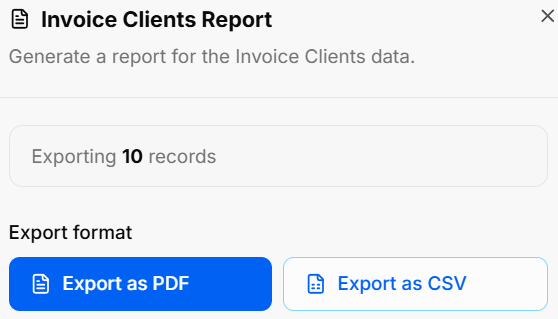
Generate Report: Opens the Invoice Clients Report export modal:
-
Export Count: Displays total targeted client records (e.g., Exporting 10 records).
-
Export Format Options: Allows instant downloads via Export as PDF or Export as CSV.
-
BuildRunKit Invoices: Creating a New Client
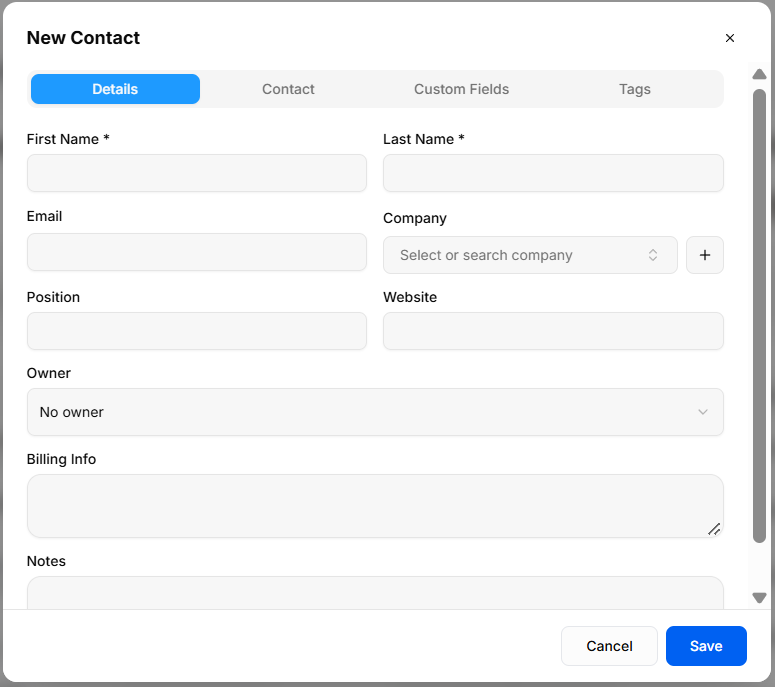
The New Contact modal provides a multi-tab interface for adding customer profiles to the Clients directory.
Details Tab
-
First Name *: Required field to enter the client's first name.
-
Last Name *: Required field to enter the client's last name.
-
Email: Text field for primary email address.
-
Company: Dropdown menu (Select or search company) to assign an existing company, or click + to quick-add a new organization.
-
Position: Text field to enter job title or role.
-
Website: Text field for organization URL.
-
Owner: Dropdown menu to assign an internal account manager (No owner).
-
Billing Info: Text area for client-specific invoicing instructions or billing addresses.
-
Notes: Text area for general internal account comments.
Contact Tab
-
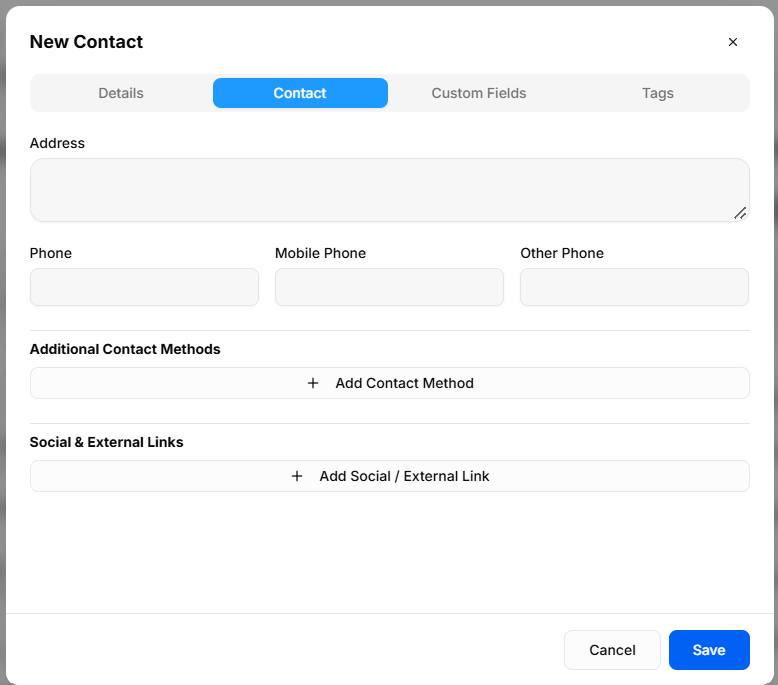
Address: Text area for primary physical or mailing address.
-
Phone: Numeric text field for landline contact.
-
Mobile Phone: Numeric text field for cell phone contact.
-
Other Phone: Numeric text field for secondary contact numbers.
-
Additional Contact Methods: + Add Contact Method button to record alternate communication channels.
-
Social & External Links: + Add Social / External Link button to attach online profiles (e.g., LinkedIn, X).
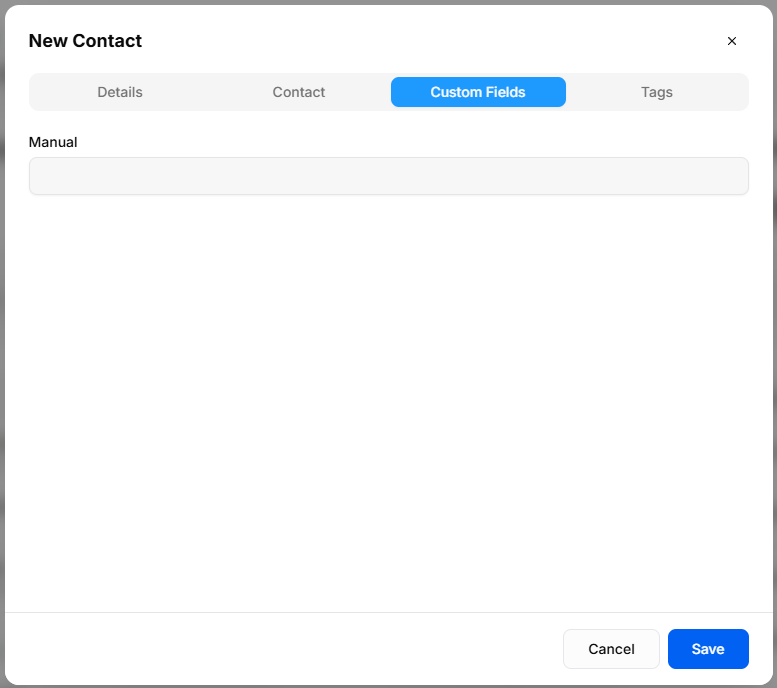
Custom Fields Tab
-
Manual: Configured text input field generated from global Custom Field settings (e.g., Manual).
Tags Tab
-
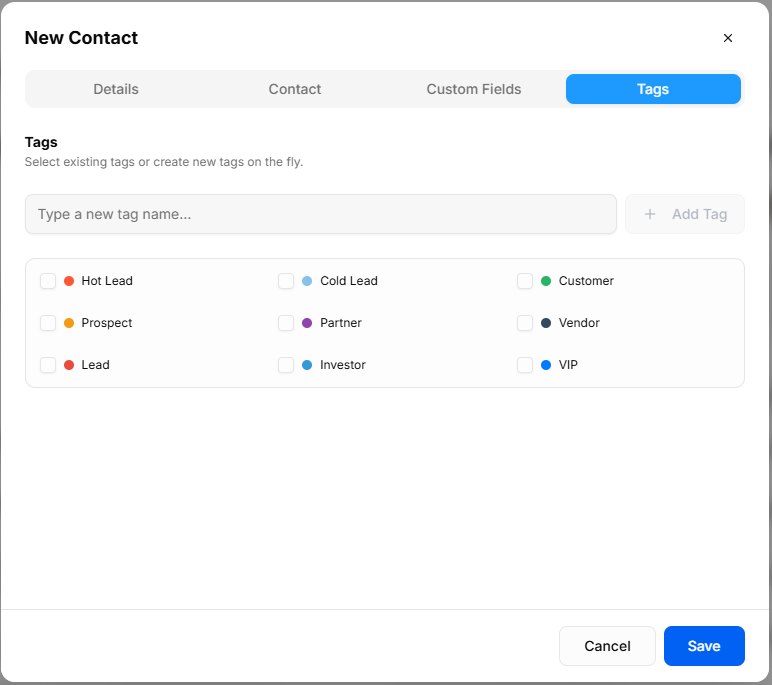
Type a new tag name...: Input field with + Add Tag button to create new tags on the fly.
-
Pre-set Tag Selection: Checkbox toggles to assign color-coded client categories (Hot Lead, Cold Lead, Customer, Prospect, Partner, Vendor, Lead, Investor, VIP).
Header & Action Buttons
-
Close (
x): Top-right button to exit overlay without saving. -
Cancel: Outline button to discard entries and close the modal.
-
Save: Primary blue button to create the client record.