
BuildRunKit CRM: Companies Sub-Section
GoldilocksBuildRunKit CRMCRM: ContactsCompanies DashboardSub-Section
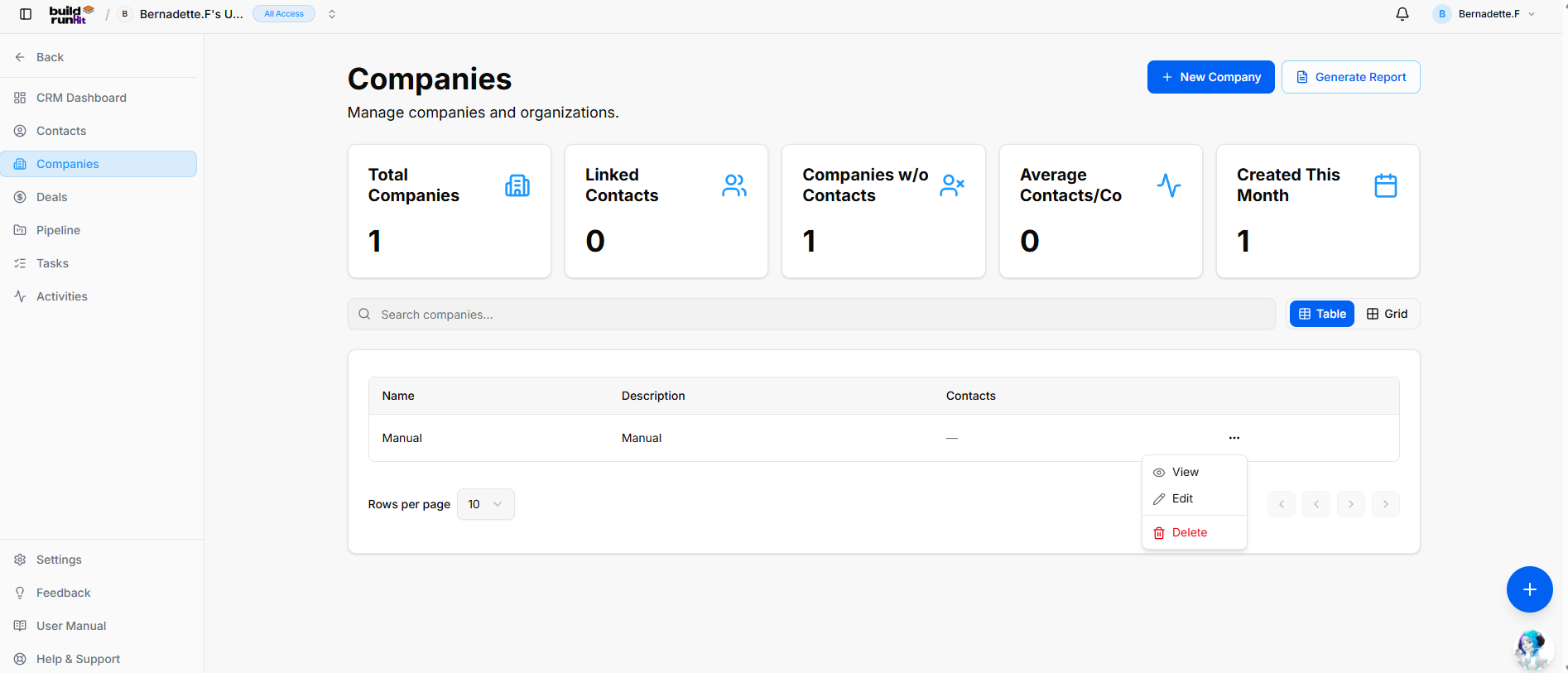
The ContactsCompanies pagesub-section is yourprovides central directoryorganizational tracking for organizingclient businesses, partner organizations, and managingparent allaccounts.
Header relationships& withinAction yourButtons
+ high-levelNew summaryCompany: ofDirect youraction databasebutton throughto fiveopen metricthe cards:company setup modal.
Generate Report: Opens the CRM Companies Report export modal:
-
TotalExportContacts:Count: Displaysthetotalabsolutetargetednumberorganizationof people in your CRMrecords (e.g.,10)Exporting 1 records). -
ActiveExportContacts:FormatTracksOptions:theAllowsnumberinstantofdownloadsindividualsviacurrentlyExportengagedasin active deals.
With Email: Shows how many records include a primary email address.
With Company: Displays the number of contacts associated with a specific business.
Tagged: Indicates how many contacts have been categorized using custom tags.
How to Add a Contact
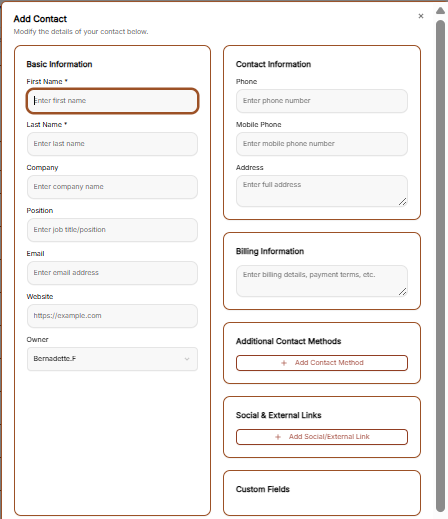
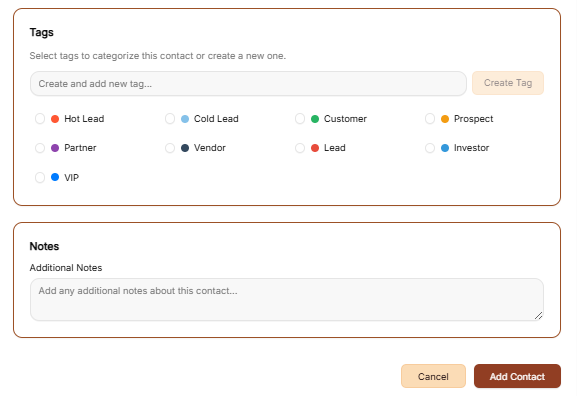
To manually enter a new individual into the system, click the brown + Add Contact button at the top right of the screen. This opens a detailed form where you can provide the following information:
Basic Information: Enter the contact’s First Name, Last Name, Company, Position, Email, and Website.
Contact & Billing: Store professional details like Phone and Mobile numbers, physical Addresses, and specific Billing Information for payments.
Social & Custom Data: Add Social & External LinksPDF or populate specialized data in the Custom Fields section.
Tags: Categorize the contact by selecting from preset options like Hot Lead, Customer, VIP, or Partner, or create your own unique tag.
Notes: Add any additional context or background information in the text field.
Finalize: Click the brown Add Contact button at the bottom of the form to save the record.
Generate Report
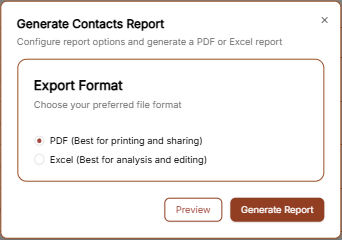
To export your contact data for external use, click the Generate Report link located next to the add contact button.
Choose Export Format:as A window will appear allowing you to select your preferred file format.
PDF: Best for printing and sharing official documents.
Excel: Best for deep data analysis and bulk editing.CSV.
Company Summary Metrics
Top KPI cards display key account breakdown totals:
PreviewTotal orCompanies: Generate: You can choose to PreviewTracks the reportoverall firstnumber orof clickregistered Generateorganization Reportprofiles.
Linked Contacts: Counts individual contact records attached across all company profiles.
Companies w/o Contacts: Identifies orphaned company records requiring contact assignment.
Average Contacts/Co: Displays the file.mean contact ratio per parent organization profile.
Created This Month: Highlights recent client onboarding growth and newly registered companies.
Directory Controls & Search Bar
Search companies...: Global filter input for locating accounts by name or description keywords.
View Switches: Toggle viewing modes between Table (list layout) and Grid (card layout).
Rows per page: Dropdown selector to control row density per page (e.g., 10 rows).
Pagination: Standard directional controls to step through company pages.
Companies Table Data Columns
Name: Primary registered company or trading entity name.
Description: High-level summary of the company's business focus or internal account notes.
Contacts: Total linked contact profiles associated with the organization.
Row Actions Menu (...)
Clicking the three dots icon on any company row displays quick record management actions:
View: Opens the dedicated company profile view showing linked contacts, attached deals, and account history.
Edit: Opens the setup editor to update organization details, company descriptions, or associated profiles.
Delete: Removes the organization record from the CRM directory.