
BuildRunKit CRM: Activities Sub-Section
GoldilocksBuildRunKit CRM: Activities Sub-Section
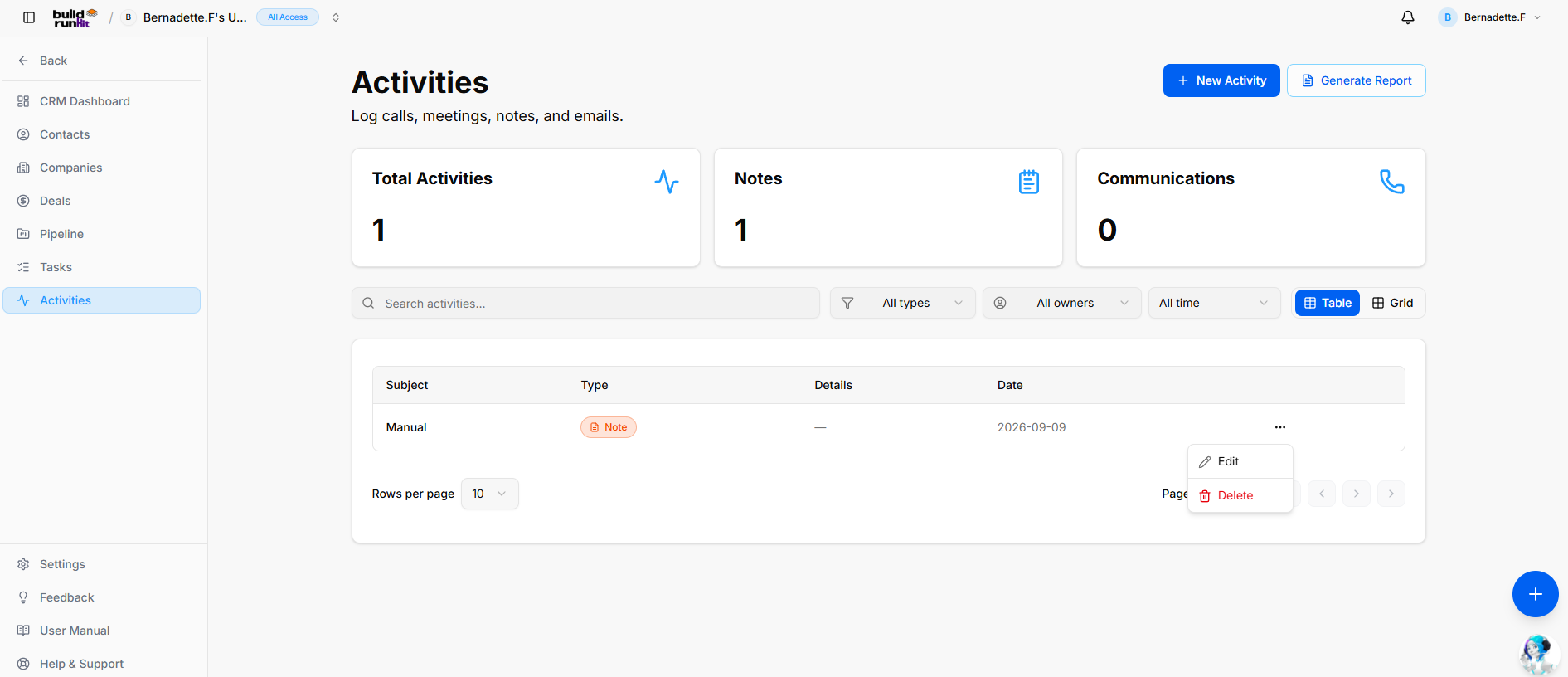
The Activities modulesub-section providestracks aclient chronologicalinteractions, logincluding oflogged everycalls, interactionmeetings, internal notes, and systememail update within your workspace, ensuring you have a complete history of your engagement with contacts and deals.records.
Activities
Header Dashboard& OverviewAction
TheButtons
-
Total+Activities:NewTheActivity:overallOpenscounttheofactivityalllogginglogged interactions.modal. -
Calls:GenerateSpecificallyReport:tracksOpens thenumberCRMofActivitiesphoneReportinteractions recorded.
Notes: Displays the count of text-based updates or internal memos saved.
Emails: Tracks the number of email communications logged in the system.
Meetings: Shows the total number of scheduled or completed appointments.
Managing the Activity Log
Use the following tools to organize your history and find specific records:
Search Bar: Quickly find specific interactions by searching for keywords within the notes or activity titles.
Filtering: Use the All Types and All Owners dropdown menus to narrow the log down to specific interaction categories or team members.
Activity List: Each entry in the list displays the interaction type (e.g., Call), a brief summary (e.g., "Follow up on GoldilocksCRM activities import"), and a timestamp of when it occurred.
How to Add an Activity
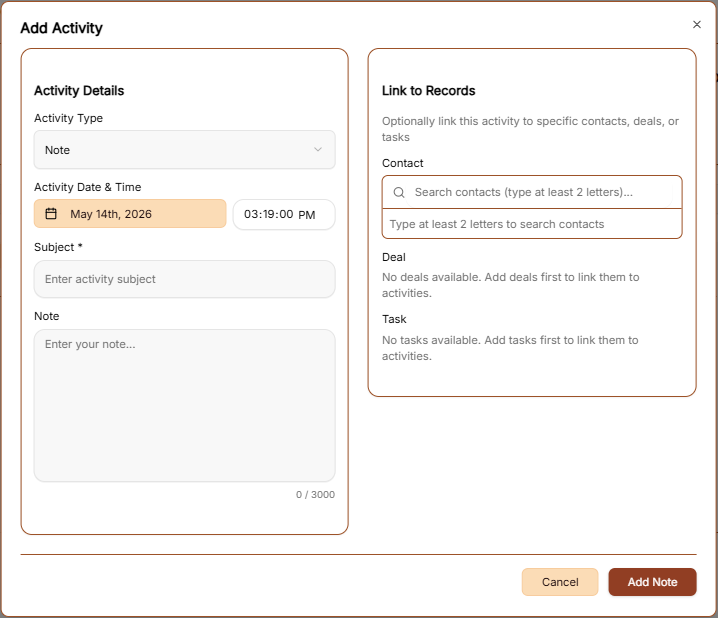
To manually record a new interaction, click the brown + Add Activity button at the top right. This opens a configurationexport window:
-
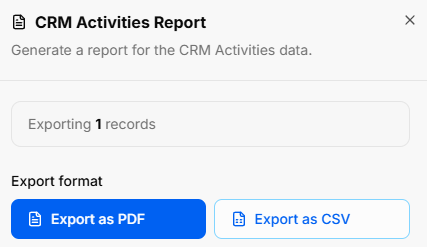
Export Count: Displays total targeted activity records (e.g., Exporting 1 records).
Export Format Options: Exports data instantly using Export as PDF or Export as CSV.
Activity Title:Summary EnterMetrics aTop briefKPI namecards fordisplay cumulative interaction counts:
Total Activities: Counts all registered logs across categories.
Notes: Displays total standalone internal notes.
Communications: Tracks direct client interactions, such as calls, meetings, and emails.
Directory Controls & Search Bar
Search activities...: Text input to filter logs by subject or keyword.
All types Dropdown: Filters activities by log category (e.g., Note, Call, Meeting, Email).
All owners Dropdown: Filters entries by assigned workspace team member.
All time Dropdown: Filters records by specific date ranges.
View Switches: Toggles between Table (list view) and Grid (card view) layouts.
Rows per page & Pagination: Controls visible row density and steps through multi-page logs.
Activities Table Data Columns
Subject: The headline title describing the logged interaction.
ActivityType: Type:Visual Usebadge the dropdown to categorizecategorizing the entry type (e.g., Call, Meeting, Email, or Note)Note).
DateDetails: &Brief Time:text Setpreview or full summary of the exact timing of when the activity took place.activity.
Notes:Date: AddThe detailedlogged contextcompletion ordate specific(formatted outcomesas from the interaction.YYYY-MM-DD).
Connections:Row LinkActions Menu (...): Quick management options for individual entries:
Edit: Opens the setup editor to update activity details, subjects, or dates.
Delete: Removes the record from the activity log.
BuildRunKit CRM: Logging a New Activity
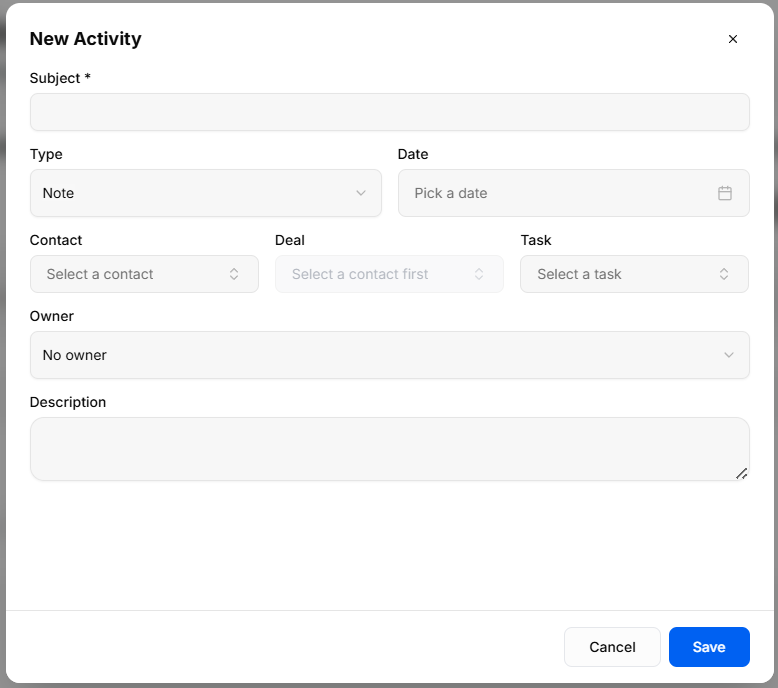
Clicking the + New Activity button opens a setup modal to log interactions and record updates:
Subject *: Required text field to enter the activity headline or topic.
Type: Dropdown selector to classify the activity (Note, Call, Email, or Meeting).
Date: Date picker input to log when the interaction occurred.
Contact: Dropdown menu to link the activity to a specific Contactclient or Deal to ensure it appears in their respective histories.record.
AddDeal: Activity:Dropdown menu to associate the entry with a specific sales opportunity (requires selecting a contact first).
Task: Dropdown menu to associate the activity with a related task item.
Owner: Dropdown selector to assign activity logging responsibility to a team member in your workspace.
Description: Multi-line text field for detailed meeting notes, email copies, or interaction summaries.
Modal Actions: Click theCancel brownto buttondiscard ator Save to log the bottom right to save theactivity record.
Generate
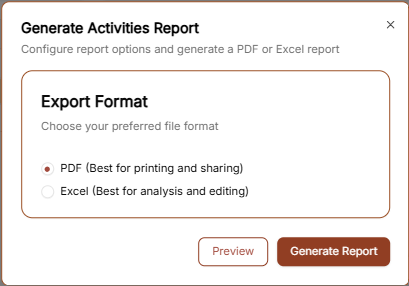
To export your interaction history, click the Generate Report link in the top right corner.
Export Format: Select between PDF for a clean visual log or Excel for detailed data review.
Action: Choose Preview to see the layout or Generate Report to download the final file.