
Admin & Operations Stage
Admin & Operations Stage
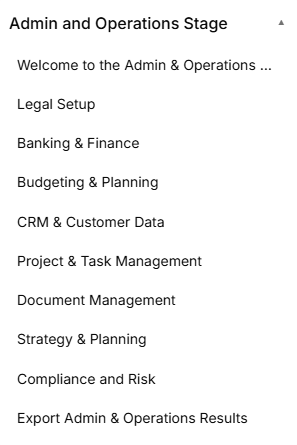
The Admin & Operations Stage is the structural phase of the roadmap, broken down into distinct sequential sub-stages accessed via the left-hand sidebar dropdown:
-
Sub-Stage 1: Welcome to the Admin & Operations Stage
-
This is the initial onboarding landing view that provides corporate setup context, introductory media, and operational overviews before legal structural work begins.
-
-
Sub-Stage 2: Business Structure
-
The second item listed within the administrative sequence, focusing on legal entity formats. (Content details pending system view selection).
-
-
Sub-Stage 3: Legal Requirements
-
The third item listed within the administrative sequence, tracking foundational legal guidelines. (Content details pending system view selection).
-
-
Sub-Stage 4: Operational Workflows
-
The fourth item listed within the administrative sequence, managing daily structural procedures. (Content details pending system view selection).
-
-
Sub-Stage 5: Export Admin & Operations Results
-
The final technical milestone within this phase, concluding the operational documentation sequence before next stage parameters unlock. (Content details pending system view selection).
-
Stage Controls
Sub-Stage 1: Welcome to the Admin & Operations Stage
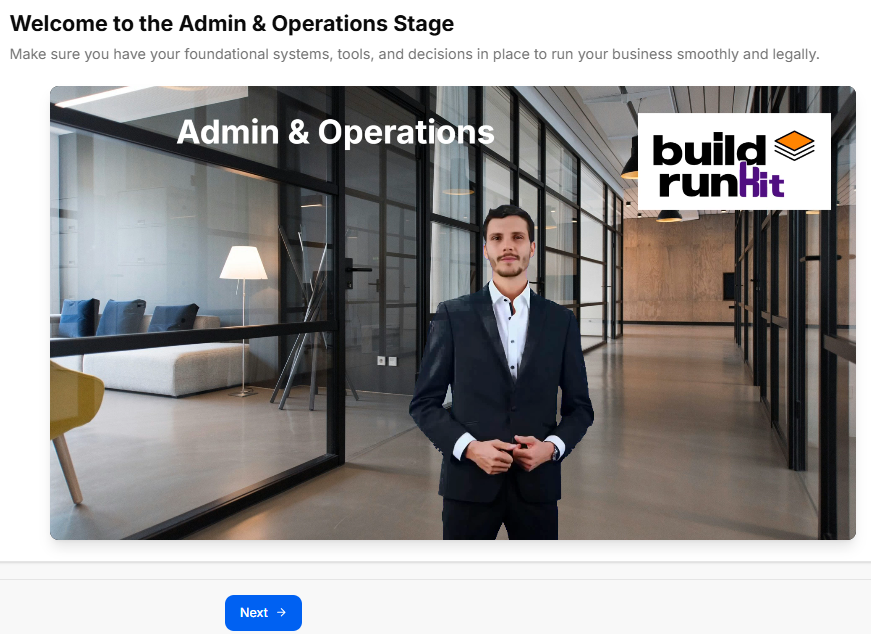
This sub-stage serves as the welcome landing screen for the administrative and operational setup phase. It establishes an overview of the core legal, financial, and procedural steps required to construct a firm corporate infrastructure.
Canvas Layout & Workspace Components
-
Main Workspace Title: Displays "Welcome to the Admin & Operations Stage".
-
Instructional Subtitle: “Get an overview of the Admin & Operations process and learn how this stage will help you set up your business structure, legal requirements, and operational workflows.”
-
Operations Launch Media Panel: Features a full-width workspace graphic or video element set in an open modern office environment. The media layout showcases the clean title card text "Admin & Operations" on the upper-left section and incorporates the official buildrunkit logo badge on the upper-right corner.
Navigation Controls
-
Next Button: A solid blue Next → navigation action button is centered directly below the primary media display card to lock in the stage preview and proceed smoothly to Sub-Stage 2 (Business Structure).