
Strategy Mind Maps Sub-Section
Strategy Hub:Mind SimpleMaps Notes ModuleSub-Section
The Simple Notes module within the Strategy HubMind enablesMaps yousub-section toprovides organize,a track,directory and managevisual yourworkspace operationalfor action items using structured note directoriesbrainstorming and documentmapping environments.out ideas interactively.
Managing
Create NotesNew Boards
Mindmap Board
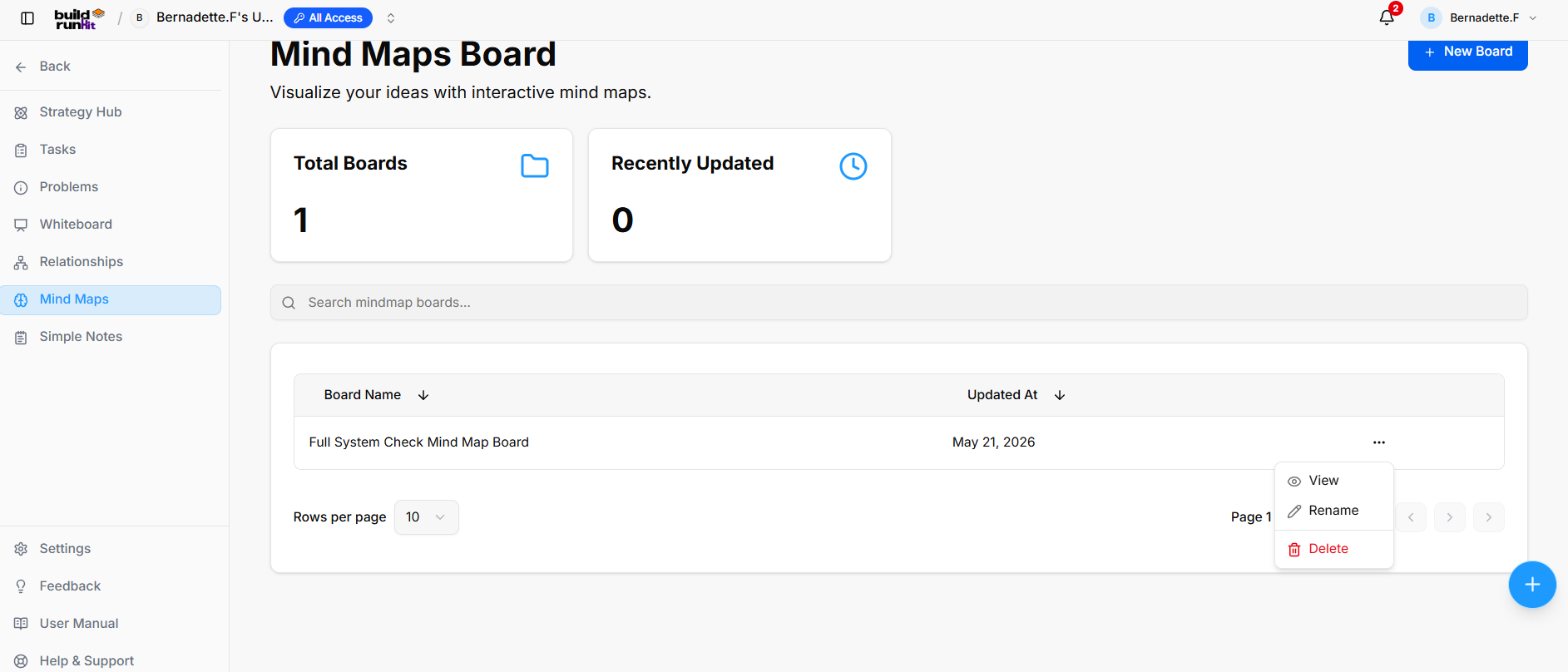
When you enter the Simple Notes module, you are presented with a global directory of your active planning environments: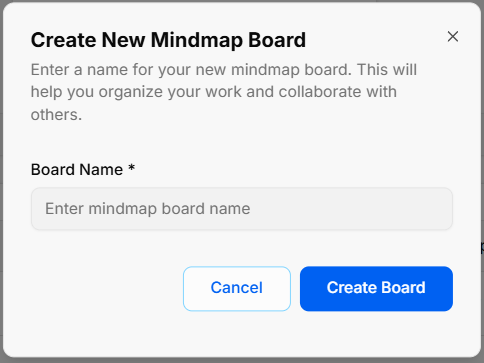
-
CreatingOpena Board:Modal: Click the blue + New Board buttonat the top right to start a fresh project environment.
Board Directory View: Track active spaces like your Simple Notes board or Full System Check Notes Board, along with their last relative modification date under the Updated At column.
Filtering & Columns: Use the top text bars to search specific project names. Use the Columns dropdown tool to show or hide parameters like Name, Updated_at, or Actions.
Board Context Menu: Clicking the three dots icon (...) on the right side of any individual board row opens control configurations for that board.
Inside a Simple Notes Board
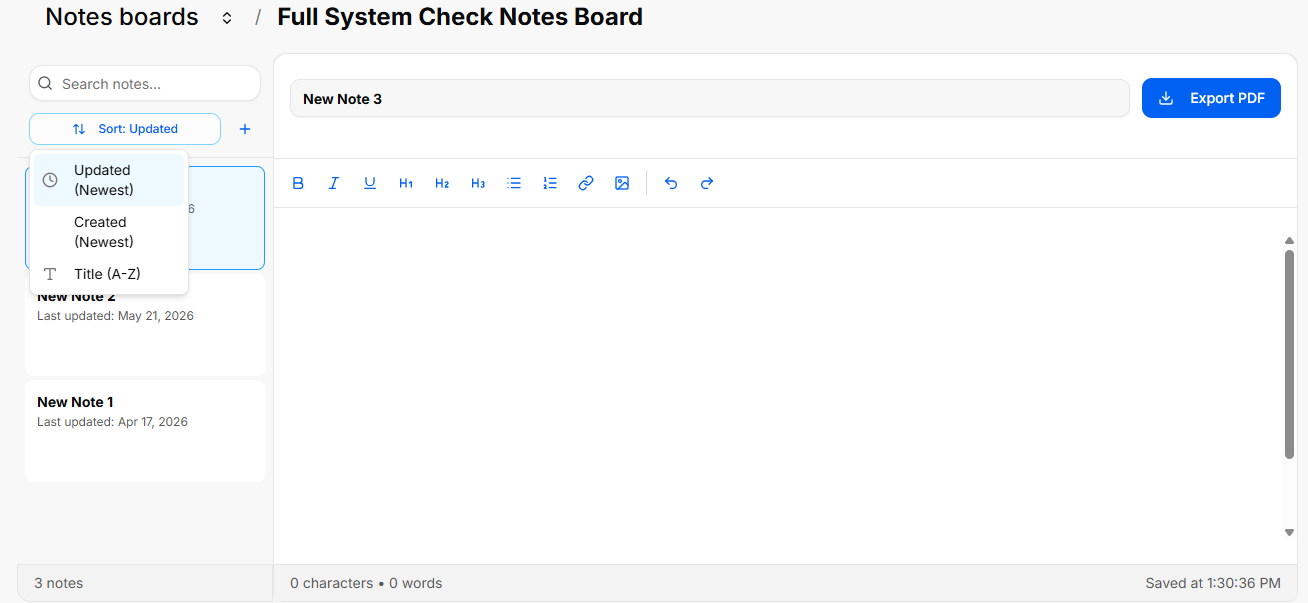
When you select and open an individual notes board from your directory, you enter a split-screen document editor environment designed to create, filter, and write detailed records.
Canvas Layout & Header Controls
The top header of an active notes board keeps track of your location and provides options to download your text files:
Breadcrumb Navigation: The top left displays your current navigation track, showing Notes boards next to a selector arrow pointing to the active board title (e.g., Full System Check Notes Board).
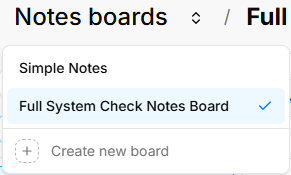
Quick Switch Dropdown: Clicking the up and down arrow icon directly next to "Notes boards" opens a quick selection menu to swap between your different notes directories without having to go back to the main menu page.
Export PDF: A blue button located at the top right of the editormain workspacedirectory allowsview.
Enter Board Name: Type your title into the required Board Name * field (Enter mindmap board name).
Confirm Creation: Click Create Board to immediately export and downloadgenerate your activenew notemind documentmap ascanvas, aor PDFselect file.Cancel to close without saving.
The
Overview NotesMetrics Sidebar& Search
Total Boards: Displays the total count of mind map boards available in your workspace.
Recently Updated: Displays the number of mind map boards modified recently.
Search Bar: Input field (Search mindmap boards...) to filter boards by title.
Board Directory Table
Table Columns: Displays existing boards organized under Board Name and Updated At headers (with sorting arrows).
Row Quick Menu (Left...): Panel)
Themenu lefton sideboard ofrows theproviding workspaceoptions acts as a navigation column to search, organize, and toggle through the documents assigned to this specific board:to:
-
SearchView:Bar: A text search box labeled Search notes... allows you to look up existing documents insideOpen theboardselectedbymindtypingmapkeywords from their titles.canvas. -
SortRename:Dropdown: ClickingChange theSorttitlebuttonofopenstheamindconfigurationmapfilter layout to rearrange how your document list is organized. It features three sorting criteria options: Updated (Newest)board.-
PermanentlyCreatedDelete:(Newest)
Titlemind (A-Z)map board.
AddPagination Note Button (Plus Icon)Controls: ClickingAdjust items displayed per page using the blueRows +per iconpage directlydropdown toor step through pages using the rightnavigation of the sort dropdown creates a brand-new blank document inside the directory folder.arrows.
Strategy Mind Maps
Board Header & Workspace Controls
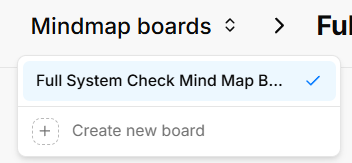
DocumentMindmap Cards:Boards IndividualSelector: textDropdown logsmenu are listed vertically as clickable preview cards showingdisplaying the cardactive titleboard name (e.g.,Full System Check Mind Map Board) with options to switch between existing boards or click + Create new board.
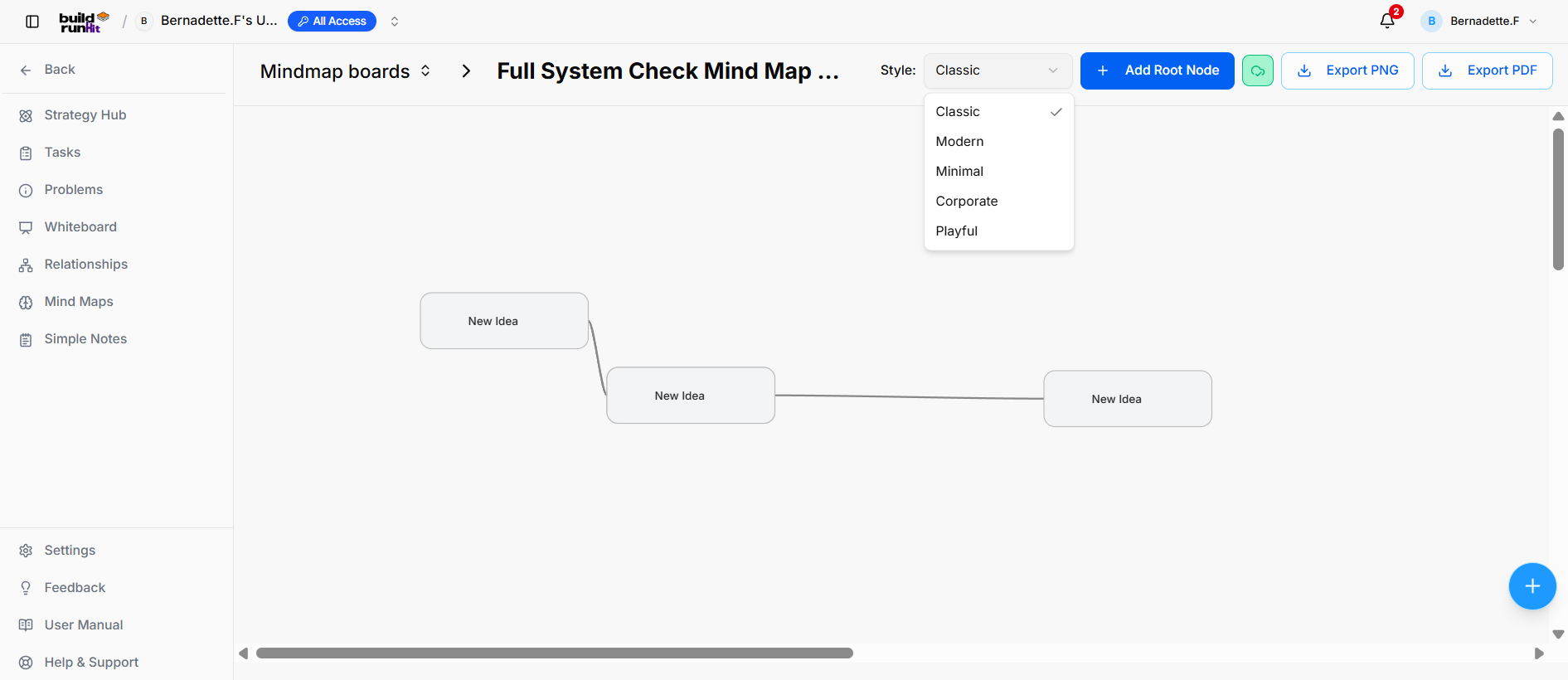
Style Selector: Dropdown menu to customize board themes (New Note 3Classic, New Note 2Modern, New Note 1Minimal) and a subtitle logging its exact relative save status date (e.g., LastCorporate, updated: May 21, 2026Playful).
Live+ Counter:Add TheRoot veryNode: bottomPrimary ofaction button to create a main central idea node on the leftcanvas.
Export folderOptions: volumeAction withbuttons ato static counter showingdownload the exactmind totalmap numbersas ofExport documentsPNG storedor insideExport the active board (e.g., 3 notes)PDF.
The
Node RichElements Text& EditorAction (Right Panel)
Controls
Selecting any card from the sidebar opens its contents inside the primary workspace panel on the right: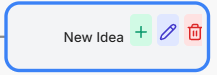
-
DocumentIdeaTitleNode:Input: A prominent text box located at the top of the workspace allows you to add or modify the title of your activeVisual cardtextcontainerdocumentrepresenting individual concepts (e.g.,NewNote 3Idea). -
TextAddFormattingChildToolbar:NodeA(+):horizontalGreenutilitybuttonbarwithfloatsa plus sign to extend a new sub-node directlyaboveconnected to themainparenttext workspace area to give you text-styling options: B: Boldnode.-
IEdit Node (Pencil Icon):ItalicBlue/purple button with a pencil icon to modify the node text label. -
NodeU:DeleteUnderline
H1 / H2 / H3: Main headers and subsection headers styling options
Bullet Points: Bullet list toggleRed button
Numberedtrash List:icon Numberedto list tracking toggle button
Link (Chain-link Icon): Insert hyperlinked text parameters
Image (Picture Icon): Insert external image variables into your text canvas
Undo / Redo (Arrows): Backtrack text entries or restore modifications onremove the flyselected node from the canvas layout.
Editor Stats Footer: The footer bar running along the bottom edge of the document workspace tracks your formatting updates live:
Counters: Displays real-time content size variables on the left side of the row (e.g., 0 characters • 0 words).
Auto-Save Status: Displays a confirmation timestamp indicator on the right edge of the row tracking exactly when the system last secured your updates.