
Orientation Stage
Orientation Stage
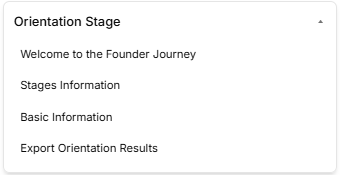
The Orientation Stage is the introductory phase of the roadmap, broken down into four distinct sequential sub-stages accessed via the left-hand sidebar dropdown:
Sub-Stage 1: Welcome to the Founder Journey
This is the initial onboarding landing view that provides context, introductory media, and directional cues before operational work begins.
Sub-Stage 2: Stages Information
The second item listed within the orientation sequence. (Content details pending system view selection).
Sub-Stage 3: Basic Information
The third item listed within the orientation sequence. (Content details pending system view selection).
Sub-Stage 4: Export Orientation Results
The final technical milestone within the initial phase, concluding the orientation sequence before transition parameters unlock. (Content details pending system view selection).
Stage Controls
-
Next Button: A blue Next → link utility centered at the bottom of the active frame allows the user to
clicksavethroughcurrentthe active text contentsprogress or cycle sequentially to the next sub-stage item.
Sub-Stage 1: Welcome to the Founder Journey
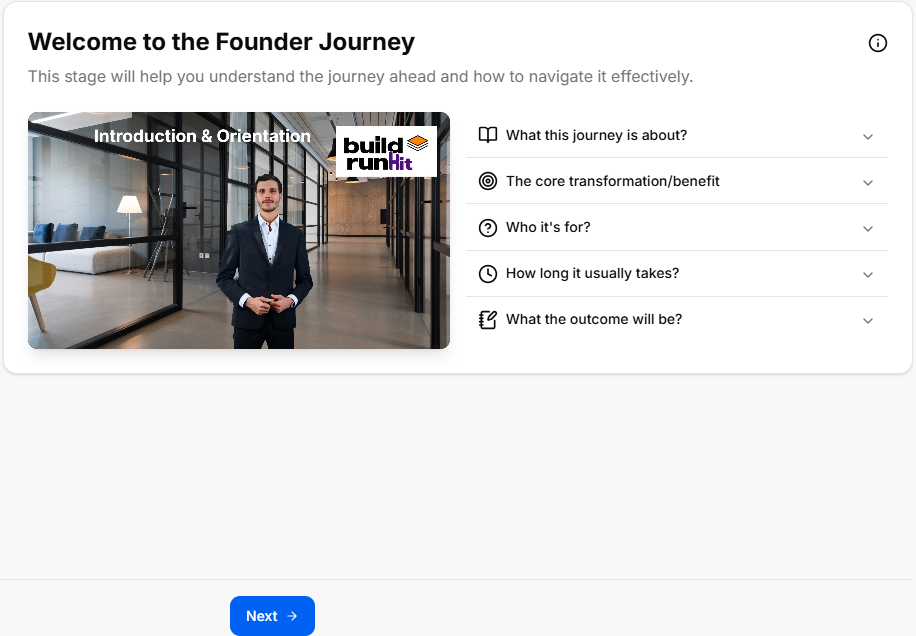
This is the initial onboarding sub-stage screen that gives users their first introductory look, informational context, and directional clues before moving forward into the deeper stages of the roadmap.
Canvas Layout & Workspace Components
-
Main Workspace Title: Prominently displays "Welcome to the Founder Journey" alongside a helpful subtitle: “This stage will help you understand the journey ahead and how to navigate it effectively.”
-
Orientation Media Panel: Features a large central multimedia layout titled Introduction & Orientation, featuring an introductory layout badged directly with the official buildrunkit brand logo.
-
Introductory Information Cards: A vertical stack of five expandable accordion style rows sits directly to the right of the media panel. These are designed to give users a quick clue about the roadmap's purpose before starting:
-
What this journey is about?: Explains that whether starting from zero or with prior business experience, this acts as a companion to guide you, record your progress, and compile your choices into a final document.
-
The core transformation/benefit: Clarifies the goal is to ensure you consider every necessary step to get a product out the door, bringing documentation and peace of mind that major decisions are locked in.
-
Who it's for?: Notes the track is built for aspiring founders, active founders, or existing business owners looking to optimize or tune up their operational gaps.
-
How long it usually takes?: Sets a realistic timeframe warning that it can take anywhere from 45 minutes to two weeks or more depending on how thoroughly you step through the phases.
-
What the outcome will be?: Confirms that completing the journey builds a comprehensive summary PDF detailing your discovery process, business structure choices, brand kits, targeted market research, financial/legal steps, and market strategies.
-
Navigation Controls
Sub-Stage 2: Stages Information
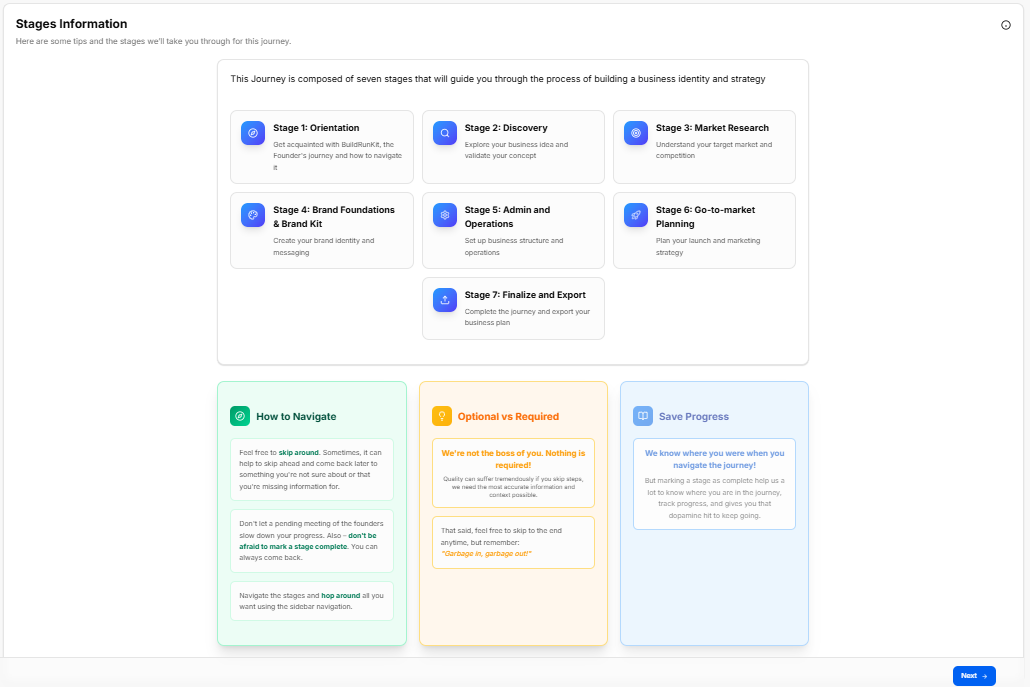
This sub-stage screen provides a complete structural map of the seven core phases that build a business identity and strategy, combined with platform navigation tips.
Canvas Layout & Workspace Components
-
Main Workspace Title: Displays "Stages Information" with the introductory subtitle: “Here are some tips and the stages we'll take you through for this journey.”
-
Journey Architecture Overview Panel: A large centralized block explicitly detailing the framework structure: “This Journey is composed of seven stages that will guide you through the process of building a business identity and strategy”.
-
The Seven Stage Cards:
-
Stage 1: Orientation: Get acquainted with BuildRunKit, the Founder's journey and how to navigate it.
-
Stage 2: Discovery: Explore your business idea and validate your concept.
-
Stage 3: Market Research: Understand your target market and competition.
-
Stage 4: Brand Foundations & Brand Kit: Create your brand identity and messaging.
-
Stage 5: Admin and Operations: Set up business structure and operations.
-
Stage 6: Go-to-market Planning: Plan your launch and marketing strategy.
-
Stage 7: Finalize and Export: Complete the journey and export your business plan.
-
Platform Guidance Cards (Bottom Panel)
Three distinct vertical layout columns sit at the bottom of the interface to guide data entry behaviors:
Navigation Controls
Sub-Stage 3: Basic Information
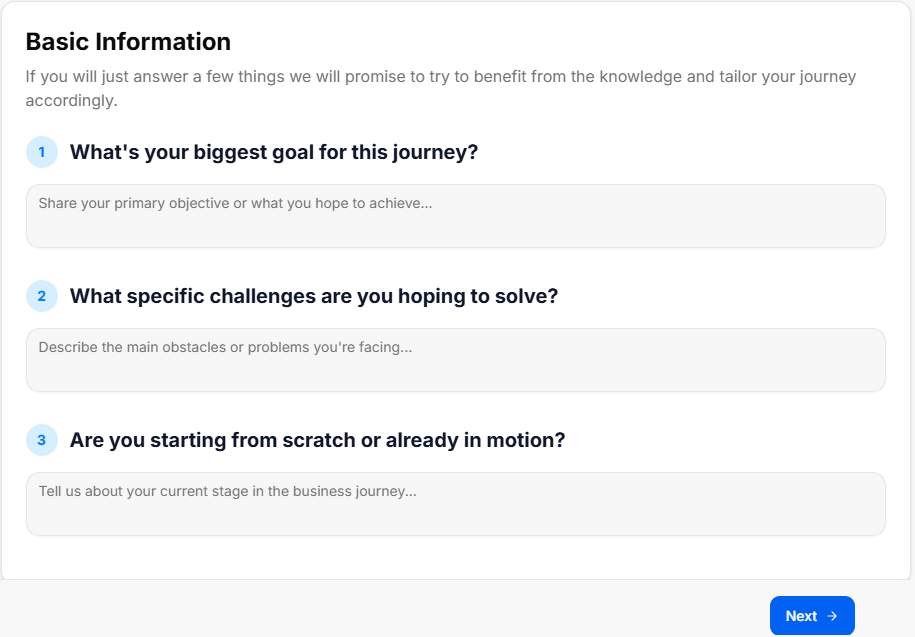
This sub-stage screen functions as an initial onboarding intake form, collecting foundational context from the founder to tailor the rest of the strategic journey.
Canvas Layout & Workspace Components
-
Main Workspace Title: Displays "Basic Information" with an introductory promise statement: “If you will just answer a few things we will promise to try to benefit from the knowledge and tailor your journey accordingly.”
-
Question 1: Objective Tracking:
-
Label: "1. What's your biggest goal for this journey?"
-
Input Field: A multi-line text container with the placeholder instruction: “Share your primary objective or what you hope to achieve...”
-
-
Question 2: Pain Point Analysis:
-
Label: "2. What specific challenges are you hoping to solve?"
-
Input Field: A multi-line text container with the placeholder instruction: “Describe the main obstacles or problems you're facing...”
-
-
Question 3: Operational Status Identification:
-
Label: "3. Are you starting from scratch or already in motion?"
-
Input Field: A multi-line text container with the placeholder instruction: “Tell us about your current stage in the business journey...”
-
Navigation Controls
-
Next Button: A blue Next → button is anchored at the bottom right corner of the window to log the text input parameters and transition forward to the final orientation sub-stage (Export Orientation Results).
Sub-Stage 4: Export Orientation Results
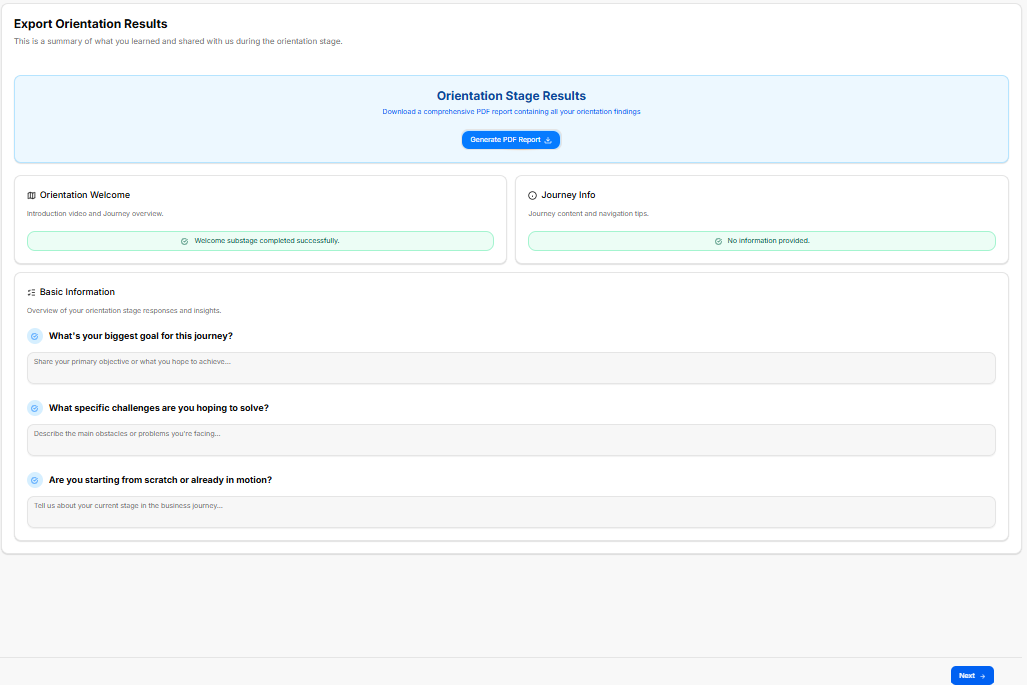
This is the final sub-stage milestone of the Orientation Stage, providing a comprehensive audit log of the user's initial onboarding actions, input parameters, and platform documentation options before unlocking the next major journey stage.
Canvas Layout & Workspace Components
-
Main Workspace Title: Displays "Export Orientation Results" with the dynamic header subtitle: “This is a summary of what you learned and shared with us during the orientation stage.”
-
Document Generation Panel: A stylized light-blue callout card spanning the top of the workspace labeled Orientation Stage Results:
-
Description: Prompts the user to “Download a comprehensive PDF report containing all your orientation findings”.
-
Action Button: Features a centered blue Generate PDF Report action key accompanied by a download icon.
-
-
Sub-Stage Completion Logs (Split Grid): Two parallel tracking blocks display completion verifications for the introductory screens:
-
Orientation Welcome Block: Titled “Introduction video and Journey overview.” It presents a green status alert bar confirming:
✓ Welcome substage completed successfully. -
Journey Info Block: Titled “Journey content and navigation tips.” It displays a secondary system notification indicator reading:
✓ No information provided.
-
Basic Information Summary Hub
A unified response panel titled Basic Information presents a read-only historical overview of the data insights entered by the founder during Sub-Stage 3 (Overview of your orientation stage responses and insights.):
-
Goal Audit Row:
-
Label:
✓ What's your biggest goal for this journey? -
Data Block: Displays the captured multi-line text block entry summarizing primary objectives.
-
-
Challenge Audit Row:
-
Label:
✓ What specific challenges are you hoping to solve? -
Data Block: Displays the captured multi-line text block entry mapping core business obstacles.
-
-
Status Audit Row:
-
Label:
✓ Are you starting from scratch or already in motion? -
Data Block: Displays the captured multi-line text block entry noting current operational standing.
-
Navigation Controls
-
Next Button: A blue Next → navigation action button is anchored at the bottom right corner of the window to commit all orientation findings and transition past Stage 1 into the Discovery Stage directory list.