
Goldilocks CRM Dashboard
Goldilocks CRM Dashboard
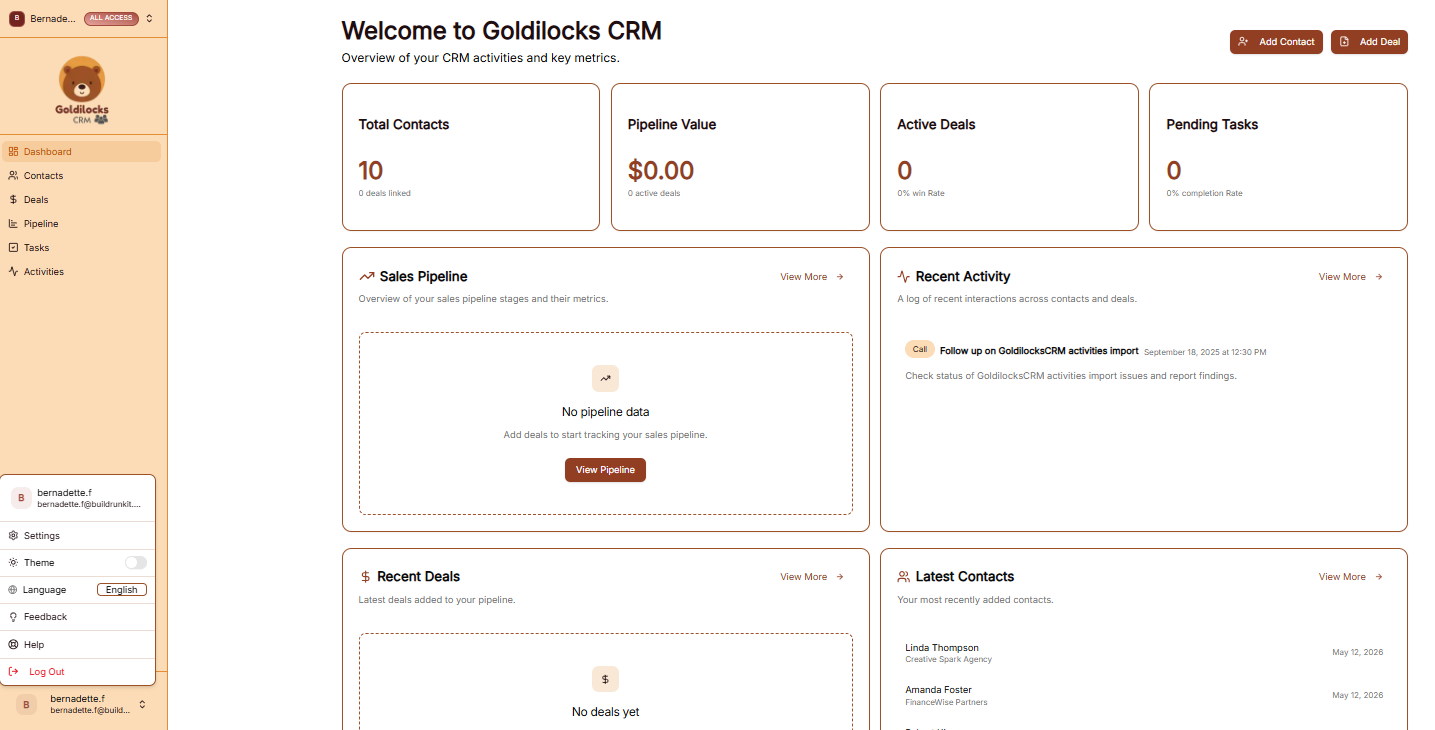
Once you have successfully signed in, you will be greeted by the Dashboard. This page is designed to give you an "at a glance" view of your latest sales activity and provide fast jumps into your most important CRM workflows.
Managing Your Workspace
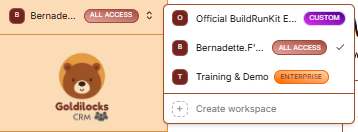
At the very top of the left sidebar, you will see your current workspace name. BuildRunKit allows you to manage multiple business environments from a single account.
How to Switch Workspaces:
-
Click the Workspace Selector: Click on the workspace name at the top of the sidebar (e.g., "Bernade...").
-
Select from the List: A dropdown menu will appear showing all workspaces you have access to, such as "Official BuildRunKit Employee Workspace" or "Training & Demo".
-
Instant Switch: Click on the desired name to instantly switch all data (Contacts, Deals, and Tasks) to that workspace.
-
Create New: You can also click "+ Create workspace" at the bottom of this menu to start a brand new business environment.
Activity Overview Cards
The top cards provide a quick count of your latest synced data and performance:
-
Total Contacts: Total count of people and clients in your database.
-
Pipeline Value: The total financial value of all your active deals.
-
Active Deals: The number of current sales opportunities and your win rate.
-
Pending Tasks: The count of upcoming work items and your completion rate.
Quick Action Sections
-
Sales Pipeline: View your progress through various sales stages. Click "View Pipeline" to manage your active deals.
-
Recent Activity: A live log of your latest interactions, including calls and system updates with specific timestamps.
-
Recent Deals: View newly created opportunities. If empty, click "Add Deal" at the top right to start.
-
Latest Contacts: See a list of newly added contacts, their company names, and their creation dates.
Navigation Sidebar
-
Dashboard: Returns you to this overview page.
-
Contacts: Access your full client and lead directory.
-
Deals: Manage your sales opportunities and revenue.
-
Pipeline: View and customize your sales workflow stages.
-
Tasks: View and manage your assigned action items.
-
Activities: Review the full history of interactions across your workspace.