
Feedback, Help & Support Navigation
Feedback, Help & Support Navigation
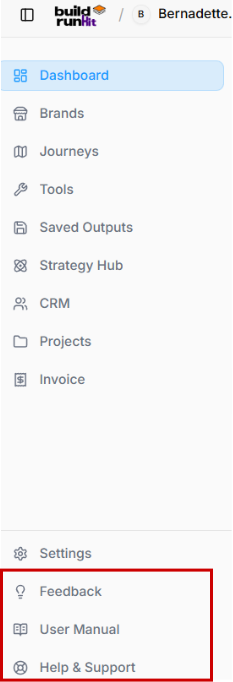
Sidebar Support & Resources Navigation
The lower section of the primary navigation sidebar groups administrative configuration, direct user feedback channels, user guides, and customer support resources.
-
Feedback (Lightbulb Icon): Opens an interactive portal to submit feature requests, share usability feedback, or report operational performance issues.
-
User Manual (Open Book Icon): Directs to step-by-step user documentation and instructional guides covering platform features and workflows.
-
Help & Support (Lifebuoy Icon): Launches the main support hub for direct technical assistance, live help options, and troubleshooting resources.
Give Us Feedback
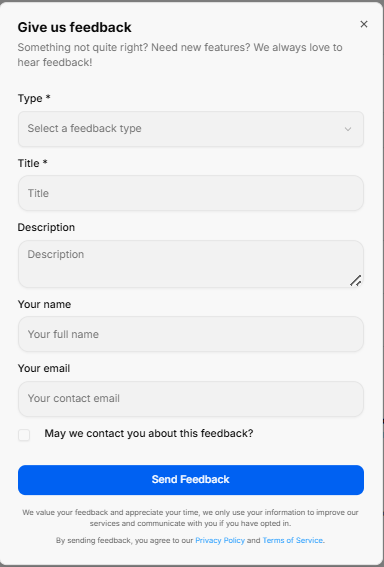
The Give us feedback portal opens as a dedicated pop-up modal designed to collect user input, feature requests, and system evaluations directly.
1. Feedback Input Fields
The submission form contains structured fields to accurately categorize and detail user input:
-
Type: A required dropdown menu to select the specific category of input, such as choosing a feature idea.
-
Title: A required text field to provide a brief, high-level summary of your input.
-
Description: A multi-line text area to expand on your idea, issue, or enhancement request with full context.
-
Your name: An optional text block to enter your full identification name.
-
Your email: An optional field to input your primary contact email address for follow-up correspondence.
2. Permissions & Execution
-
Contact Permission: A checkbox labeled May we contact you about this feedback? allows you to opt into direct follow-up communications regarding your submission.
-
Send Feedback: A solid blue action button centered at the base to execute and submit the form data to the support team.
Support Center
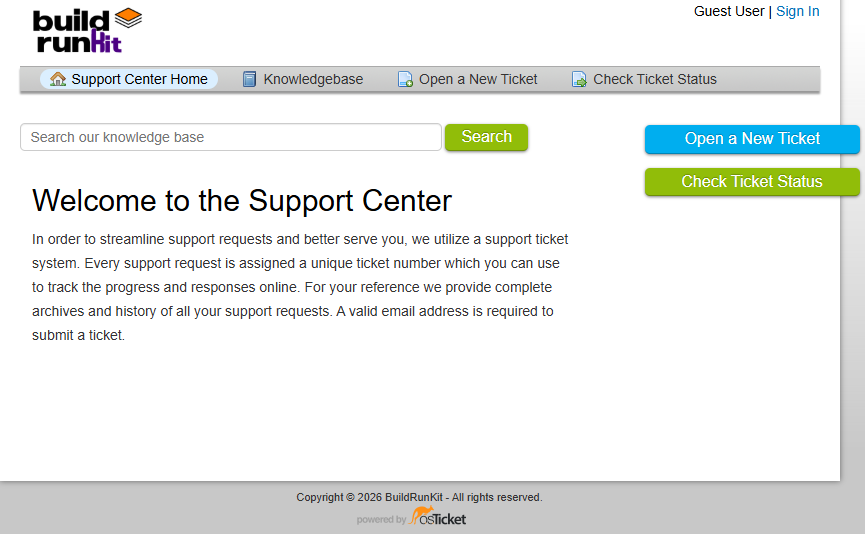
The Support Center is a dedicated external portal designed to streamline assistance requests and provide self-service documentation. It operates on a structured ticketing system to track, archive, and manage technical inquiries.
1. Main Navigation Header
The upper dashboard contains a persistent menu bar to jump between standard support desks:
-
Support Center Home: Navigates back to the main welcome dashboard landing page.
-
Knowledgebase: Opens a repository of self-service articles, setup documentation, and platform user guides.
-
Open a New Ticket: Toggles the submission form to file a new technical assistance request.
-
Check Ticket Status: Opens a login and tracking screen to check the history or updates of an active request.
-
Authentication Links: Located in the top right corner, allowing users to sign in or view their profile status.
2. Search Engine & Core Features
-
Knowledge Base Search: A prominent search bar sits beneath the header navigation. Users can type keywords, tools, or errors directly into the input line and click the green Search button to query documentation.
-
Ticketing System Overview: To maintain organization and response quality, every submitted request is instantly assigned a unique ticket number. This reference string allows you to review historical archives, monitor progress, and read technician responses online. A valid email address is mandatory to lodge a ticket.
3. Direct Action Sidebar
Two high-visibility action buttons are anchored on the right side of the layout for fast access:
-
Open a New Ticket: A bright blue tab providing an immediate shortcut to create a help request.
-
Check Ticket Status: A green tab offering a quick shortcut to log in and look over active ticket histories.