
Discovery Stage
Discovery Stage
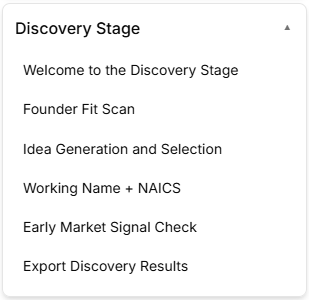
The Discovery Stage focuses on exploring, refining, and validating your foundational core business concept. Expanding this section in the left sidebar dropdown menu reveals six distinct, sequential operational sub-stages that must be processed:
Sub-Stage 1: Welcome to the Discovery Stage
The initial gateway layout for this phase, introducing the core validation objectives and structuring expectations before active data logging begins.
Sub-Stage 2: Founder Fit Scan
A self-assessment module designed to evaluate how closely your personal background, skill sets, operational strengths, and long-term professional milestones align with the chosen startup concept.
Sub-Stage 3: Idea Generation and Selection
An active ideation environment used to brainstorm initial variations of your business model, map potential paths, and narrow down the selection to your highest-conviction concept.
Sub-Stage 4: Working Name + NAICS
The initial classification phase where you record a preliminary working title for your venture and identify your target industry code using the North American Industry Classification System (NAICS) registry framework.
Sub-Stage 5: Early Market Signal Check
A preliminary validation test environment to gather immediate, real-world baseline signals, qualitative feedback, and initial interest metrics from target user groups.
Sub-Stage 6: Export Discovery Results
The final strategic checkpoint for this phase. This module compiles all validation findings, concept logs, and industry selections into a dedicated historical report before unlocking progress into Stage 3 (Market Research Stage).
Whenever you're ready, drop the screenshot for Welcome to the Discovery Stage or whichever sub-stage screen you are working on next!
Discovery Stage
Sub-Stage 1: Welcome to the Discovery Stage
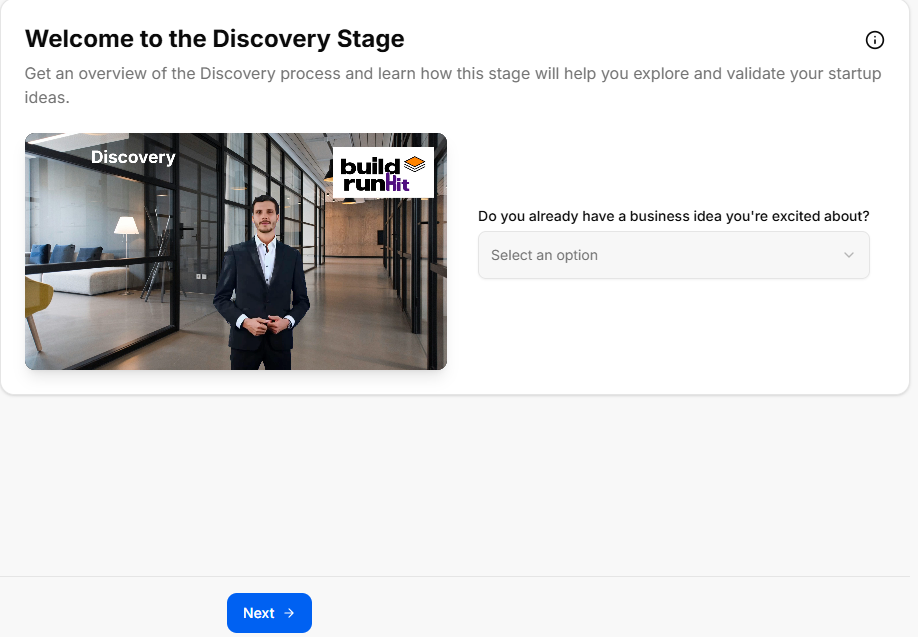
This sub-stage screen serves as the introductory gateway to the concept validation phase, helping founders gauge their current level of idea commitment before proceeding to deeper analysis.
Canvas Layout & Workspace Components
-
Main Workspace Title: Displays "Welcome to the Discovery Stage" accompanied by a clear instructional subtitle: “Get an overview of the Discovery process and learn how this stage will help you explore and validate your startup ideas.”
-
Discovery Media Panel: Features a large graphic or video workspace element explicitly labeled Discovery on the top-left and badged with the official buildrunkit brand logo on the top-right.
-
Concept Validation Selector: Located directly to the right of the media panel, this interactive component prompts users to define their starting point:
-
Field Label: "Do you already have a business idea you're excited about?"
-
Dropdown Selector: Clicking the "Select an option" box expands a menu containing three distinct choices to categorize the user's current stance:
-
Yes, I have one
-
I want to explore new ideas
-
I have a few and want help picking
-
-
Navigation Controls
-
Next Button: A blue Next → action key is centered at the bottom of the workspace to log the selected ideation baseline and transition forward to Sub-Stage 2 (Founder Fit Scan).
Sub-Stage 2: Founder Fit Scan
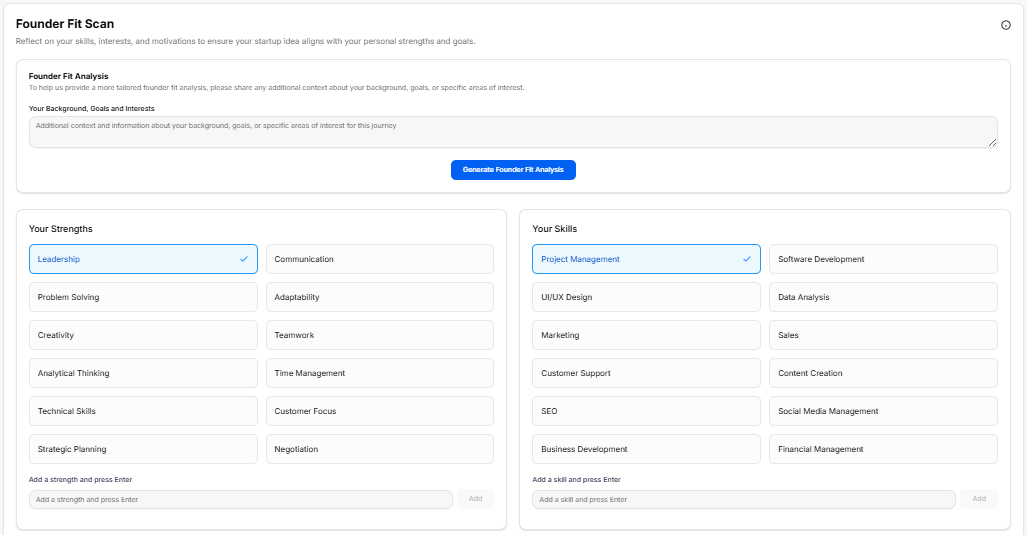
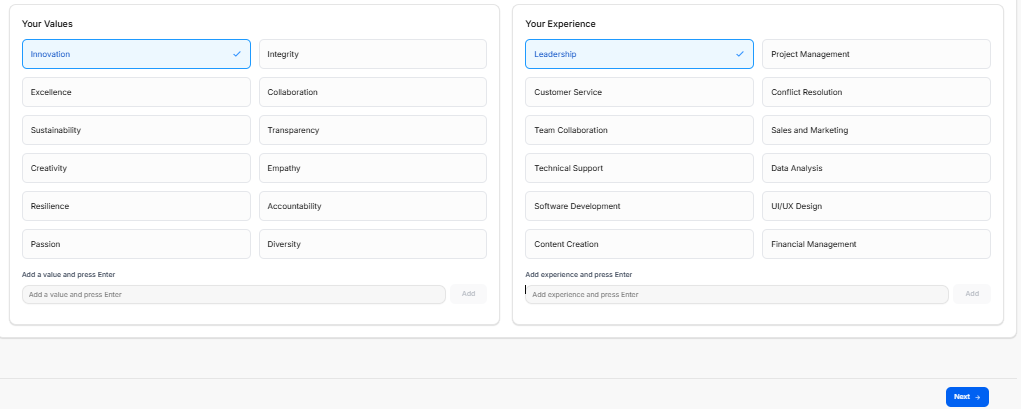
This sub-stage functions as an extensive personality, skill-set, and professional mapping environment. It allows founders to log their personal traits and context to ensure the selected startup concept aligns with their foundational strengths.
Canvas Layout & Workspace Components
-
Main Workspace Title: Displays "Founder Fit Scan" with the explicit header instruction: “Reflect on your skills, interests, and motivations to ensure your startup idea aligns with your personal strengths and goals.”
-
Founder Fit Analysis Context Card: A full-width text container block positioned at the top of the canvas layout:
-
Header: Founder Fit Analysis
-
Subtitle Text: “To help us provide a more tailored founder fit analysis, please share any additional context about your background, goals, or specific areas of interest.”
-
Input Area: A text entry field labeled “Your Background, Goals and Interests” with the inside placeholder prompt: “Additional context and information about your background, goals, or specific areas of interest for this journey”.
-
Action Button: A solid blue button centered below the entry field labeled Generate Founder Fit Analysis.
-
The Core Profiling Matrices
The workspace splits into four distinct quadrant-style logging containers across the page views to capture targeted tags. Selected items display a distinct blue border framework containing a checkmark:
-
Your Strengths Matrix: A multi-selectable grid of behavioral traits:
-
Pre-populated Grid Items: Leadership (Selected), Communication, Problem Solving, Adaptability, Creativity, Teamwork, Analytical Thinking, Time Management, Technical Skills, Customer Focus, Strategic Planning, and Negotiation.
-
Custom Data Field: An input bar at the bottom labeled “Add a strength and press Enter” alongside an Add button.
-
-
Your Skills Matrix: A grid mapping technical and professional operational abilities:
-
Pre-populated Grid Items: Project Management (Selected), Software Development, UI/UX Design, Data Analysis, Marketing, Sales, Customer Support, Content Creation, SEO, Social Media Management, Business Development, and Financial Management.
-
Custom Data Field: An input bar at the bottom labeled “Add a skill and press Enter” alongside an Add button.
-
-
Your Values Matrix: A grid tracking core cultural and ethical operational drivers:
-
Pre-populated Grid Items: Innovation (Selected), Integrity, Excellence, Collaboration, Sustainability, Transparency, Creativity, Empathy, Resilience, Accountability, Passion, and Diversity.
-
Custom Data Field: An input bar at the bottom labeled “Add a value and press Enter” alongside an Add button.
-
-
Your Experience Matrix: A grid mapping historical professional domains:
-
Pre-populated Grid Items: Leadership (Selected), Project Management, Customer Service, Conflict Resolution, Team Collaboration, Sales and Marketing, Technical Support, Data Analysis, Software Development, UI/UX Design, Content Creation, and Financial Management.
-
Custom Data Field: An input bar at the bottom labeled “Add experience and press Enter” alongside an Add button.
-
Navigation Controls
-
Next Button: A blue Next → navigation action option key is anchored at the absolute bottom right margin of the pane to lock down selected attribute parameters and progress forward to Sub-Stage 3 (Idea Generation and Selection).
Sub-Stage 3: Idea Generation and Selection
This sub-stage serves as the brainstorming and filtering hub of the Discovery Stage. It relies directly on the data points submitted during the previous phase to produce custom, personalized startup pathways.
Canvas Layout & Workspace Components
-
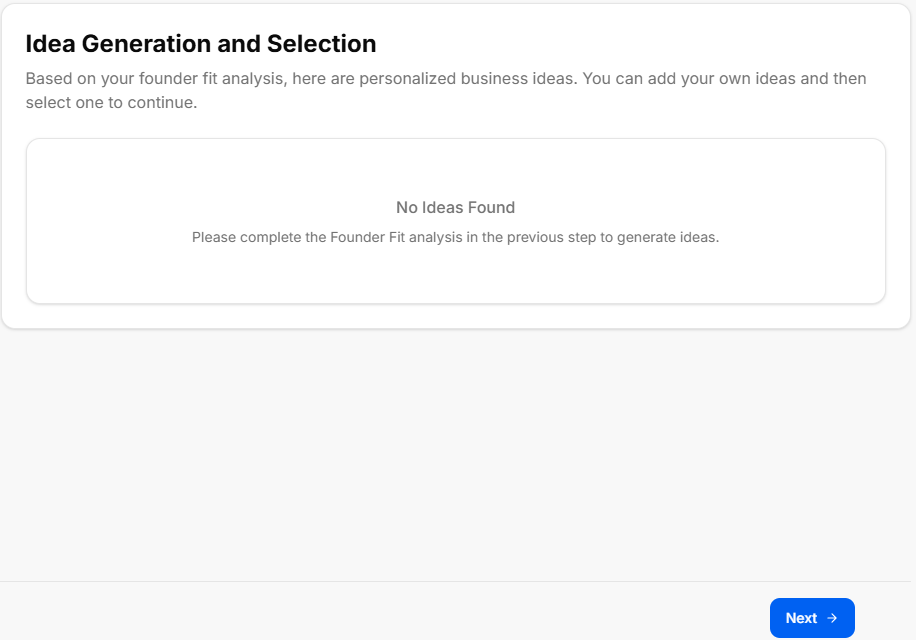
Main Workspace Title: Displays "Idea Generation and Selection" with an explanatory subtitle: “Based on your founder fit analysis, here are personalized business ideas. You can add your own ideas and then select one to continue.”
-
Dynamic Ideas Panel: A large central interface area where generated startup options populate based on user profile inputs.
-
Empty State Alert: If a user proceeds to this step without fully configuring or running the preceding profile evaluation card, the platform shows a centered "No Ideas Found" message container.
-
System Instruction: Displays the fallback prompt: “Please complete the Founder Fit analysis in the previous step to generate ideas.”
-
Populated State (Expected Behavior): When the Founder Fit Scan is completed, this container populates with interactive business concept options that the founder can review, add to, and select as their core venture track.
-
Navigation Controls
Sub-Stage 4: Working Name + NAICS
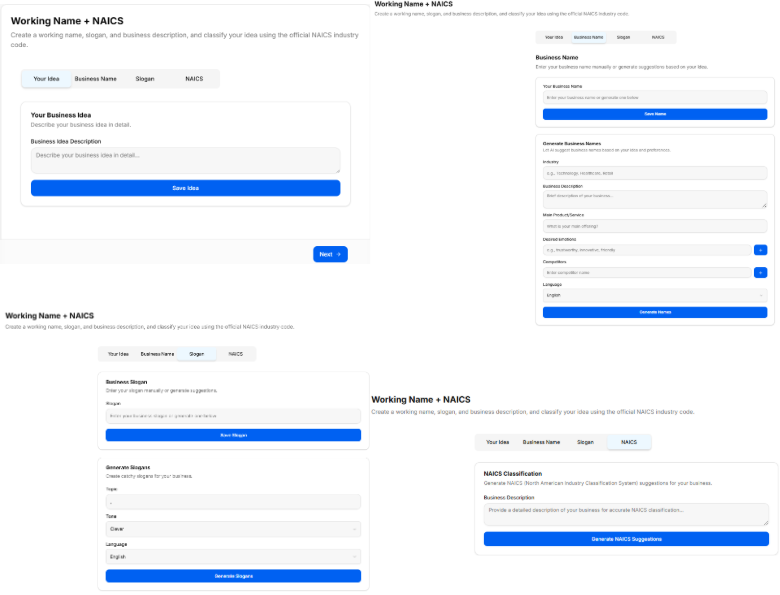
This sub-stage screen focuses on defining the company's preliminary market presence and legal classification. It features tools to generate and log business names, tone-specific slogans, and industry taxonomy codes.
Canvas Layout & Workspace Components
-
Main Workspace Title: Displays "Working Name + NAICS" with an introductory subtitle: “Let's define what your business will be called, its slogan and its formal industry classification.”
-
Business Concept Recap Banner: A light gray full-width contextual alert box summarizing the selected track:
-
Text: “You have chosen to pursue the business idea: An AI assistant that helps virtual assistants optimize their workflow and automate administrative tasks.”
-
The Core Data-Intake Sections
1. Business Name Generation Hub
-
Field Label: "1. What is the working name of your business?"
-
Input Box: A text entry field populated with a live placeholder or typed entry.
-
AI Tool Integration: Features a solid blue Suggest Business Names action button to auto-generate creative naming variations directly underneath if the founder requires inspiration.
2. Slogan Configuration Console (Tone & Language Options)
-
Field Label: "2. What is the slogan or tagline of your business?"
-
Input Box: A text entry field with the directional placeholder text: “Enter your business slogan or tagline...”
-
AI Slogan Generation Parameter Filters: Founders can customize the automated generation tool by adjusting specific behavioral selectors:
-
Slogan Tone Dropdown: Sets the branding attitude. Clicking the menu reveals four distinct choices:
-
Clever
-
Funny
-
Serious
-
Informative
-
-
Language Dropdown: Sets the output translation. Clicking the menu reveals two standard options:
-
English
-
Spanish
-
-
-
Action Trigger: Features a solid blue Suggest Slogans action button to generate list options matching the targeted tone and language configuration.
3. NAICS Industry Classification Hub
-
Field Label: "3. What is the NAICS code for your business?"
-
Input Box: A specialized input box displaying a search placeholder: “Search NAICS code...”
-
AI Classification Integration: Features a solid blue Suggest NAICS Code action button that leverages the concept description to locate matching industrial classification codes from the North American Industry Classification System database.
-
Sector Search Dropdown: A secondary interactive drawer element populated with standard macroeconomic parent groupings to help narrow down industry categorization manually:
-
Agriculture, Forestry, Fishing and Hunting
-
Mining, Quarrying, and Oil and Gas Extraction
-
Utilities
-
Construction
-
Manufacturing
-
Navigation Controls
-
Next Button: A blue Next → navigation utility link is anchored at the bottom right corner of the window frame to submit name selections, tagline logs, and regulatory NAICS codes, advancing directly to Sub-Stage 5 (Early Market Signal Check).
Sub-Stage 5: Early Market Signal Check
This sub-stage screen functions as an initial quantitative and qualitative validation check. It enables founders to test their business concept against preliminary market indicators to gauge demand, identify industry trends, and gather strategic insights before committing capital or deep operational resources.
Canvas Layout & Workspace Components
-
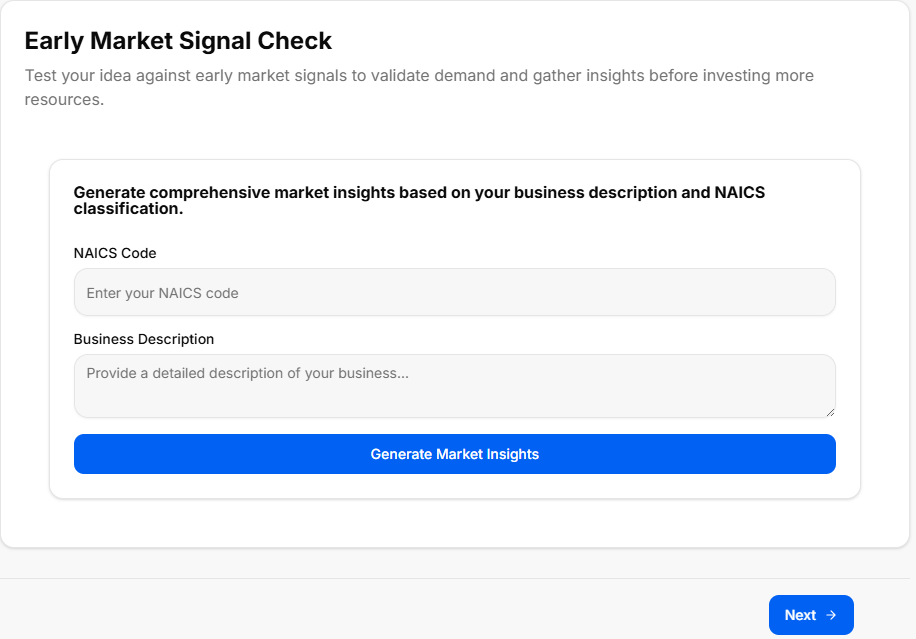
Main Workspace Title: Displays "Early Market Signal Check" alongside a descriptive subtitle mapping its core objective: “Test your idea against early market signals to validate demand and gather insights before investing more resources.”
-
Market Insights Generation Console: A stylized data intake card centered on the workspace canvas, titled "Generate comprehensive market insights based on your business description and NAICS classification."
The Input Validation Fields
-
NAICS Code Field:
-
Label: "NAICS Code"
-
Input Box: A text field with the placeholder instruction: “Enter your NAICS code”. This links directly with the industrial classification chosen in the previous sub-stage.
-
-
Business Description Field:
-
Label: "Business Description"
-
Input Box: A multi-line text container with the inside placeholder prompt: “Provide a detailed description of your business...”
-
Analysis Trigger
-
Action Button: Features a solid blue, full-width action bar positioned at the bottom of the card reading "Generate Market Insights". Clicking this processes the NAICS taxonomy parameters and text entries to deliver real-world validation data, competitor trends, and target audience feedback indicators directly on screen.
Navigation Controls
-
Next Button: A blue Next → utility key is anchored at the absolute bottom right-hand margin of the window footer area. Clicking this locks in your validation data points and transitions the user forward to Sub-Stage 6 (Export Discovery Results), completing the entire Discovery phase sequence.
Sub-Stage 6: Export Discovery Results
This final checkpoint compiles all inputs, selections, and AI-generated outputs from the Discovery Stage into an organized audit summary. It offers a clean, read-only historical review alongside export capabilities before the user transitions into the next strategic phase of development.
Canvas Layout & Workspace Components
-
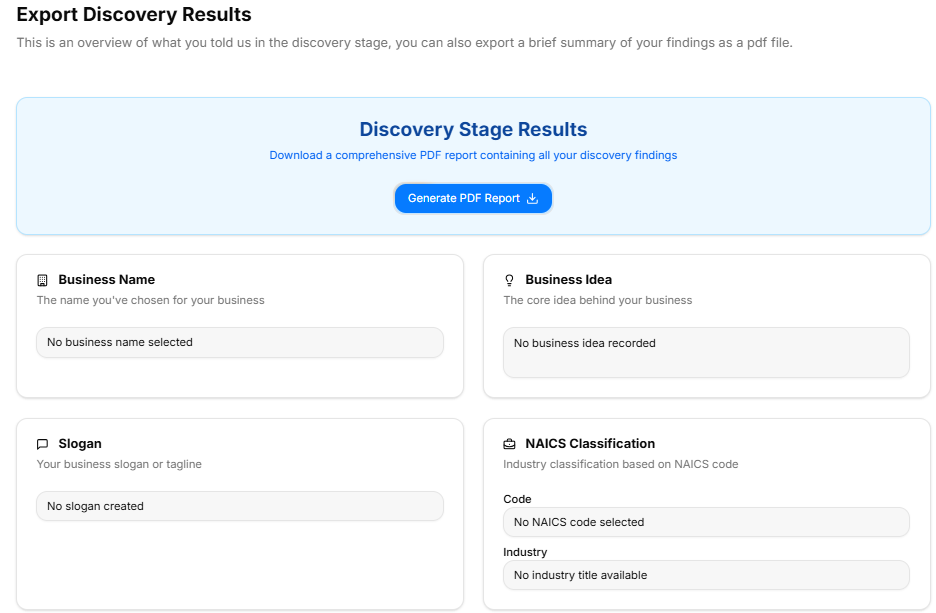
Main Workspace Title: Displays "Export Discovery Results" with an introductory descriptive subtitle: “This is an overview of what you told us in the discovery stage, you can also export a brief summary of your findings as a pdf file.”
-
Document Generation Panel: A full-width light-blue callout banner labeled Discovery Stage Results positioned at the top of the workspace:
-
Description: Instructs the user to “Download a comprehensive PDF report containing all your discovery findings”.
-
Action Button: Centered within the panel is a blue Generate PDF Report action key complete with a download tray icon.
-
Discovery Summary Grid (Upper Panel)
The top half of the results interface uses a balanced two-column grid framework to show core branding and indexing parameters:
-
Business Name Card:
-
Label: “The name you've chosen for your business”
-
Data Field: Displays the confirmed name of the business venture.
-
-
Business Idea Card:
-
Label: “The core idea behind your business”
-
Data Field: Displays the selected startup concept track.
-
-
Slogan Card:
-
Label: “Your business slogan or tagline”
-
Data Field: Displays the generated brand slogan or tagline.
-
-
NAICS Classification Card:
-
Label: “Industry classification based on NAICS code”
-
Data Rows: Divided into two tracking points:
-
Code: Displays the selected regulatory classification code.
-
Industry: Displays the formal industry sector title.
-
-
Strategic Analysis Summaries (Lower Panel)
The bottom section handles the deep conceptual evaluations and contextual research data compiled throughout the phase:
-
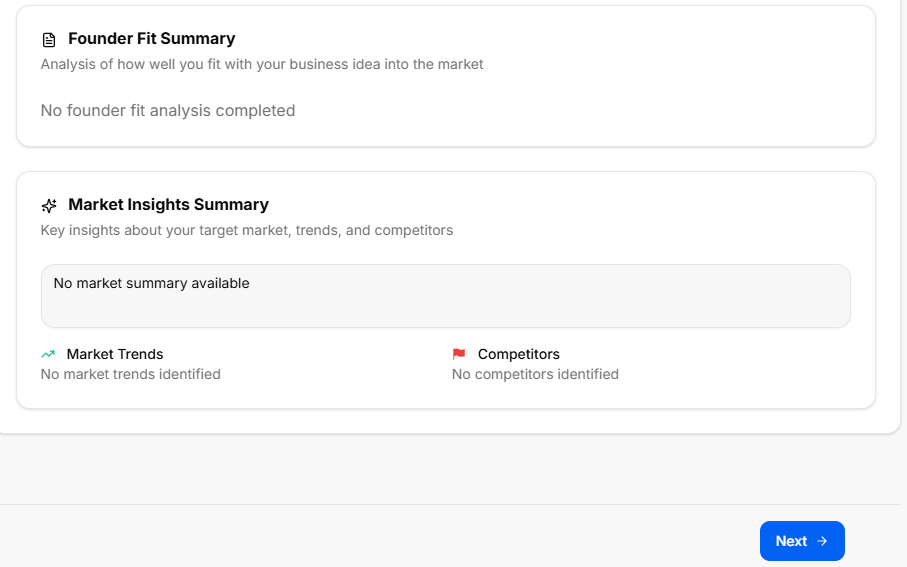
Founder Fit Summary Block:
-
Header Title: Founder Fit Summary
-
Label: “Analysis of how well you fit with your business idea into the market”
-
Data Field: Displays the complete alignment analysis text based on the strengths and skills assessment.
-
-
Market Insights Summary Block:
-
Header Title: Market Insights Summary
-
Label: “Key insights about your target market, trends, and competitors”
-
Main Summary Field: Displays the captured analysis results and qualitative market landscape breakdown.
-
Granular Insight Footers: Split into two side-by-side indicator data targets:
-
Market Trends (Graph Icon): Displays the logged macroeconomic development paths and growth curves.
-
Competitors (Flag Icon): Displays the verified industry player benchmarking details.
-
-