
BuildRunKit Tools Directory Section
Tools EcosystemDirectory Section
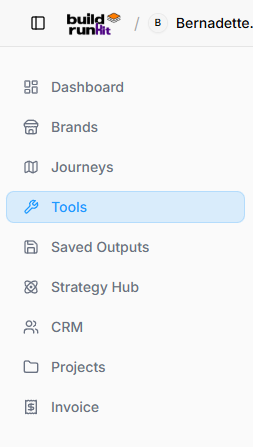
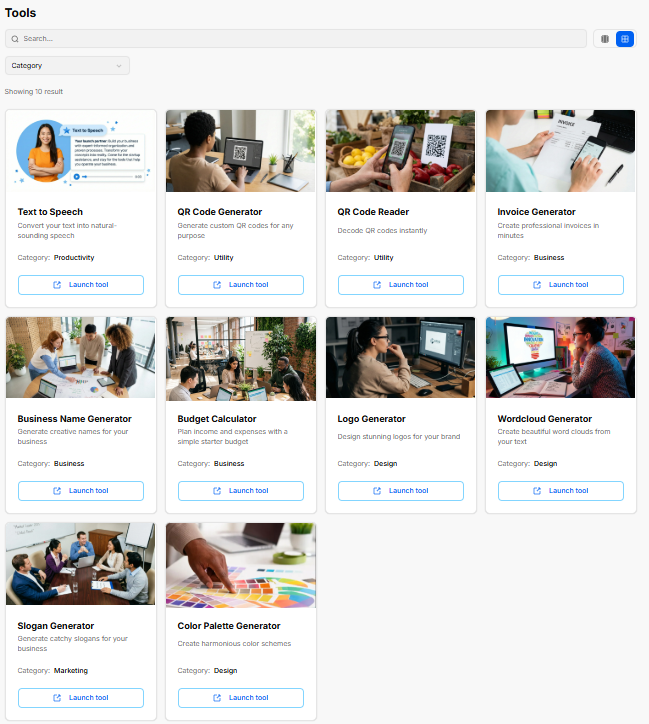
The Tools suitesection acts as ana integratedcentral workshoplibrary withinfor the platform, providing standalonebuilt-in utilities designed to generatestreamline creative,content visual,generation, branding, productivity, and operationalfinancial assets for business development.calculations.
1.Navigation Accessing& theFiltering Tools SuiteControls
-
SidebarSearchControl:Bar:TheQuickToolsfilteroptionfieldistolocatedsearchonforthespecificmaintoolsleft-handbynavigation panel, directly below Journeys. Clicking it highlights the button with a light blue background and opens the full application directory.name. -
WorkspaceCategoryPositioning:Dropdown:ItAllowssitsfilteringdirectlytoolsabovebySavedfunctionalOutputsarea (e.g., Productivity, Utility, Business, Design, Marketing).
View Switcher: Toggles display between card grid view and remainslist accessible alongside your core operational hubs, allowing you to quickly switch over and generate specific assets as needed.view.
2.Available DirectoryBuilt-In FeaturesTools & Interface LayoutOverview
The main catalog workspace organizes all available utilities into a clean, searchable matrix:
-
Search Functionality: A comprehensive search field at the top of the workspace allows for quick filteringText tolocateSpeechspecific(Productivity):standaloneConvertsgenerators.written text into natural-sounding speech audio files. -
CategoryQRSorting:CodeAGeneratordedicated(Utility):dropdownGeneratesmenucustomallowsQRyoucodestoforsortwebutilitieslinks,bycontactspecific focus types, such as Business, Utility, Productivity, Design,details, orMarketing.media. -
LayoutQRToggles:CodeLocatedReader (Utility): Scans and decodes existing QR codes directly within the workspace.
Invoice Generator (Business): Quick utility to draft and export professional invoices on the fly.
Business Name Generator (Business): Generates creative business name suggestions based on brand prompts.
Budget Calculator (Business): Helps map income, operational costs, and initial starter budgets.
Logo Generator (Design): Creates initial logo design concepts for brand setup.
Wordcloud Generator (Design): Builds visual word clouds from input text or dataset keywords.
Slogan Generator (Marketing): Creates marketing taglines and catchy slogans for products or services.
Color Palette Generator (Design): Generates complementary color schemes for brand aesthetics.
Launch Tool Button: Opens the selected tool interface in thefull top-right corner, grid and list icon toggles let you customize how the tool modules are displayed. The directory indicates a current count of 9 results available in the ecosystem.view.
3. Available Platform Tools
Each item in the directory is represented by a dedicated card detailing its primary function, categorized type, and a direct action button to boot up the utility:
Text to Speech: Converts your written text into natural-sounding audio assets. (Category: Productivity)
QR Code Generator: Generates custom, scannable QR codes for any operational or marketing purpose. (Category: Utility)
QR Code Reader: Decodes QR codes instantly via direct layout or image input. (Category: Utility)
Invoice Generator: Built to compile professional invoices in minutes to handle transactional needs. (Category: Business)
Business Name Generator: Helps brainstorm and generate creative naming structures for new business ideas. (Category: Business)
Logo Generator: Provides a design environment to create clean logos for your brand profile. (Category: Design)
Wordcloud Generator: Generates beautiful word clouds out of your input copy to summarize visual themes. (Category: Design)
Slogan Generator: Builds catchy taglines and slogans tailored to your business identity. (Category: Marketing)
Color Palette Generator: Creates cohesive, balanced color schemes to help establish primary, secondary, and accent options. (Category: Design)
Every card is anchored by a clear Launch tool → button, which seamlessly opens the respective application workspace.
Text to Speech Generator
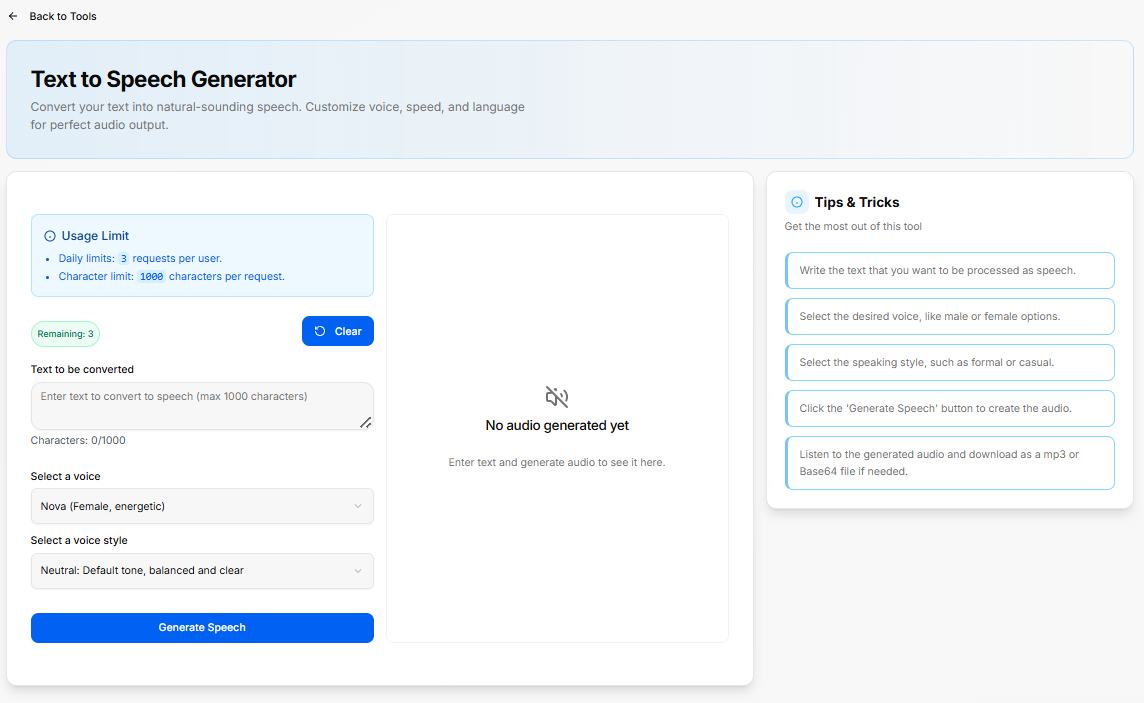
The Text to Speech Generator isTool aSub-Section
platform
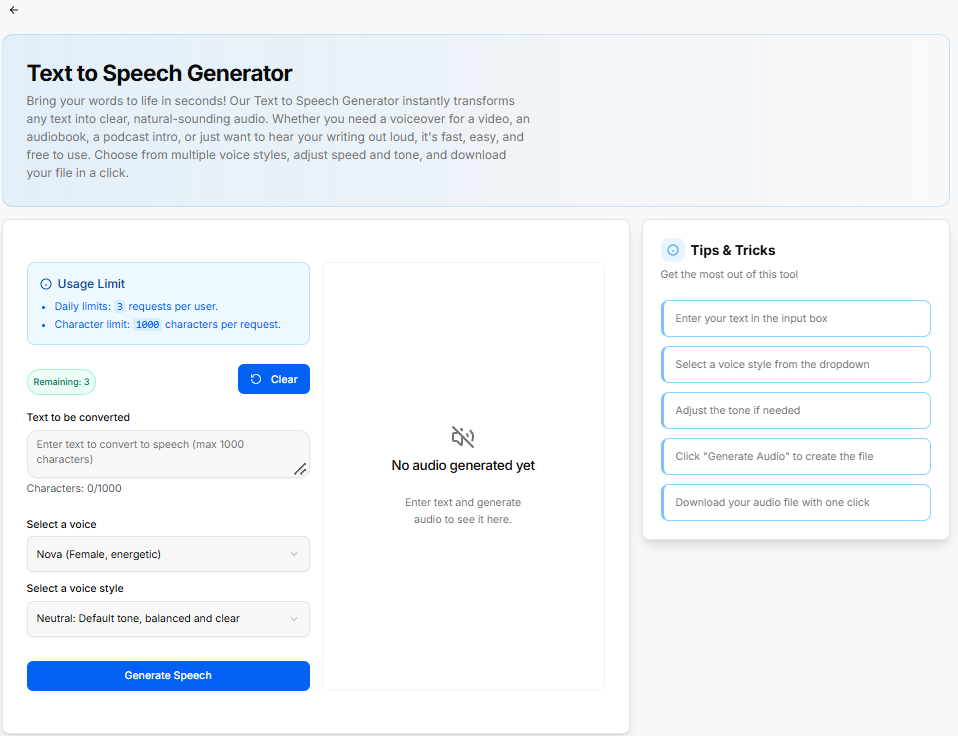
The designedText to convertSpeech writtenGenerator texttransforms typed content into natural-sounding audio.speech Itaudio offers customizable settingsfiles for voicevoiceovers, andpodcasts, styleor selection to create polished audio outputs.audiobooks.
1.Usage GeneratorLimits Constraints& and TrackingParameters
The workspace features built-in allocation tracking to ensure fair usage across the platform:
-
Usage
LimitLimits: - Displays
Dailyactiveallocation:dailyArestrictionsmaximum of(3 requests per user)eachandday.character limits (1000 characters per request). -
CharacterRemaininglimit:Indicator:AShowsmaximumremainingofavailable1,000requests for the session (e.g., Remaining: 3).
Configuration Controls
Text to be converted: Input text area accepting up to 1000 characters iswith allowedan peractive individualcharacter request.counter (e.g., Characters: 0/1000).
Clear Button: Resets the text input box.
Select a voice: Dropdown menu to select preferred speaker profiles:
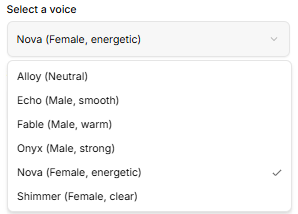
Alloy: Neutral tone.
Echo: Male, smooth tone.
Fable: Male, warm tone.
Onyx: Male, strong tone.
Nova: Female, energetic tone.
Shimmer: Female, clear tone.
Real-TimeSelect Status:a Avoice dedicatedstyle: trackingDropdown badgemenu displaysto youradjust remainingdelivery requeststone:
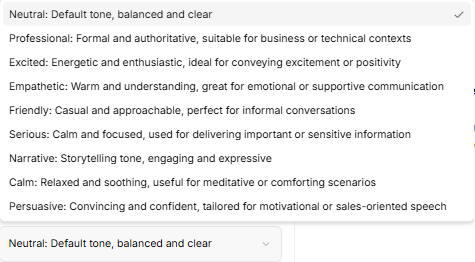
Neutral: Default tone, balanced and clear.
ClearProfessional: Option:Formal Aand dedicatedauthoritative, Clearsuitable buttonfor resetsbusiness or technical contexts.
Excited: Energetic and enthusiastic, ideal for conveying excitement or positivity.
Empathetic: Warm and understanding, great for emotional or supportive communication.
Friendly: Casual and approachable, perfect for informal conversations.
Serious: Calm and focused, used for delivering important or sensitive information.
Narrative: Storytelling tone, engaging and expressive.
Calm: Relaxed and soothing, useful for meditative or comforting scenarios.
Persuasive: Convincing and confident, tailored for motivational or sales-oriented speech.
Generate Speech Button: Processes the activeinput text configurationand fieldsgenerates instantly.the audio file.
2.Audio ConfigurationPreview Options& Output
The generation panel contains fields to input your text data and customize the audio behavior:
-
TextAudiotoPlayerbeDisplay:Converted:CenterApaneldedicatedshowing generated audio playback controls (displays "No audio generated yet" before processing).
Tips & Tricks Sidebar
Step 1: Enter your text area where you type or paste your copy. A character counter atin the bottominput monitors your length in real time against the 1,000-character maximum.box.
Step 2: Select a Voice:voice Aand dropdownvoice menu to choosestyle from differentthe vocal personas and energy profiles.dropdowns.
SelectStep a3: VoiceAdjust Style:the Atone dropdownif menuneeded.
Step 4: Click "Generate Audio" to altercreate the deliveryfile.
Step 5: Download your audio file with one click.
QR Code Generator Tool Sub-Section
Once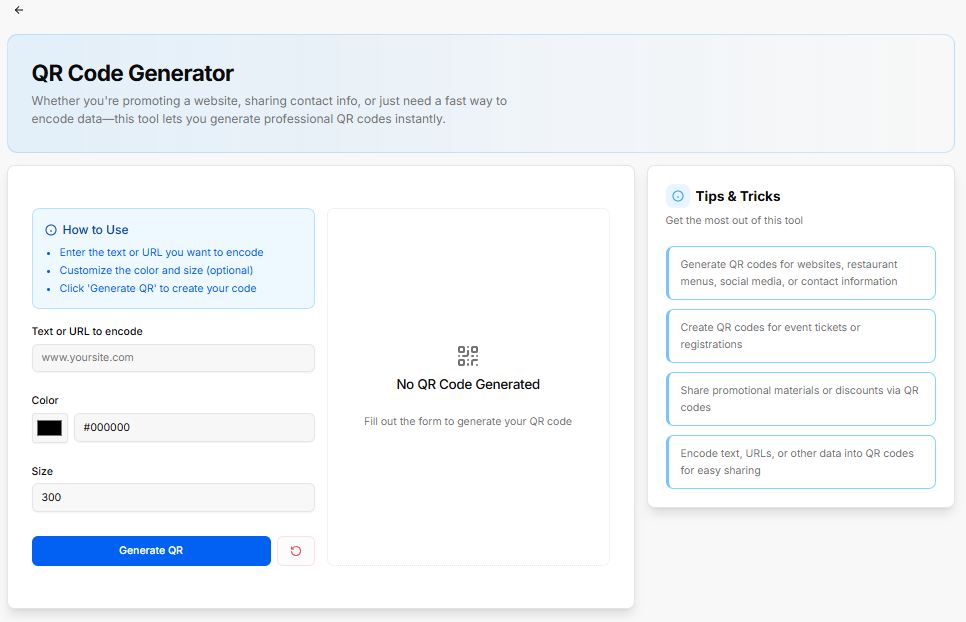
The parametersQR areCode adjusted,Generator hittingallows theusers prominentto Generateinstantly Speechencode buttontext, initiatesweb thelinks, audiocontact assembly.details, or promotional data into custom downloadable QR codes.
3.How Outputto CanvasUse and Best PracticesPanel
-
AudioStepPlayback1:Display: The central panel provides a real-time playback arena. When empty, it displays a placeholder state prompting you to enter copy and run the generator. Once compiled, the audio player mounts here to let you listen or export.
Workflow Guidelines: The right sidebar houses a Tips & Tricks checklist to optimize your results:
Write out the exact text you want to be processed as speech.
Select your desired voice profile from the available male or female options.
Select the speaking style, choosing whether a formal or casual approach fits the brand best.
Click the 'Generate Speech' button to initiate the audio rendering process.
Listen to the generated file directly or download it as an .mp3 or Base64 file based on your project requirements.
QR Code Generator
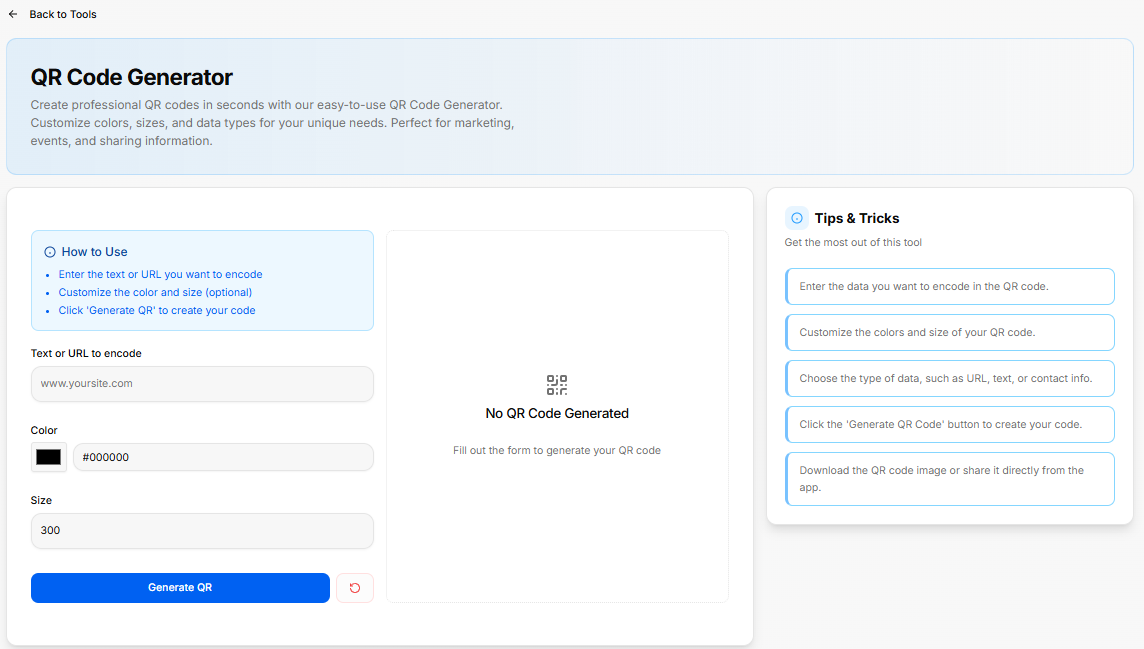
The QR Code Generator is a platform utility designed to build custom QR codes for marketing campaigns, events, and information sharing. It allows you to customize the data, sizing, and color scheme to match your requirements.
1. Quick-Start Guide
The configuration panel includes a clear reference box summarizing the core steps to build an asset:
Enter the text or URL: Supply the specific destination or text stringURL you want the code to hold.encode.
Step 2: Customize stylesthe color and size (optional): Modify color selections and dimensions..
Step 3: Click 'Generate QR': Finalize the details to assemblecreate your code.
2. Input Configuration FieldsControls
The left-hand workspace contains your primary setup fields:
-
Text or URL to
rawencode:encode:AInputdatafieldinputtobarspecifypre-populateddestinationwithweba placeholder ([www.yoursite.com](https://www.yoursite.com)) where you enter your target linkaddress ormessage.
Color Selection: A color picker option featuring a direct hex code input bartext (defaultinge.g., to solid black #000000
Size:Color: AColor selector and hex code input field to set custom QR code accent colors (defaults to #000000).
Size: Numeric input field specifying image dimension entryin fieldpixels (defaultingdefaults to a300).
Generate ofQR 300)Button: Processes inputs and creates the rendered code image.
Reset Button: Red icon button to determineclear outputform resolution.settings.
The
Preview workspace is anchored by a solid blue Generate QR action button, paired alongside a red accent Reset utility icon to clear all custom inputs instantly.
3. Output Canvas & Best PracticesPanel
-
LiveQRPreviewOutputSpace:Display:TheCentercentralpanelframeshowinghandlesgeneratedyourcodereal-timepreviewasset rendering. If no form data has been processed, it remains in a placeholder state displaying a(displays "No QR Code Generated"statusbeforeicon,processing).prompting
Tips fill& outTricks theSidebar
Tip 1: Generate QR codes for websites, restaurant menus, social media, or contact information.
TipsTip &2: Tricks Sidebar: The right-hand column outlines actionable recommendations to get the most out of the tool:
Enter the exact data you want to encode in theCreate QR code.codes for event tickets or registrations.
CustomizeTip the3: colorsShare andpromotional sizematerials ofor yourdiscounts via QR code.codes.
ChooseTip the4: type of data, such as a URL, plainEncode text, URLs, or specificother contactdata info.
Click the 'Generateinto QR Code'codes buttonfor toeasy create your custom code.sharing.
Download the completed QR code image file or share it directly from the app interface.
QR CodeReader ReaderTool Sub-Section
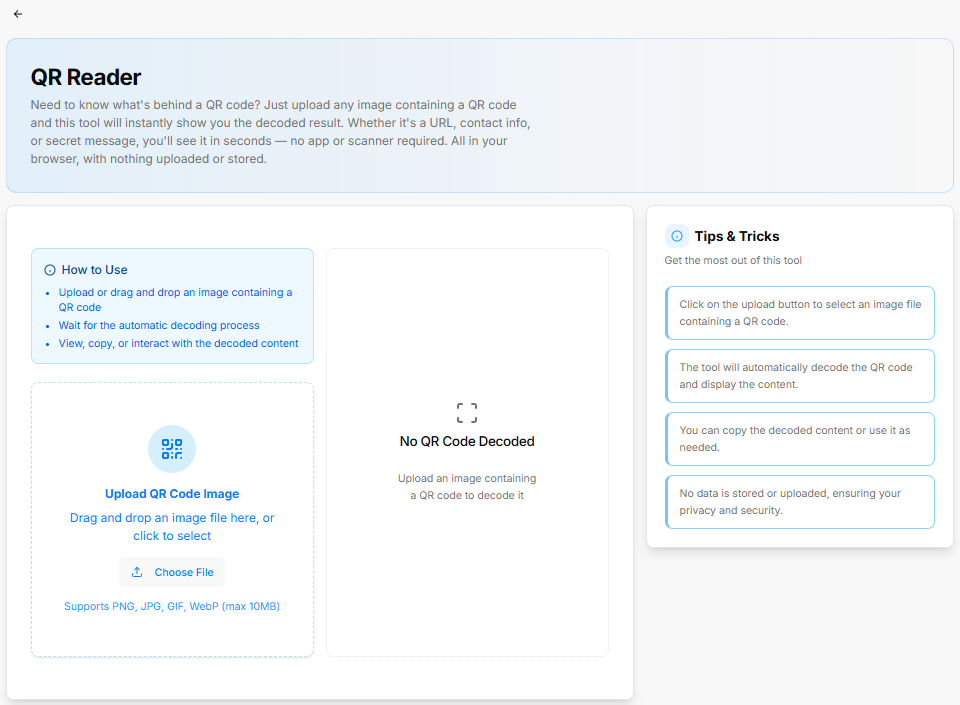
The QR Code Reader is a utility designeddecodes uploaded QR code images directly within the browser without storing or transmitting personal data.
How to instantlyUse decode QR codes from images without requiring an external app or separate hardware scanner. It provides quick access to embedded URLs, contact info, and raw data strings.
1. Quick-Start GuidePanel
The interface features a dedicated user guide panel outlining the core processing flow:
-
Step 1: Upload or drag and drop an image containing a QR code.
-
Step 2: Wait for the
system'sautomatic decodingsequence toprocess. -
Step 3: View, copy, or interact with the
resultingdecodedtextcontent.
2. Upload Control& AreaFile Controls
The left side of the dashboard manages image intake via an interactive upload zone:
-
InteractionUploadOptions:Area:UsersDragcananddragdrop region with file browser trigger ("Drag and drop an image filedirectly into the designated dashed-border area,here, or clickthe Choose File buttontoopen a local directory explorer.select"). -
Choose File
Constraints:Button:TheOpenssystemtheexplicitly supportsPNG,JPG,GIF, andWebPimage formats, up to a maximumlocal filesizeselectorlimitwindow.of
Supported Formats Notice: Highlights accepted file types (Supports PNG, JPG, GIF, WebP - max 10MB
).3.Decoded Output Canvas & Best PracticesPanel
-
DecodingResultResultsDisplay:Panel:CenterTheareacentralshowinglivethepreviewdecodedcard showcases resultstext or link output (displayscurrent decoding status. Until an image file has been uploaded and analyzed, it rests on a placeholder screen showing a"No QR Code Decoded"status icon accompanied by instructions to uploadbefore animage.image is selected).
Tips & Tricks Sidebar: The right-hand column outlines operational guidance and privacy details:Sidebar
-
UploadTip 1: Click on the upload button to select an image file containing aclearQR code. -
Drag-and-dropTipactions2:areThefullytoolsupportedwilldirectlyautomaticallyindecode theuploadQRboxcodewindow.and display the content. -
TheTiputility3:handlesYoudetectioncanandcopytranslationtheautomaticallydecodeduponcontentfileorarrival.use it as needed. -
UsersTipcan interact directly with the extracted content to launch decoded web links or instantly copy raw text strings.
Privacy Guard:4: No data is permanently stored or uploadeduploaded, toensuring external servers, protecting useryour privacy and internal data security.
Invoice Generator Tool Sub-Section
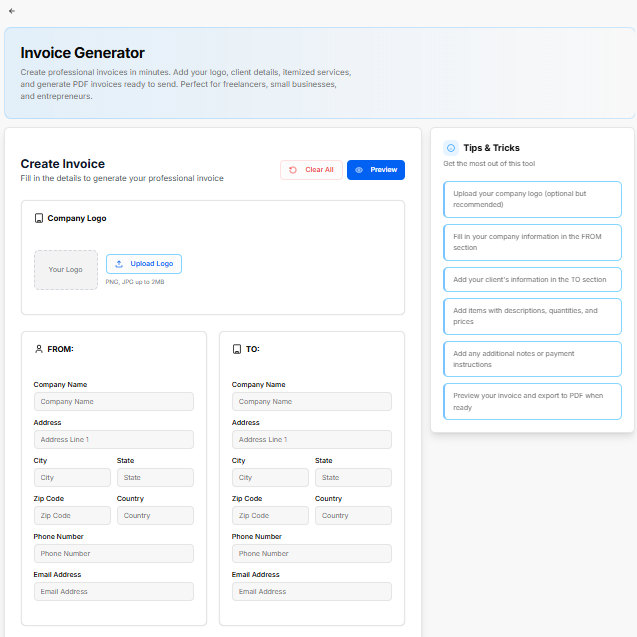
The Invoice Generator is a tool built to create professional invoices equipped with custom logo integration, itemized billing tracking, and direct PDF data export options. The interface is split across multiple configuration blocks to organize transaction records.
1. Header Controls & Visual Assets
The top workspace sets up the layout framework and global actions:
Action Bar: Features a pink Clear All button to reset all input forms alongside a blue Preview button to generate an invoice view.
Company Logo Upload: A dedicated image module supporting PNG and JPG formats up to 2MBdragquickly ordraft, click Upload Logo to mount corporate branding.
2. Contact & Metadata Fields
The main body organizes administrative information into distinct sections:
FROM Panel: Collects your organization's data, including Company Name, Address, City, State, Zip Code, Country, Phone Number, and Email Address.
TO Panel: Collects the recipient's details using identical tracking fields (Company Name, Address, Contact details).
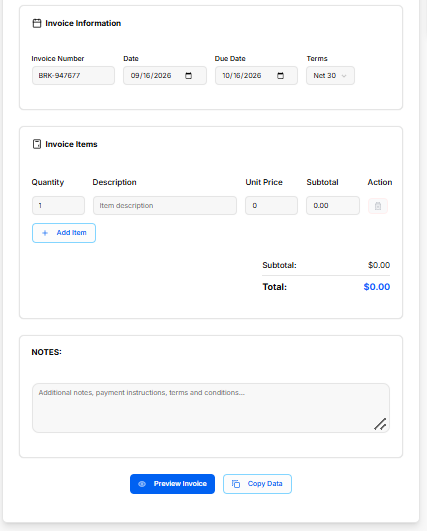
Invoice Information: Handles specific metadata parameters, displaying entry bars for Invoice Number, Date tracking, Due Date selection, and a dropdown menu to select structural payment Terms (defaulting to Net 30).
3. Itemized Billing & Notes Canvas
The calculation area manages deliverables and balances:
Invoice Items Table: An adjustable ledger to track specific deliverables with columns for Quantity, Description, Unit Price, and Subtotal, paired with an icon action to remove rows. Clicking + Add Item appends a blank billing line to the grid.
Financial Aggregates: Automatically displays summary rows tracking the calculated Subtotal and final Total amount due.
Notes Block: A rich text input field dedicated to appending custom payout descriptions, payment instructions, banking details, or legal terms and conditions.
The absolute bottom of the canvas features primary action keys to launch the Preview Invoice viewer or instantly execute a Copy Data clipboard command.
4. Workflow Guidelines
The tool includes a step-by-step checklist to format your export:
Enter your company logo.
Add your company and client information.
Fill in client details and the invoice number.
Add itemized billing information with descriptions and prices.
Review the invoice for accuracy.
Export the completed invoice as a PDF for direct sharing or printing.
Business Name Generator
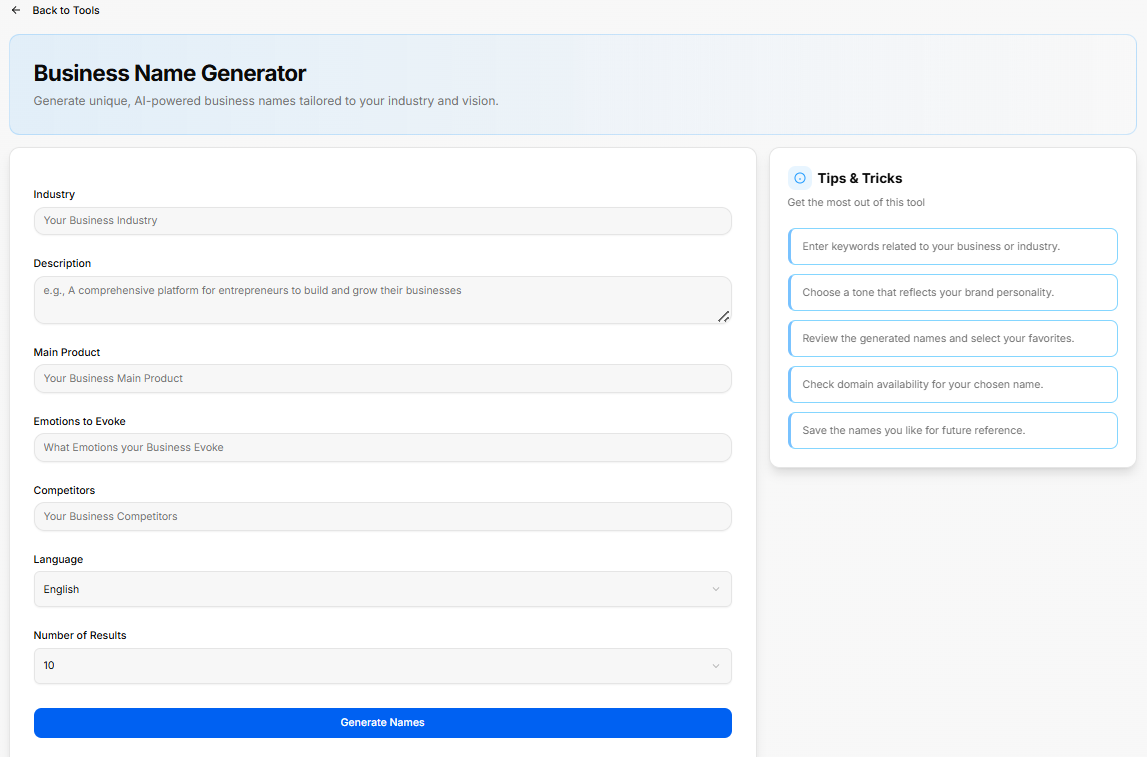
The Business Name Generator is an AI-powered platform utility designed to brainstormpreview, and generate uniquePDF companyinvoices namingwith optionscustom tailoredbranding, directlysender/client tocontact adetails, specificline industry, vision,items, and corepayment offering.notes.
1.Header Input Configuration ParametersActions
The setup canvas contains a series of detailed criteria blocks to guide the generation engine:
Industry: An entry field to specify your primary sector or business field.
Description: A multi-line text block to outline your company's core mission, operational framework, or a brief overview of how it functions.
Main Product: A dedicated line to call out the specific primary product, core application, or flagship service being brought to market.
Emotions to Evoke: A field to list the key feelings, cultural impressions, or psychological connections you want your business title to stir up.
Competitors: An input space to name existing brands or operational models in your niche to help the system avoid duplication and establish market contrast.
Language: A selection dropdown to dictate the output language (defaulting to English).
Number of Results: A configuration dropdown to set the exact size of the generated list (defaulting to 10 options).
The setup dashboard is anchored by a solid blue Generate Names action button to process your inputs.
2. Workflow Guidelines
The right-hand column outlines actionable recommendations to get the best out of the naming tool:
Enter keywords related specifically to your business or broader industry.
Choose a distinct tone that accurately reflects your brand personality.
Review the generated name list and select your favorites.
Check domain availability for your chosen name.
Save the names you like for future reference.
Logo Generator
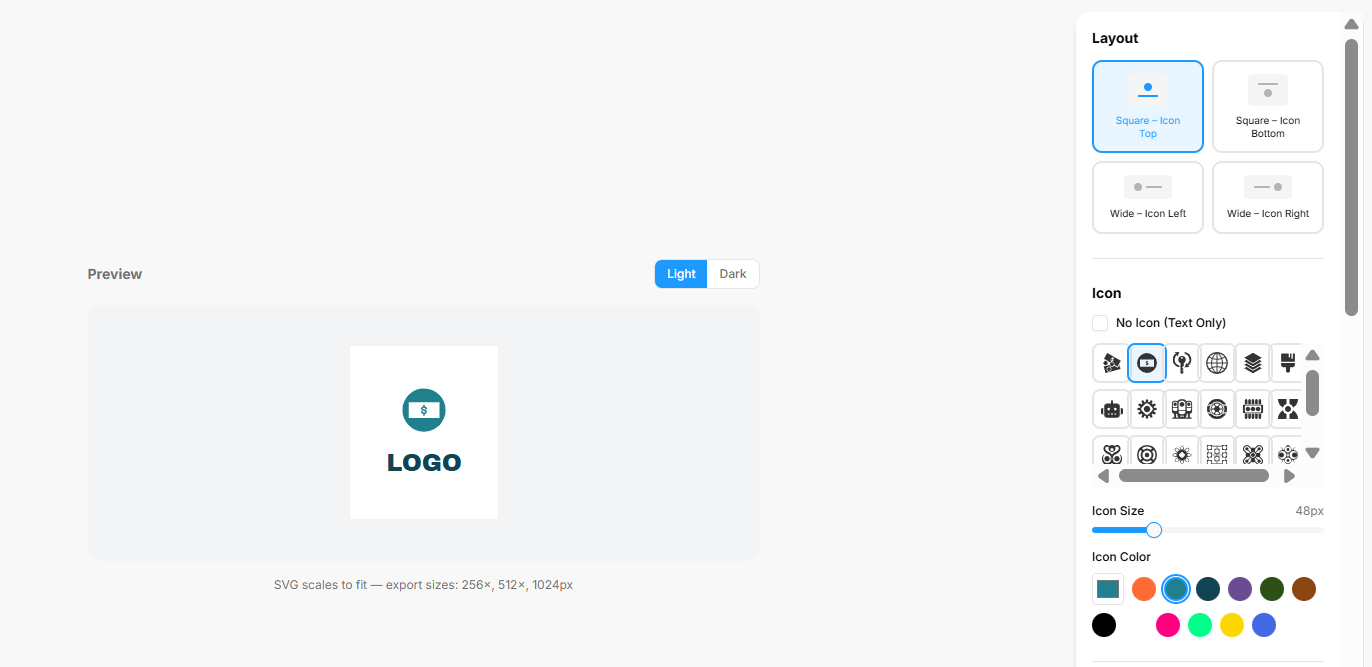
The Logo Generator is an interactive design workspace that lets you build, customize, and export clean vector-based logos. The interface provides a live canvas paired with granular controls over visual layouts, typography, backgrounds, and cohesive color palettes.
1. Main Canvas & Structural Layout
The core design arena structures how your visual assets sit together:
Live Preview Window: Displays your logo elements in real time. It features quick toggle keys at the top to check how your composition renders against a Light or Dark interface backdrop.
Output Specifications: The asset area generates scalable vector configurations, explicitly noting that the SVG scales to fit with standard package export sizes at $256\times$, $512\times$, and $1024\times$ pixels.
Layout Selection Grid: A configuration block that establishes the orientation between your graphics and copy. Available options include:
Square – Icon Top (Default selected template)
Square – Icon Bottom
Wide – Icon Left
Wide – Icon Right
2. Icon Customization
The graphic module adjustments let you select and style an accompanying emblem:
Icon Selection Matrix: A scrollable grid containing specialized graphic shapes, tech glyphs, and business symbols. It includes a No Icon (Text Only) checkbox if you prefer a typographic wordmark.
Icon Size: A sliding scale bar that fine-tunes graphic dimensions (defaulted to a standard 48px).
Icon Color: A direct swatch panel allowing you to select an independent color theme for your active graphic emblem.
3. Typography & Background Settings
The customization panels unlock direct text and canvas editing:
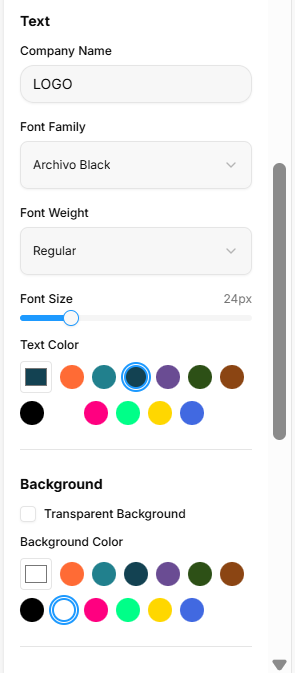
Text Configurations:
Company Name: A text entry block where you input your literal brand name (defaulted to LOGO).
Font Family: A dropdown menu loaded with typography styles (such as Archivo Black).
Font Weight: A dropdown setting to pick typeface density (such as Regular).
Font Size: A fluid horizontal slider to scale text proportions (defaulted to 24px).
Text Color: A circular swatch palette to instantly alter the wording hue.
Background Parameters: Features a Transparent Background option checkbox to clear out flat fills for overlay usage, paired with a separate Background Color selection grid to assign solid base backdrops.
4. Curated Color Palettes & Global Export
The final configuration blocks coordinate unified aesthetic harmonies and handle project output:
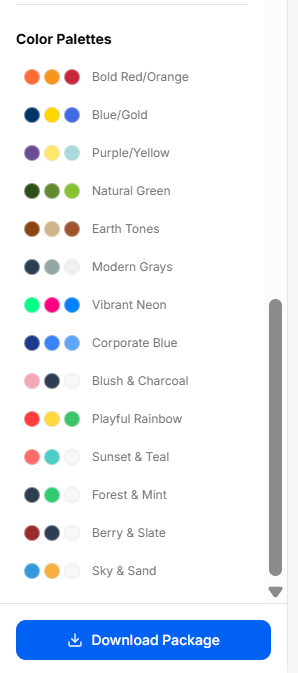
Color Palettes Directory: A scrollable index of pre-packaged, three-tone color groupings designed to jumpstart balanced brand themes. Curated styling sets include options like Bold Red/Orange, Blue/Gold, Natural Green, Earth Tones, Modern Grays, and Corporate Blue.
Global Export Action: A prominent blue Download Package button anchors the bottom of the tool, packaging all necessary vector sizes and transparent layouts into a single download.
Word Cloud Generator
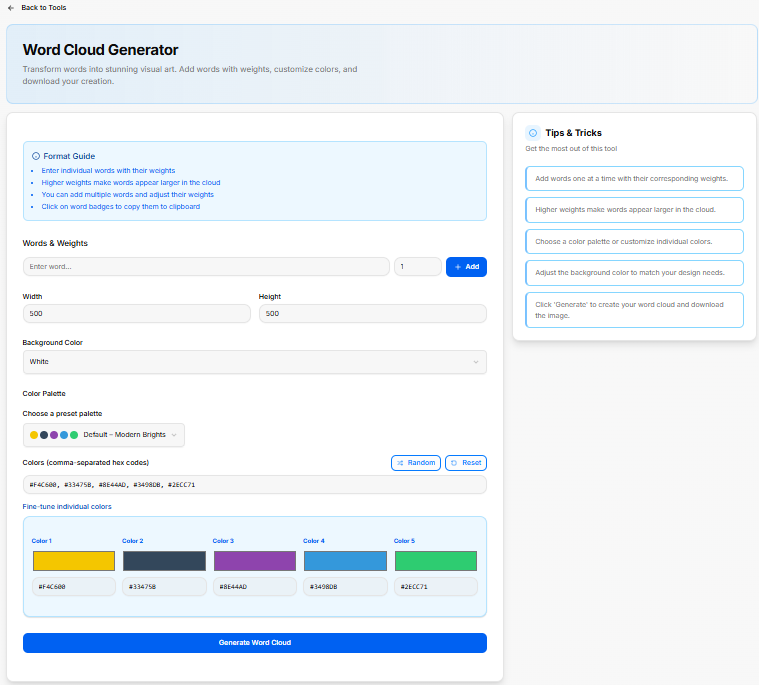
The Word Cloud Generator is a tool designed to transform text terms into custom visual graphics. It features granular configuration controls to weight individual words, modify workspace dimensions, and assign specific color profiles.
1. Interface Setup Guides
The generator includes structured instructions to help configure the text layouts smoothly:
-
Button:FormatClearGuideAllSummary: - all
Enterformindividualfieldswordsandpairedlinewithitemsuniqueacrosssizetheweightingentirefactors.tool. -
AssigningPreviewhigherButton:numerical values ensures those specific words appear larger inOpens thecloudformattedframework.PDF preview window.
Add multiple distinct words sequentially and adjust their individual scale weight metrics.
Select active word badges within the workspace to instantly copy them to your clipboard.
2.Company CanvasLogo and Content ConfigurationsPanel
The main control panel handles data input and canvas properties:
-
WordsUpload&LogoWeights:Button:AOpenscombinedlocaltextfilefield where you type your chosen word, followed by a numerical input slot (defaultedselector to1)attach company branding (Supports PNG, JPG up toset its prominence. Hitting the blue + Add button locks the term into the collection.
Dimensions: Two numeric inputs for Width and Height scale the absolute size of your output graphic area (both defaulted to 500.
Background Color: A dropdown menu to select the backdrop fill style for the graphic canvas (defaulted to White).
3.Sender Color& PaletteRecipient ToolsDetails
The workspace lets you customize the visual presentation using preset schemes or individual hex values:
-
ChooseFROMaPanel:PresetFormPalette:fieldsAtodropdownspecifymenusenderfeaturingcontactready-madedetailsthemeincludingcombinationsCompany(suchName,asAddress,DefaultCity,–State,ModernZipBrights)Code, Country, Phone Number, and Email Address. -
HexTOCodePanel:Vector:FormA text block displaying raw, comma-separated hex codes for rapid pasting or extraction.
Palette Modifiers: A Random utility button shuffles color hex selections instantly, while a Reset button restores your starting color profile.
Fine-Tune Individual Colors: A color block area featuring individual swatch controls (Color 1 through Color 5) with clear text input boxesfields to adjustspecify specificclient hexbilling codesdetails individually.including Company Name, Address, City, State, Zip Code, Country, Phone Number, and Email Address.
Invoice Information Panel
TheInvoice absoluteNumber: bottomAuto-generated ofidentifier string (e.g., BRK-947677).
Date: Calendar selector to set the layoutissuance featuresdate.
Due Date: Calendar selector to set the payment deadline date.
Terms: Dropdown menu to select payment terms (e.g., Net 30).
Invoice Items Panel
Itemized Line Form: Table row fields for Quantity, Description, Unit Price, and calculated Subtotal.
Action Column: Red trash icon to remove an individual line item.
Add Item Button: Appends a primarynew blueblank Generate Word Cloud buttonrow to renderthe invoice table.
Calculated Totals: Displays real-time Subtotal and processfinal Total amounts.
Notes & Final Controls
NOTES Box: Multiline text area for adding payment instructions, bank details, or terms and conditions.
Preview Invoice Button: Generates the final asset.formatted document layout.
4.
ACopy checklistData highlightsButton: theCopies stepsinput data to buildclipboard yourfor customquick graphic:reuse.
Tips & Tricks Sidebar
-
Step 1: Upload your company logo (optional but recommended).
-
Step 2: Fill in your company information in the FROM section.
Step 3: Add wordsyour client's information in the TO section.
Step 4: Add items with descriptions, quantities, and prices.
Step 5: Add any additional notes or payment instructions.
Step 6: Preview your invoice and export to PDF when ready.
Business Name Generator Tool Sub-Section
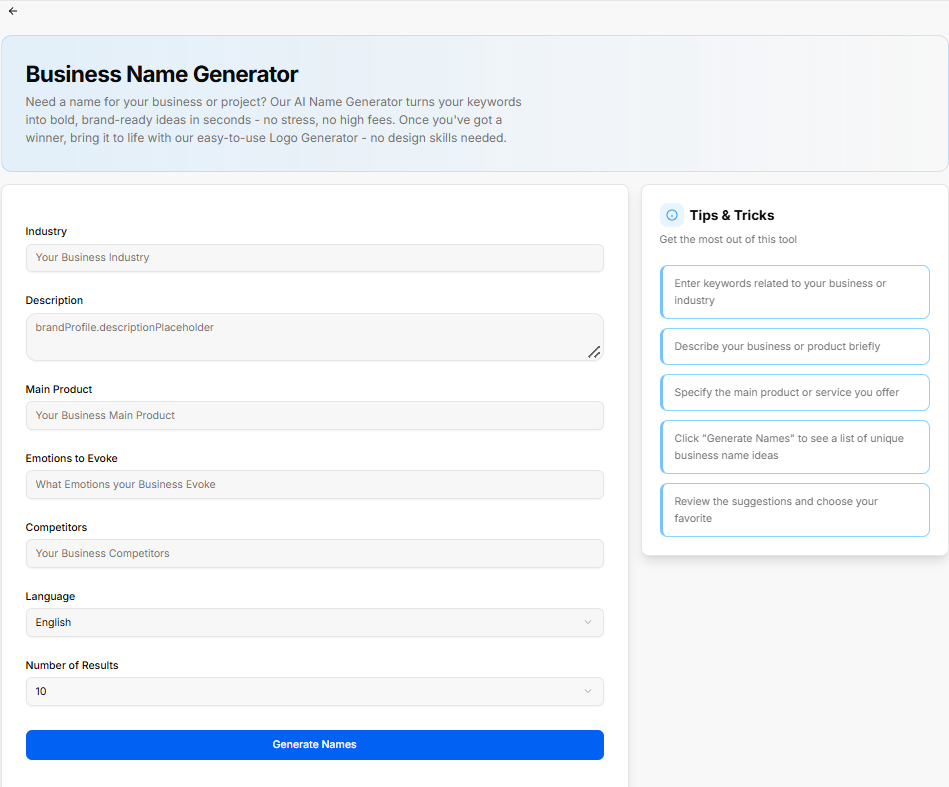
The Business Name Generator tool uses AI to transform keywords, business descriptions, and industry positioning into brand-ready business name ideas.
Configuration Controls
Industry: Text input field to enter the target business domain (e.g., Your Business Industry).
Description: Multiline text input field to summarize the company overview and offerings (placeholder displays default variable label).
Main Product: Input field to specify the primary product or service offered (e.g., Your Business Main Product).
Emotions to Evoke: Field to define target feelings or brand impression (e.g., What Emotions your Business Evoke).
Competitors: Input field to list key industry competitors for comparative naming context (e.g., Your Business Competitors).
Language: Dropdown selector to choose output language (defaults to English).
Number of Results: Dropdown menu to set total name suggestions generated (defaults to 10).
Generate Names Button: Triggers the AI model to output name suggestions based on specified inputs.
Tips & Tricks Sidebar
Step 1: Enter keywords related to your business or industry.
Step 2: Describe your business or product briefly.
Step 3: Specify the main product or service you offer.
Step 4: Click "Generate Names" to see a list of unique business name ideas.
Step 5: Review the suggestions and choose your favorite.
Budget Calculator Tool Sub-Section
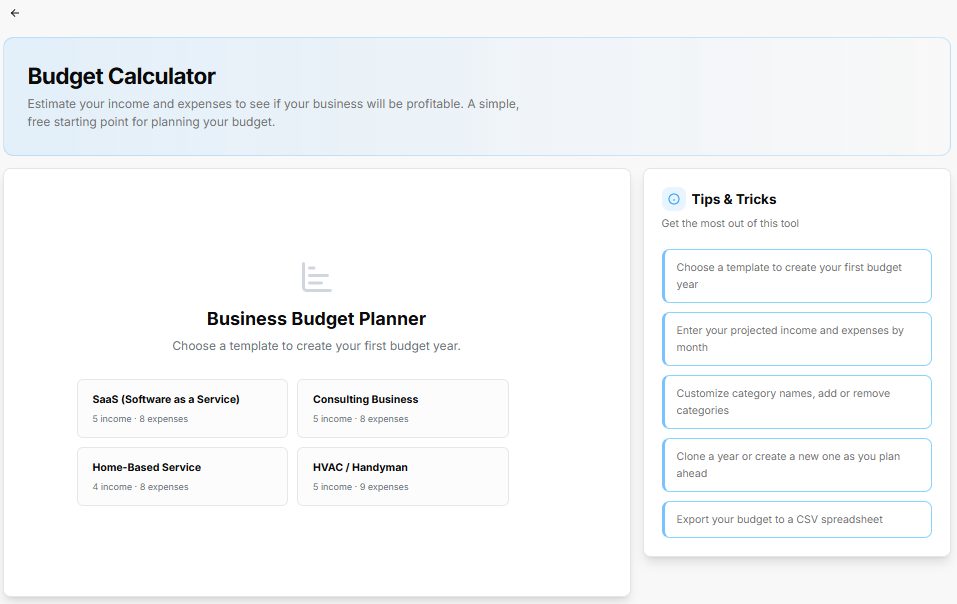
The Budget Calculator helps users estimate revenue, operational expenses, and profitability using pre-configured industry templates or custom financial structures.
Business Budget Planner Templates
SaaS (Software as a Service): Includes 5 income streams and 8 default expense categories.
Consulting Business: Includes 5 income streams and 8 default expense categories.
Home-Based Service: Includes 4 income streams and 8 default expense categories.
HVAC / Handyman: Includes 5 income streams and 9 default expense categories.
Tips & Tricks Sidebar
Step 1: Choose a template to create your first budget year.
Step 2: Enter your projected income and expenses by month.
Step 3: Customize category names, add or remove categories.
Step 4: Clone a year or create a new one atas you plan ahead.
Step 5: Export your budget to a timeCSV spreadsheet.
Logo Generator Tool Sub-Section
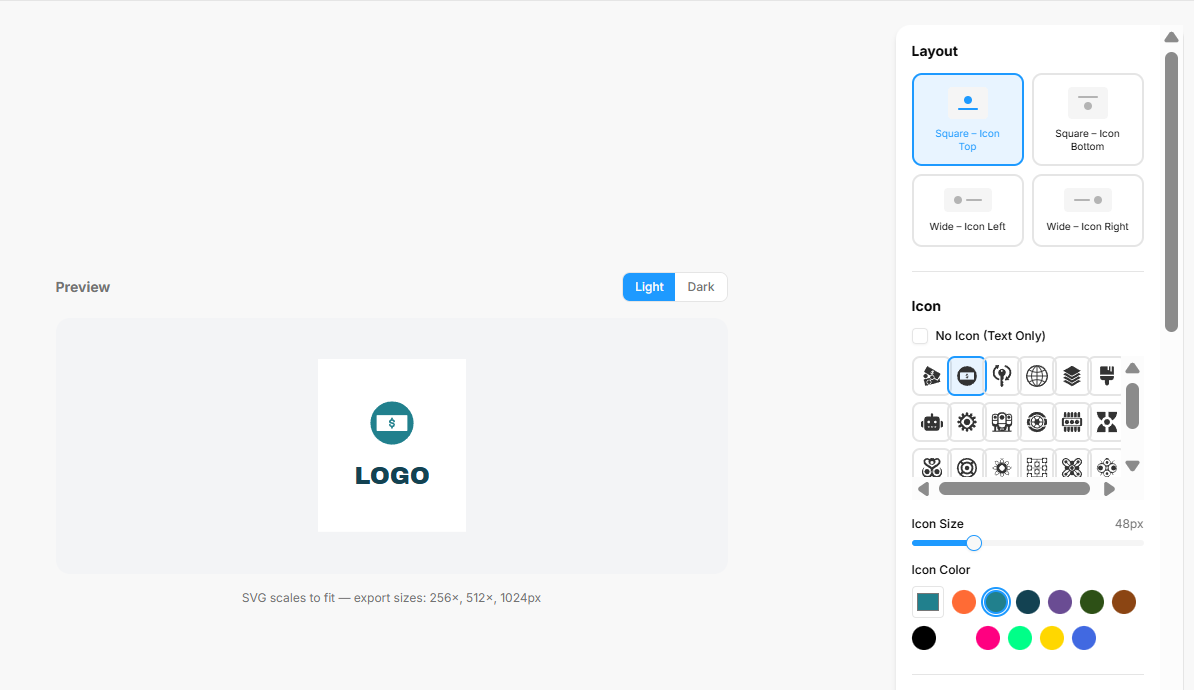
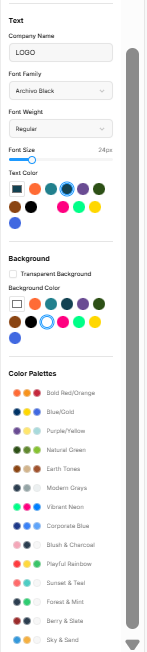
The Logo Generator allows users to create, customize, and export vector logos with adjustable icon arrangements, typography, color palettes, and canvas backgrounds.
Preview Canvas Controls
Preview Theme Toggle: Switches canvas display between Light and Dark background modes.
SVG Export Sizes: Renders resizable SVG graphics supporting export dimensions at 256×, 512×, and 1024px.
Layout Options
Square – Icon Top: Arranges icon centered directly above company text.
Square – Icon Bottom: Arranges icon centered directly below company text.
Wide – Icon Left: Positions icon to the left of company text.
Wide – Icon Right: Positions icon to the right of company text.
Icon Settings
No Icon (Text Only): Checkbox to remove symbol graphics for wordmark designs.
Icon Selection Matrix: Grid picker with scrollable categories of vector icons.
Icon Size Slider: Adjustable range slider setting pixel dimension (e.g., 48px).
Icon Color Swatches: Palette buttons to apply primary colors to the selected icon.
Text Settings
Company Name: Input text field to set displayed brand name (e.g., LOGO).
Font Family: Dropdown menu to select typography (e.g., Archivo Black).
Font Weight: Dropdown menu to adjust font weight (e.g., Regular).
Font Size Slider: Range slider setting font dimensions in pixels (e.g., 24px).
Text Color Swatches: Palette choices for company name lettering.
Background Settings
Transparent Background: Checkbox to remove canvas fill for transparent PNG/SVG exports.
Background Color Swatches: Palette choices for solid canvas background colors.
Color Palettes
Preset Themes: Pre-configured palette combinations including Bold Red/Orange, Blue/Gold, Purple/Yellow, Natural Green, Earth Tones, Modern Grays, Vibrant Neon, Corporate Blue, Blush & Charcoal, Playful Rainbow, Sunset & Teal, Forest & Mint, Berry & Slate, and Sky & Sand.
Word Cloud Generator Tool Sub-Section
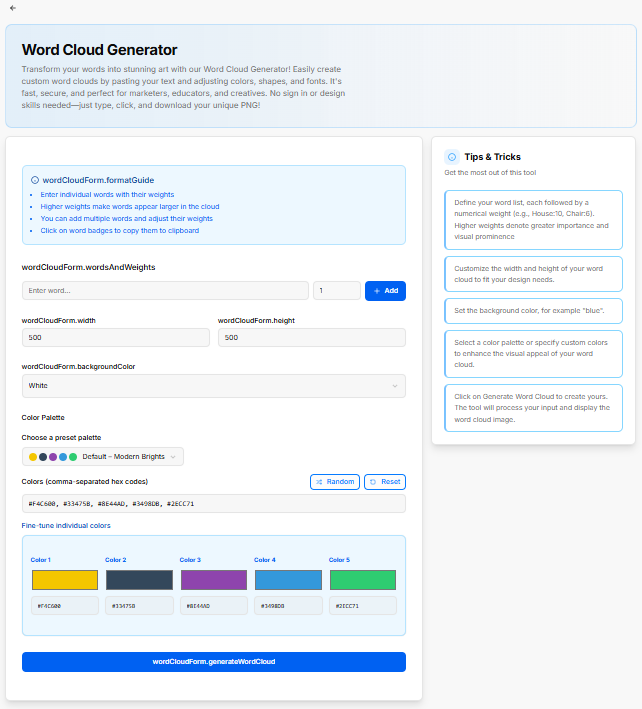
The Word Cloud Generator allows users to transform word lists and assigned numerical weights into custom downloadable word cloud artwork.
Format Guide Panel
Step 1: Enter individual words with their corresponding structural weights.
AssignStep higher2: Higher weights to make important words appear larger in the cloud.
ChooseStep an3: overallYou colorcan paletteadd ormultiple customizewords individualand swatches.adjust their weights.
AdjustStep the4: canvasClick backgroundon colorword badges to matchcopy yourthem designto requirements.clipboard.
Click the execution button to create your custom word cloud and download the finalized image file.
Slogan Generator
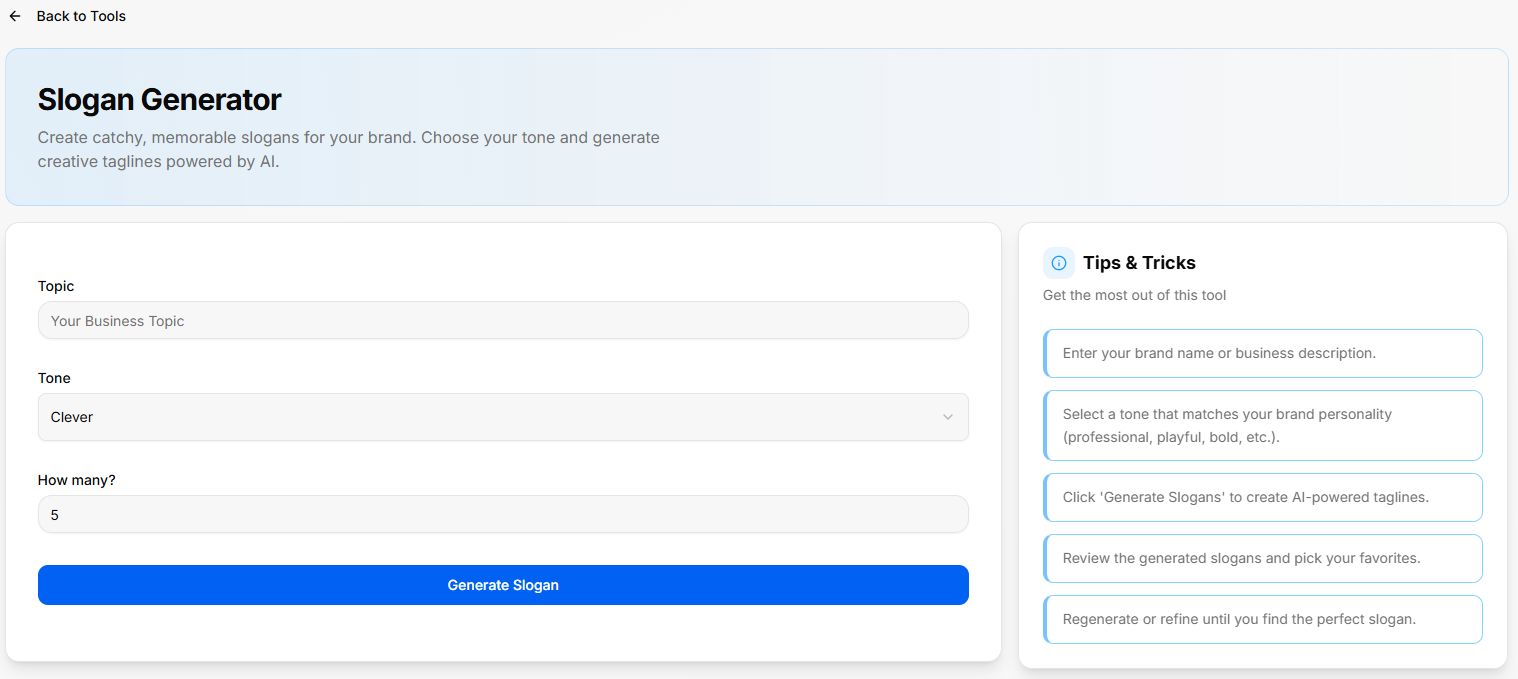
The Slogan Generator is an AI-powered utility designed to create catchy, memorable taglines for a brand based on specified topics, operational themes, and customized tone settings.
1. Input Configuration FieldsControls
The main setup console provides clear input fields to guide the copywriting engine:
-
Topic:WordsA&textWeights Entry: Input fields for word entryfield("Enterwhereword...")youandtypenumericalinweightyourassignmentspecific(defaultscoretobusiness1),topic,alongsidecampaignantheme,+orAddcompanybuttonarea.to commit terms to the list. -
Tone:Dimensions:ANumericdropdowninputselectionfieldsmenufor canvas Width (defaults toestablish the emotional delivery500) andbrand personality of the outputHeight (defaulteddefaults toClever)500). -
HowBackgroundmany?Color:ADropdownvolume input fieldmenu todictateselectthecanvasexactbackgroundnumberstylingof variations(defaults toproduce in a single run (defaulted to5
The
Color module is anchored by a solid blue Generate Slogan button to execute the request and produce the list of taglines.
2. Workflow GuidelinesCustomization
A built-in checklist outlines practical steps to refine brand copy:
-
Enter your brand name orChoose abriefpresetbusinesspalette:descriptionDropdownintomenutheofferingtextpre-configuredarea.color schemes (e.g., Default – Modern Brights). -
SelectColorsa(comma-separatedtonehexsettingcodes):thatTextmatchesfieldyouracceptingestablisheddirectbrandhexpersonality,colorchoosingcodesfrom(e.g.,profiles#F4C600,like#33475B,professional,#8E44AD,playful,#3498DB,or bold.#2ECC71). -
ClickRandomtheButton:executionShufflesbuttonhexto create AI-powered taglines.
-
Review the generated list and pick your top favorites.
Regenerate the outputs or refine the input descriptions until you find the perfect match.
Color Palette Generator
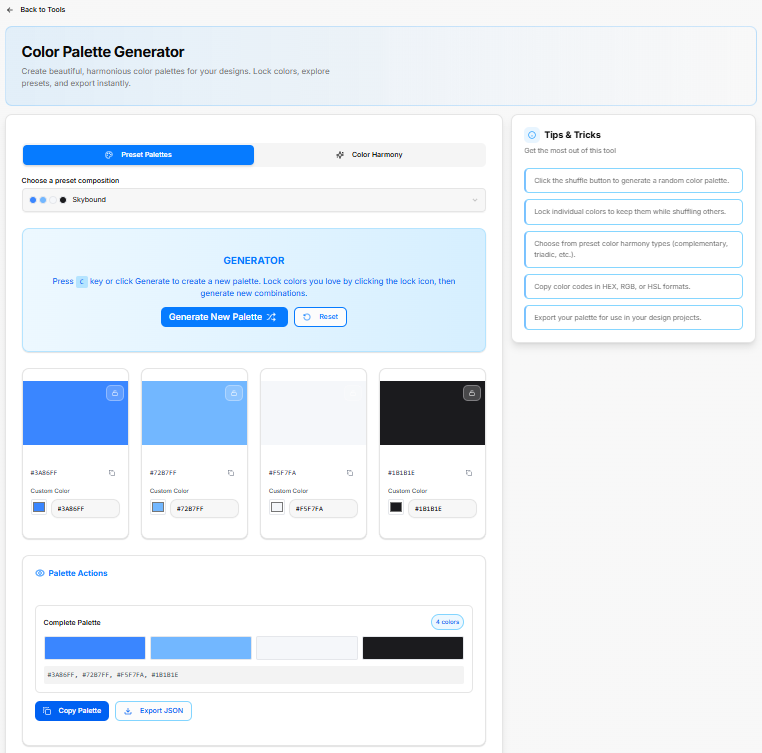
The Color Palette Generator is a platform utility built to assemble cohesive visual themes. It features toolsvalues to generate random color balances,combinations.
Reset chooseButton: structuralRestores default palette settings.
Fine-tune individual colors: Swatch controls to manually adjust individual color harmonies,slots (Color 1 through Color 5) using color pickers or hex inputs.
Generate Word Cloud Button: Triggers canvas rendering based on active terms, weights, and instantly export color schemes for digital products.settings.
1. Composition SelectionTips & GenerationTricks ModesSidebar
-
PresetTipPalettes:1:ADefinetabyourconfigurationword list, each followed by a numerical weight (e.g., House:10, Chair:6). Higher weights denote greater importance and visual prominence.
Tip 2: Customize the width and height of your word cloud to browsefit pre-assembledyour colordesign themesneeds.
Tip selection3: menu (such asSet the Skyboundbackground presetcolor, composition)for example "blue".
ColorTip Harmony:4: ASelect separatea tabcolor optionpalette builtor specify custom colors to establishenhance arrangementsthe visual appeal of your word cloud.
Tip 5: Click on Generate Word Cloud to create yours. The tool will process your input and display the word cloud image.
Slogan Generator Tool Sub-Section
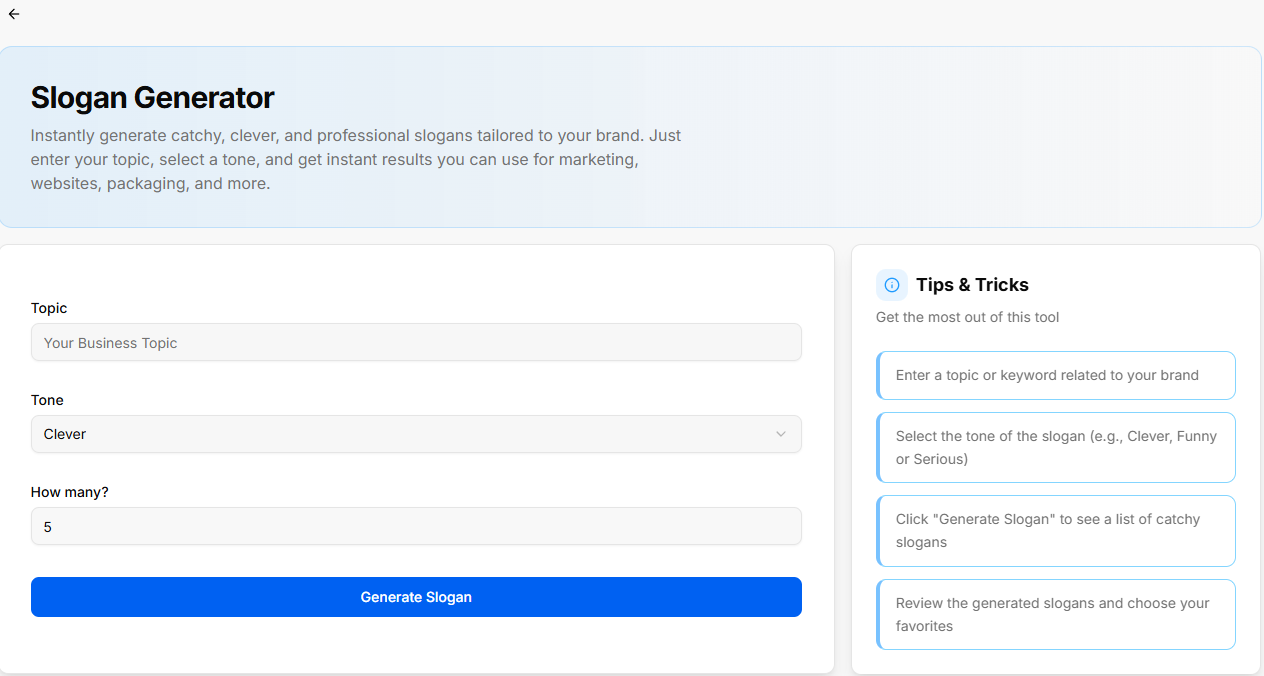
The Slogan Generator tool instantly creates catchy, professional slogans tailored to your brand for marketing, websites, packaging, and more.
Configuration Controls
Topic: Text input field to specify the brand topic or keywords (e.g., Your Business Topic).
Tone: Dropdown menu to select the delivery style (defaults to Clever).
How many?: Numeric input field to specify the total number of slogans generated (defaults to 5).
Generate Slogan Button: Triggers the generation process based on specified inputs.
Tips & Tricks Sidebar
Step 1: Enter a topic or keyword related to your brand.
Step 2: Select the tone of the slogan (e.g., Clever, Funny or Serious).
Step 3: Click "Generate Slogan" to see a list of catchy slogans.
Step 4: Review the generated slogans and choose your favorites.
Color Palette Generator Tool Sub-Section
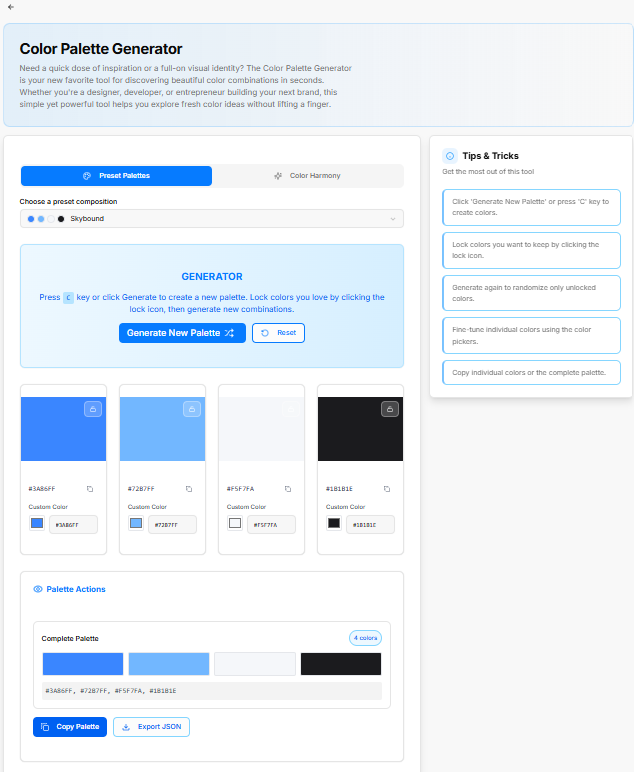
The Color Palette Generator helps designers, developers, and founders discover, fine-tune, and export cohesive color schemes using presets or color harmony rules.
Generator Mode Tabs
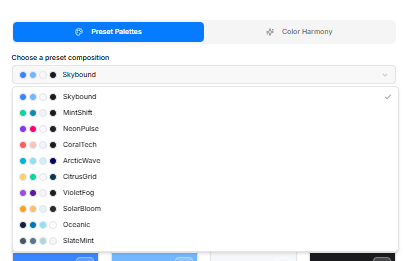
Preset Palettes: Select from curated multi-color brand combinations.
Choose a preset composition: Dropdown menu offering pre-built compositions: Skybound, MintShift, NeonPulse, CoralTech, ArcticWave, CitrusGrid, VioletFog, SolarBloom, Oceanic, and SlateMint.
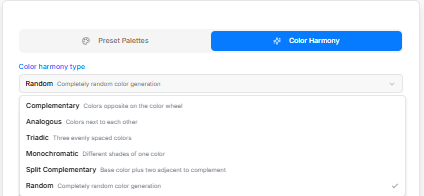
Color Harmony: Generate combinations based on formal designcolor rules.wheel relationships.
Color harmony type: Dropdown menu to select harmony rules:
Complementary: Colors opposite on the color wheel.
TheAnalogous: GeneratorColors Canvas: A central control box providing keyboard and mouse shortcutsnext to rapidlyeach cycleother options. Pressingon the ckeywheel.
Triadic: Three evenly spaced colors on the bluecolor wheel.
Monochromatic: Different shades of a single color.
Split Complementary: Base color plus two colors adjacent to its complement.
Random: Completely random color generation.
Generator Controls & Cards
Generate New Palette buttonButton: rollsCreates a freshnew combination.color Acombination Reset(or actionpress buttonkey restores the canvas back to the baseline configurations.C).
2.
Reset Button: Restores initial default colors.
Color Swatch Cards: Individual Colorcards Customizationshowing Cardsgenerated
Thehex midsectionvalues displays(e.g., an#3A86FF, interactive#7287FF, matrix#F5F7FA, of columns representing each active shade in your palette. Each card includes independent management controls:#18181E):
-
Lock
Utility:Icon:A lock icon badge positioned at the top right of each color block allows you to freezeLocks individualcolors,swatchespreservingsothemtheywhileremainshufflingunchangedandduringrandomizingsubsequentthe remaining columns.randomizations. -
Copy Hex
CopyIcon:Button:CopiesA quick-copy icon lets you copy a singlethe specific hex code toyour clipboard instantly.clipboard. -
Custom Color
Input:Input:AColor picker and hex text input boxdisplayingforthedirectexactmanualhex value (such as#3A86FF,#72B7FF,#F5F7FA, or#1B1B1E) paired with a live color-picker box, enabling you to fine-tune shades precisely.edits.
3. Palette Actions & Global Export OptionsPanel
The lower workspace consolidates the individual shades into a unified design scheme:
-
Complete Palette
Tracker:Preview:GroupsSummarythe visual blocks into a continuous ribbon,bar displayingaallnotificationgeneratedbadgecolorsindicatingtogetherthewithlayoutitemscalecount indicator (such ase.g., 4colors)colors). -
HexCopyVectorPaletteBar:Button:ACopiestext block displaying aall comma-separatedlisthexofcodesalltoactiveclipboardcolor(e.g.,values#3A86FF,for#7287FF,high-level#F5F7FA,copying or pasting.#18181E). -
Export Functions: Anchored by two primary export keys: a blue Copy Palette action button to save the entire string sequence, alongside anExport JSONoptionButton:toDownloadsformatpalettetheconfigurationdataasblockaforstructuredengineeringJSONintegration.file.
4.Tips Workflow& GuidelinesTricks Sidebar
A reference list outlines operational best practices to build balanced interfaces:
-
Tip 1: Click
the'GenerateshuffleNewbuttonPalette' or press 'C' key togeneratecreatea random color palette.colors. -
Tip 2: Lock
individualcolorscolorsyou want to keepthembysafeclickingwhiletheshufflinglockothers.icon. -
ChooseTipfrom3:presetGeneratecoloragainharmonytotypesrandomizelikeonlycomplementaryunlockedor triadic schemas.colors. -
CopyTip 4: Fine-tune individual colors using the colorcodes directly in HEX, RGB, or HSL formats based on your project needs.pickers. -
ExportTipyour5:paletteCopyforindividualusecolorsinoryourtheactivecompletedesign projects.palette.
-