
BuildRunKit Invoices: Settings
BuildRunKit Invoices: Settings (Company Tab)
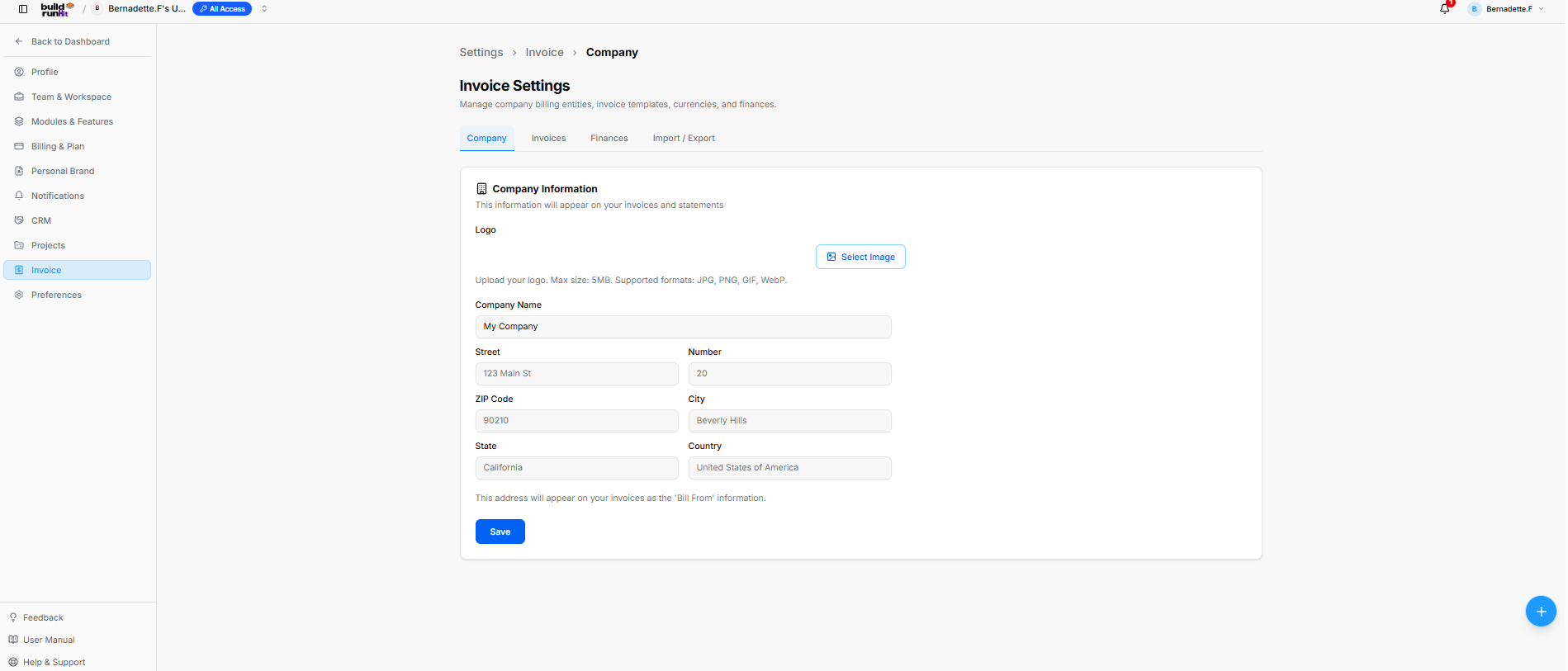
The Invoice Settings panel allows configuration of core billing parameters, business identification details, invoice styling templates, currencies, and data management options.
Navigation Tabs
-
Company: Selected active tab for primary organization details.
-
Invoices: Tab for invoice configuration and formatting.
-
Finances: Tab for financial parameters and currency settings.
-
Import / Export: Tab for data import and backup utilities.
Company Information Card
This information populates the 'Bill From' details across generated invoices and client billing statements.
-
Logo: Image upload control (Select Image button) for branding invoices.
-
File Limits: Max size: 5MB. Supported formats: JPG, PNG, GIF, WebP.
-
-
Company Name: Text field to define the billing entity name (e.g., My Company).
-
Street: Text input for the primary street address (e.g., 123 Main St).
-
Number: Text input for building or suite number (e.g., 20).
-
ZIP Code: Text input for postal routing (e.g., 90210).
-
City: Text input for municipality (e.g., Beverly Hills).
-
State: Text input for region/state (e.g., California).
-
Country: Text input for billing country (e.g., United States of America).
Header & Action Buttons
-
Save: Primary blue button to confirm and save updated company settings.
BuildRunKit Invoices: Settings (Invoices Tab)
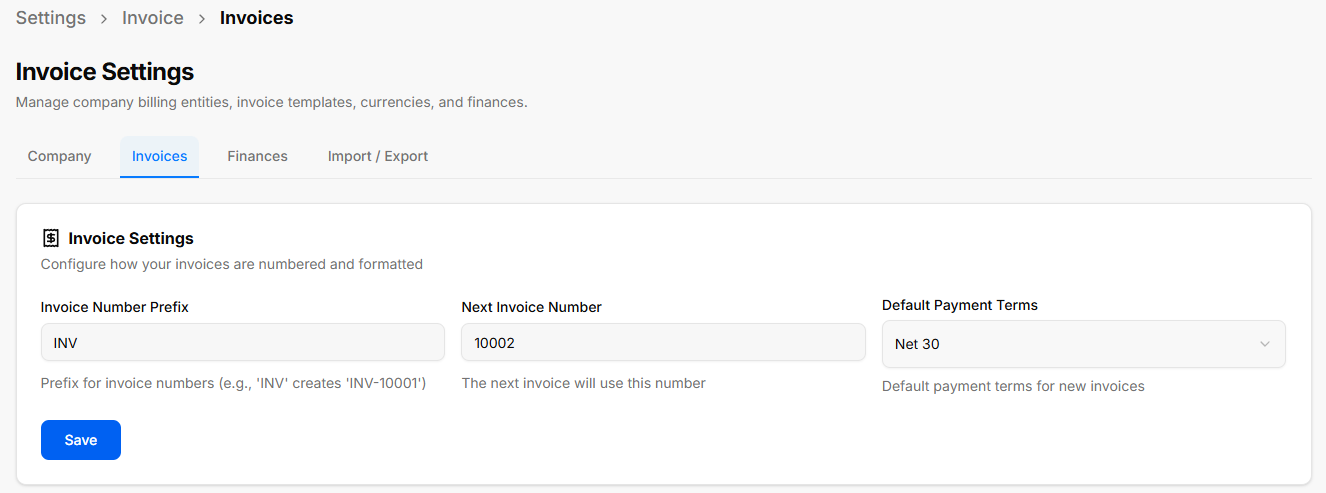
The Invoices tab allows configuration of automatic invoice numbering conventions and default billing terms.
Invoice Settings Card
This section controls how newly generated invoices are numbered and formatted:
-
Invoice Number Prefix: Text field to set the standard prefix for invoice identifiers (e.g.,
INVcreatesINV-10001). -
Next Invoice Number: Text input field setting the starting sequential integer for the upcoming invoice (e.g.,
10002). -
Default Payment Terms: Dropdown selector to set baseline payment due dates for new invoices (e.g., Net 30).
Header & Action Buttons
-
Save: Primary blue button to confirm and apply updated invoice formatting rules.
BuildRunKit Invoices: Settings (Finances Tab)
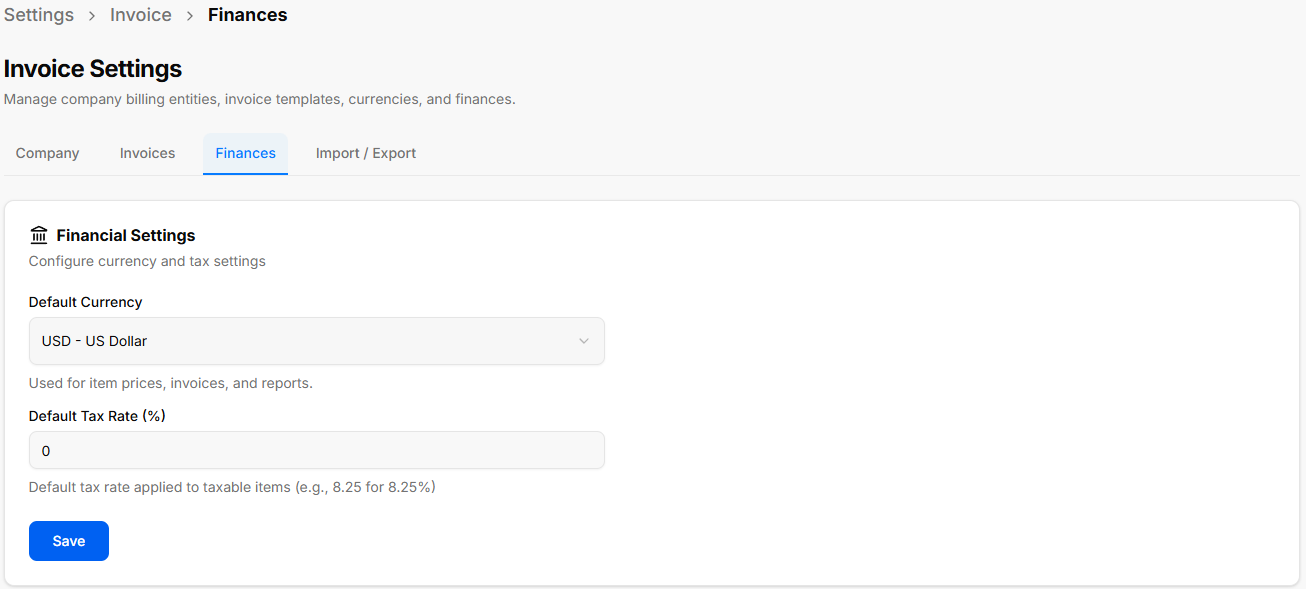
The Finances tab allows configuration of monetary parameters and tax calculations applied across line items and reports.
Financial Settings Card
This section controls default currencies and tax rates:
-
Default Currency: Dropdown menu used to set the baseline currency for item prices, invoice totals, and financial reporting (currently showing USD - US Dollar).
-
Default Tax Rate (%): Numeric input field to specify the default percentage applied to taxable items (e.g.,
0, or8.25for 8.25%).
Header & Action Buttons
-
Save: Primary blue button to confirm and update financial preferences.
BuildRunKit Invoices: Settings (Import / Export Tab)
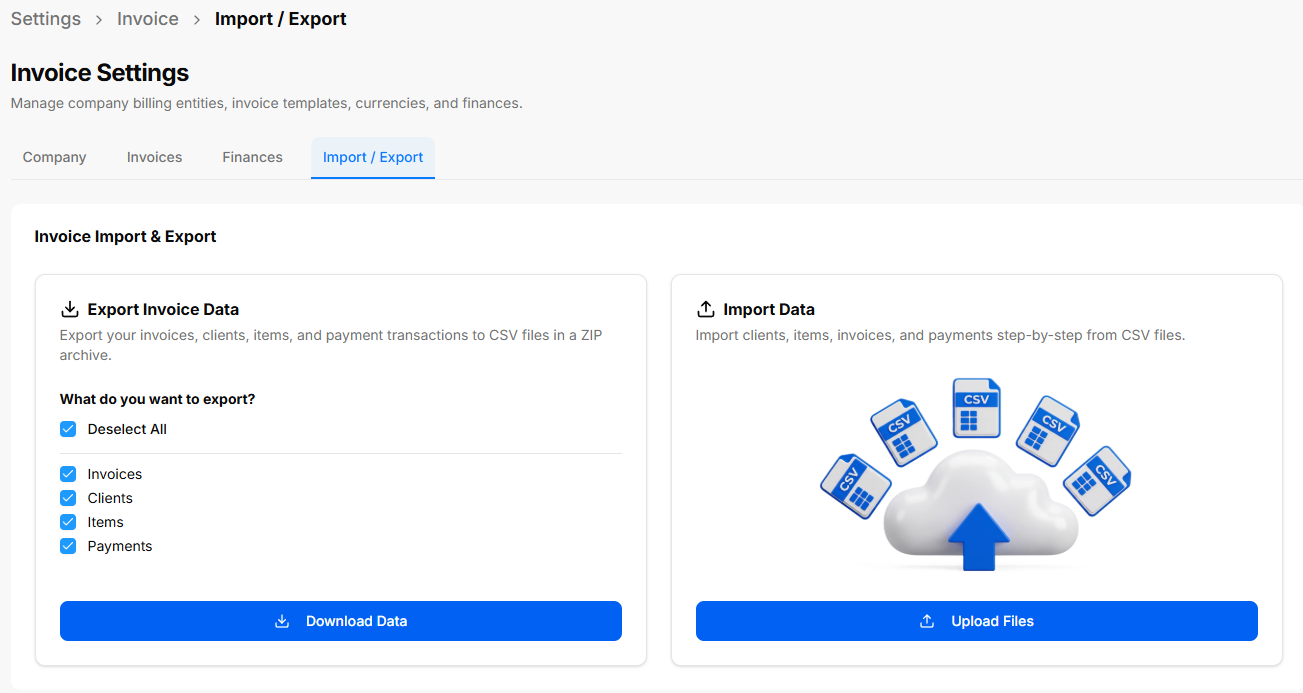
The Import / Export tab provides data portability tools for downloading system backups or bulk-importing entity records using structured CSV files.
Export Invoice Data Card
Allows batch downloading of module records into a single compressed ZIP file containing CSVs:
-
Selection Checkboxes:
-
Select All / Deselect All: Global toggle for all dataset selections.
-
Invoices: Includes invoice records and line items.
-
Clients: Includes customer directory profiles.
-
Items: Includes saved line-item catalog products/services.
-
Payments: Includes logged transaction records.
-
-
Download Data: Primary blue button to execute the ZIP export.
Import Data Card & Import Assistant
Provides guided step-by-step importing of system records via CSV files:
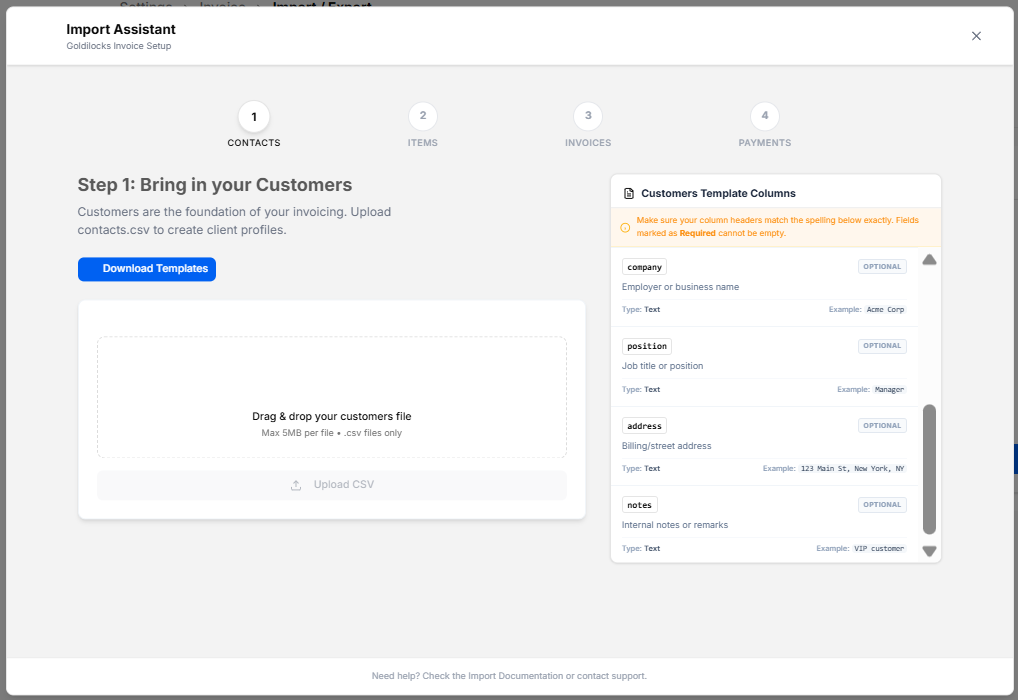
Import Assistant Modal
-
4-Step Wizard Steps:
-
CONTACTS (Current active step: Step 1: Bring in your Customers).
-
ITEMS.
-
INVOICES.
-
PAYMENTS.
-
-
Download Templates: Action button to download formatted CSV template files.
-
File Drag & Drop Area: Upload box supporting
.csvfiles up to 5MB (Upload CSV button). -
Customers Template Columns Reference Panel: Displays required column header formatting rules and data types:
-
company: Optional text (Example: Acme Corp).
-
position: Optional text (Example: Manager).
-
address: Optional text (Example: 123 Main St, New York, NY).
-
notes: Optional text (Example: VIP customer).
-
-
Close (
x): Discards import progress and returns to the Settings screen.