
BuildRunKit Invoices: Companies Sub-Section
ItemsBuildRunKit CatalogInvoices: Companies Sub-Section
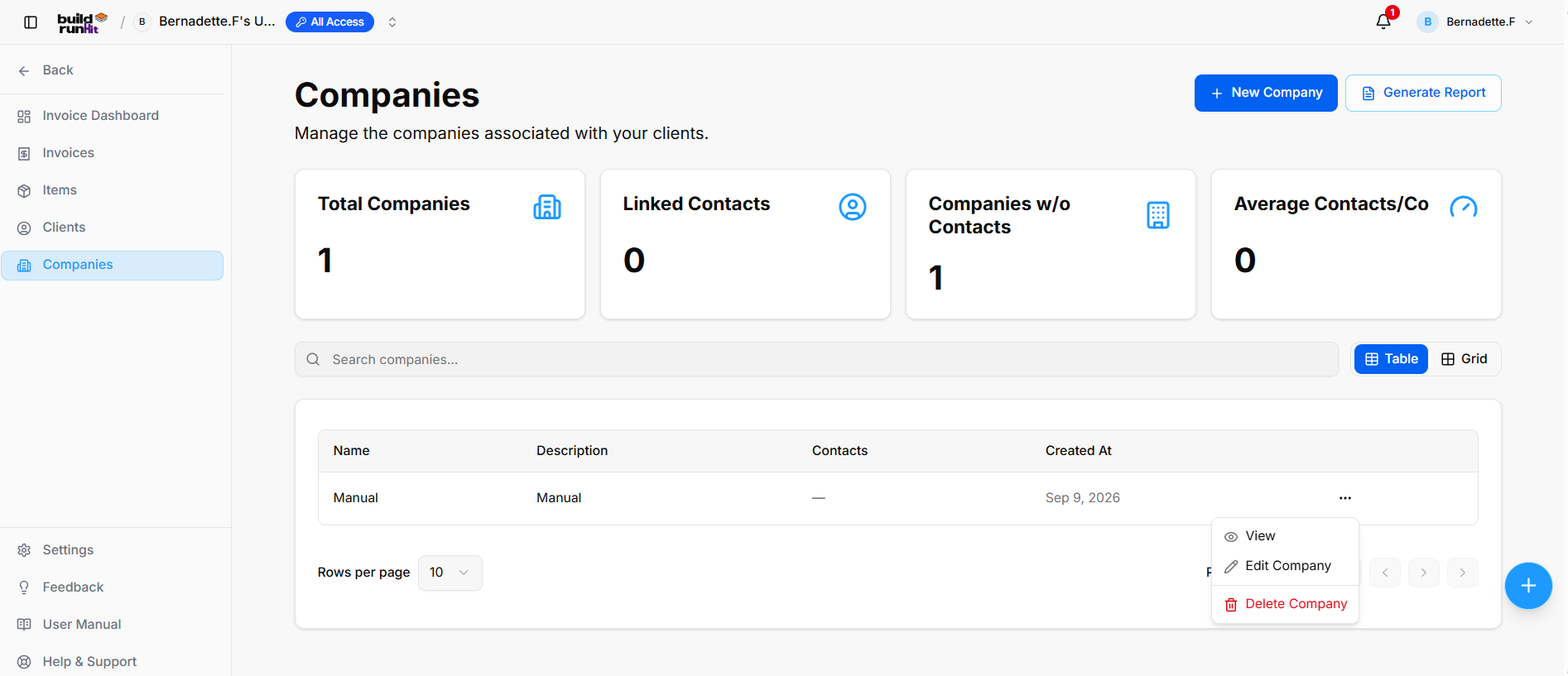
The ItemsCompanies pagesub-section isprovides yourcentral librarydirectory ofmanagement productsfor client businesses, partner organizations, and services.associated Savingcompany your standard offerings here allows you to quickly pull them into any new invoice without re-typing details.accounts.
The
Company ItemsSummary Overview
Metrics At
Top theKPI topcards ofdisplay thekey screen,organization youbreakdown can see the overall status of your service catalog:
-
Total
Items:Companies:TheTracks the overall number ofuniqueregisteredproductscompanyor services you have saved.
Taxable Items: A count of items currently marked as subject to tax.
Average Price: The middle-point price across your entire list.
Highest Price: The price of your most expensive single offering.
Managing Your Catalog
The main table lists all your saved items and their key details:
Search: Use the "Search items by name or description..." bar to find a specific service.
Information Columns: The table displays the Name, Description, Price, and Taxable? status for each entry.
Organization: You can see when an item was first added under the Created At column.
New Item: Click the brown + New Item button at the top right to add a new service to your library.
Generating Items Reports
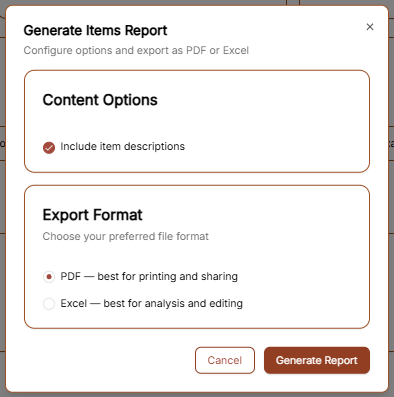
To export a list of your products and services, click the Generate Report button. The configuration window offers the following:
Content Options: Check "Include item descriptions" if you want the full text of your services included in the export.
Export Format: Choose between PDF (best for printing) or Excel (best for analysis and editing).
Click the brown Generate Report button to finalize the download.
Adding a New Item
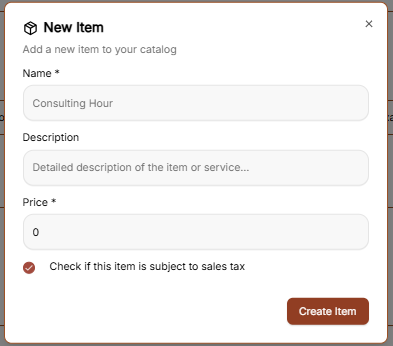
To build your catalog of standard services or products, click the brown + New Item button at the top right of the Items page. This opens a creation form with the following fields:
Name: Enter a clear, professional title for the serviceprofiles (e.g., "Consulting Hour"1).
Description:Linked ProvideContacts: aCounts detailedindividual explanationcontact ofrecords whatattached isacross includedall incompany thisprofiles item.(e.g., This text can be included in your generated reports.0).
Price:Companies Setw/o yourContacts: standardIdentifies rateorphaned forcompany thisrecords item.requiring Thiscontact priceassignment will(e.g., automatically populate whenever you add the item to a new invoice.1).
TaxableAverage Status:Contacts/Co: If this service is subject to sales tax, ensureDisplays the "Checkmean ifcontact thisratio itemper isparent subjectorganization toprofile sales(e.g., tax" box is selected.0).
Directory Controls & Search Bar
OnceSearch companies...: Global filter input for locating accounts by name or description keywords.
View Switcher: Toggle viewing modes between Table (list layout) and Grid (card layout).
Rows per page: Dropdown selector to control row density per page (e.g., 10).
Pagination: Directional controls to step through company directory pages.
Companies Table Data Columns
Name: Primary registered company or trading entity name (e.g., Manual).
Description: High-level summary of the detailscompany's arebusiness finalized,focus clickor internal account notes (e.g., Manual).
Contacts: Total linked contact profiles associated with the brownorganization Create(e.g., Item—).
Created At: Date when the company record was added (e.g., Sep 9, 2026).
Row Actions Menu (...)
Clicking the three dots icon on any company row displays quick record management actions:
View: Opens the dedicated company profile view showing linked contacts and account details.
Edit Company: Opens the setup editor to update organization details or descriptions.
Delete Company: Removes the organization record from the directory.
Header & Action Buttons
+ New Company: Direct action button to addopen itthe company setup modal.
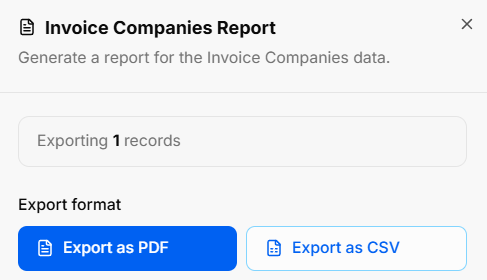
Generate Report: Opens the Invoice Companies Report export modal:
Export Count: Displays total targeted organization records (e.g., Exporting 1 records).
Export Format Options: Allows instant downloads via Export as PDF or Export as CSV.
BuildRunKit Invoices: Creating a New Company
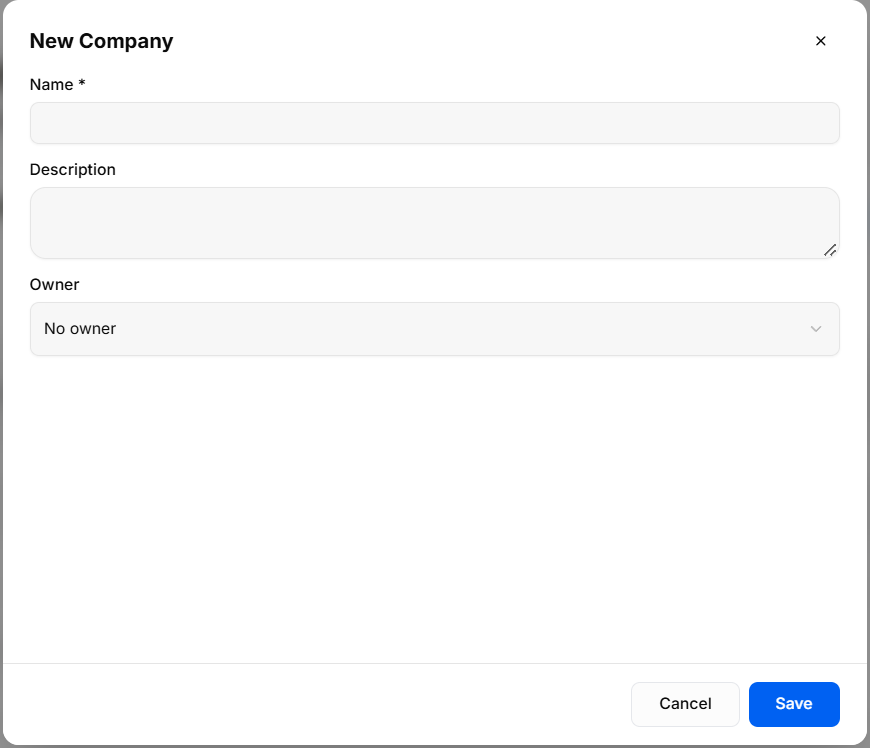
The New Company modal provides a setup interface for creating and registering organization profiles in the Companies directory.
Input Fields & Form Controls
Name *: Required text field to yourenter permanentthe catalog.official company or business entity name.
Description: Optional text area to provide company details, business overview, or internal account notes.
Owner: Dropdown menu to assign an internal team member or account manager (No owner).
Header & Action Buttons
Close (x): Top-right icon to dismiss the modal without saving changes.
Cancel: Outline button to close the modal and discard entered information.
Save: Primary blue action button to register and save the new company profile.