# Mentor Alliance Business Coach Kit

# Mentor Alliance Business Coach Kit – Platform Overview

## **Mentor Alliance Business Coach Kit – Platform Overview**

**[![Screenshot 2026-09-25 133106.png](https://library.buildrunkit.com/uploads/images/gallery/2026-09/scaled-1680-/screenshot-2026-09-25-133106.png)](https://library.buildrunkit.com/uploads/images/gallery/2026-09/screenshot-2026-09-25-133106.png)**
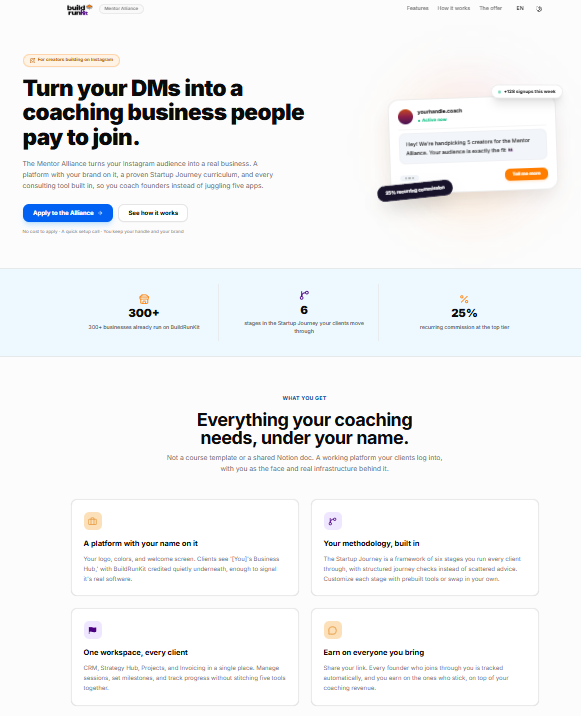
The **Mentor Alliance Business Coach Kit** gives business coaches a fully branded platform to run, structure, and manage their coaching operations. Coaches operate under their own name and visual identity, keeping themselves at the center of client relationships while delivering a consistent, guided coaching experience.

#### **Core Capabilities**

- **Custom-Branded Platform**: Deliver coaching under your own brand name, custom logo, and preferred setup while using BuildRunKit's underlying platform infrastructure.
- **Client &amp; Journey Management**: Invite clients, build tailored action plans, assign structured business journeys, and monitor client progress step-by-step.
- **Flexible Content &amp; Methods**: Use pre-built BuildRunKit business journeys and tools, or integrate your own proprietary coaching material, frameworks, and resources.
- **Unified Workspace Operations**: Handle all core coaching functions in one place:
    
    
    - Manage client relationships and active communications.
    - Assign plans, track progress, and organize client projects and tasks.
    - Direct high-level business planning and strategy tools.

### **Onboarding Workflow &amp; Deployment Paths**

#### **4-Step Onboarding Process**

1. **Apply**: Submit your handle, audience details, and coaching style (takes ~5 minutes).
2. **Setup Call**: A 20-minute walkthrough to configure your branded instance.
3. **Go Live**: Platform launches under your own brand with a unique referral link.
4. **Grow &amp; Earn**: Share your link across social channels; clients sign up under your brand while you earn recurring revenue.

#### **Two Deployment Options**

- **Mentor Alliance (Run it as your own)**: Operate a branded consulting platform with free starter journeys and recurring referral revenue.
- **Co-Create (Help build the next version)**: Shape platform features directly around your specific coaching methodology with full access from day one.

#### **Pricing &amp; Trial Structure**

- **Flat Client Rate**: $10 per month per active client, with no setup fees or hidden tiers.
- **100% Revenue Retention**: Coaches keep all earnings charged directly to clients for coaching services.
- **Free Trial**: First 10 client consultations are included at no charge.

# Mentor Alliance Business Coach Kit – Dashboard

## **Mentor Alliance Business Coach Kit – Dashboard**

**[![Screenshot 2026-09-25 133343.png](https://library.buildrunkit.com/uploads/images/gallery/2026-09/scaled-1680-/screenshot-2026-09-25-133343.png)](https://library.buildrunkit.com/uploads/images/gallery/2026-09/screenshot-2026-09-25-133343.png)**
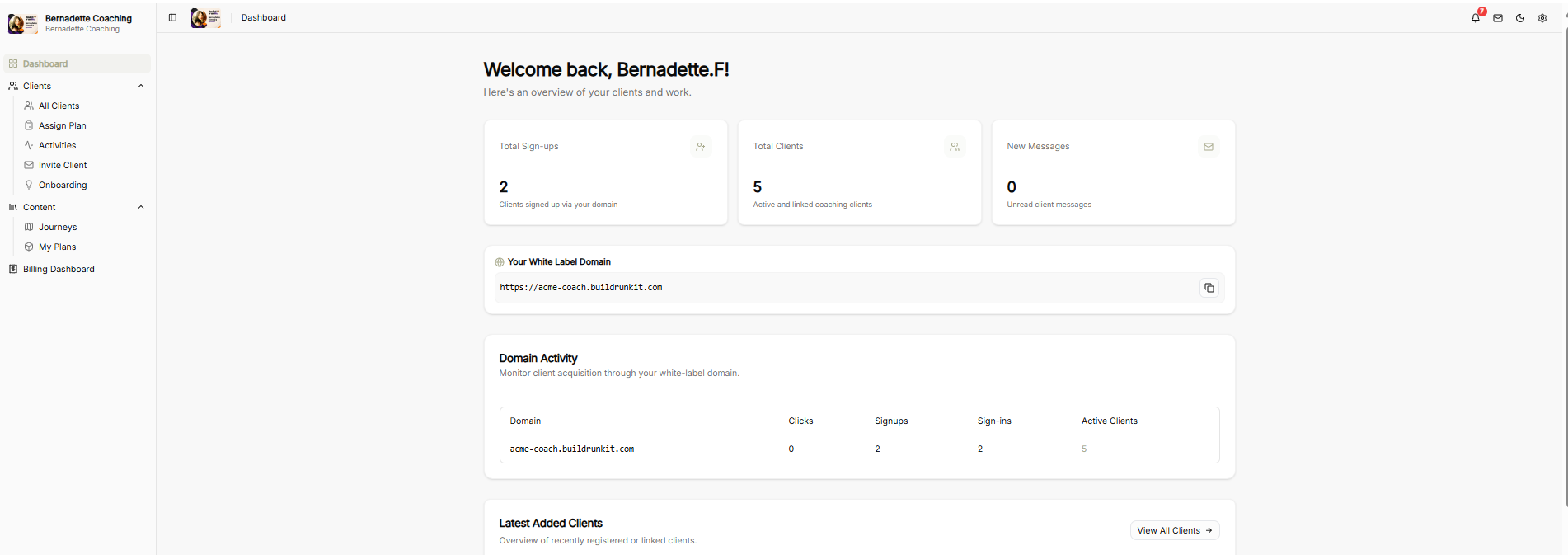
The **Mentor Alliance Business Coach Dashboard** serves as the central operational hub for coaches to monitor client onboarding, manage custom plans, track white-label domain performance, and access administrative settings.

#### **Top Utility Navigation**

- **Notification Bell**: Red alert badge icon displaying active workspace alerts and platform updates.
- **Client Messaging Envelope**: Quick-access shortcut button to compose and send messages directly to clients.
- **Theme Toggle (Moon Icon)**: One-click visual control switch to toggle between Light Mode and Dark Mode display themes.
- **Settings Gear**: Instant menu access to update account preferences, profile details, and system configurations.

#### **Sidebar Navigation Bar**

- **Organization Profile**: Displays the active coaching brand name.
- **Dashboard**: Home view displaying key metrics, domain activity, and client progress overviews.
- **Clients Group**:
    
    
    - **All Clients**: Directory of all linked and active coaching clients.
    - **Assign Plan**: Interface for assigning custom coaching plans or business journeys to specific clients.
    - **Activities**: Log of recent client actions, progress milestones, and platform engagements.
    - **Invite Client**: Onboarding tool to send direct invitations or referral links to new clients.
    - **Onboarding**: Management flow for guiding new clients through initial profile and business setup.
- **Content Group**:
    
    
    - **Journeys**: Access and manage built-in and custom coaching frameworks.
    - **My Plans**: Library of tailored coaching blueprints and action plans.
- **Billing Dashboard**: Direct link to client billing settings, active subscriptions, and invoicing data.

### **Dashboard Metrics &amp; Operations**

#### **Top Summary Metric Cards**

- **Total Sign-ups**: Displays the total count of clients who registered using your white-label domain.
- **Total Clients**: Active and linked coaching clients currently managed within your workspace.
- **New Messages**: Unread client message notifications.

#### **Your White Label Domain**

- **Domain Input Block**: Displays your custom sub-domain URL alongside a one-click copy button for quick sharing across channels.

#### **Domain Activity Table**

Monitors real-time client acquisition and traffic metrics across your white-label URL:

- **Domain**: Active custom URL.
- **Clicks**: Total unique link visits.
- **Signups**: Total registrations recorded through the domain.
- **Sign-ins**: Total active client sign-ins logged.
- **Active Clients**: Current total of retained active clients.

#### **Latest Added Clients**

- **Client Overview Feed**: Displays a stream of recently registered or linked clients, with a **View All Clients →** quick navigation button to jump directly to the full directory.

# Mentor Alliance Business Coach Kit – Clients Roster

## **Mentor Alliance Business Coach Kit – Clients Roster**

**[![Screenshot 2026-09-25 140223.png](https://library.buildrunkit.com/uploads/images/gallery/2026-09/scaled-1680-/screenshot-2026-09-25-140223.png)](https://library.buildrunkit.com/uploads/images/gallery/2026-09/screenshot-2026-09-25-140223.png)**
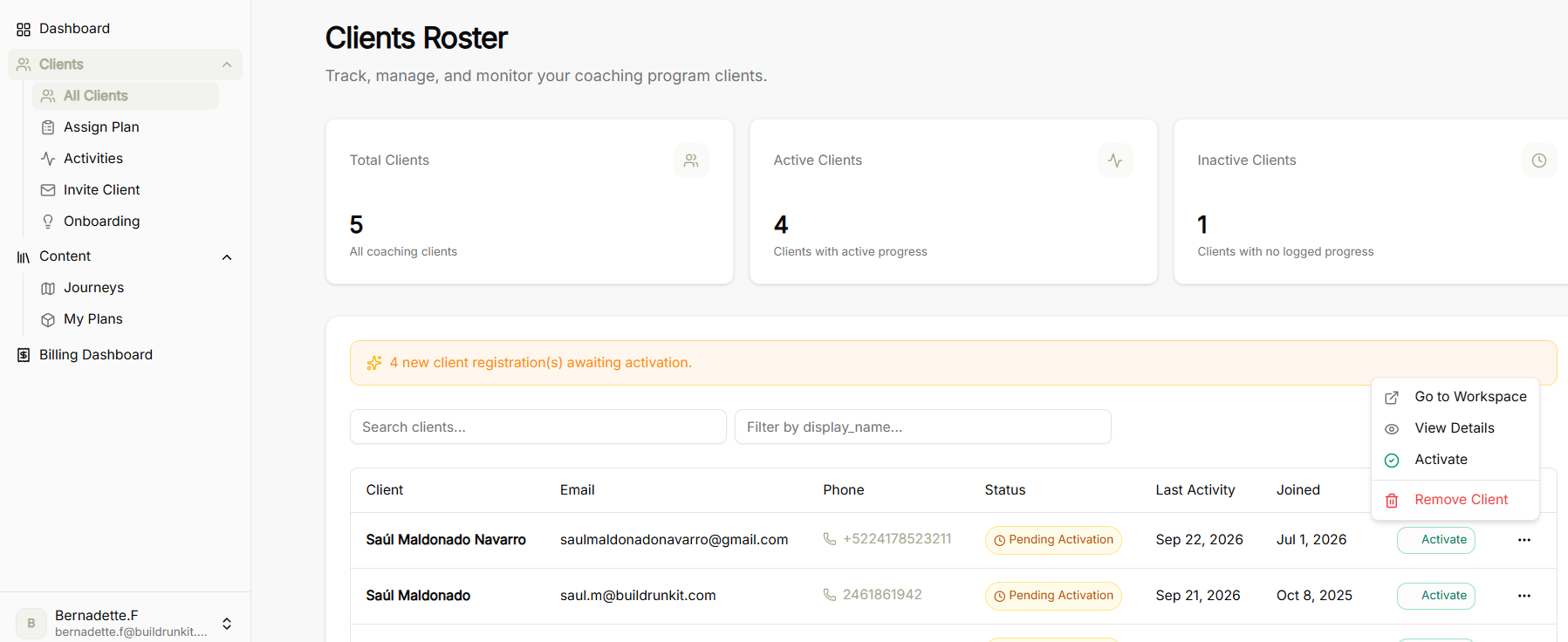
The **Clients Roster** screen allows coaches to track, manage, and monitor all clients enrolled in their coaching program.

#### **Summary Metrics**

- **Total Clients**: Overview of all coaching clients in your database.
- **Active Clients**: Count of clients currently making active progress through assigned journeys.
- **Inactive Clients**: Count of clients with no recent logged progress or activity.

#### **Directory Controls &amp; Registration Alerts**

- **Activation Alert Banner**: Highlighting new client registrations awaiting activation.
- **Search Clients**: Search field to locate specific clients by name or keyword.
- **Filter Options**: Dropdown filter to sort or filter records by display name or status.

### **Clients Table &amp; Actions**

#### **Table Columns**

- **Client**: Name of the client.
- **Email**: Primary contact email address.
- **Phone**: Contact telephone number.
- **Status**: Current account status badge (*e.g., Pending Activation*).
- **Last Activity**: Timestamp of the client's most recent interaction on the platform.
- **Joined**: Registration date.

#### **Row Action Menu**

- **Activate Button**: Direct button to activate pending client accounts.
- **More Actions Menu (...)**:
    
    
    - **Go to Workspace**: Access the client's dedicated workspace directly.
    - **View Details**: Open full client profile and progress details.
    - **Activate**: Change client account status to active.
    - **Remove Client**: Remove or archive the client from your roster.

# Mentor Alliance Business Coach Kit – Assign Plan to Client

## **Mentor Alliance Business Coach Kit – Assign Plan to Client**

[![Screenshot 2026-09-25 140519.png](https://library.buildrunkit.com/uploads/images/gallery/2026-09/scaled-1680-/screenshot-2026-09-25-140519.png)](https://library.buildrunkit.com/uploads/images/gallery/2026-09/screenshot-2026-09-25-140519.png)
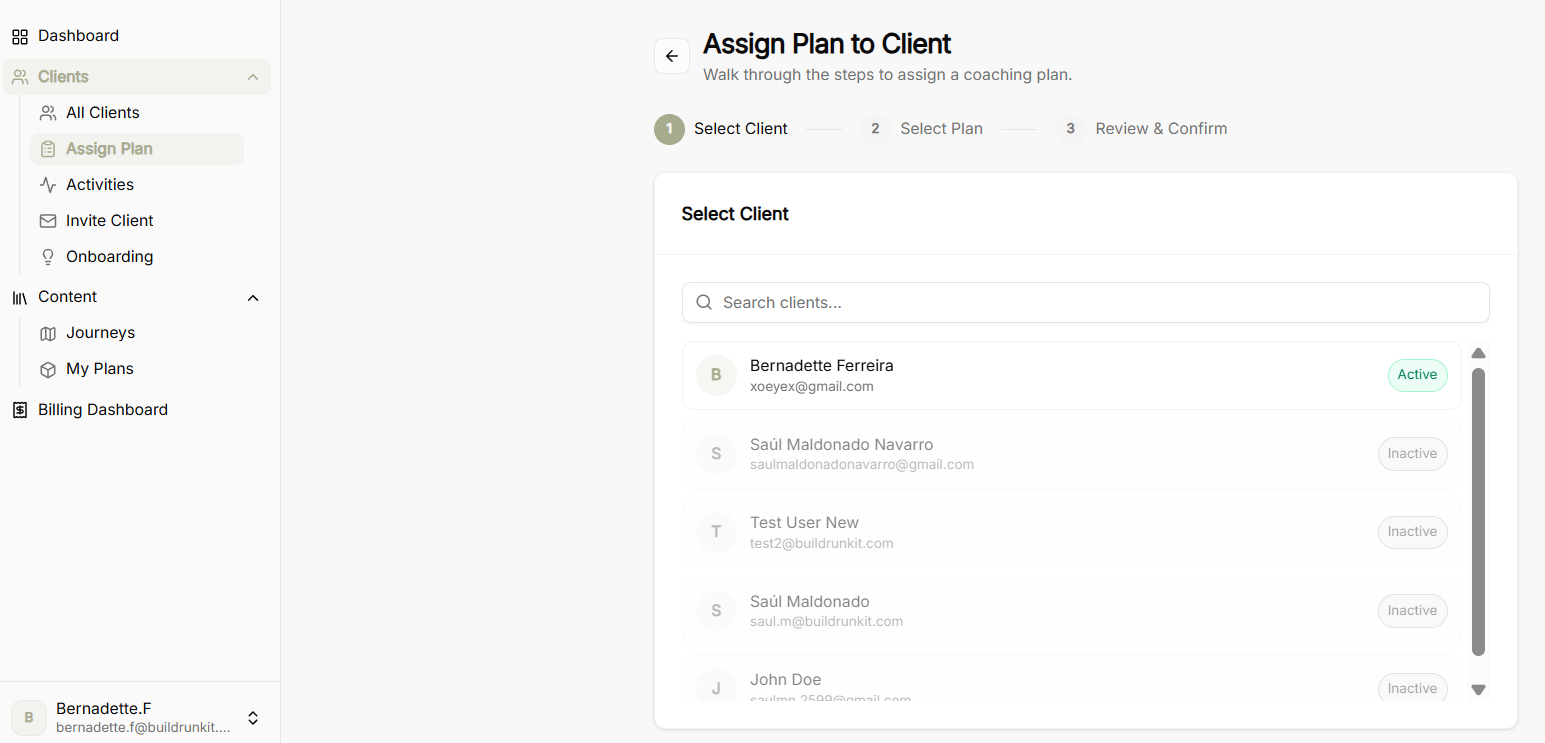
The **Assign Plan to Client** tool provides a guided step-by-step wizard to attach structured coaching plans and business journeys directly to a client's workspace.

#### **Step 1: Select Client**

- **Search Bar**: Quickly search and filter through enrolled clients by name or email.
- **Client Selection List**: Displays registered coaching clients alongside their account status badges (*Active* or *Inactive*).
- **Selection Action**: Select the intended client to highlight them and proceed to plan selection.

#### **Step 2: Select Plan**

**[![Screenshot 2026-09-25 140601.png](https://library.buildrunkit.com/uploads/images/gallery/2026-09/scaled-1680-/screenshot-2026-09-25-140601.png)](https://library.buildrunkit.com/uploads/images/gallery/2026-09/screenshot-2026-09-25-140601.png)**
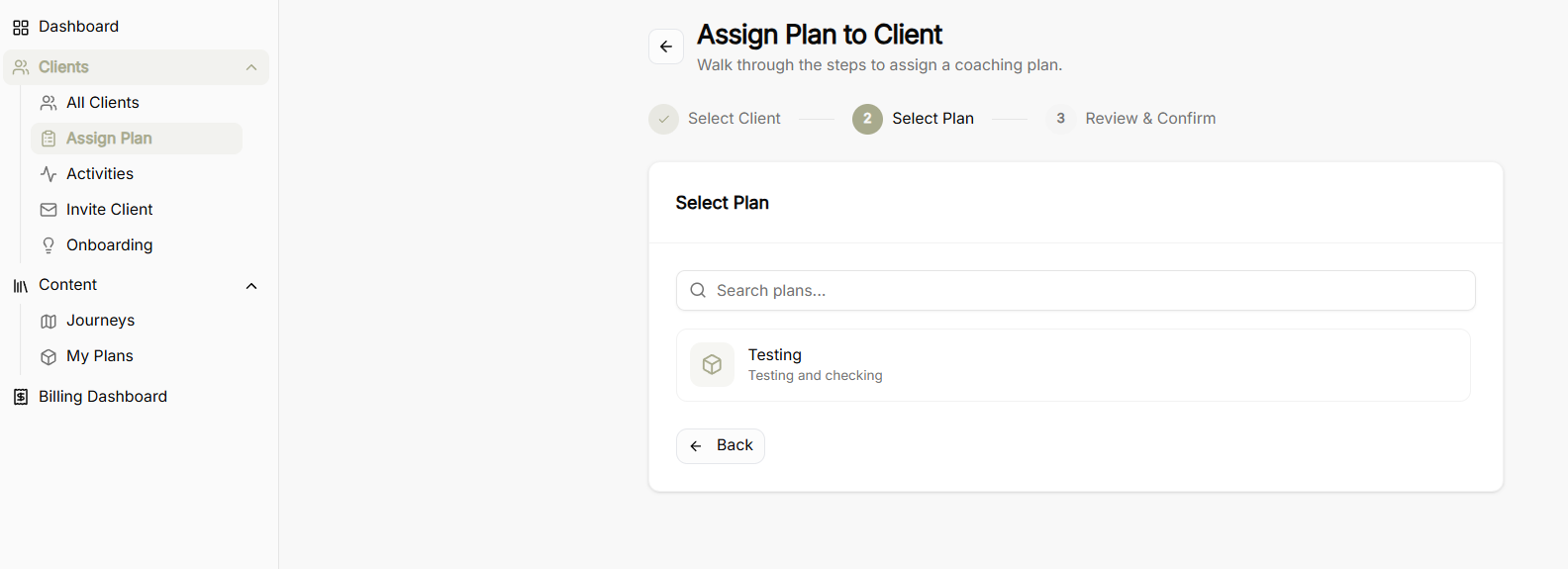
- **Search Plans**: Search bar to locate specific coaching plans saved in your **My Plans** library.
- **Plan Library List**: Displays custom coaching plans and blueprints created within the platform.
- **Navigation Controls**:
    
    
    - **Back Button**: Return to Step 1 to reselect or change the client.
    - **Plan Selection**: Click on the desired plan card to advance to final review.

#### **Step 3: Review &amp; Confirm**

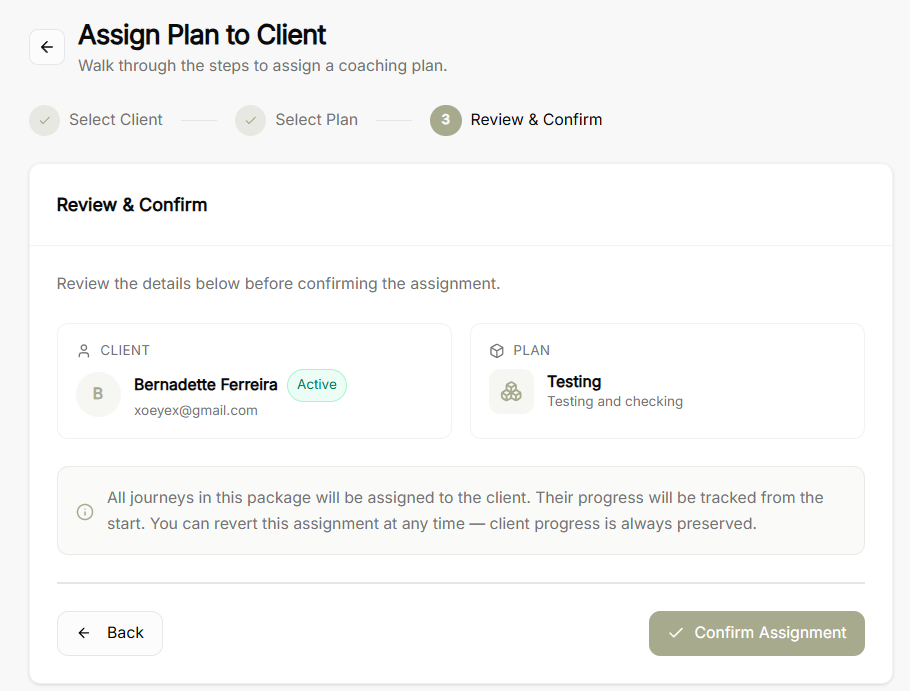
**[![Screenshot 2026-09-25 140632.png](https://library.buildrunkit.com/uploads/images/gallery/2026-09/scaled-1680-/screenshot-2026-09-25-140632.png)](https://library.buildrunkit.com/uploads/images/gallery/2026-09/screenshot-2026-09-25-140632.png)**

- **Selected Client Summary**: Displays chosen client details, email address, and active account status.
- **Selected Plan Summary**: Displays the assigned plan title and description.
- **Assignment Operational Notice**: Explains that all journeys included in the package will be assigned to the client, with progress tracked from the start and full preservation of client data if reverted later.
- **Final Controls**:
    
    
    - **Back Button**: Return to previous steps to make adjustments.
    - **Confirm Assignment Button**: Finalize and activate the plan assignment for the client.

# Mentor Alliance Business Coach Kit – Client Activity

## **Mentor Alliance Business Coach Kit – Client Activity**

**[![Screenshot 2026-09-25 151127.png](https://library.buildrunkit.com/uploads/images/gallery/2026-09/scaled-1680-/screenshot-2026-09-25-151127.png)](https://library.buildrunkit.com/uploads/images/gallery/2026-09/screenshot-2026-09-25-151127.png)**
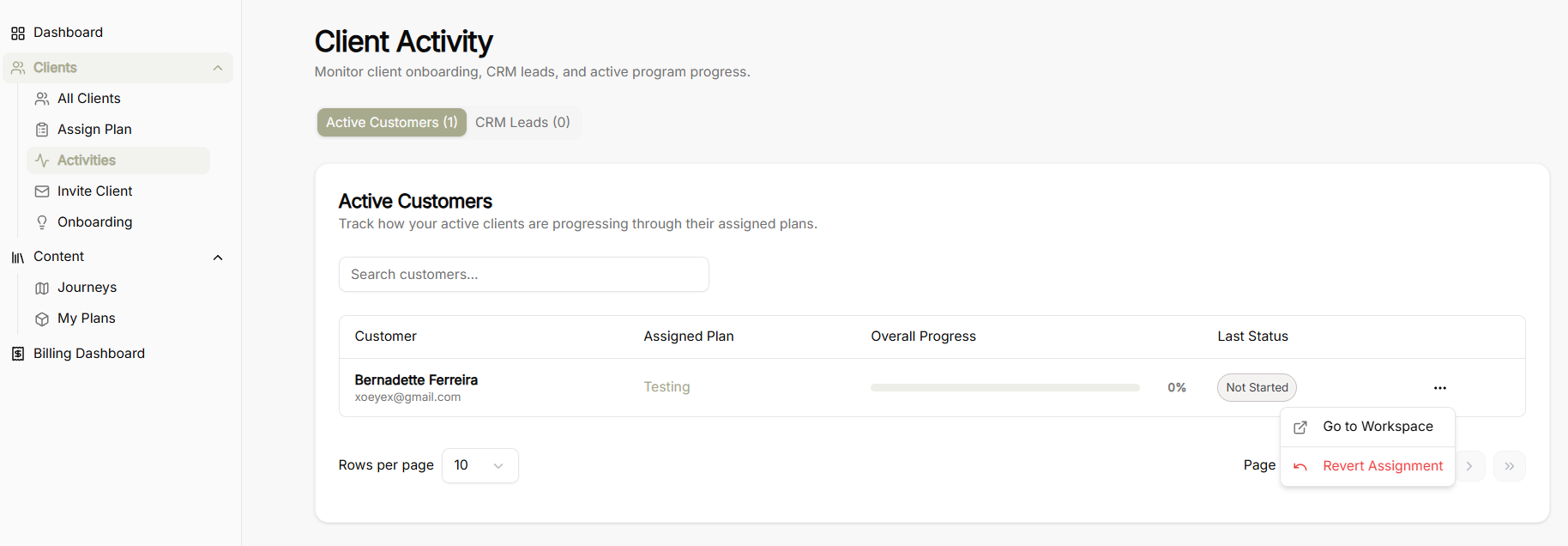
The **Client Activity** screen allows coaches to monitor client onboarding, track CRM leads, and keep tabs on active program progress across assigned coaching plans.

#### **Activity Category Tabs**

<div class="container" id="bkmrk-active-customers%3A-di"><div class="markdown markdown-main-panel md-content enable-luminous-fast-follows enable-updated-hr-color tutor-markdown-rendering" dir="ltr">- **Active Customers**: Displays clients who are currently enrolled and tracking progress through an assigned coaching plan.
- **CRM Leads**: Tracks prospective clients and leads currently in the onboarding pipeline.

</div></div>#### **Active Customers View &amp; Controls**

<div class="container" id="bkmrk-search-bar%3A-input-fi"><div class="markdown markdown-main-panel md-content enable-luminous-fast-follows enable-updated-hr-color tutor-markdown-rendering" dir="ltr">- **Search Bar**: Input field to search and filter active customers by name or keyword.
- **Rows Per Page Selector**: Dropdown menu to adjust the number of visible customer rows per page.
- **Pagination Controls**: Page navigation controls to cycle through larger lists of active clients.

</div></div>### **Customer Progress Table &amp; Actions**

#### **Table Columns**

<div class="container" id="bkmrk-customer%3A-displays-c"><div class="markdown markdown-main-panel md-content enable-luminous-fast-follows enable-updated-hr-color tutor-markdown-rendering" dir="ltr">- **Customer**: Displays customer name and registered email address.
- **Assigned Plan**: The specific coaching plan or framework assigned to the client.
- **Overall Progress**: Visual progress bar accompanied by a percentage indicator showing completion level.
- **Last Status**: Status badge indicating active state or milestone completion status.

</div></div>#### **Row Action Menu (...)**

<div class="container" id="bkmrk-go-to-workspace%3A-dir"><div class="markdown markdown-main-panel md-content enable-luminous-fast-follows enable-updated-hr-color tutor-markdown-rendering" dir="ltr" id="bkmrk-go-to-workspace%3A-dir-1">- **Go to Workspace**: Direct shortcut to open and inspect the client's dedicated workspace.
- **Revert Assignment**: Option to unassign or roll back the current coaching plan from the client's profile.

</div></div>

# Mentor Alliance Business Coach Kit – Invite Client & Manage Templates

## **Mentor Alliance Business Coach Kit – Invite Client &amp; Manage Templates**

**[![Screenshot 2026-09-25 151732.png](https://library.buildrunkit.com/uploads/images/gallery/2026-09/scaled-1680-/screenshot-2026-09-25-151732.png)](https://library.buildrunkit.com/uploads/images/gallery/2026-09/screenshot-2026-09-25-151732.png)**

The **Invite Client** module allows coaches to dispatch custom, branded email invitations to prospective clients, track invitation statuses, and manage reusable email templates.

#### **Client Invitations Overview Dashboard**

- **Top Controls**:
    
    
    - **Manage Templates**: Opens the reusable invitation template manager.
    - **Invite Client**: Launches the guided 3-step invitation creation wizard.
- **Filter &amp; Search Bar**: Search sent invitations by target email address or filter by column parameters.
- **Invitations Table Columns**:
    
    
    - **Target Email**: Recipient email address.
    - **Template**: The specific template used for the invitation.
    - **Status**: Current invitation delivery/acceptance state (*e.g., Pending*).
    - **Sent At**: Timestamp of when the email was sent.
    - **Accepted At**: Timestamp of when the client accepted the invitation.
    - **Row Actions (...)**: Options to delete or revoke active invitations.

### **Email Templates Manager &amp; Creation Modal**

**[![Screenshot 2026-09-25 151800.png](https://library.buildrunkit.com/uploads/images/gallery/2026-09/scaled-1680-/screenshot-2026-09-25-151800.png)](https://library.buildrunkit.com/uploads/images/gallery/2026-09/screenshot-2026-09-25-151800.png)**

**[![Screenshot 2026-09-25 151834.png](https://library.buildrunkit.com/uploads/images/gallery/2026-09/scaled-1680-/screenshot-2026-09-25-151834.png)](https://library.buildrunkit.com/uploads/images/gallery/2026-09/screenshot-2026-09-25-151834.png)**

- **Template List Screen**: Displays all saved reusable email templates with options to edit, delete, or create a **New Template**.
- **Create/Edit Email Template Modal**:
    
    
    - **Template Information**: Define the template name, main email heading, and optional subtitle.
    - **Message Body**: Rich text editor for formatting body copy (headings, bold, lists, links).
    - **Call-to-Action Button**: Customize button label text, size, background color, text color, and destination URL.
    - **Include Default Instructions Toggle**: Automatically appends 4 standard onboarding steps under the call-to-action button to guide new clients through sign-up.

### **Invite Client by Email Wizard**

#### **Step 1: Select Template**

**[![Screenshot 2026-09-25 151920.png](https://library.buildrunkit.com/uploads/images/gallery/2026-09/scaled-1680-/screenshot-2026-09-25-151920.png)](https://library.buildrunkit.com/uploads/images/gallery/2026-09/screenshot-2026-09-25-151920.png)**

- Choose an existing email template from your saved library or click **Manage Templates** to configure a new one.

#### **Step 2: Enter Email**

**[![Screenshot 2026-09-25 152018.png](https://library.buildrunkit.com/uploads/images/gallery/2026-09/scaled-1680-/screenshot-2026-09-25-152018.png)](https://library.buildrunkit.com/uploads/images/gallery/2026-09/screenshot-2026-09-25-152018.png)**

- Enter the prospective client’s email address where the personalized invitation will be sent.

#### **Step 3: Review &amp; Send**

**[![Screenshot 2026-09-25 152107.png](https://library.buildrunkit.com/uploads/images/gallery/2026-09/scaled-1680-/screenshot-2026-09-25-152107.png)](https://library.buildrunkit.com/uploads/images/gallery/2026-09/screenshot-2026-09-25-152107.png)**

- **Live Email Preview**: Renders the complete branded email layout, including coach profile header, custom messaging, call-to-action button, and onboarding instructions.
- **Final Actions**: Use **Back** to adjust details or **Send Invitation** to dispatch the email.

# Mentor Alliance Business Coach Kit – Onboarding

## **Mentor Alliance Business Coach Kit – Onboarding**

**[![Screenshot 2026-09-25 152654.png](https://library.buildrunkit.com/uploads/images/gallery/2026-09/scaled-1680-/screenshot-2026-09-25-152654.png)](https://library.buildrunkit.com/uploads/images/gallery/2026-09/screenshot-2026-09-25-152654.png)**

The **Onboarding** module enables coaches to create, edit, and manage customized first-touch onboarding experiences that new clients encounter immediately after registering.

#### **Client Onboarding Overview Dashboard**

- **Active Onboarding Banner**: Displays the designated primary onboarding sequence, highlighting total stage count, skippability permissions, and direct actions (**View Details** or **Edit Flow**).
- **New Onboarding Flow Button**: Launches the builder to design a brand-new onboarding experience.
- **All Onboarding Flows**: Library displaying all saved onboarding sequences with status tags (*Active*, *Skippable*) and creation dates.

#### **View Details Screen**

- **Flow Summary Header**: Displays total stage count, navigation behavior (*Flexible - Skip Allowed* or *Mandatory*), and original creation date.
- **Flow Stages &amp; Steps Summary**: Renders a read-only breakdown of each stage, including stage titles, descriptions, and individual step prompts configured for the client intake.
- **Edit Flow Button**: Direct shortcut to open the editor and update the current flow.

#### **Edit &amp; Create Onboarding Experience Flow Builder**

**[![Screenshot 2026-09-25 152731.png](https://library.buildrunkit.com/uploads/images/gallery/2026-09/scaled-1680-/screenshot-2026-09-25-152731.png)](https://library.buildrunkit.com/uploads/images/gallery/2026-09/screenshot-2026-09-25-152731.png)**

**[![Screenshot 2026-09-25 152757.png](https://library.buildrunkit.com/uploads/images/gallery/2026-09/scaled-1680-/screenshot-2026-09-25-152757.png)](https://library.buildrunkit.com/uploads/images/gallery/2026-09/screenshot-2026-09-25-152757.png)**

- **General Settings**:
    
    
    - **Experience Title**: Set or modify the public title for the onboarding flow.
    - **Description / Subtitle**: Add guidance text explaining the purpose of the intake to new clients.
    - **Allow Skip to Dashboard Toggle**: Enables or disables a "Skip to dashboard" button, allowing clients to bypass onboarding and explore the platform right away.
    - **Set as Active Onboarding Toggle**: Designates the specific flow as the primary journey assigned to new client registrations.

#### **Onboarding Stages**:

[![Screenshot 2026-09-25 152843.png](https://library.buildrunkit.com/uploads/images/gallery/2026-09/scaled-1680-/screenshot-2026-09-25-152843.png)](https://library.buildrunkit.com/uploads/images/gallery/2026-09/screenshot-2026-09-25-152843.png)

- - **Stage Title &amp; Description**: Configure distinct sequential stages to break intake steps into manageable parts.
    - **Add Stage Button**: Append additional sequential stages to the onboarding journey.
- **Save / Create Controls**: Confirm updates with **Save Changes** or publish a new experience with **Create Onboarding**.

# Mentor Alliance Business Coach Kit – Journeys

## **Mentor Alliance Business Coach Kit – Journeys**

**[![Screenshot 2026-09-30 124820.png](https://library.buildrunkit.com/uploads/images/gallery/2026-09/scaled-1680-/screenshot-2026-09-30-124820.png)](https://library.buildrunkit.com/uploads/images/gallery/2026-09/screenshot-2026-09-30-124820.png)**

The **Journeys** module allows coaches to create, manage, preview, and structure custom client journey paths and leverage pre-built templates to build structured coaching content plans.

#### **Custom Journeys Dashboard &amp; Preview Options**

- **My Journeys View**: Displays a table of all custom journeys with their title, description, and creation date.
- **Action Menu (... Options)**: Clicking the three dots on any listed journey opens the quick menu to **Preview**, **Edit**, or **Delete** the journey.
- **Preview Journey Screen**: Renders a read-only overview showing total stages, total substages, tag type (*e.g., Custom*), and an expandable breakdown of every stage and substage in the sequence. Includes an **Edit** button in the top header for quick updates.

#### **Edit Custom Journey Builder**

[![Screenshot 2026-09-30 125117.png](https://library.buildrunkit.com/uploads/images/gallery/2026-09/scaled-1680-/screenshot-2026-09-30-125117.png)](https://library.buildrunkit.com/uploads/images/gallery/2026-09/screenshot-2026-09-30-125117.png)

- **Journey Information**: Update the mandatory **Journey Name** and **Description** fields.
- **Stage Management**: Reorder stages using up/down arrows, delete stages, or collapse/expand stage details.
- **Side-Panel Journey Library**: Access pre-made **Substages** or **Complete Journeys** from the library side panel and insert them into active stages via **Add to Active Stage**.
- **Header Controls**: Use **Preview** to check the layout or **Hide Journey Library** to expand your main editing view.

#### **Journey Templates Library**

**[![Screenshot 2026-09-30 125227.png](https://library.buildrunkit.com/uploads/images/gallery/2026-09/scaled-1680-/screenshot-2026-09-30-125227.png)](https://library.buildrunkit.com/uploads/images/gallery/2026-09/screenshot-2026-09-30-125227.png)**

- **Templates Overview**: Switch to the **Journey Templates** tab to browse pre-built frameworks (*e.g., Business Model Canvas, LeanStack, Go-To-Market Plan, Brand Foundations*).
- **Template Cards**: Each template displays stage counts, substage counts, and a brief summary.
- **Use as Template**: Converts any pre-built framework into an editable custom journey.

#### **Create Custom Journey Builder**

**[![Screenshot 2026-09-30 130044.png](https://library.buildrunkit.com/uploads/images/gallery/2026-09/scaled-1680-/screenshot-2026-09-30-130044.png)](https://library.buildrunkit.com/uploads/images/gallery/2026-09/screenshot-2026-09-30-130044.png)**

- **Create Journey Button**: Click **+ Create Journey** from the top right of the main dashboard to launch a blank canvas.
- **Canvas Options**: Enter a **Journey Name** and **Description**, then start building from scratch using **+ Add Stage** or select pre-built assets directly from the **Journey Library** side panel.

# Mentor Alliance Business Coach Kit – My Plans

## **Mentor Alliance Business Coach Kit – My Plans**

[![Screenshot 2026-09-30 131902.png](https://library.buildrunkit.com/uploads/images/gallery/2026-09/scaled-1680-/screenshot-2026-09-30-131902.png)](https://library.buildrunkit.com/uploads/images/gallery/2026-09/screenshot-2026-09-30-131902.png)

The **My Plans** module allows coaches to create, edit, assign, and customize content plans for client onboarding by combining custom journeys, pre-built templates, and file attachments.

#### **Assigning a Plan**

**[![Screenshot 2026-09-30 132011.png](https://library.buildrunkit.com/uploads/images/gallery/2026-09/scaled-1680-/screenshot-2026-09-30-132011.png)](https://library.buildrunkit.com/uploads/images/gallery/2026-09/screenshot-2026-09-30-132011.png)**

<div class="container" id="bkmrk-assign-plan-modal%3A-s"><div class="markdown markdown-main-panel md-content enable-luminous-fast-follows enable-updated-hr-color tutor-markdown-rendering" dir="ltr">- **Assign Plan Modal**: Select a coaching client from the dropdown menu to assign a content plan.
- **Automatic Progress Tracking**: Assigning a plan initializes all included journeys directly on the client’s dashboard with initial progress tracking enabled.

</div></div>#### **Editing &amp; Building Content Plans**

[![Screenshot 2026-09-30 131357.png](https://library.buildrunkit.com/uploads/images/gallery/2026-09/scaled-1680-/V8Fscreenshot-2026-09-30-131357.png)](https://library.buildrunkit.com/uploads/images/gallery/2026-09/V8Fscreenshot-2026-09-30-131357.png)

[![Screenshot 2026-09-30 131430.png](https://library.buildrunkit.com/uploads/images/gallery/2026-09/scaled-1680-/screenshot-2026-09-30-131430.png)](https://library.buildrunkit.com/uploads/images/gallery/2026-09/screenshot-2026-09-30-131430.png)

<div class="container" id="bkmrk-plan-details%3A-define"><div class="markdown markdown-main-panel md-content enable-luminous-fast-follows enable-updated-hr-color tutor-markdown-rendering" dir="ltr">- **Plan Details**: Define or update the mandatory **Plan Name** and **Description**.
- **Adding Content Items**:
    
    
    - **Add Journey**: Append journeys directly into the plan sequence.
    - **Add File Attachment**: Attach supplementary documents or resources.
- **Journey Library Side Panel**:
    
    
    - Toggle between **My Journeys** and **Templates** tabs to find relevant content.
    - Click **+ Add to Plan** on any card to include it in the active plan.
    - Click the **Eye Icon** on any journey card in the library or item row to launch a quick preview popup.
- **Journey Quick Preview Modal**: Displays the journey’s full stage breakdown, stage descriptions, and total stage counts with an option to **Open Full Preview**.
- **Item Management**: Reorder items in the plan using the up/down arrows or remove them using the trash icon.

</div></div>#### **Creating a New Plan**

[![Screenshot 2026-09-30 131357.png](https://library.buildrunkit.com/uploads/images/gallery/2026-09/scaled-1680-/npascreenshot-2026-09-30-131357.png)](https://library.buildrunkit.com/uploads/images/gallery/2026-09/npascreenshot-2026-09-30-131357.png)

<div class="container" id="bkmrk-plan-creator-canvas%3A"><div class="markdown markdown-main-panel md-content enable-luminous-fast-follows enable-updated-hr-color tutor-markdown-rendering" dir="ltr" id="bkmrk-plan-creator-canvas%3A-1">- **Plan Creator Canvas**: Set a **Plan Name** and **Description** on a fresh canvas.
- **Library &amp; Attachment Options**: Open the **Journey Library** sidebar to browse through **My Journeys** or **Templates**, preview journeys via the eye icon, and attach required documents before clicking **Save Plan**.

</div></div>

# Mentor Alliance Business Coach Kit – Billing Dashboard

## **Mentor Alliance Business Coach Kit – Billing Dashboard**

**[![Screenshot 2026-09-30 132519.png](https://library.buildrunkit.com/uploads/images/gallery/2026-09/scaled-1680-/screenshot-2026-09-30-132519.png)](https://library.buildrunkit.com/uploads/images/gallery/2026-09/screenshot-2026-09-30-132519.png)**

The **Billing Dashboard** allows coaches to monitor active client counts, track daily usage, review tier-calculated monthly charges, and view historical account activity.

#### **Billing Metrics Summary**

- **Active Clients**: Shows current total active clients alongside the baseline allowance (*2 included free*).
- **Active Client Days**: Tracks total accumulated active coaching days out of the current month's total days.
- **Subscription**: Displays the base monthly account subscription fee.
- **Running Balance**: Calculates total accrued charges for the current billing cycle so far.
- **Date Navigator**: Allows coaches to toggle between current and previous billing months to inspect historical usage.

#### **Price Breakdown &amp; How Billing Works**

- **Price Breakdown**: Displays itemized active client calculations and additional fees for the billing cycle.
- **Client Activation &amp; Tracking**:
    
    
    - **Activate Your Clients**: Clients are toggled to active via the Clients table to begin coaching tracking.
    - **Active Days Tracked**: Every active period is recorded daily, with a 10-day minimum rule per activation.
    - **Month-End Billing**: On the 1st of each month, total active days are divided by total days in the month to compute active client equivalents under tiered pricing.
- **Pricing Tiers**:
    
    
    - **Included**: First 2 clients free.
    - **Clients 3–10**: $10 / client.
    - **Clients 11–25**: $7 / client.
    - **Clients 26+**: $5 / client.

#### **Billing History**

- **Activity Log**: Provides a detailed audit log of all client events, including activations, deactivations, date/time stamps, and associated monthly invoices.

# Mentor Alliance Business Coach Kit – Settings

## **Mentor Alliance Business Coach Kit – Settings**

The **Settings** module allows coaches to manage public branding info, profile details, security settings, platform display preferences, and automated notification lead times.

#### **Coach Contact &amp; Public Info**

**[![Screenshot 2026-09-30 132756.png](https://library.buildrunkit.com/uploads/images/gallery/2026-09/scaled-1680-/screenshot-2026-09-30-132756.png)](https://library.buildrunkit.com/uploads/images/gallery/2026-09/screenshot-2026-09-30-132756.png)**

- **White-Label Branding**: Display public details shown to clients, including Display Name, Brand Name, Website URL, Office Location, Bio, and connected Social Media Links (LinkedIn, Pinterest).
- **Contact Details**: Set primary and alternative contact channels, including Email Address, Alternative Email, Phone Number, and Alternative Phone.
- **Edit Controls**: Use the **Edit** button to update public-facing coach information.

#### **User Settings &amp; Email Address**

**[![Screenshot 2026-09-30 132917.png](https://library.buildrunkit.com/uploads/images/gallery/2026-09/scaled-1680-/screenshot-2026-09-30-132917.png)](https://library.buildrunkit.com/uploads/images/gallery/2026-09/screenshot-2026-09-30-132917.png)**

- **Personal Profile**: View and edit personal account details such as Display Name, Phone Number, Role / User Type (*e.g., Founder*), and Member Since date.
- **Email Address Management**: Update account login email with confirmation verification sent to the new address.

#### **Security &amp; Platform Preferences**

- **Change Password**: Update security credentials by entering the Current Password along with the New Password confirmation (minimum 8 characters).
- **Display Language**: Toggle interface language between English and Español.
- **Visual Theme**: Switch the platform interface appearance between Light and Dark modes.

#### **Notification Preferences**

[![Screenshot 2026-09-30 132846.png](https://library.buildrunkit.com/uploads/images/gallery/2026-09/scaled-1680-/screenshot-2026-09-30-132846.png)](https://library.buildrunkit.com/uploads/images/gallery/2026-09/screenshot-2026-09-30-132846.png)

- **Notification Email**: Set an explicit email address to override default account notifications.
- **Email Subscriptions**: Toggle options for Daily Digest Email (sent at midnight UTC), Marketing &amp; Newsletters, and Feature Updates.
- **Upcoming Due Date Lead Times**: Set specific advance notification days for upcoming deadlines, including:
    
    
    - Task Due Lead
    - Deal Close Lead
    - Invoice Due Lead
    - Project Task Lead
    - Milestone Lead
    - Project Deadline Lead
    - Stakeholder Tasks Lead
    - Stakeholder Problem Lead
- **Save Preferences**: Confirm and apply all updated notification triggers.

# Mentor Alliance Business Coach Kit – Messages & Notifications

## **Mentor Alliance Business Coach Kit – Messages &amp; Notifications**

<div drawio-diagram="710"><img src="https://library.buildrunkit.com/uploads/images/drawio/2026-09/drawing-4-1790768423.png" alt="drawing-4-1790768423.png"/></div>

The **Messages** and **Notifications** features provide real-time direct communication tools and alert management directly within the platform header and navigation layout.

#### **Messages Center**

**[![Screenshot 2026-09-30 133328.png](https://library.buildrunkit.com/uploads/images/gallery/2026-09/scaled-1680-/screenshot-2026-09-30-133328.png)](https://library.buildrunkit.com/uploads/images/gallery/2026-09/screenshot-2026-09-30-133328.png)**

<div class="container" id="bkmrk-client-conversations"><div class="markdown markdown-main-panel md-content enable-luminous-fast-follows enable-updated-hr-color tutor-markdown-rendering" dir="ltr">- **Client Conversations Sidebar**:
    
    
    - **Client Filter Dropdown**: Filter client list by account status (*e.g., Active*).
    - **Search Bar**: Quickly locate specific client conversations by typing the client's name.
    - **Client List**: Select active conversations with clients (*e.g., John Doe, Saúl Maldonado, Bernadette Ferreira, Saúl Maldonado Navarro, Test User New*). Shows client avatar initials and the status of the last message sent.
- **Chat Window &amp; Workspace**:
    
    
    - **Recipient Details**: Displays selected client's full name, profile initials, and primary email address.
    - **Message History Pane**: Workspace displaying past thread messages or starting a new conversation.
    - **Message Input Controls**: Text box to compose new messages paired with a **Send** button.

</div></div>#### **Notifications Panel**

**[![Screenshot 2026-09-30 133423.png](https://library.buildrunkit.com/uploads/images/gallery/2026-09/scaled-1680-/screenshot-2026-09-30-133423.png)](https://library.buildrunkit.com/uploads/images/gallery/2026-09/screenshot-2026-09-30-133423.png)**

<div class="container" id="bkmrk-header-controls%3A-not"><div class="markdown markdown-main-panel md-content enable-luminous-fast-follows enable-updated-hr-color tutor-markdown-rendering" dir="ltr" id="bkmrk-header-controls%3A-not-1">- **Header Controls**:
    
    
    - **Notification Bell Icon**: Displays an unread badge indicator showing total pending alerts (*e.g., 8 pending*).
    - **Mark All Read**: Quick action button to clear all unread alert highlights simultaneously.
- **Alert Feed &amp; Categories**:
    
    
    - **Operational Tags**: Highlights system and operational reminders (*e.g., deal closing updates, strategy task due notices*).
    - **Origin Source Links**: Displays origin domain links associated with each alert (*e.g., buildrunkit.com, goldilockscrm.com*).
    - **Alert Time Stamps**: Indicates elapsed time since alert generation (*e.g., 4 days ago, 7 days ago, 8 days ago*).
- **Navigation**: Click **View all notifications** at the bottom of the popover menu to access the full notification log.

</div></div>

# Mentor Alliance Business Coach Kit – Client Portal

## **Mentor Alliance Business Coach Kit – Client Portal: Dashboard &amp; Assignments**

**[![Screenshot 2026-09-30 142243.png](https://library.buildrunkit.com/uploads/images/gallery/2026-09/scaled-1680-/screenshot-2026-09-30-142243.png)](https://library.buildrunkit.com/uploads/images/gallery/2026-09/screenshot-2026-09-30-142243.png)**

The **Dashboard** (Assignments) view serves as the main hub when a client logs into the Client Portal, providing an overview of assigned coaching programs, completion rates, and account navigation.

#### **Client Portal Navigation**

- **Assignments**: Main dashboard showing assigned programs, overall completion, and active tasks.
- **Messages**: Chat hub for direct communication with the assigned business coach.
- **My Coach**: Dedicated page displaying the coach's contact info, bio, and profile.

#### **Dashboard Features &amp; Program Tracking**

- **Layout View**: Toggle between **Table** and **Grid** views to customize how programs are displayed.
- **Program Search**: Search bar to locate specific assigned coaching programs.
- **Program Details**:
    
    
    - **Program Name**: Shows the title of assigned plans (*e.g., Testing*) and total journey count (*e.g., 1 Journeys*).
    - **Assigned Date**: Displays the exact date the coach assigned the program.
    - **Overall Completion**: Progress bar rendering total completed percentage.
    - **Status Badge**: Tracks finished milestones (*e.g., 0 / 1 Completed*).

### **Client Portal: Messages**

**[![Screenshot 2026-09-30 142931.png](https://library.buildrunkit.com/uploads/images/gallery/2026-09/scaled-1680-/screenshot-2026-09-30-142931.png)](https://library.buildrunkit.com/uploads/images/gallery/2026-09/screenshot-2026-09-30-142931.png)**

The **Messages** screen in the Client Portal provides a direct chat interface for clients to communicate with their assigned business coach.

#### **Client Messages Workspace**

<div class="container" id="bkmrk-header-%26-purpose%3A-cl"><div class="markdown markdown-main-panel md-content enable-luminous-fast-follows enable-updated-hr-color tutor-markdown-rendering" dir="ltr">- **Header &amp; Purpose**: Clearly titled **Messages** with the subtext *"Communicate directly with your coach"*.
- **Coach Profile Info**: Displays the assigned coach's name (*e.g., Bernadette.F*) and coaching practice title (*e.g., Bernadette Coaching*) along with their profile avatar.
- **Conversation Pane**: Main chat window showing conversation history or a starting placeholder (*"No messages yet. Send a message to start the conversation!"*).
- **Message Controls**: Includes a text input box (*"Type your message..."*) and a **Send** button to post direct updates, questions, or feedback.

</div></div>### **Client Portal: Notifications**

<sup class="superscript"></sup>

The **Notifications** panel in the Client Portal gives clients real-time updates regarding new package assignments, coaching plan updates, and operational activity.

[![Screenshot 2026-09-30 144223.png](https://library.buildrunkit.com/uploads/images/gallery/2026-09/scaled-1680-/screenshot-2026-09-30-144223.png)](https://library.buildrunkit.com/uploads/images/gallery/2026-09/screenshot-2026-09-30-144223.png)

#### **Notifications Panel**

- **Header Controls**:
    
    
    - **Notification Bell Icon**: Features a counter badge indicating total unread alerts.
    - **Mark All Read**: Allows clients to clear all unread alert indicators with a single click.
- **Alert Feed**:
    
    
    - **Category Badges**: Categorizes alerts with operational tags.
    - **Alert Details**: Displays system notifications, such as new coaching package assignments from the coach.
    - **Time Stamps**: Shows elapsed time since each alert was issued.
- **Navigation**: Includes a **View all notifications** option to access the complete notifications page.

### **Client Portal: My Coach**

**[![Screenshot 2026-09-30 143242.png](https://library.buildrunkit.com/uploads/images/gallery/2026-09/scaled-1680-/screenshot-2026-09-30-143242.png)](https://library.buildrunkit.com/uploads/images/gallery/2026-09/screenshot-2026-09-30-143242.png)**

The **My Coach** screen provides clients with a clear overview of their assigned coach's public profile, business branding, and direct communication channels.

#### **Coach Profile Header**

<div class="container" id="bkmrk-coach-%26-organization"><div class="markdown markdown-main-panel md-content enable-luminous-fast-follows enable-updated-hr-color tutor-markdown-rendering" dir="ltr">- **Coach &amp; Organization**: Shows the coach's full name and company branding alongside their profile avatar.
- **Send Message**: Prominent button allowing clients to initiate a direct message thread immediately.

</div></div>#### **About Your Coach**

<div class="container" id="bkmrk-coach-bio%3A-displays-"><div class="markdown markdown-main-panel md-content enable-luminous-fast-follows enable-updated-hr-color tutor-markdown-rendering" dir="ltr">- **Coach Bio**: Displays a concise summary of the coach's background and core coaching approach.

</div></div>#### **Contact Information**

<div class="container" id="bkmrk-email-details%3A-lists"><div class="markdown markdown-main-panel md-content enable-luminous-fast-follows enable-updated-hr-color tutor-markdown-rendering" dir="ltr">- **Email Details**: Lists primary and alternative email addresses, complete with single-click copy buttons.
- **Phone Contact**: Displays primary and alternative contact numbers, paired with copy buttons.
- **Website**: Provides a direct external link to the coach's site with quick-copy functionality.
- **Office Location**: Displays the physical business or mailing address.

</div></div>#### **Social Profiles**

<div class="container" id="bkmrk-external-links%3A-butt"><div class="markdown markdown-main-panel md-content enable-luminous-fast-follows enable-updated-hr-color tutor-markdown-rendering" dir="ltr">- **External Links**: Buttons offering direct access to the coach's external social media profiles.

</div></div>### **Client Portal: Account Settings**

The **Account Settings** view allows clients to manage personal profile details, update security credentials, configure notification triggers, and customize portal display preferences.

#### **User Settings**

**[![Screenshot 2026-09-30 143551.png](https://library.buildrunkit.com/uploads/images/gallery/2026-09/scaled-1680-/screenshot-2026-09-30-143551.png)](https://library.buildrunkit.com/uploads/images/gallery/2026-09/screenshot-2026-09-30-143551.png)**

- **Contact Information**: Update personal details, including display name, phone number, and email address. Updating the email address sends a confirmation link to the new address.
- **Social Profiles**: Add, edit, or remove social media profile links.
- **Save Changes**: Apply updated account details using the **Save User Settings** button.

#### **Reset Password**

- **Credential Management**: Update account security credentials by entering the current password alongside a new password.
- **Password Confirmation**: Re-enter the new password to confirm accuracy.
- **Update Security**: Apply changes via the **Update Password** button.

#### **Notification Preferences**

**[![Screenshot 2026-09-30 143908.png](https://library.buildrunkit.com/uploads/images/gallery/2026-09/scaled-1680-/screenshot-2026-09-30-143908.png)](https://library.buildrunkit.com/uploads/images/gallery/2026-09/screenshot-2026-09-30-143908.png)**

- **Custom Notification Email**: Set a specific email address to override default account notification routing.
- **Email Preferences**: Toggle options for daily digest emails, marketing updates, and feature announcements.
- **Due Date Lead Times**: Specify lead days for automated task, project, invoice, and milestone reminder alerts.
- **Save Preferences**: Confirm updated notification settings with the **Save Preferences** button.

#### **Theme &amp; Language Preferences**

- **Appearance Theme**: Switch between light and dark visual modes.
- **Display Language**: Select preferred application interface language.

<div class="container" id="bkmrk--7"><div class="markdown markdown-main-panel md-content enable-luminous-fast-follows enable-updated-hr-color tutor-markdown-rendering" dir="ltr" id="bkmrk--8"></div></div><div class="container" id="bkmrk--9"><div class="markdown markdown-main-panel md-content enable-luminous-fast-follows enable-updated-hr-color tutor-markdown-rendering" dir="ltr" id="bkmrk--10"></div></div>